Let me guess... you keep hearing the words “SQL Server” and your brain immediately jumps to corporate IT departments, thousand-dollar licenses, cloud dashboards, and a guy named Todd who makes you submit a ticket to change your password. Yeah... no. Not what we’re doing here. In this lesson, I’m going to show you what SQL Server actually is (and what it definitely is not), why Microsoft Access users move up to it, and why you don’t need to “abandon Access” to do it.
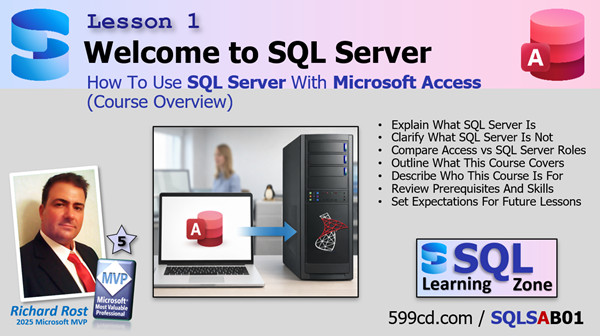
The most important thing to understand right from the start is this: SQL Server is not a replacement for Microsoft Access. It’s an upgrade to what’s underneath it. You still build your forms, reports, queries, VBA code, and all the user interface stuff in Access. SQL Server simply becomes the place where your data lives... more securely, more efficiently, and with a whole lot less risk of someone doing something dumb and expensive.
So what is SQL Server?
SQL Server is a database engine. It runs quietly in the background as a Windows service. You don’t double-click it like an Access database file. You don’t “open” SQL Server the way you open an ACCDB. SQL Server just sits there like a well-trained guard dog, waiting for authorized applications to connect and ask for data.
And in our case, that application is Microsoft Access.
Think of Access as your front end: the stuff people see. The forms, buttons, reports, dashboards, search screens, and the things users click on when they’re pretending they “don’t do computers.” SQL Server is the back end: the vault where the data is stored, protected, and served up only when requested.
That alone is a major shift from how shared Access backends work.
With Access, the database is the file. If your backend is sitting in a shared folder, then every user must have read/write access to the file. And if they have access to the file, they can copy it. If they can copy it, they can open it. And if they can open it... they can see everything inside it. Tables, customer data, confidential notes, credit cards (please don’t), and yes, they can delete your stuff too.
I’ve literally had clients call me because a disgruntled employee deleted the backend database file and walked out with a copy of it on a thumb drive. Not because Access is “bad.” Because Access is file-based, and file-based systems have limitations. That’s just reality.
Now SQL Server changes that completely.
With SQL Server, users never touch the database file. In fact, most users couldn’t even find it if you offered them $100 and a map. Their Access front end sends requests to the SQL Server, and SQL Server decides what they’re allowed to see and do.
That’s where the big win happens: permissions.
You can allow a user to read certain tables but not others. You can allow updates but prevent deletes. You can hide entire sections of data. SQL Server enforces security at the server level, not the “hope nobody clicks the wrong thing” level. And if someone’s angry and wants to cause damage, they can’t just grab the database and walk away with it like they’re stealing snacks from a vending machine.
This matters even more when you’re dealing with sensitive data. Credit card numbers are the classic example. Medical information, personal identity data, financial records... these are things that should never be sitting in a shared Access backend file on a network drive. SQL Server supports encryption, auditing, controlled access, and real security. In some industries, it’s not even optional. It’s policy. It’s regulation. It’s the law. This isn’t paranoia. It’s responsible database design.
Now let’s talk about one of my favorite analogies for this.
A shared Microsoft Access backend is like a restaurant with a big open salad bar.
The food is just out there. Anybody can walk up. No one is checking plates. No one is monitoring what you’re allowed to take. And once you’re in the buffet area, you can touch everything. We’ve all seen it: little kids sticking their grubby fingers in the croutons, people reaching over each other, and someone sneezes within six inches of the lettuce. It’s chaos. It’s uncontrolled access.
That’s basically a shared Access backend. If a user can open the file, they’re standing at the buffet. They can see everything, copy everything, delete everything, or take the whole tray and leave the building.
SQL Server, on the other hand, is fine dining.
You don’t walk into the kitchen. You don’t open the fridge. You sit at a table and you place an order with a waiter. The waiter checks the menu, confirms it’s available (not “86ed”), and sends the request to the kitchen. The kitchen prepares exactly what you’re allowed to have, and the waiter delivers it back to your table.
That’s SQL Server.
Users submit requests through Access. SQL Server checks permissions. SQL Server returns only what they’re allowed to have. The server stays in control the entire time. Where would you rather eat?
Now let’s squash another big misconception.
A lot of people hear “SQL Server” and assume you need a big corporate network, a domain controller, and an IT department. Nope. Not for what we’re doing here.
We’re using SQL Server Express, which is free. It installs right on Windows 11. You don’t need Windows Server. You can even install it on the same machine you’re using to build your Access databases. And it works great in small offices running a basic peer-to-peer network.
You can absolutely run SQL Server locally in-house and still get the biggest benefits: security, performance, and scalability. No cloud required.
Now yes, there are hosted versions of SQL Server. Microsoft calls theirs Azure, which is basically SQL Server living on Microsoft’s servers. There are also third-party hosting companies like Winhost (the provider I recommend and personally use) that offer hosted SQL Server as well. Those are great when you need outside access or don’t want to manage any hardware yourself.
But the key point is: the cloud is optional. SQL Server itself is the upgrade, and you can deploy it however you want.
Next big benefit: performance.
Let’s say you have a million orders in your Orders table and you want to find ten of them. With a shared Access backend, Access often pulls large chunks of data across the network to your PC, then processes it locally. That means a lot of network traffic, a lot of waiting, and a lot of unnecessary “work” happening on every user machine.
SQL Server flips that around.
With SQL Server, the server processes the query right where the data lives, then sends back only the rows you need. Not the whole table. Not 200,000 records to sift through. Just the ten results. Less network traffic. Faster performance. Happier users. Less coffee consumed while staring at a frozen form.
This is one of the main reasons Access databases feel fast when the data is local, but slow when the backend is shared over the network. It’s not always the number of users. It’s the architecture. With SQL Server, you stop dragging data across the network just to do work on it.
Or as I like to say: don’t drag the data to the work... bring the work to the data.
And this leads into scalability.
People often think SQL Server only becomes worthwhile when you have dozens of users. I disagree. Even with three, four, or five employees, security starts to matter. Risk starts to matter. And performance becomes noticeable quickly as your data grows.
But once you start scaling up, the difference becomes huge.
With a shared Access backend, the more users you add, the more network traffic you create, and the more processing happens on each PC. Things slow down. Corruption becomes more likely. Somebody starts complaining, “It was working fine last year!” (Yes, because last year you had 8,000 records. Now you have 800,000.)
With SQL Server, the architecture doesn’t change when you grow. Five users, fifty users, five hundred users. It’s still Access front ends sending requests to SQL Server. SQL Server is designed for this. It is literally its job. I’ve personally built systems with 150-200 users all running Access front ends connected to SQL Server, and they ran just fine.
And if you ever need to go bigger, SQL Server can scale to thousands or tens of thousands of users. The important part is: you don’t have to start at that level. SQL Server lets your database grow at the same pace as your business, without hitting a hard wall where everything breaks.
So what are we going to build in this course?
We’re keeping it simple and practical.
First, we’ll install SQL Server Express and SQL Server Management Studio (SSMS). SSMS is the tool you use to manage SQL Server, create tables, create views, manage security, and run queries. Both SQL Server Express and SSMS are free downloads from Microsoft.
Then we’ll create a simple table so you can see how SQL Server compares to Access tables. We’ll build a query and save it as a view (that’s basically SQL Server’s version of a saved query). We’ll talk about differences between Access SQL and SQL Server SQL (which is called T-SQL, because yes, tech people love abbreviations).
And finally, we’ll connect an Access database to SQL Server so you can see the whole pipeline working end-to-end: Access forms and queries using data stored in SQL Server.
This course is primarily designed for Access users, so I’m assuming you already understand the basics: tables, queries, relationships, primary keys, and how Access applications are put together.
If you’re brand new to Access, I strongly recommend starting with my Access Beginner courses first. I’ve got a completely free Access Beginner Level 1 course that’s about four hours long and covers the fundamentals. SQL Server will make a lot more sense once you’ve got that foundation.
Also, I strongly recommend you understand proper table design, normalization, and relationships. SQL Server is much less forgiving than Access when your design is sloppy. If you’re still storing multiple values in one field or building “one table to rule them all,” SQL Server is going to smack you upside the head. (Not literally... it’s passive-aggressive like that.)
A working knowledge of SQL is also recommended. You don’t need to be an SQL wizard, but you should be comfortable writing basic SELECT queries, using WHERE clauses, ORDER BY, joins, and understanding how queries drive forms and reports.
If your SQL skills feel rusty, I also have a three-part SQL seminar series that focuses on SQL in Microsoft Access. It’s optional, but it can help a lot before you step into the SQL Server world.
And no, you don’t need to be a VBA developer to benefit from SQL Server. You can absolutely use SQL Server as a backend with linked tables and Access queries without writing code. But if you do like VBA, the developer series of this course will cover advanced techniques like connecting without linked tables, executing SQL Server logic from VBA, stored procedures, and building more secure and flexible systems.
Now for the big takeaway, because I want you to really tattoo this on your brain:
You do not stop being an Access developer when you start using SQL Server.
You become a better Access developer.
Same tools. Same front end. Same skills. But now your application has a stronger foundation underneath it: better security, better performance, and the ability to grow without collapsing under its own weight.
If you understand Access, you already understand most of what you need. SQL Server builds on the same concepts, just in a more controlled and professional environment.
So don’t think of this as “leaving Access behind.” Think of it as leveling up what you already know.
And with that big-picture overview out of the way, in the next lesson we’ll stop talking about SQL Server and actually install it: SQL Server Express and SQL Server Management Studio. You’re going to see it’s not scary at all.
If you want the full walk-through, examples, and on-screen setup, watch the embedded video above. But you should now understand what SQL Server is, why Access users use it, and why it’s such a powerful next step.
Live long and prosper,
RR

No comments:
Post a Comment