Computer tutorials, tips, and tricks to help you learn Microsoft Excel, Access, Word, and lots more. Visit our full site at www.ComputerLearningZone.com.
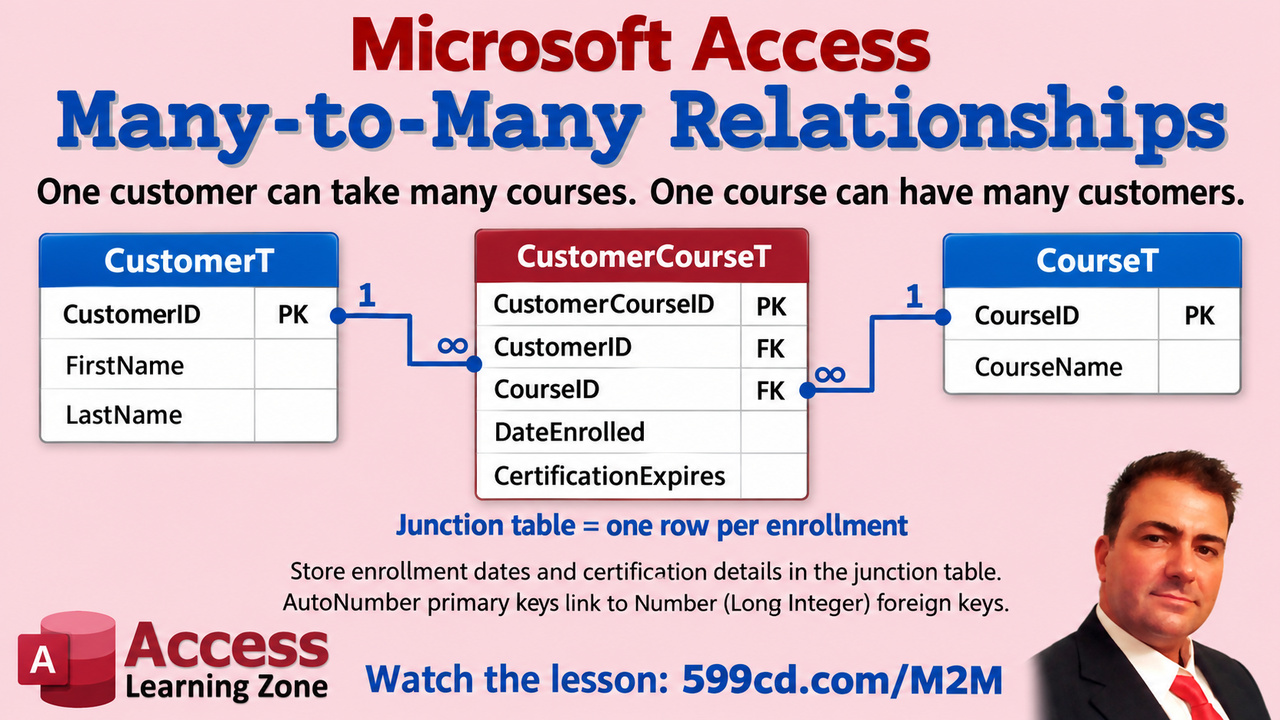
One customer can take several courses, and each course can have several customers. That's where a junction table comes in. Give each customer-course pairing its own row, and store the enrollment and certification dates that belong to that pairing there. Watch my Many-to-Many video to see how two one-to-many relationships connect the whole thing in Access.
Most Access databases start out with a handful of saved queries, which is perfectly fine until users start asking for slightly different versions of the same list. One person wants customer names and email addresses. Another wants names and phone numbers. Before long, you have CustomerQ1, CustomerQ2, CustomerQ_Final, CustomerQ_Final2, and probably one called "UseThisOne." There is a better way.
With a QueryDef, VBA can create a query definition for you and save it right in the current Access database. Your code can decide which fields, criteria, sorting, joins, and other SQL pieces belong in the query. Access saves the resulting query object just as if you had built it manually in Query Design View.
A QueryDef is simply an Access object that represents a query definition. The important word there is definition. It stores the instructions for retrieving data, usually in SQL. It does not make a second copy of the records in your table.
Think of it as a recipe card. Your Customer table contains the actual ingredients. A saved query contains the recipe that tells Access which ingredients to retrieve, how to filter them, and how to display them. If somebody adds a new customer tomorrow, the saved query can return that customer because it is still reading the current data from the table.
When you create a query manually and save it in Access, you are creating a QueryDef behind the scenes. VBA gives you the ability to do the same thing programmatically. You can create a new query, modify an existing one, delete one you no longer need, or create a temporary query that exists only while your code is running.
The basic idea is wonderfully simple. You declare a variable as a DAO QueryDef, then use CurrentDb.CreateQueryDef to create it. That method needs two important things: a name for the saved query and the SQL statement you want Access to store in it.
For example, you might create a saved query named CustomerQ that selects CustomerID, FirstName, and LastName from your CustomerT table. The SQL can include a WHERE clause, an ORDER BY clause, calculated fields, joins, aliases, or whatever else the situation calls for. The full code walkthrough is in the embedded video, but the key point is that Access receives a query name and a SQL statement, then saves that definition as a query object.
If the QueryDef has a name, such as CustomerQ, it is saved in the database and eventually appears in the Navigation Pane. You may need to refresh the Navigation Pane before you see it. Clicking in the pane and pressing F5 is often enough. Once it appears, you can open it, inspect it in SQL View, or modify it in Query Design View like any other saved Access query.
There is one little gotcha: the query name must not already exist. If you try to create CustomerQ when CustomerQ is already in the database, Access will complain. It is not fond of duplicate object names, much like I am not fond of duplicate credit card charges.
For a one-time generated query, using a unique name may be enough. But if your application repeatedly generates the same type of query, you will usually want code that checks for the old query and deletes or replaces it before creating the new one. That keeps your Navigation Pane from turning into a junk drawer full of abandoned generated queries.
So why not just create the query manually? If the query will always have the same fields, conditions, and sorting, then by all means create it manually. There is nothing wrong with that. Not every Access problem needs VBA strapped to it.
The real value of QueryDefs appears when the structure of the query needs to change. Suppose one department needs FirstName, LastName, and EmailAddress. Another needs FirstName, LastName, and PhoneNumber. Those are not merely different search values. They are different SELECT lists.
VBA can build the SQL based on the user's choices. Your form might let users choose which fields they want to see, and the code can assemble the appropriate SELECT clause. One generated query may include email addresses, another may include phone numbers, and another may combine fields into a single display value using an SQL alias.
This is different from a parameter query. A parameter query is excellent when the query structure remains the same but the values change. For example, a query might ask for a customer ID, a start date, an end date, or a state. The SQL itself stays basically the same, and Access receives different values each time the query runs.
Parameters are for values. Query-building code is for definitions. You generally cannot safely pass a field name such as EmailAddress or PhoneNumber as a normal parameter and expect Access to treat it as part of the SQL structure. If the field list, table list, joins, sort order, or optional WHERE clauses need to change, then VBA needs to build the SQL statement itself.
Of course, the two techniques can work together. You can build a QueryDef whose structure is selected by your code and still use parameters for user-entered search values. That is often a cleaner approach than concatenating every date, ID, and text value directly into a SQL string.
A named QueryDef is useful when you want a query object that users can open later, use as the Record Source for a form or report, export, or inspect in the Navigation Pane. An unnamed QueryDef, created with an empty name, is temporary and exists only in memory. Those are handy when you need to run SQL from VBA without cluttering the database with another saved query object.
The big takeaway is simple: a QueryDef lets Access save SQL that your VBA code creates. The data remains safely in the underlying tables. The saved query is just the reusable set of instructions Access follows to retrieve that data.
Once you understand that distinction, dynamic query building becomes much less mysterious. You can create customer lists tailored to different users, build optional filters, generate export queries, create report sources, and avoid maintaining dozens of nearly identical saved queries by hand.
Watch the embedded video for the full demonstration of creating a saved QueryDef, refreshing the Navigation Pane, and opening the resulting query in Access.
Automation is supposed to remove little chores from your day. If it creates a new chore that needs checking, fixing, reconnecting, signing in, and occasionally persuading to work, then it is not really automation anymore. It is a needy employee who never stops asking questions.
I spent about eight months trying to make Tiller fit into my Microsoft Access account balance workflow. The idea was appealing: connect my financial accounts, have current transactions and balances arrive in a spreadsheet, and import that data into Access. The Access part worked fine. The problem was everything required to get reliable, current data into the spreadsheet in the first place.
My Account Balances Database is something I use because I like to know where things stand financially. I check balances, pending activity, recent transactions, and upcoming bills almost every day. Most of my activity happens across just a few main accounts, although I have several other cards and accounts that need occasional attention.
That daily check normally takes maybe 15 to 20 minutes. I was not looking for some giant financial-management platform to replace everything I do. I simply wanted to shave a few minutes off that routine. If a service could reliably collect the current data for me, I would happily pay for it.
Tiller looked like a reasonable candidate. It can bring data from supported banks, credit cards, and investment accounts into Excel or Google Sheets. From there, importing transaction rows into Access is easy enough. Excel makes a perfectly reasonable staging area, and Access can append, update, query, and report on that information without much drama.
Initially, I set up an Excel-based process and connected it to my Access database. I even built an Open Tiller Sheet button in Access to launch Excel and open the appropriate workbook. At first, I thought I might eventually turn the whole thing into a tutorial.
But there is an important difference between a process that works once and a process that works reliably every day. Anyone can build an import. The real question is whether you can press one button, walk away, and trust the result.
Tiller's Excel add-in does not provide a general-purpose automation interface that I could use from Access. So I experimented with the usual collection of workarounds: Excel automation, macros, and yes, some SendKeys. I even added a little OCR capability because sometimes the only way to know what an add-in is doing is to look at the screen it put up and react to it.
That may sound clever, and it can be useful for small personal projects. But it is also a warning sign. Screen-driven automation is fragile by nature. A dialog box appears in a different place, a sign-in window takes focus, an add-in loads slowly, or a prompt changes slightly, and suddenly your "one-button automation" has become a troubleshooting session.
That was the main issue for me. Sometimes the add-in did not load correctly. Sometimes it wanted another sign-in. Mondays were particularly annoying after the workbook had been closed over the weekend. I would expect a quick refresh and instead find myself dealing with a Google authentication prompt.
Tiller documents that you may need to sign in again after a workbook has been closed for a while. Fair enough, and I understand why authentication tokens expire. Financial data should not be casually available forever. But a behavior can be understandable and still be a poor fit for a particular workflow.
Then there were account reconnections. I had roughly 13 accounts connected, and in a typical week two or three of them needed attention. That meant opening the connection, signing in at the financial institution, answering security questions, waiting for redirects, handling an SMS code, perhaps doing Google authentication again, and then hoping the connection actually completed.
None of that is necessarily Tiller's fault alone. Financial institutions have security rules, data aggregators have limitations, and multi-factor authentication exists for good reasons. I am not suggesting that any company should weaken security just so I can save a few clicks.
However, from the customer's side of the desk, the result is what matters. I paid for a service to reduce manual work. Reconnecting accounts several times a week was more manual work, not less.
The bigger problem was stale data. I could look directly at a financial institution's website and see that a card balance had been paid off, while Tiller still showed the old balance days later. In a few cases, information appeared to be four or five days behind.
For someone doing monthly budgeting or occasional reporting, that may be acceptable. For my use, it was not. If I am checking my accounts daily, I need to know whether the balance I imported into Access is actually current. If I have to visit the bank's website anyway to verify it, then much of the value of the aggregation service has disappeared.
This is an important point whenever you build automation around external data: reliable delivery matters just as much as the import process. It does not matter how cleanly you import data into Access if you cannot trust that the source data is fresh.
I still download official statements directly from my financial institutions for year-end accounting and tax preparation. Tiller was never intended to replace that. Its job was supposed to be much simpler: make my routine daily balance and transaction checks faster.
What I would really prefer is a supported API. Ideally, my database could securely request the information it needs directly, receive structured data, validate it, and update the relevant Access tables. No spreadsheet window, no add-in interface, no simulated keystrokes, no OCR, and no hoping that a sign-in dialog does not appear halfway through the job.
As of the time I tested it, Tiller did not offer a general-purpose public API for pulling its data into your own tools. It does support Google Sheets, including direct fills that can update a sheet automatically, and that may be a better workflow for some people. If you live in Google Sheets already, it could make perfect sense.
But I did not want to create yet another bridge between systems just to get data into Access. Could I build something that pulls from Google Sheets, stages the data somewhere, and then imports it into Access? Sure. I could probably spend a weekend building it. The question is whether I should have to.
That is the lesson here: do not judge an automation product only by its feature list. Look at how it behaves in your actual routine. How often does it need human intervention? How current is the data? What happens after you have not used it for a few days? How much time do you spend maintaining the automation instead of benefiting from it?
A discount offer at cancellation did not change the equation for me. I would gladly pay more for something that reliably delivered current data with minimal attention. The issue was never the subscription price by itself. The issue was that the system was costing me time.
For now, I have found it less frustrating to visit the financial pages I was already checking once or twice a week and use a little lightweight automation to capture the relevant text. Since every institution presents its information differently, I can use AI to help format that captured information into a consistent structure for Access. It is not a perfect universal solution, but it fits my habits better than maintaining a separate aggregation system.
If you are considering Tiller, that does not mean you should avoid it. It may be a perfectly good fit if you primarily work in spreadsheets, do not need daily real-time balances, and do not mind occasionally reconnecting an account. It just was not the dependable, hands-off data feed I needed for my Access workflow.
The embedded video goes into more detail about the experience and the automation experiments I tried. And if you want to see how my Account Balances Database works, I have a free multi-part TechHelp series that walks through the project.
Automation should save you time, not give you another system to babysit.
Time for a quick Microsoft Access forms quiz. These are beginner-level questions, but they cover some of the little details that can make form design either smooth and painless or oddly frustrating. Grab a piece of paper if you want to keep score, and try to answer each question before checking the answer.
The questions below cover form record sources, bound controls, attached labels, resizing the Detail section, and one very common misconception about changing a text box's colors. The T-Rex is staying behind the fence. Hopefully.
Question 1: Which form property tells Access which table or query supplies its records?
A. Record Source B. Record Source C. Caption D. Default View
The answer is Record Source. A form's Record Source is where Access gets the records displayed on that form. It can point to a table, a saved query, or even an SQL statement in more advanced situations. The Caption merely changes the text shown in the form's title bar, and Default View controls how the form is displayed.
Question 2: You drag a Short Text field from Add Existing Fields onto a blank form in Design View. What normally appears?
A. A new table and a query B. A label containing every record C. An unbound text box only D. A bound text box and an attached label
The answer is D, a bound text box and an attached label. Access creates a text box that is bound to the field you dragged onto the form, plus a label that displays a friendly caption for that control. The text box shows and edits data from the underlying record. The label is just the descriptive text sitting next to it.
Question 3: You want to remove an attached label but keep its text box on the form. What should you delete?
A. Only the label B. Only the text box C. The field in the table D. Both controls, then save the form
The answer is A, only the label. The label and text box may be attached to one another for moving and positioning purposes, but they are still separate controls. Select the label itself and delete it. Do not delete the text box unless you also want to remove the control that displays and edits the field's data. And definitely do not delete the field from the table just because you do not like the label. That would be using a chainsaw to open an envelope.
Question 4: A form has a large unused area below its controls. How can you reduce that space in Design View?
A. Make every text box taller B. Delete records from the table C. Drag the bottom edge of the Detail section upward D. Change the form's Record Source
The answer is C, drag the bottom edge of the Detail section upward. In Design View, the Detail section has a lower boundary that you can drag upward to eliminate unused space. This is a simple cleanup step, but it makes forms look much more intentional. Nobody needs a form with three controls at the top and a football field of blank space underneath.
Question 5: You change an editable text box's background to gray. What does that change do by itself?
A. Prevents users from typing in it B. Changes its appearance but does not prevent editing C. Changes its field to AutoNumber D. Removes it from the tab order
The answer is B, it changes the appearance but does not prevent editing. Changing the Back Color property is cosmetic. A gray text box can still be editable unless you change other properties, such as Locked or Enabled, or otherwise control editing through the form's settings. Color can suggest that something is read-only, but Access does not enforce that suggestion automatically.
How did you do? A perfect 5 out of 5 means you are well on your way to saving the park and all of its customer data. Missed a couple? No worries. These are exactly the kinds of form basics that become second nature once you spend a little time building real forms.
If you want to see these concepts in context, watch the embedded video. The related Access Beginner Level 1 lesson covers more about building and cleaning up a customer form.
Security is important. Fraud prevention is important. Protecting customer data is absolutely important. But there is a point where security stops protecting your business and starts actively preventing people from doing business with you. If a legitimate customer can't complete an ordinary purchase, your system may be very secure, but it is also failing at its basic job.
I ran into this while trying to buy tickets for a Rush tribute band. I had two excellent front-row seats in my cart, a valid credit card, and every intention of giving this venue my money. I had bought tickets from them before. I had supported the place for years. Yet their checkout system decided that apparently I was too dangerous to sell concert tickets to.
The checkout page claimed that my billing information did not match my credit card statement. So I did what any reasonable person would do: I checked the address, checked the ZIP code, checked the card number, tried again, and got the same error.
Then I tried other cards. Mastercard, Visa, American Express, Discover. Different browser. Different computer. Phone. At some point, I was no longer purchasing tickets. I was performing unpaid quality assurance testing for their website.
To their credit, support responded quickly. The explanation was that the billing information had to match the card statement exactly. Not just the house number and street name. Apparently even something as minor as "Terrace" versus "Ter" could matter. On some cards my name appears as Richard Rost, while on others it is Richard D. Rost. Those little differences can trigger address-verification and fraud systems.
Fine. That is not entirely unreasonable. Card processors use address verification systems, and exact matches can help catch fraudulent transactions. The problem was that I followed the instructions, matched the information as closely as possible, even used the ZIP+4, and the transaction still would not go through.
What made it worse was that the system could obtain authorizations from my bank. An authorization is not necessarily a completed charge, but it can still temporarily tie up funds or appear as a pending transaction. So now I had multiple authorizations on several cards, no tickets, and a bunch of extra stuff to keep an eye on.
The eventual answer from the venue was, "Call the box office."
Now, I understand that sometimes a human needs to step in. But the whole reason I was using the website was because I wanted to buy tickets online, quickly, without sitting on hold or having to explain that, yes, I really do live at the address shown on my credit card. By the time I got around to dealing with it, those front-row seats were gone.
That is the real lesson here: security controls have to fit the risk, but they also have to leave legitimate users with a practical path forward. A system that blocks everything is easy to secure. It is also easy to make useless.
This applies far beyond ticket sales and online shopping. It applies to websites, customer portals, Access databases, internal business software, and anything else people have to use to get work done.
Think about the systems you have used where every action produces another warning. Delete a record? "Are you sure?" Click Yes. "Are you really sure?" Click Yes again. "This action cannot be undone." Yes, yes, yes. Eventually users stop reading. They do not become more careful. They simply learn where the Yes button is.
And that is not good security. If people automatically click through every warning because there are too many warnings, the important warning gets ignored right along with the pointless ones.
In an Access database, for example, you may be tempted to lock everything down because you are worried someone will accidentally delete or alter important data. That concern is valid. But rather than forcing users through five confirmation prompts, consider whether the mistake can be made easier to recover from.
Could you archive records instead of permanently deleting them? Could you use a status field such as Active, Inactive, Cancelled, or Archived? Could you provide a restore option for an accidental deletion? Could you allow someone to correct a spelling error without giving them unrestricted access to rewrite the entire database?
Those are usually better questions than, "How can I make this impossible for anyone to touch?" Sometimes you do need strong restrictions. Sensitive financial information, payroll data, medical records, permissions, and irreversible actions deserve serious safeguards. But an ordinary typo in a customer address should not require a meeting with the database administrator, three forms of identification, and a blood sample.
Good security gives users clear feedback. If an order fails, tell them why in language they can understand. If the address does not match, tell them which part appears to be the problem. If the system cannot verify a transaction, provide a useful next step that actually has a chance of resolving it.
Do not make users guess. Do not send them in circles. And do not make them repeat the same failed attempt over and over while your website quietly creates pending authorizations on every card they own.
It is also worth testing your system from the customer's perspective. Try a normal purchase. Try entering an apartment number. Try a street abbreviation. Try a middle initial. Try a recently moved customer whose billing address may not look exactly like the formatting in your database. Try an ordinary user fixing an ordinary error in your software.
Security rules often look perfectly sensible when you are staring at a settings screen. They can look much less sensible when they prevent a long-time customer from buying the thing they came to buy before it sells out.
Fraud prevention should protect your customers and your business, not punish the people who are trying to give you money. Make your safeguards appropriate, make failures understandable, and make recovery possible. Otherwise, your perfectly secure system may end up securing you right out of a sale.
As for the Rush tribute show, I never did get those seats. But there was a happy ending: next month I will be seeing the actual Rush in Tampa on their 50-something tour. That is a pretty decent upgrade.
You can watch the embedded video for the full story and a few more thoughts on balancing security with usability. The same principle applies whether you are building an e-commerce site, an Access database, or any other system people need to use without fighting it every step of the way.
The Microsoft Access Expression Builder can look pretty intimidating the first time you open it. There are lists of objects, categories, functions, operators, and mysterious symbols everywhere. The good news is that you do not need to memorize all of it. The Expression Builder is simply a tool to help you assemble expressions when you need Access to calculate something, compare values, filter records, or pull information from an open form.
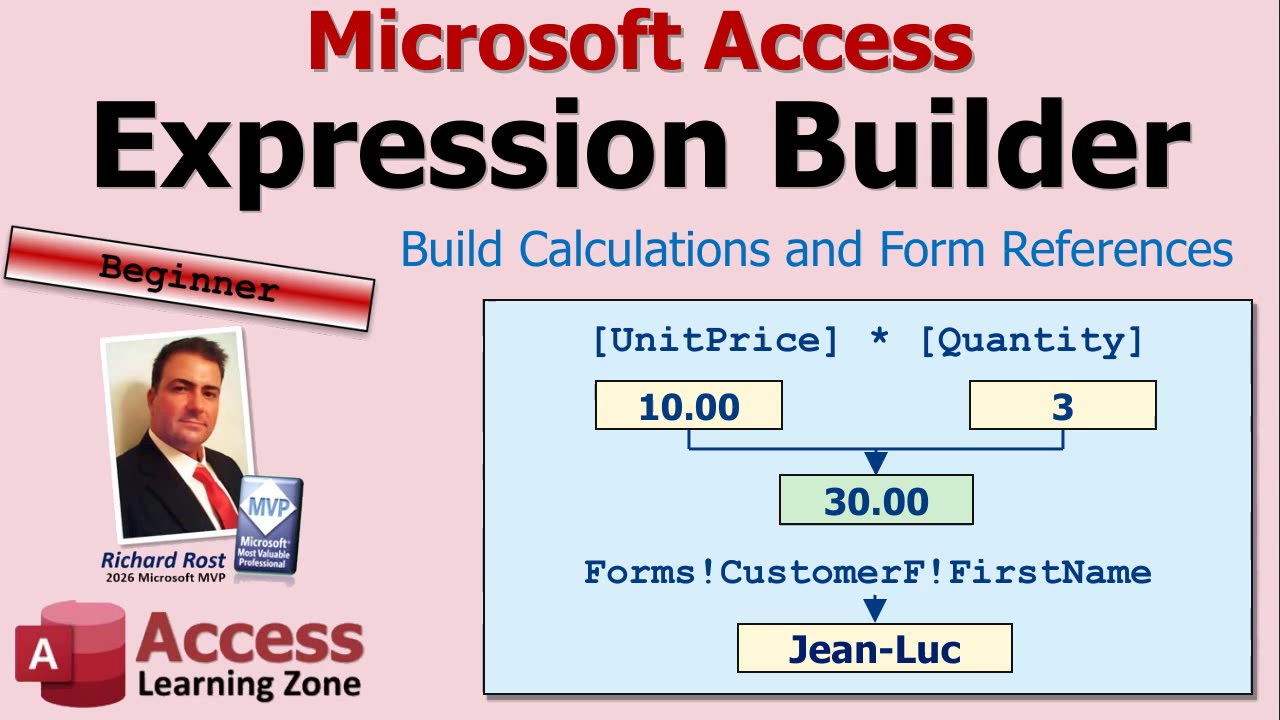
An expression is anything Access can evaluate to produce an answer. That answer might be a number, text, a date, True or False, or sometimes no value at all. For example, multiplying Quantity by Unit Price to get a line total is an expression. Combining FirstName and LastName is an expression. Comparing a due date to today's date is an expression. Access does the work, but you have to tell it what you want.
If you have been working with Access for a while, you may find it quicker to type expressions directly. I usually do. But the Expression Builder is extremely useful when you are learning, when you cannot remember the name of a function, or when you need to reference a control on a form and cannot remember what you named it three years ago. Which, of course, never happens to any of us.
You will usually open the Expression Builder from the place where you are entering an expression. In Query Design View, click in a Field row or Criteria row, right-click, and select Build. Depending on your version of Access, you may also have a Builder command available on the ribbon.
On forms and reports, certain properties can accept expressions. The most common example is the Control Source property for a text box. Those properties often have a small button with three dots beside them. Clicking that button may open the Expression Builder, although be careful: Access has several different builders, so not every three-dot button opens the one you want.
You can also use Ctrl+F2 in many supported locations. Make sure it is Ctrl+F2, not Shift+F2. Shift+F2 opens the Zoom box, which is useful in its own right, but it is not the Expression Builder.
Once the Builder opens, the expression itself appears at the top. That is where you can type, edit, and insert the pieces of your expression. If you only see a small window at first, click More to expand it and reveal the lists underneath.
The bottom portion of the window is divided into three lists: Expression Elements, Expression Categories, and Expression Values. Think of these as a filtering system. You choose a broad category on the left, narrow it down in the middle, and then pick the specific item you want on the right.
For example, if you are looking for a function, expand Functions, choose Built-In Functions, select a category such as Date/Time, Financial, or Math, and then choose the function you need. Access will insert it into your expression and often show helpful information about its arguments.
You can also browse the objects in your database. Tables, queries, forms, reports, and other database objects are available from the list. This is especially handy when you need to refer to a field or a control but do not remember its exact name.
Let's start with a simple calculated field in a query. Suppose your order detail records include a Quantity field and a Unit Price field. You want another column that calculates the total for each line item. If a customer orders three items at $10 each, the answer should be $30. If they order two items at $7.50 each, the answer should be $15.
In Query Design View, click in an empty Field cell, right-click, and choose Build. In the Expression Builder, you can double-click the Quantity field and then the Unit Price field. Access will place both field references in the expression box. You still need to tell Access what to do with them, of course. Two field names sitting next to each other do not mean anything useful.
For a line total, use the multiplication operator, the asterisk. The basic expression is:
[Quantity] * [Unit Price]
When you click OK, Access puts the expression into the query design grid. It may initially name the field something like Expr1. That works, but it is not very descriptive. Give the calculated field a useful alias, such as:
Line Total: [Quantity] * [Unit Price]
You could call it Extended Price instead if that is the terminology you use. The name is up to you. The important part is that Access now calculates a separate total for every record returned by the query.
Always run the query and check a few results by hand. Expressions can be perfectly valid from Access's point of view while still giving you the wrong answer because you asked the wrong question. Computers are funny that way. They are very obedient, even when obedience is a terrible idea.
The Expression Builder is also very useful when building criteria based on an open form. Suppose you have a Customer form open and a query that normally shows all customer orders. You may want the query to show only the orders for the customer currently displayed on that form.
In the query design grid, place your cursor in the Criteria row beneath CustomerID, then open the Expression Builder. Browse through your database objects to Forms, then choose Loaded Forms. Loaded Forms means forms that are currently open. Select your Customer form, then find the control that contains the customer ID.
Access builds the proper reference for you, which will look something like:
Forms!CustomerF!CustomerID
The exclamation points are often called "bangs" in Access and VBA circles. The first part identifies the Forms collection, the second part is the form name, and the last part is the control name. You do not need to type all of that by hand if you let the Builder insert it for you.
Once that reference is placed in the CustomerID criteria row, the query can compare each record's CustomerID to the CustomerID on the open form. Run the query while viewing Customer 1 and you see Customer 1's orders. Navigate to a different customer, run the same saved query again, and now you see that customer's orders. No typing an ID number into the query every time.
This is one of the biggest reasons beginners should get comfortable with the Expression Builder. It helps you avoid tiny spelling mistakes in form names and control names, and tiny spelling mistakes are more than enough to make Access throw a fit.
Expressions can be used in lots of places throughout Access. You can create calculated query fields, specify criteria, set control sources on forms and reports, create validation rules, set default values, and build conditional formatting expressions. You can join text together, calculate dates, test values, return messages, and much more.
A few basic rules are worth keeping in mind. Square brackets identify field names and control names, particularly if the names contain spaces. Text values need quotation marks, such as "Paid". Functions use parentheses, such as Date() for today's date. Operators such as +, -, *, /, =, and & tell Access what action to perform.
You do not need to master every function and every punctuation rule today. Start with small expressions where you can easily verify the result. A simple line total is a great place to begin. Then move on to form references, date functions, concatenated names, and conditional expressions such as IIf when you are ready.
The Expression Builder is not something you have to use forever. As you gain experience, you will probably type many expressions directly. But it remains a handy reference tool, especially when you need to browse available functions or find the exact name of a form control without digging through every object in your database.
Watch the embedded video for a full walkthrough of the Expression Builder, including the query calculation and open-form criteria examples. Once you start recognizing where expressions can be used, you will find them all over Access.
Think you have your Access VBA and SQL INSERT statements under control? Good. Now let's see if your code survives a few very common traps: inserting records without overwriting old ones, using the correct destination fields, handling Null values, and making sure your field order does not quietly scramble your data. Mars colony records are optional. Bad data is not.
This is a developer-level Access quiz with five questions. Give yourself a few seconds to answer each one before reading the explanation. If you want the full quiz experience, watch the embedded video and pause it before each answer.
Question 1: Your VBA button needs to add one new log record to a table without changing any existing records. Which type of SQL statement should you send to DoCmd.RunSQL?
The correct answer is INSERT INTO ... VALUES. An INSERT query adds a brand-new row to a table. An UPDATE query changes data in rows that already exist, which is definitely not what you want if the job is simply to add another record. SELECT queries retrieve or create data based on a query, but they are not the normal choice for adding one record from a form button.
Question 2: Suppose your INSERT statement includes a field named Commission, but the destination table does not actually have a field by that name. The form may have a text box named Commission, but that does not help the table. What fixes the problem?
The answer is to add the expected Commission field to the destination table, assuming Commission is data you really intend to store. The field list in an INSERT statement refers to fields in the table, not controls on your form. Access does not care that you have a nicely labeled text box on screen if there is nowhere in the table to put its value. Your form controls and table fields often have similar names, but they are not the same thing.
Question 3: Long SQL strings are often split across multiple VBA lines. You will usually see an ampersand followed by a space and underscore. What are those characters doing?
The ampersand concatenates, or joins, pieces of text together. The underscore is VBA's line-continuation character. It tells VBA, "I'm not done with this statement yet. Keep reading on the next line." This makes long SQL statements much easier to read and maintain. Without it, you end up with one giant ugly line of SQL that eventually wraps itself around the moon.
Question 4: An unbound text box can contain either a Null value or an empty string. If your validation code stops when IsNull(Me.Notes) is true, which reset value will make that guard work again on the next click?
The answer is Null, not an empty string. Setting the control to Me.Notes = Null gives it an actual Null value, so IsNull will return True later. Setting it to "" gives it a zero-length string instead. It may look blank on the screen either way, but VBA sees those as different values. This is one of those tiny details that can make validation seem broken when it is actually doing exactly what you told it to do.
Question 5: This is the field-order bug. EmployeeID starts with a value of 7 and Commission starts with a value of 50. The SQL statement is built using those values, and then EmployeeID is changed to 9 afterward. The INSERT statement's field list is ordered as Commission, EmployeeID, but the VALUES portion supplies EmployeeID first and Commission second. What gets inserted?
The result is Commission = 7 and EmployeeID = 50. SQL matches values to fields by position, not by the variable names you used while building the string. If your field list says (Commission, EmployeeID), then the first supplied value goes into Commission and the second goes into EmployeeID.
Also remember that changing EmployeeID after the SQL string has already been built does not change the SQL string retroactively. Once VBA has assembled that text, it is just text. The later value of 9 is irrelevant to the statement that was already created.
The safest habit is simple: when you write an INSERT statement, read the field list and the VALUES list side by side. Make sure each value is in the exact same position as its destination field. Your query can run perfectly without errors while putting the wrong information in the wrong columns, which is much worse than an error message. At least an error message has the decency to complain.
How did you do? If you missed one or two, no worries. These are exactly the kinds of details that separate SQL that merely runs from SQL that stores the right data. Watch the embedded video for the quiz walkthrough, and if you want more practice adding records with VBA and resetting forms for the next entry, check out the Microsoft Access Developer Level 2 material.