Ever tried to assign a single financial transaction to multiple categories, only to realize your database design simply can't handle it? If so, you're certainly not alone. This is one of those classic stumbling blocks in database design that nearly everyone faces at some point - especially if you're using Access for any real-world financial tracking. Let's dig into why this problem arises, why just adding more category fields isn't the answer, and how the right table design can save your sanity.
Imagine this: you've built your first check register table in Access. You've got a spot for the date, the description of the transaction, the amount… and a category field. Feels straightforward, right? Rent, office supplies, utilities - they each get a neat little category ID. But then reality comes knocking. Suddenly, you've got a utility bill that's partly personal, partly business, or a mortgage payment that covers principal, interest, taxes, and insurance all in one chunk. Now that single category field in your transaction table feels like it's fighting a losing battle.
Here's the rub: real transactions don't play by the one-category-per-record rule. Sure, if your needs are super basic, a single category field works. But in the real world (especially if you're tracking stuff for your business or if you want to categorize your expenses accurately for taxes), transactions often need to be split into multiple pieces, each assigned to a different category. Classic accounting software like QuickBooks handles this, but many homegrown Access databases hit a wall.
If you try to sidestep the problem by sprinkling your table with Category1, Category2, Category3 fields, you'll quickly run into a maintenance nightmare. Every time you need "just one more" split, you end up redesigning your table - and that gets old fast. Plus, reporting on this tangled mess is virtually impossible.
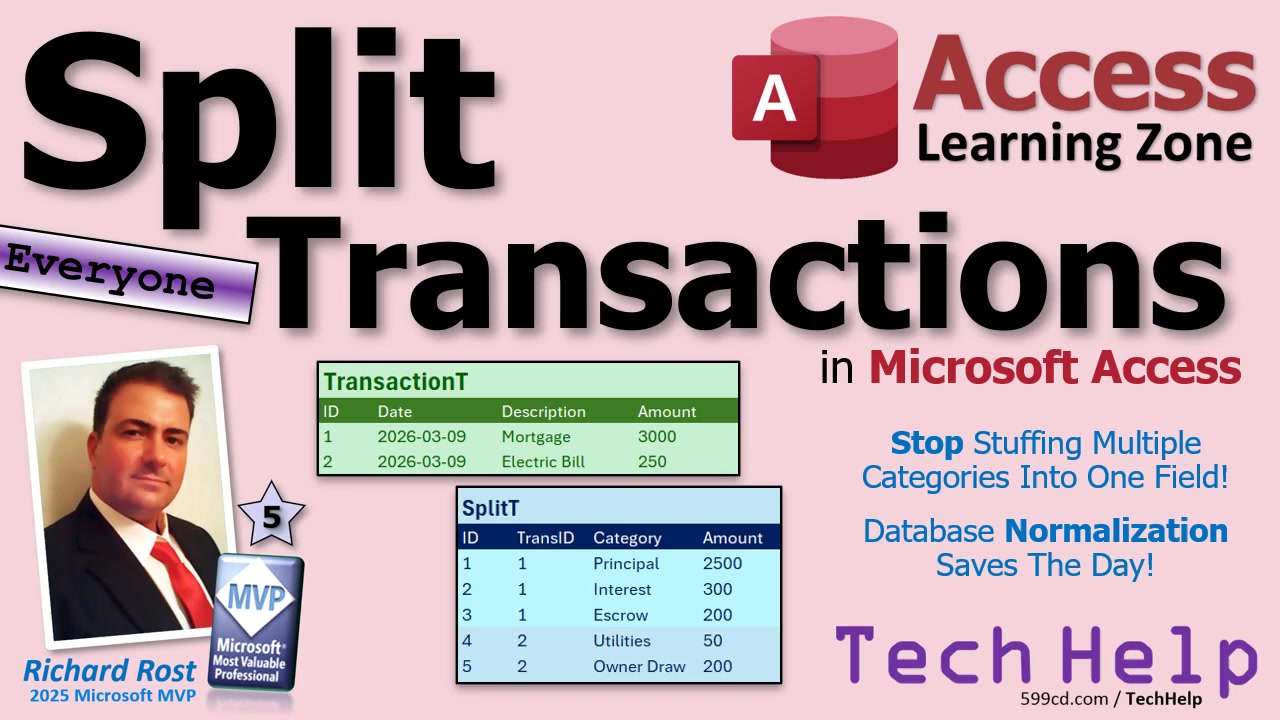
So what's the secret? It's all about using a split table. Think of your main transaction table as the place where every real-world payment or deposit is recorded: date, description, amount, all the basics. Then, behind the scenes, you set up a related splits table - kind of like the order details in a sales database. Each split record links back to its parent transaction and holds its own category and amount.
For example, a $3,000 mortgage payment in your transactions table can hook into multiple splits: one for principal, one for interest, a couple more for taxes and insurance. Each split gets a category and the piece of the payment that goes with it. Or maybe your electric bill needs to be divided so a percentage is allocated as a business expense and the rest is personal. It's the same deal - one payment, any number of splits, each with its own category. No more awkward extra fields, no more redesigns every time something changes.
All you need is a simple one-to-many relationship between your transactions and splits. The main transaction table holds the source information, and the splits table breaks down each transaction as needed. When you build your forms, you can even use a subform to show and edit the splits right on the transaction screen. Lock down editing if you want to keep things simple, and offer a pop-up "Edit Splits" button for power users who want to fine-tune where the money goes.
This design has an extra bonus: your reporting gets much easier. When it's tax time or you want to see exactly what you've spent on office supplies versus owner draws, your reports just run on the splits table. You get rock-solid, accurate breakdowns - no more guesswork or questionable "other" categories.
So, the big moral of the story: if you ever need a transaction to cross over into multiple categories, don't try to cram extra category fields into your transactions table. Use a split table instead. It's neater, scales beautifully, and unlocks way more reporting power - plus, you'll avoid that "I have to redesign my database again" headache every time your finances get a bit more complex.
If you want step-by-step help, check out my check register video series for how to get started, my relationships video for setting up those crucial links, and my subforms tutorial for building the form interface. For a deep dive into split transactions, with all the bells and whistles, take a look at my Access Developer Level 54 class. The details - including handling percentages and rollback features - are all in there.
Questions, ideas, or database disaster stories? Drop a comment! And as always, the video above is there if you want a full walkthrough of everything we've covered today.
Live long and prosper,
RR

No comments:
Post a Comment