If you've ever used the count function in a Microsoft Access query and scratched your head at some truly baffling numbers, you're definitely not alone. Getting an accurate count out of Access requires a little more than just tossing the word "count" into your query grid and hoping for magic. Let's break down the right way to use the count function and, most importantly, why aggregate queries are your secret weapon for making count behave itself.
Let's jump right in. If you wander into Access and try to count things by simply labeling a field as "count: something" in your query, you're just setting up what's known as an alias. That means you're basically renaming that column for the sake of your query's output, but you're not actually counting anything at all. No calculators are being fired up behind the scenes here - Access just lets you pretend to count while secretly doing nothing. If you've followed other tutorials that let you down this rabbit hole, it's time to see how it's supposed to work.
The key thing you need to understand is that the count function is what's called an aggregate function. That means it works over a group of records, not individual rows. So, simply renaming a column "count" won't cut it. You need to set up an aggregate query, sometimes called a totals query, to get Access to actually tally up your data. If you've never heard of aggregate queries - don't panic, most people searching for "how to count in Access" haven't either. That's why we're tackling it head-on here.
Let's get practical. Suppose you have a customer table and you want to count, say, how many times each first name appears. If you drag FirstName down into a query and just run it, you see all the first names. But if you try to type count: FirstName into the field row and expect it to count - nope! All you've done is create an alias. Instead, what you want is an aggregate query. To turn your query into one, click the Totals button (it looks like a sigma, or a squiggly sideways 'M') on the toolbar. This adds a "Total:" row beneath each field.
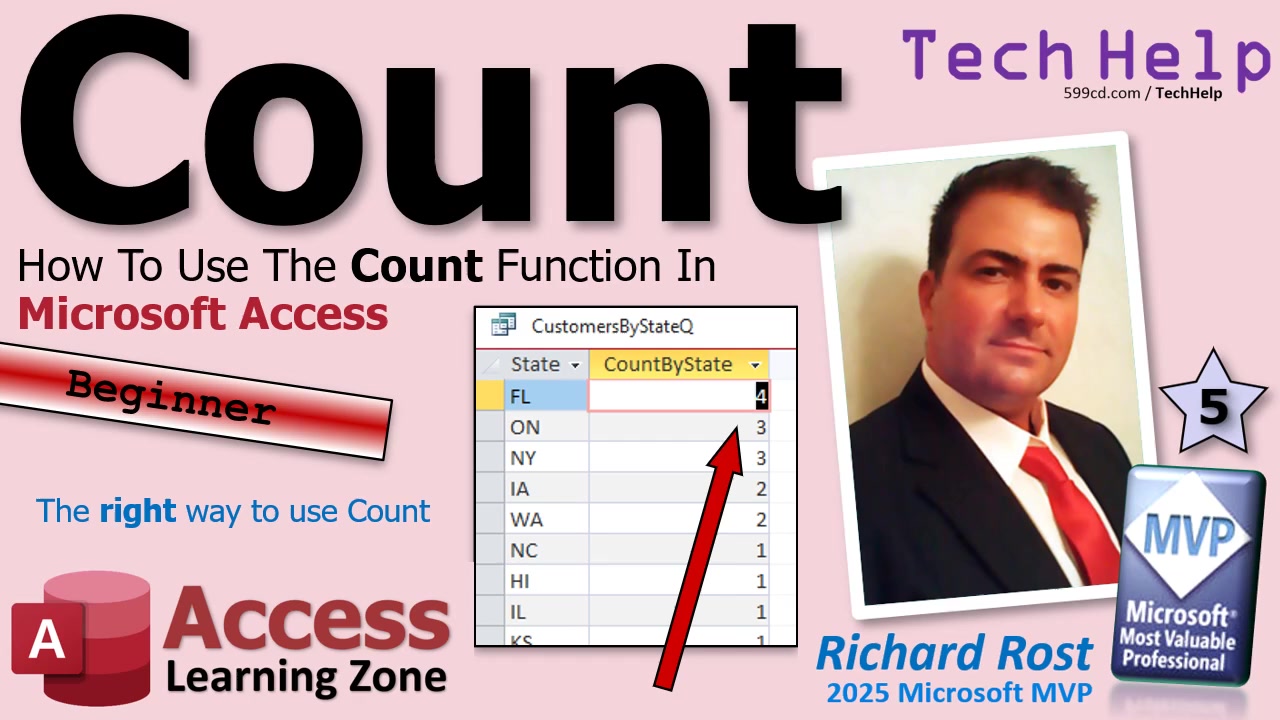
Now, next to your field in the Total row you'll see "Group By" by default - this means Access will group all identical values together. If you change the Total row from "Group By" to "Count" under a field like FirstName, Access will collapse identical values and count how many times each one appears. Suddenly, you'll see that Mr. appears three times (hello, Spock, Worf, and Data), while other names show once. If you use "state" instead and bring it down twice - once as "Group By," once as "Count" - you'll see how many customers are from each state. You can even sort this list to see your most popular states at the top.
If you want to count all records in a table, just use a field like CustomerID (which, as an AutoNumber, always contains data for each record). Change its Total row to Count, and Access gives you the total record count. If some fields are blank, like State, using Count on State shows you how many records actually have that info - missing values (nulls) are left out. This is a handy way to spot missing data.
Want to spruce up your results? Change the alias that Access gives your calculated column. Use Shift+F2 to zoom into a field property and rename the output to something more descriptive - like "Customers with states" - so your reports and forms look tidy and your users feel fancy.
But wait - there's more! Aggregate queries also work wonders with related tables. For example, bring in Customers and Orders, join them on CustomerID, and then set the query to group by CustomerID and count OrderID. Voila! You get a list of customers with the count of orders they've placed. You can now quickly spot your best customers (or at least the ones who shop a lot).
Now, here's a classic Access gotcha. If you set up this "count of orders" in your query as "C," and then try to add a calculated field (say, doubling that count with X = C * 2) within the same query, Access will throw up its hands and ask for a parameter value. That's because "C" hasn't been calculated yet when the query engine wants to multiply it. The proper fix: save your aggregate query and build a second query on top of it. In the second query, "C" is now available and you can build as many calculations on top as you want. This is a neat trick that solves about 90% of "Why won't Access let me do basic math?" headaches in aggregate queries.
If you want to really master aggregate queries - sum, average, max, min, and count - check out my other classes and videos for deeper dives. The main lesson today: count will only work correctly in an aggregate query. If you don't see that Totals row (the one with the squiggly sigma), you're not actually getting a count!
Hopefully you're now armed and ready to count just about anything you want in Access with confidence. If you want to see all the button clicks and design views in motion, check out the embedded video above for the full walk-through. Got more burning Access questions? Post a comment - I love a good database mystery!
Live long and prosper,
RR

No comments:
Post a Comment