Ever open a folder only to find it jam-packed with tens of thousands of invoice PDFs, all jumbled together in one big digital haystack? If that sounds familiar, it's time to let Microsoft Access do the heavy lifting and organize those files for you automatically. No more scrolling endlessly or trying your luck with search - there's a better way!
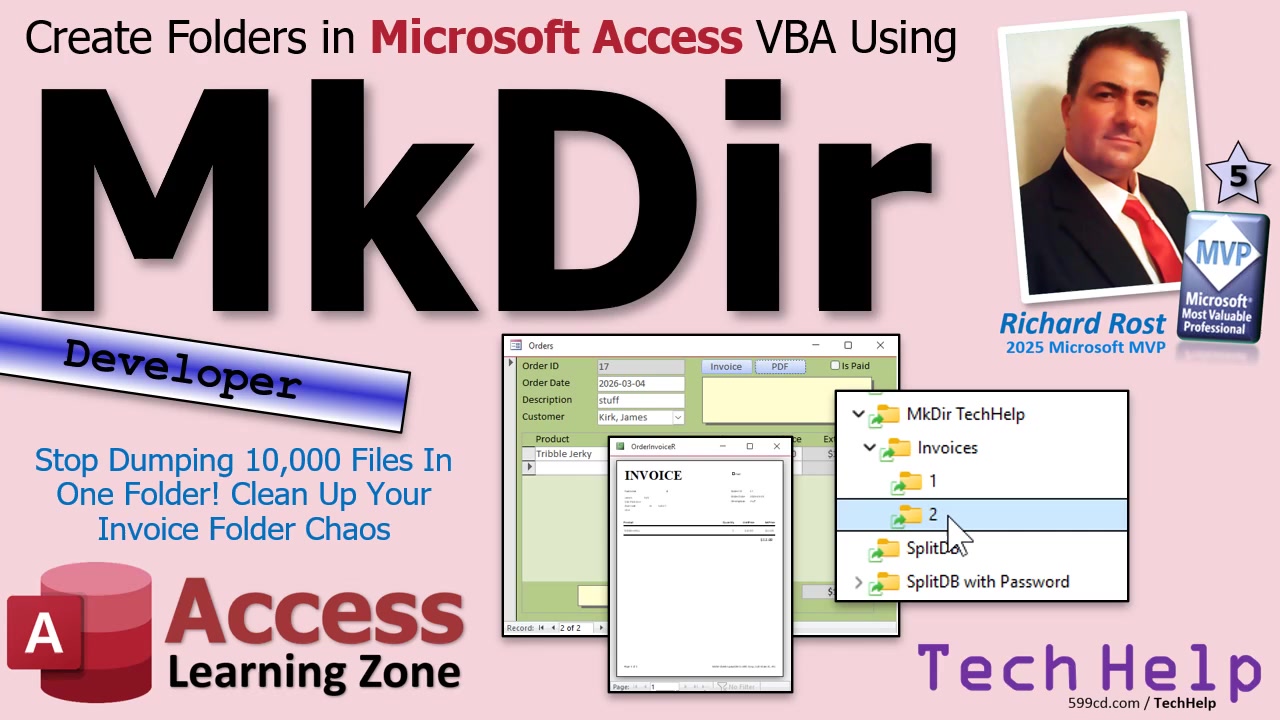
Let's talk about how to get Microsoft Access to create customer-specific folders for your invoices (or any files, really) instead of dumping everything into a single directory. This is especially helpful if, like Colin from Charleston, you've been exporting invoices for years and now face an overwhelming mess. With just a bit of clever VBA - and the handy MkDir command - Access can automatically keep your folders neat, organized, and easy to navigate.
The first thing you'll need to know is that creating folders from Access uses a simple command called MkDir - which, as the name suggests, stands for "Make Directory." This bit of VBA code allows Access to create new folders on your drive, right when you need them. If you're new to VBA, don't worry; start with any beginner tutorial on Access VBA, and you'll be ready in no time. Plus, keep some basic error handling in your toolbox, so you don't get caught off guard by common issues, like trying to create a folder that already exists.
Picture your workflow: every time an invoice is created from your database, you want Access to save it as a PDF in a folder structure like Invoices > CustomerID. This way, each customer has their own subfolder, and you - and your team - can find files quickly without digging through a mountain of PDFs.
Here's how it works. Before exporting your PDF, instruct Access to check if the "Invoices" folder exists inside your chosen parent directory (say, your database folder or a network share). If not, Access will create it using the MkDir command. Next, Access will create or check for a subfolder within "Invoices" that corresponds to the current customer's ID. Each time you generate a new invoice, Access will ensure this folder structure exists, and then save the PDF right inside the proper customer folder.
Now, here's something important: MkDir isn't picky, but it'll throw an error if you try to create a folder that's already there. That's totally expected, so you can keep your code smooth by telling Access to "resume next" on errors just for those folder-creating lines. If you want to get fancy (or just a bit more robust), check out additional error-handling techniques - or the Dir function - to see if a folder exists first, but for 99.9 percent of cases, a simple setup like this is all you need.
Once the folders are created, your export command points right to the customer's new home in the file system. No more invoice chaos! I always recommend storing file paths in variables if things get complicated; that way, you're not repeating yourself or accidentally missing a backslash somewhere. Also, never forget to refresh your form or commit your data before exporting. You want your invoices to reflect the latest info, not yesterday's news.
This system is scalable. Whether you have a dozen invoices or tens of thousands, Access can handle organizing them - just by tweaking how and where invoices are saved. Want to see more advanced tricks, like checking for missing parent folders, moving existing files into the new structure, or making folders with customer names? That's all possible - just expand your VBA toolkit step by step.
And as always, don't be afraid to experiment. This method works not just for invoices, but for any kind of file you want to manage more efficiently from Access. You're basically turning Access into your own mini document management system. Pretty cool, huh?
If you want to learn about more advanced techniques - like recursive folder creation or file management within Access - check out developer resources and my training videos for those deeper dives. Also, if you're worried about the moral implications of "Tribble Jerky" (yeah, I went there), feel free to share your thoughts in the comments...
So, today you saw how Microsoft Access and a little VBA (MkDir command) can team up to organize your files, keeping your directories tidy and easily searchable. No more endless scrolling or PDF pile-ups!
If you're curious about the step-by-step visuals or want to see exactly how the VBA comes together, check out the video above for a full walkthrough. Feel free to leave a comment below and let us know how you'll put this trick to work in your own database.
Live long and prosper,
RR

No comments:
Post a Comment