Computer tutorials, tips, and tricks to help you learn Microsoft Excel, Access, Word, and lots more. Visit our full site at www.ComputerLearningZone.com.
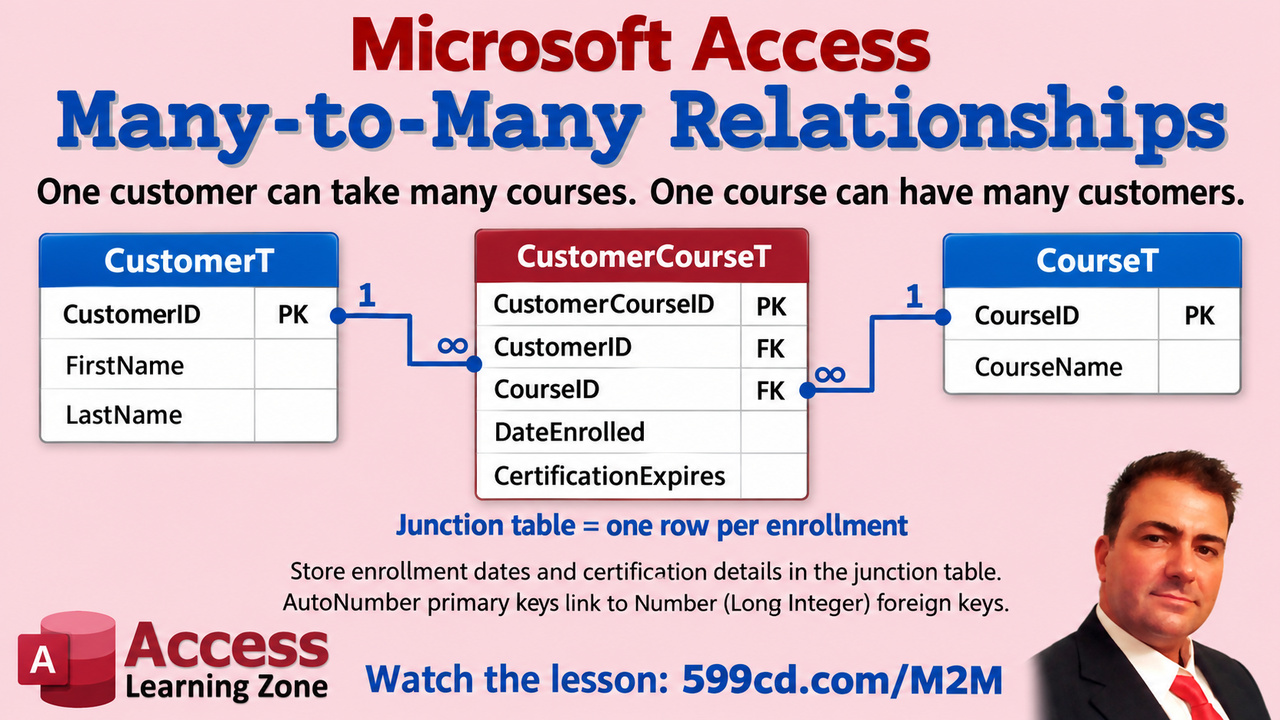
One customer can take several courses, and each course can have several customers. That's where a junction table comes in. Give each customer-course pairing its own row, and store the enrollment and certification dates that belong to that pairing there. Watch my Many-to-Many video to see how two one-to-many relationships connect the whole thing in Access.
Most Access databases start out with a handful of saved queries, which is perfectly fine until users start asking for slightly different versions of the same list. One person wants customer names and email addresses. Another wants names and phone numbers. Before long, you have CustomerQ1, CustomerQ2, CustomerQ_Final, CustomerQ_Final2, and probably one called "UseThisOne." There is a better way.
With a QueryDef, VBA can create a query definition for you and save it right in the current Access database. Your code can decide which fields, criteria, sorting, joins, and other SQL pieces belong in the query. Access saves the resulting query object just as if you had built it manually in Query Design View.
A QueryDef is simply an Access object that represents a query definition. The important word there is definition. It stores the instructions for retrieving data, usually in SQL. It does not make a second copy of the records in your table.
Think of it as a recipe card. Your Customer table contains the actual ingredients. A saved query contains the recipe that tells Access which ingredients to retrieve, how to filter them, and how to display them. If somebody adds a new customer tomorrow, the saved query can return that customer because it is still reading the current data from the table.
When you create a query manually and save it in Access, you are creating a QueryDef behind the scenes. VBA gives you the ability to do the same thing programmatically. You can create a new query, modify an existing one, delete one you no longer need, or create a temporary query that exists only while your code is running.
The basic idea is wonderfully simple. You declare a variable as a DAO QueryDef, then use CurrentDb.CreateQueryDef to create it. That method needs two important things: a name for the saved query and the SQL statement you want Access to store in it.
For example, you might create a saved query named CustomerQ that selects CustomerID, FirstName, and LastName from your CustomerT table. The SQL can include a WHERE clause, an ORDER BY clause, calculated fields, joins, aliases, or whatever else the situation calls for. The full code walkthrough is in the embedded video, but the key point is that Access receives a query name and a SQL statement, then saves that definition as a query object.
If the QueryDef has a name, such as CustomerQ, it is saved in the database and eventually appears in the Navigation Pane. You may need to refresh the Navigation Pane before you see it. Clicking in the pane and pressing F5 is often enough. Once it appears, you can open it, inspect it in SQL View, or modify it in Query Design View like any other saved Access query.
There is one little gotcha: the query name must not already exist. If you try to create CustomerQ when CustomerQ is already in the database, Access will complain. It is not fond of duplicate object names, much like I am not fond of duplicate credit card charges.
For a one-time generated query, using a unique name may be enough. But if your application repeatedly generates the same type of query, you will usually want code that checks for the old query and deletes or replaces it before creating the new one. That keeps your Navigation Pane from turning into a junk drawer full of abandoned generated queries.
So why not just create the query manually? If the query will always have the same fields, conditions, and sorting, then by all means create it manually. There is nothing wrong with that. Not every Access problem needs VBA strapped to it.
The real value of QueryDefs appears when the structure of the query needs to change. Suppose one department needs FirstName, LastName, and EmailAddress. Another needs FirstName, LastName, and PhoneNumber. Those are not merely different search values. They are different SELECT lists.
VBA can build the SQL based on the user's choices. Your form might let users choose which fields they want to see, and the code can assemble the appropriate SELECT clause. One generated query may include email addresses, another may include phone numbers, and another may combine fields into a single display value using an SQL alias.
This is different from a parameter query. A parameter query is excellent when the query structure remains the same but the values change. For example, a query might ask for a customer ID, a start date, an end date, or a state. The SQL itself stays basically the same, and Access receives different values each time the query runs.
Parameters are for values. Query-building code is for definitions. You generally cannot safely pass a field name such as EmailAddress or PhoneNumber as a normal parameter and expect Access to treat it as part of the SQL structure. If the field list, table list, joins, sort order, or optional WHERE clauses need to change, then VBA needs to build the SQL statement itself.
Of course, the two techniques can work together. You can build a QueryDef whose structure is selected by your code and still use parameters for user-entered search values. That is often a cleaner approach than concatenating every date, ID, and text value directly into a SQL string.
A named QueryDef is useful when you want a query object that users can open later, use as the Record Source for a form or report, export, or inspect in the Navigation Pane. An unnamed QueryDef, created with an empty name, is temporary and exists only in memory. Those are handy when you need to run SQL from VBA without cluttering the database with another saved query object.
The big takeaway is simple: a QueryDef lets Access save SQL that your VBA code creates. The data remains safely in the underlying tables. The saved query is just the reusable set of instructions Access follows to retrieve that data.
Once you understand that distinction, dynamic query building becomes much less mysterious. You can create customer lists tailored to different users, build optional filters, generate export queries, create report sources, and avoid maintaining dozens of nearly identical saved queries by hand.
Watch the embedded video for the full demonstration of creating a saved QueryDef, refreshing the Navigation Pane, and opening the resulting query in Access.
Automation is supposed to remove little chores from your day. If it creates a new chore that needs checking, fixing, reconnecting, signing in, and occasionally persuading to work, then it is not really automation anymore. It is a needy employee who never stops asking questions.
I spent about eight months trying to make Tiller fit into my Microsoft Access account balance workflow. The idea was appealing: connect my financial accounts, have current transactions and balances arrive in a spreadsheet, and import that data into Access. The Access part worked fine. The problem was everything required to get reliable, current data into the spreadsheet in the first place.
My Account Balances Database is something I use because I like to know where things stand financially. I check balances, pending activity, recent transactions, and upcoming bills almost every day. Most of my activity happens across just a few main accounts, although I have several other cards and accounts that need occasional attention.
That daily check normally takes maybe 15 to 20 minutes. I was not looking for some giant financial-management platform to replace everything I do. I simply wanted to shave a few minutes off that routine. If a service could reliably collect the current data for me, I would happily pay for it.
Tiller looked like a reasonable candidate. It can bring data from supported banks, credit cards, and investment accounts into Excel or Google Sheets. From there, importing transaction rows into Access is easy enough. Excel makes a perfectly reasonable staging area, and Access can append, update, query, and report on that information without much drama.
Initially, I set up an Excel-based process and connected it to my Access database. I even built an Open Tiller Sheet button in Access to launch Excel and open the appropriate workbook. At first, I thought I might eventually turn the whole thing into a tutorial.
But there is an important difference between a process that works once and a process that works reliably every day. Anyone can build an import. The real question is whether you can press one button, walk away, and trust the result.
Tiller's Excel add-in does not provide a general-purpose automation interface that I could use from Access. So I experimented with the usual collection of workarounds: Excel automation, macros, and yes, some SendKeys. I even added a little OCR capability because sometimes the only way to know what an add-in is doing is to look at the screen it put up and react to it.
That may sound clever, and it can be useful for small personal projects. But it is also a warning sign. Screen-driven automation is fragile by nature. A dialog box appears in a different place, a sign-in window takes focus, an add-in loads slowly, or a prompt changes slightly, and suddenly your "one-button automation" has become a troubleshooting session.
That was the main issue for me. Sometimes the add-in did not load correctly. Sometimes it wanted another sign-in. Mondays were particularly annoying after the workbook had been closed over the weekend. I would expect a quick refresh and instead find myself dealing with a Google authentication prompt.
Tiller documents that you may need to sign in again after a workbook has been closed for a while. Fair enough, and I understand why authentication tokens expire. Financial data should not be casually available forever. But a behavior can be understandable and still be a poor fit for a particular workflow.
Then there were account reconnections. I had roughly 13 accounts connected, and in a typical week two or three of them needed attention. That meant opening the connection, signing in at the financial institution, answering security questions, waiting for redirects, handling an SMS code, perhaps doing Google authentication again, and then hoping the connection actually completed.
None of that is necessarily Tiller's fault alone. Financial institutions have security rules, data aggregators have limitations, and multi-factor authentication exists for good reasons. I am not suggesting that any company should weaken security just so I can save a few clicks.
However, from the customer's side of the desk, the result is what matters. I paid for a service to reduce manual work. Reconnecting accounts several times a week was more manual work, not less.
The bigger problem was stale data. I could look directly at a financial institution's website and see that a card balance had been paid off, while Tiller still showed the old balance days later. In a few cases, information appeared to be four or five days behind.
For someone doing monthly budgeting or occasional reporting, that may be acceptable. For my use, it was not. If I am checking my accounts daily, I need to know whether the balance I imported into Access is actually current. If I have to visit the bank's website anyway to verify it, then much of the value of the aggregation service has disappeared.
This is an important point whenever you build automation around external data: reliable delivery matters just as much as the import process. It does not matter how cleanly you import data into Access if you cannot trust that the source data is fresh.
I still download official statements directly from my financial institutions for year-end accounting and tax preparation. Tiller was never intended to replace that. Its job was supposed to be much simpler: make my routine daily balance and transaction checks faster.
What I would really prefer is a supported API. Ideally, my database could securely request the information it needs directly, receive structured data, validate it, and update the relevant Access tables. No spreadsheet window, no add-in interface, no simulated keystrokes, no OCR, and no hoping that a sign-in dialog does not appear halfway through the job.
As of the time I tested it, Tiller did not offer a general-purpose public API for pulling its data into your own tools. It does support Google Sheets, including direct fills that can update a sheet automatically, and that may be a better workflow for some people. If you live in Google Sheets already, it could make perfect sense.
But I did not want to create yet another bridge between systems just to get data into Access. Could I build something that pulls from Google Sheets, stages the data somewhere, and then imports it into Access? Sure. I could probably spend a weekend building it. The question is whether I should have to.
That is the lesson here: do not judge an automation product only by its feature list. Look at how it behaves in your actual routine. How often does it need human intervention? How current is the data? What happens after you have not used it for a few days? How much time do you spend maintaining the automation instead of benefiting from it?
A discount offer at cancellation did not change the equation for me. I would gladly pay more for something that reliably delivered current data with minimal attention. The issue was never the subscription price by itself. The issue was that the system was costing me time.
For now, I have found it less frustrating to visit the financial pages I was already checking once or twice a week and use a little lightweight automation to capture the relevant text. Since every institution presents its information differently, I can use AI to help format that captured information into a consistent structure for Access. It is not a perfect universal solution, but it fits my habits better than maintaining a separate aggregation system.
If you are considering Tiller, that does not mean you should avoid it. It may be a perfectly good fit if you primarily work in spreadsheets, do not need daily real-time balances, and do not mind occasionally reconnecting an account. It just was not the dependable, hands-off data feed I needed for my Access workflow.
The embedded video goes into more detail about the experience and the automation experiments I tried. And if you want to see how my Account Balances Database works, I have a free multi-part TechHelp series that walks through the project.
Automation should save you time, not give you another system to babysit.
Time for a quick Microsoft Access forms quiz. These are beginner-level questions, but they cover some of the little details that can make form design either smooth and painless or oddly frustrating. Grab a piece of paper if you want to keep score, and try to answer each question before checking the answer.
The questions below cover form record sources, bound controls, attached labels, resizing the Detail section, and one very common misconception about changing a text box's colors. The T-Rex is staying behind the fence. Hopefully.
Question 1: Which form property tells Access which table or query supplies its records?
A. Record Source B. Record Source C. Caption D. Default View
The answer is Record Source. A form's Record Source is where Access gets the records displayed on that form. It can point to a table, a saved query, or even an SQL statement in more advanced situations. The Caption merely changes the text shown in the form's title bar, and Default View controls how the form is displayed.
Question 2: You drag a Short Text field from Add Existing Fields onto a blank form in Design View. What normally appears?
A. A new table and a query B. A label containing every record C. An unbound text box only D. A bound text box and an attached label
The answer is D, a bound text box and an attached label. Access creates a text box that is bound to the field you dragged onto the form, plus a label that displays a friendly caption for that control. The text box shows and edits data from the underlying record. The label is just the descriptive text sitting next to it.
Question 3: You want to remove an attached label but keep its text box on the form. What should you delete?
A. Only the label B. Only the text box C. The field in the table D. Both controls, then save the form
The answer is A, only the label. The label and text box may be attached to one another for moving and positioning purposes, but they are still separate controls. Select the label itself and delete it. Do not delete the text box unless you also want to remove the control that displays and edits the field's data. And definitely do not delete the field from the table just because you do not like the label. That would be using a chainsaw to open an envelope.
Question 4: A form has a large unused area below its controls. How can you reduce that space in Design View?
A. Make every text box taller B. Delete records from the table C. Drag the bottom edge of the Detail section upward D. Change the form's Record Source
The answer is C, drag the bottom edge of the Detail section upward. In Design View, the Detail section has a lower boundary that you can drag upward to eliminate unused space. This is a simple cleanup step, but it makes forms look much more intentional. Nobody needs a form with three controls at the top and a football field of blank space underneath.
Question 5: You change an editable text box's background to gray. What does that change do by itself?
A. Prevents users from typing in it B. Changes its appearance but does not prevent editing C. Changes its field to AutoNumber D. Removes it from the tab order
The answer is B, it changes the appearance but does not prevent editing. Changing the Back Color property is cosmetic. A gray text box can still be editable unless you change other properties, such as Locked or Enabled, or otherwise control editing through the form's settings. Color can suggest that something is read-only, but Access does not enforce that suggestion automatically.
How did you do? A perfect 5 out of 5 means you are well on your way to saving the park and all of its customer data. Missed a couple? No worries. These are exactly the kinds of form basics that become second nature once you spend a little time building real forms.
If you want to see these concepts in context, watch the embedded video. The related Access Beginner Level 1 lesson covers more about building and cleaning up a customer form.
Security is important. Fraud prevention is important. Protecting customer data is absolutely important. But there is a point where security stops protecting your business and starts actively preventing people from doing business with you. If a legitimate customer can't complete an ordinary purchase, your system may be very secure, but it is also failing at its basic job.
I ran into this while trying to buy tickets for a Rush tribute band. I had two excellent front-row seats in my cart, a valid credit card, and every intention of giving this venue my money. I had bought tickets from them before. I had supported the place for years. Yet their checkout system decided that apparently I was too dangerous to sell concert tickets to.
The checkout page claimed that my billing information did not match my credit card statement. So I did what any reasonable person would do: I checked the address, checked the ZIP code, checked the card number, tried again, and got the same error.
Then I tried other cards. Mastercard, Visa, American Express, Discover. Different browser. Different computer. Phone. At some point, I was no longer purchasing tickets. I was performing unpaid quality assurance testing for their website.
To their credit, support responded quickly. The explanation was that the billing information had to match the card statement exactly. Not just the house number and street name. Apparently even something as minor as "Terrace" versus "Ter" could matter. On some cards my name appears as Richard Rost, while on others it is Richard D. Rost. Those little differences can trigger address-verification and fraud systems.
Fine. That is not entirely unreasonable. Card processors use address verification systems, and exact matches can help catch fraudulent transactions. The problem was that I followed the instructions, matched the information as closely as possible, even used the ZIP+4, and the transaction still would not go through.
What made it worse was that the system could obtain authorizations from my bank. An authorization is not necessarily a completed charge, but it can still temporarily tie up funds or appear as a pending transaction. So now I had multiple authorizations on several cards, no tickets, and a bunch of extra stuff to keep an eye on.
The eventual answer from the venue was, "Call the box office."
Now, I understand that sometimes a human needs to step in. But the whole reason I was using the website was because I wanted to buy tickets online, quickly, without sitting on hold or having to explain that, yes, I really do live at the address shown on my credit card. By the time I got around to dealing with it, those front-row seats were gone.
That is the real lesson here: security controls have to fit the risk, but they also have to leave legitimate users with a practical path forward. A system that blocks everything is easy to secure. It is also easy to make useless.
This applies far beyond ticket sales and online shopping. It applies to websites, customer portals, Access databases, internal business software, and anything else people have to use to get work done.
Think about the systems you have used where every action produces another warning. Delete a record? "Are you sure?" Click Yes. "Are you really sure?" Click Yes again. "This action cannot be undone." Yes, yes, yes. Eventually users stop reading. They do not become more careful. They simply learn where the Yes button is.
And that is not good security. If people automatically click through every warning because there are too many warnings, the important warning gets ignored right along with the pointless ones.
In an Access database, for example, you may be tempted to lock everything down because you are worried someone will accidentally delete or alter important data. That concern is valid. But rather than forcing users through five confirmation prompts, consider whether the mistake can be made easier to recover from.
Could you archive records instead of permanently deleting them? Could you use a status field such as Active, Inactive, Cancelled, or Archived? Could you provide a restore option for an accidental deletion? Could you allow someone to correct a spelling error without giving them unrestricted access to rewrite the entire database?
Those are usually better questions than, "How can I make this impossible for anyone to touch?" Sometimes you do need strong restrictions. Sensitive financial information, payroll data, medical records, permissions, and irreversible actions deserve serious safeguards. But an ordinary typo in a customer address should not require a meeting with the database administrator, three forms of identification, and a blood sample.
Good security gives users clear feedback. If an order fails, tell them why in language they can understand. If the address does not match, tell them which part appears to be the problem. If the system cannot verify a transaction, provide a useful next step that actually has a chance of resolving it.
Do not make users guess. Do not send them in circles. And do not make them repeat the same failed attempt over and over while your website quietly creates pending authorizations on every card they own.
It is also worth testing your system from the customer's perspective. Try a normal purchase. Try entering an apartment number. Try a street abbreviation. Try a middle initial. Try a recently moved customer whose billing address may not look exactly like the formatting in your database. Try an ordinary user fixing an ordinary error in your software.
Security rules often look perfectly sensible when you are staring at a settings screen. They can look much less sensible when they prevent a long-time customer from buying the thing they came to buy before it sells out.
Fraud prevention should protect your customers and your business, not punish the people who are trying to give you money. Make your safeguards appropriate, make failures understandable, and make recovery possible. Otherwise, your perfectly secure system may end up securing you right out of a sale.
As for the Rush tribute show, I never did get those seats. But there was a happy ending: next month I will be seeing the actual Rush in Tampa on their 50-something tour. That is a pretty decent upgrade.
You can watch the embedded video for the full story and a few more thoughts on balancing security with usability. The same principle applies whether you are building an e-commerce site, an Access database, or any other system people need to use without fighting it every step of the way.
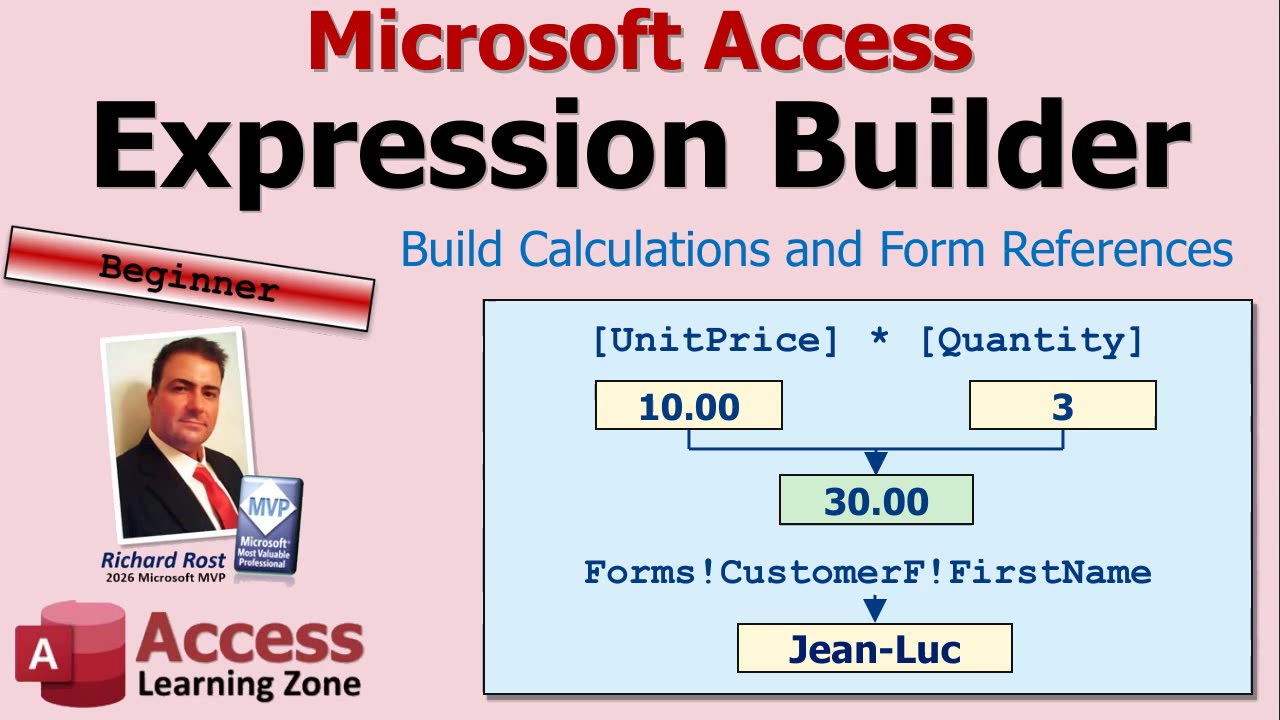
The Microsoft Access Expression Builder can look pretty intimidating the first time you open it. There are lists of objects, categories, functions, operators, and mysterious symbols everywhere. The good news is that you do not need to memorize all of it. The Expression Builder is simply a tool to help you assemble expressions when you need Access to calculate something, compare values, filter records, or pull information from an open form.
An expression is anything Access can evaluate to produce an answer. That answer might be a number, text, a date, True or False, or sometimes no value at all. For example, multiplying Quantity by Unit Price to get a line total is an expression. Combining FirstName and LastName is an expression. Comparing a due date to today's date is an expression. Access does the work, but you have to tell it what you want.
If you have been working with Access for a while, you may find it quicker to type expressions directly. I usually do. But the Expression Builder is extremely useful when you are learning, when you cannot remember the name of a function, or when you need to reference a control on a form and cannot remember what you named it three years ago. Which, of course, never happens to any of us.
You will usually open the Expression Builder from the place where you are entering an expression. In Query Design View, click in a Field row or Criteria row, right-click, and select Build. Depending on your version of Access, you may also have a Builder command available on the ribbon.
On forms and reports, certain properties can accept expressions. The most common example is the Control Source property for a text box. Those properties often have a small button with three dots beside them. Clicking that button may open the Expression Builder, although be careful: Access has several different builders, so not every three-dot button opens the one you want.
You can also use Ctrl+F2 in many supported locations. Make sure it is Ctrl+F2, not Shift+F2. Shift+F2 opens the Zoom box, which is useful in its own right, but it is not the Expression Builder.
Once the Builder opens, the expression itself appears at the top. That is where you can type, edit, and insert the pieces of your expression. If you only see a small window at first, click More to expand it and reveal the lists underneath.
The bottom portion of the window is divided into three lists: Expression Elements, Expression Categories, and Expression Values. Think of these as a filtering system. You choose a broad category on the left, narrow it down in the middle, and then pick the specific item you want on the right.
For example, if you are looking for a function, expand Functions, choose Built-In Functions, select a category such as Date/Time, Financial, or Math, and then choose the function you need. Access will insert it into your expression and often show helpful information about its arguments.
You can also browse the objects in your database. Tables, queries, forms, reports, and other database objects are available from the list. This is especially handy when you need to refer to a field or a control but do not remember its exact name.
Let's start with a simple calculated field in a query. Suppose your order detail records include a Quantity field and a Unit Price field. You want another column that calculates the total for each line item. If a customer orders three items at $10 each, the answer should be $30. If they order two items at $7.50 each, the answer should be $15.
In Query Design View, click in an empty Field cell, right-click, and choose Build. In the Expression Builder, you can double-click the Quantity field and then the Unit Price field. Access will place both field references in the expression box. You still need to tell Access what to do with them, of course. Two field names sitting next to each other do not mean anything useful.
For a line total, use the multiplication operator, the asterisk. The basic expression is:
[Quantity] * [Unit Price]
When you click OK, Access puts the expression into the query design grid. It may initially name the field something like Expr1. That works, but it is not very descriptive. Give the calculated field a useful alias, such as:
Line Total: [Quantity] * [Unit Price]
You could call it Extended Price instead if that is the terminology you use. The name is up to you. The important part is that Access now calculates a separate total for every record returned by the query.
Always run the query and check a few results by hand. Expressions can be perfectly valid from Access's point of view while still giving you the wrong answer because you asked the wrong question. Computers are funny that way. They are very obedient, even when obedience is a terrible idea.
The Expression Builder is also very useful when building criteria based on an open form. Suppose you have a Customer form open and a query that normally shows all customer orders. You may want the query to show only the orders for the customer currently displayed on that form.
In the query design grid, place your cursor in the Criteria row beneath CustomerID, then open the Expression Builder. Browse through your database objects to Forms, then choose Loaded Forms. Loaded Forms means forms that are currently open. Select your Customer form, then find the control that contains the customer ID.
Access builds the proper reference for you, which will look something like:
Forms!CustomerF!CustomerID
The exclamation points are often called "bangs" in Access and VBA circles. The first part identifies the Forms collection, the second part is the form name, and the last part is the control name. You do not need to type all of that by hand if you let the Builder insert it for you.
Once that reference is placed in the CustomerID criteria row, the query can compare each record's CustomerID to the CustomerID on the open form. Run the query while viewing Customer 1 and you see Customer 1's orders. Navigate to a different customer, run the same saved query again, and now you see that customer's orders. No typing an ID number into the query every time.
This is one of the biggest reasons beginners should get comfortable with the Expression Builder. It helps you avoid tiny spelling mistakes in form names and control names, and tiny spelling mistakes are more than enough to make Access throw a fit.
Expressions can be used in lots of places throughout Access. You can create calculated query fields, specify criteria, set control sources on forms and reports, create validation rules, set default values, and build conditional formatting expressions. You can join text together, calculate dates, test values, return messages, and much more.
A few basic rules are worth keeping in mind. Square brackets identify field names and control names, particularly if the names contain spaces. Text values need quotation marks, such as "Paid". Functions use parentheses, such as Date() for today's date. Operators such as +, -, *, /, =, and & tell Access what action to perform.
You do not need to master every function and every punctuation rule today. Start with small expressions where you can easily verify the result. A simple line total is a great place to begin. Then move on to form references, date functions, concatenated names, and conditional expressions such as IIf when you are ready.
The Expression Builder is not something you have to use forever. As you gain experience, you will probably type many expressions directly. But it remains a handy reference tool, especially when you need to browse available functions or find the exact name of a form control without digging through every object in your database.
Watch the embedded video for a full walkthrough of the Expression Builder, including the query calculation and open-form criteria examples. Once you start recognizing where expressions can be used, you will find them all over Access.
Think you have your Access VBA and SQL INSERT statements under control? Good. Now let's see if your code survives a few very common traps: inserting records without overwriting old ones, using the correct destination fields, handling Null values, and making sure your field order does not quietly scramble your data. Mars colony records are optional. Bad data is not.
This is a developer-level Access quiz with five questions. Give yourself a few seconds to answer each one before reading the explanation. If you want the full quiz experience, watch the embedded video and pause it before each answer.
Question 1: Your VBA button needs to add one new log record to a table without changing any existing records. Which type of SQL statement should you send to DoCmd.RunSQL?
The correct answer is INSERT INTO ... VALUES. An INSERT query adds a brand-new row to a table. An UPDATE query changes data in rows that already exist, which is definitely not what you want if the job is simply to add another record. SELECT queries retrieve or create data based on a query, but they are not the normal choice for adding one record from a form button.
Question 2: Suppose your INSERT statement includes a field named Commission, but the destination table does not actually have a field by that name. The form may have a text box named Commission, but that does not help the table. What fixes the problem?
The answer is to add the expected Commission field to the destination table, assuming Commission is data you really intend to store. The field list in an INSERT statement refers to fields in the table, not controls on your form. Access does not care that you have a nicely labeled text box on screen if there is nowhere in the table to put its value. Your form controls and table fields often have similar names, but they are not the same thing.
Question 3: Long SQL strings are often split across multiple VBA lines. You will usually see an ampersand followed by a space and underscore. What are those characters doing?
The ampersand concatenates, or joins, pieces of text together. The underscore is VBA's line-continuation character. It tells VBA, "I'm not done with this statement yet. Keep reading on the next line." This makes long SQL statements much easier to read and maintain. Without it, you end up with one giant ugly line of SQL that eventually wraps itself around the moon.
Question 4: An unbound text box can contain either a Null value or an empty string. If your validation code stops when IsNull(Me.Notes) is true, which reset value will make that guard work again on the next click?
The answer is Null, not an empty string. Setting the control to Me.Notes = Null gives it an actual Null value, so IsNull will return True later. Setting it to "" gives it a zero-length string instead. It may look blank on the screen either way, but VBA sees those as different values. This is one of those tiny details that can make validation seem broken when it is actually doing exactly what you told it to do.
Question 5: This is the field-order bug. EmployeeID starts with a value of 7 and Commission starts with a value of 50. The SQL statement is built using those values, and then EmployeeID is changed to 9 afterward. The INSERT statement's field list is ordered as Commission, EmployeeID, but the VALUES portion supplies EmployeeID first and Commission second. What gets inserted?
The result is Commission = 7 and EmployeeID = 50. SQL matches values to fields by position, not by the variable names you used while building the string. If your field list says (Commission, EmployeeID), then the first supplied value goes into Commission and the second goes into EmployeeID.
Also remember that changing EmployeeID after the SQL string has already been built does not change the SQL string retroactively. Once VBA has assembled that text, it is just text. The later value of 9 is irrelevant to the statement that was already created.
The safest habit is simple: when you write an INSERT statement, read the field list and the VALUES list side by side. Make sure each value is in the exact same position as its destination field. Your query can run perfectly without errors while putting the wrong information in the wrong columns, which is much worse than an error message. At least an error message has the decency to complain.
How did you do? If you missed one or two, no worries. These are exactly the kinds of details that separate SQL that merely runs from SQL that stores the right data. Watch the embedded video for the quiz walkthrough, and if you want more practice adding records with VBA and resetting forms for the next entry, check out the Microsoft Access Developer Level 2 material.
Calling Microsoft Access the "worst database" is certainly an attention-grabbing way to start a conversation. But the real story is a lot more interesting than a thumbnail slogan. Access became hugely successful because of timing, pricing, Office distribution, and, most importantly, because it helped people build complete business applications without needing a team of programmers and a six-month development schedule.
To judge Access fairly, you have to look at the world it entered, the tools it competed against, and what businesses actually needed their databases to do. Running a query quickly is nice. Entering orders, printing invoices, producing reports, and making changes when the boss says, "Can we add one more thing?" are nice too. In fact, those are usually the parts that pay the bills.
When Access arrived in the early 1990s, desktop database developers were already using capable products such as dBASE, FoxPro, Paradox, and Clipper. These were not toy programs. Businesses ran serious applications on them, and plenty of developers, including me, spent years working with those tools before Access entered the picture.
But the computer world was changing. DOS applications were largely text-based, keyboard-driven programs. They could be powerful, but they did not look or feel like the new Windows software that businesses were starting to expect. Suddenly, users wanted buttons, menus, mouse-driven screens, and applications that looked more like Word and Excel than a text terminal with boxes drawn on it.
The established database products had a challenge: move forward into Windows while continuing to support customers with existing DOS applications. Some old software could keep running as-is, of course. But converting an old DOS database into a good Windows application was not just a matter of slapping a mouse pointer on it. Forms, reports, code, menus, and user expectations all had to change.
Access did not have that particular baggage. It arrived as a Windows product. It was designed around the graphical interface that users were beginning to expect, and that gave it a real advantage at exactly the right moment.
Microsoft also made it easy to try. Access launched with a $99 introductory price, which was aggressive compared to many of the established database products. It did not stay at that price forever, but it lowered the barrier for people who were curious about this new database tool.
Then came the Office connection. Access was later included with Office Professional, alongside Word, Excel, and PowerPoint. If a company was already buying Microsoft Office, having a database tool included in the package was awfully convenient. That absolutely helped Access spread through offices everywhere.
That is how a lot of people discovered it. They already had Office installed, noticed this thing called Access, and thought, "Well, let's see what this does." Before long, somebody had built a contact list, an inventory tracker, an order-entry screen, or a report that replaced a pile of spreadsheets.
But distribution alone does not explain why people kept using Access. A product can be bundled with every computer in the world, but if it is useless, people eventually stop opening it. Access stuck around because it gave users an unusually practical set of tools in one place.
You could create tables to store data, define relationships between those tables, build queries to find and calculate information, design forms for data entry, create reports for printing, and add automation when the application needed to do more. That combination matters.
Consider a simple order system. You might have one table for customers and another for orders. Each order is connected to a customer, so the employee does not have to type the customer's name, address, phone number, and other details over and over again for every sale. That is basic relational database design, and it is still good design today.
Next, you need queries that pull together the information you need. Maybe you want to see this week's orders, calculate totals, identify unpaid invoices, or find customers who have not purchased anything recently. The query is the part that asks useful questions of the data.
But the business cannot stop at the query window. Somebody has to enter the order. Somebody needs an invoice. The owner wants a monthly sales report. Staff members need buttons that open the right screen or print the right document without making them memorize a dozen steps.
This is where Access earned its place. It was not just a database engine sitting in the background. It was a development environment that let someone build the whole application: tables, queries, forms, reports, macros, and eventually VBA programming when needed.
FoxPro, for example, deserved its reputation for speed and strong data processing. dBASE had an important language and a large developer community. Paradox was a capable development tool in its own right. Clipper was associated with the dBASE language and allowed developers to compile applications into executable programs. These tools were not interchangeable, and each had strengths.
However, saying that one product could process certain queries faster does not automatically make it the better choice for every business application. Better at what? Faster is important, certainly. Nobody enjoys clicking a button and waiting long enough to make coffee. But development time, reporting, usability, maintenance, and the ability to make changes all count too.
If one tool gives you a slightly faster query but takes considerably more work to produce an order-entry screen, invoice, and management report, that is a meaningful tradeoff. The employee entering orders on Monday morning generally does not care which database engine won a benchmark ten years ago. They care whether the form is easy to use and whether the invoice prints correctly.
Access also made it possible to start simply. A beginner could use the built-in designers to create a table, make a query, and put together a form. As the application grew, that same developer could add more sophisticated queries, automation, VBA code, and custom user interfaces. You did not have to begin as a full-time software engineer to solve a useful business problem.
That was a major part of Access's appeal. It shortened the distance between "I need to track this information" and "Here is a working application people can use." For small businesses, departments, consultants, and internal developers, that was a very big deal.
There is also a historical detail worth keeping straight: Rushmore. Rushmore was FoxPro's query optimization technology. In plain English, it helped the database locate records more efficiently when running certain queries. Microsoft acquired Fox Software in 1992, but Rushmore was not part of the original Access 1.0 story.
Access became available in late 1992. Contemporary coverage of Access 2.0, released in 1994, described the addition of FoxPro's Rushmore technology to improve set-query performance over Access 1.1. That means Rushmore was an important improvement in Access 2.0, not a feature that was already present in the original Access release.
That may sound like a small detail, but version history matters. If you are comparing Access 1.0 to competing products, you should compare what actually existed at the time. Access improved significantly as it developed, just as its competitors did.
The same kind of care is needed when discussing FoxPro's eventual discontinuation. Microsoft bought Fox in 1992, but FoxPro did not vanish immediately afterward. Visual FoxPro 9.0 was released in 2004, and extended support continued until January 2015. That is a long product life, not a quick trip to the software graveyard.
It is reasonable to say that Microsoft eventually consolidated products and technologies. It is also fair to recognize that some FoxPro developers were disappointed by the decision. But claiming that Microsoft bought FoxPro simply to destroy it and make Access dominant is a statement about motive, and that requires more evidence than a timeline alone provides.
Today, the conversation often gets distorted in a different direction: "Access is obsolete," or "Access cannot handle real databases." That is just as lazy as calling it the worst database. Access is not the right solution for every situation, and it never was.
If you have massive amounts of data, large numbers of concurrent users, strict enterprise security requirements, web-based users, or applications spread across multiple locations, you may need a server database such as SQL Server. That is not a failure of Access. It is simply choosing the right tool for the job.
And it does not have to be Access versus SQL Server. One of the most useful setups is Access as the front end and SQL Server as the back end. SQL Server stores and protects the data, while Access provides familiar forms, reports, queries, and user interfaces for the people doing the work.
In other words, an employee can still use an Access form to enter an order, print an invoice, or run a report, while SQL Server handles the underlying tables. That can be an excellent solution when properly designed. Moving tables to SQL Server does not magically fix bad queries, poor form design, or weak security planning, of course. There is no magic button labeled "Make It Enterprise." You still have to build the application correctly.
The important point is that Access remains useful when you understand where it fits. It is especially strong for desktop business applications, internal tools, rapid development, reporting, and front-end applications connected to more powerful data platforms.
Popularity does not prove that Access was technically superior to every competitor in every category. Microsoft had enormous advantages in Windows, pricing, marketing, and Office distribution. Those facts should be part of the story.
But technical comparisons should not be reduced to a single number on a speed test either. A database application is more than a query engine. It is the data structure, the interface, the reports, the workflow, the maintenance burden, and the ability to adapt when the business changes its mind. And businesses always change their minds. Usually on Friday afternoon.
Access dominated desktop databases because it arrived at the right time, was easy for people to obtain, and gave users a practical way to build complete applications. That is a much more accurate explanation than calling it the worst database.
If you are deciding whether Access is worth learning or using, start with the requirements of your own project. Consider the size of the data, the number of users, your security needs, where the application will run, and how quickly you need to build and maintain it. Then pick the tools that make sense for that job.
You can watch the embedded video for the full discussion, including more historical context about Access, FoxPro, dBASE, Paradox, Clipper, Rushmore, and the role Office played in Access's success.
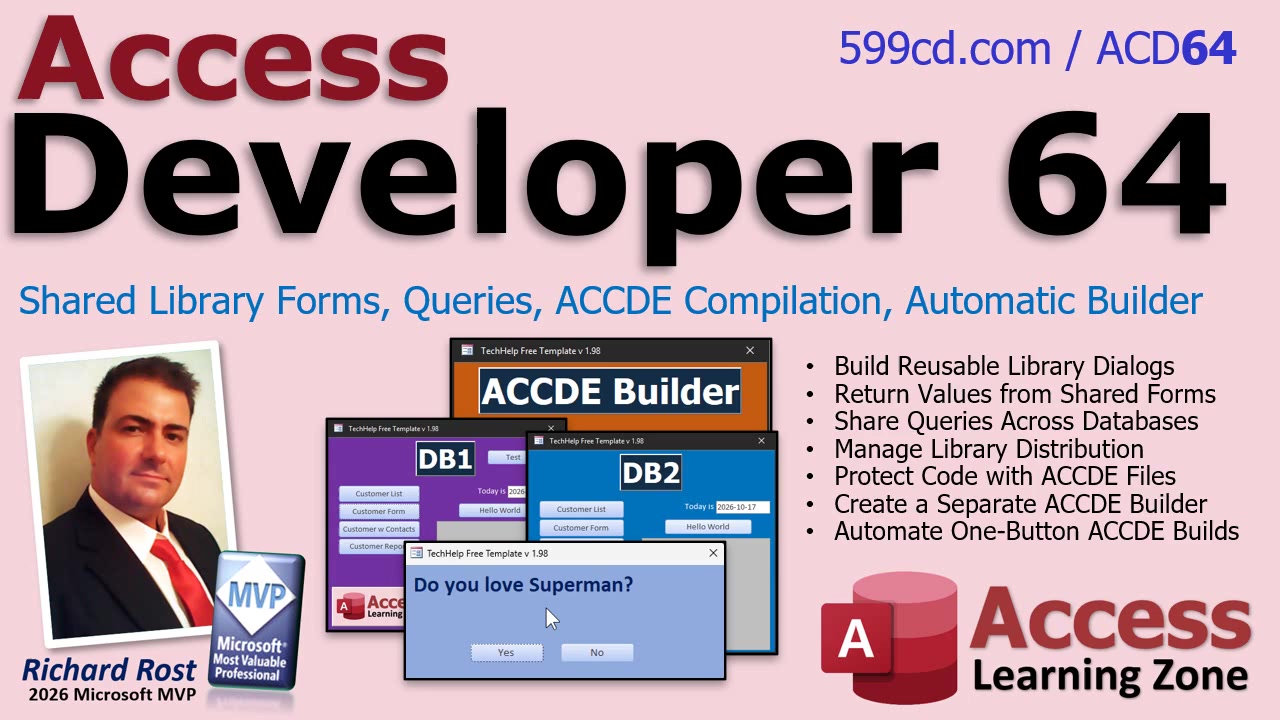
Once you start building reusable tools in Microsoft Access, copying forms, modules, and functions from one database to another gets old fast. It is also a great way to end up with six slightly different versions of the same code, none of which you are completely sure is the right one. A shared library database solves that problem nicely, but it creates a new question: how do you safely maintain, protect, and distribute that library?
That is the focus of Access Developer Level 64. This class continues the shared library database system begun in Developer 63 and takes it from a useful development idea to something much closer to a professional deployment setup. You will learn how to keep reusable tools in one master library, make them available to multiple Access applications, and package the finished library as a protected ACCDE file.
A shared library is especially useful when you have common routines that belong in more than one application. Maybe you have standard validation functions, utility code, report helpers, import and export tools, or custom dialog boxes. Instead of maintaining copies of those objects in every database, you can place them in one library database and reference that library from your other applications.
One of the practical projects in this class is building reusable custom dialog boxes. These are forms that can be opened from another database, ask the user a question, and return the answer to the application that called them. That may sound simple, but once you understand the pattern, you can create all kinds of shared interface tools: confirmation prompts, selection dialogs, data-entry helpers, message windows, and more.
The class also addresses a few of the questions that naturally come up once you begin using library databases. What kinds of objects belong in the library? Can queries be shared? When does it make sense to move a form, report, query, or code module into the library instead of leaving it in the front-end database? And how do you distribute the library to users without handing them a file full of editable VBA source code?
That last point is where ACCDE files come in. An ACCDE is the compiled version of an Access database. It helps protect your VBA source code, prevents design changes to forms and reports, and reduces the chance that someone will accidentally "fix" something that was working perfectly five minutes earlier. If your shared library is being used by multiple databases, compiling it before distribution is generally a very good idea.
Of course, manually producing an ACCDE every time you make a small change is tedious. You have to compile the project, create the ACCDE, deal with the existing file, make sure the current version is preserved, and then reopen your master database. It is not difficult, but it is exactly the kind of repetitive process that computers should handle for us. Otherwise, why are we programming?
That is why this class builds a separate automatic ACCDE builder utility. The goal is a one-button process that compiles the library, preserves the prior version, replaces the old compiled file, and returns you to the master library database when the job is finished. It is a small utility with a big payoff if you update your library regularly.
This is not just about saving a few clicks. Having a consistent build process makes your library easier to maintain and safer to deploy. You know which file is the editable master, which file is the compiled version that users should reference, and where the previous version went if you ever need to roll back. That sort of organization becomes increasingly important as your Access applications grow beyond a single database sitting on your desktop.
Developer Level 64 is designed for Access developers who are ready to stop treating every database as an isolated project. If you have reusable code and tools that you want to share across applications, this material will show you how to build a more maintainable library system and automate one of the more annoying parts of keeping it current.
Watch the embedded video for an overview of the class, then visit the course page for the complete training and full implementation details. By the end, you will have a solid approach for writing your code once, using it across multiple Access databases, protecting it in an ACCDE, and rebuilding that ACCDE without doing the same manual dance every single time.
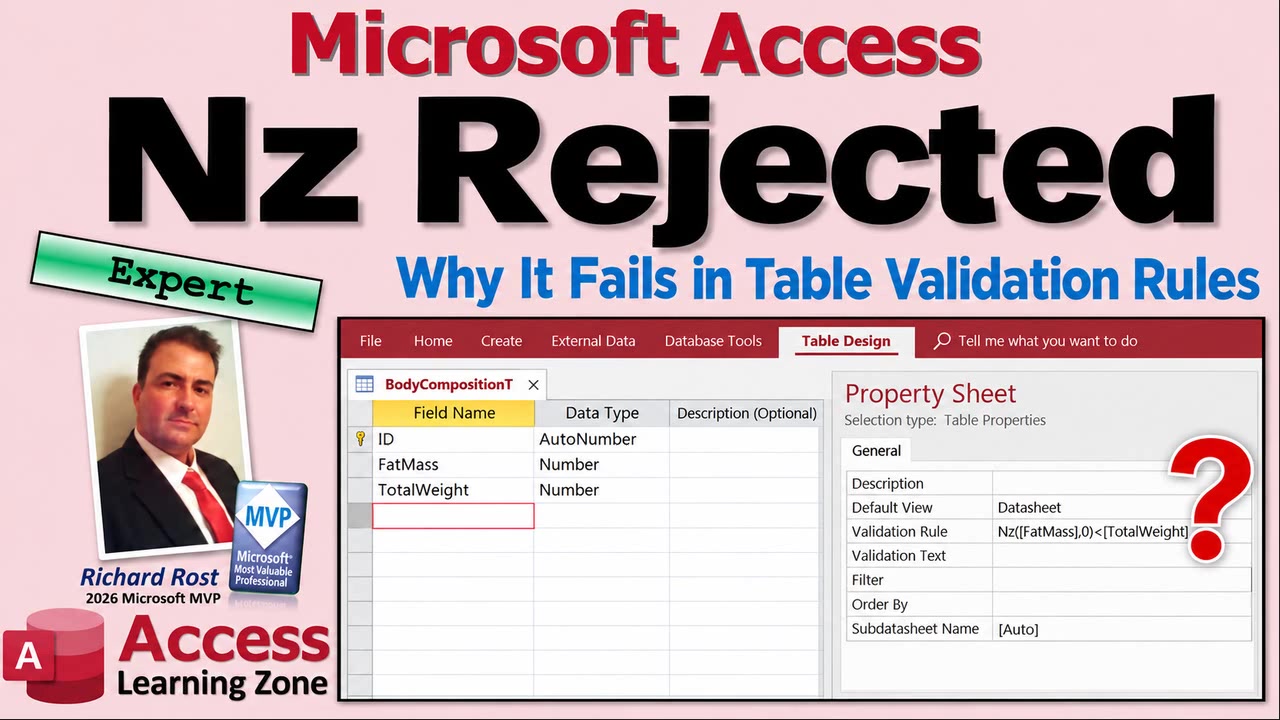
One of those little Access quirks that can make you question your sanity is when a function works perfectly in a query, form, report, or VBA procedure, but suddenly gets rejected when you put it in a table-level validation rule. The classic example is Nz. You know it works. Access knows it works. Yet the table validation property looks at it and says, "Unknown function." Thanks, Access.
The important thing to understand is that table-level validation rules do not use the exact same expression environment as queries, forms, reports, and VBA. They support many common expressions, but not every Access function is available there. So when Access complains that Nz is unknown in a validation expression, the problem usually is not spelling, syntax, broken references, or anything else you did wrong. It is simply an unsupported function in that particular context.
Nz is normally used to replace a Null value with something more useful. For example, in a query you might use it to treat a missing amount as zero. In a form control, you might use it so the user sees a blank string instead of Null. It is one of the handiest functions in Access, and I use it constantly.
But if you try to use something like Nz([Amount],0) in a table-level validation rule, Access can reject it with an "unknown function" message. That error is misleading because Nz is not unknown to Access in general. It is unknown to the validation-rule engine.
So what do you use instead? For table validation rules, rely on the expressions that Access does allow in that property. The most useful tools for dealing with missing values are Is Null and IIf, depending on the rule you are trying to enforce.
For example, suppose an Amount field is optional, but if a user enters a value, it cannot be negative. A table-level validation rule can allow either a missing value or a value greater than or equal to zero. The basic logic is: the field is Null or the value is non-negative.
That distinction matters because Null is not zero. A Null means "no value has been entered." Zero is an actual value. Sometimes treating Null as zero is exactly what you want, especially for calculations. Other times, it can hide missing data that ought to remain missing. Before automatically converting Null to zero, make sure that zero genuinely means the same thing for your business rules.
If your validation depends on more than one field, table-level validation rules can still be useful. For example, you might require an end date to be later than a start date, unless the end date has not been entered yet. In that situation, test for Null explicitly before applying the comparison. Otherwise, Null can cause the validation expression to behave in ways that are not immediately obvious.
This is also a good reason to keep table-level validation rules reasonably simple. They are excellent for protecting the data regardless of how it gets entered: through a form, directly in the table, through an append query, or from some other process. That is a big advantage. A form's validation code only runs when someone uses that form. Table rules help protect the data at the source.
On the other hand, if the validation starts getting complicated, you may be better off handling the user-facing part in a form's Before Update event. There, you have much more flexibility, better error messages, and access to the full range of VBA functions. Just remember that form-level code is not a substitute for table-level protection when the data can be edited through other paths.
The practical takeaway is simple: do not copy an expression from a query or form into a table validation rule and assume every function will be supported. If Nz gets rejected, you are not crazy, and it does not mean that your database is broken. Rewrite the rule using explicit Null checks such as Is Null, along with the comparison logic the rule needs.
Watch the embedded video for the full walkthrough and demonstration of this odd little Access limitation. Once you know table validation rules have their own expression restrictions, this particular error becomes much less mysterious.
Ready to see how well you know your way around Microsoft Access forms, macros, locked controls, and paid orders? This Advanced Level 3 video quiz covers five common situations that come up when you need to protect order information without making your users miserable.
The big idea is simple: once an order has been paid, you may want to prevent users from changing the order details while still allowing them to view, select, and copy information. Access gives you several tools for this, but it is important to know which property, control, event, or macro action applies to each situation. Let's see how you do.
Question 1: Users must be able to select and copy the contents of a text box, but they should not be able to edit it. Which settings should you use?
Enabled No, Locked No; Enabled Yes, Locked No; Enabled Yes, Locked Yes; or Enabled No, Locked Yes?
The correct answer is Enabled Yes, Locked Yes.
This is one of those little Access details that gets people. If you set a control's Enabled property to No, it becomes grayed out and users generally cannot select or copy its text. That is fine when you want a control completely unavailable. But if the user needs to copy an invoice number, address, tracking number, or other value, leave it enabled and set Locked to Yes instead.
Question 2: A paid order's detail fields must become read-only, but the description field on the main order form should remain editable. Which single control should you lock?
The order detail subform control, the main form description text box, the paid checkbox, or the main form record selector?
The correct answer is the order detail subform control.
When your order line items are displayed in a subform, the subform control is the convenient place to manage whether those details can be edited. Locking the subform control lets you protect the order details as a group without locking unrelated fields on the main form. That is exactly what you want when paid orders should not have their quantities, prices, or products changed, but you still need to update something like an internal description or note.
Question 3: Your locking macro works when the Paid check box changes, but when you move to a different order, the controls keep the old locked or unlocked settings. Which form event should also run the macro?
On Open, On Close, On Resize, or On Current?
The answer is On Current.
The On Current event runs whenever Access moves to another record. That makes it the right place to refresh the form's locked state based on the current order's Paid value. If you only run your macro after the Paid check box changes, the form can get out of sync as users browse through existing orders. On Current keeps the form honest. Access needs to check the current record, not rely on whatever record happened to be displayed five seconds ago.
Question 4: A macro uses an Input Box to collect text from the user, and you need to use that same response later in a condition. Which macro action stores the response?
Message Box, Set TempVar, Run Macro, or Cancel Event?
The correct answer is Set TempVar.
A TempVar is a temporary variable that can hold a value while your Access application is running. It is useful in macros when you need to capture a response from an Input Box, save it somewhere temporarily, and then compare it later. For example, you might collect a password, store it in a TempVar, and then use that value in a conditional expression before allowing a sensitive change.
Question 5: A user clears the Paid check box but enters the wrong password. Which event and action can cancel that change?
After Update, then Cancel Event; Before Update, then Message Box only; Before Update, then Cancel Event; or On Current, then Message Box only?
The right answer is Before Update, then Cancel Event.
If you need to stop a user from changing a value, you must catch the change before Access saves it. The Before Update event is where you can ask for the password, test the response, display a warning if necessary, and use Cancel Event to prevent the Paid check box from being updated. Waiting until After Update is too late because the value has already changed. By then, the alien merchants may have already escaped with the cargo.
How did you do? If you got all five, congratulations, your paid orders are probably safer than most intergalactic trade agreements. If you missed a few, these are exactly the kinds of form and macro techniques covered in Microsoft Access Advanced Level 3.
The embedded video includes the full quiz, and the complete class goes deeper into controlling edits on forms, locking controls appropriately, responding to form events, and using macros to enforce business rules in your database.
If you have a nice big widescreen monitor but your Microsoft Access forms still feel like they are trapped in a tiny little box, Microsoft has some good news for you. Access now supports big forms, giving you much more room to build wide dashboards, spread out controls, display charts, and make everything easier to read without shrinking the font down to microscopic size.
This is a new Microsoft 365 Access feature, and the basic idea is wonderfully simple: an individual form can now have a much larger design surface than it could before. You do not need VBA, special form properties, or any complicated workaround just to make the form wider. Open the form in Design View, drag the right edge farther out, save the form, and you have more canvas to work with.
For years, Access forms had a practical width limit of roughly 22 inches. That was plenty back when most people were working on smaller monitors, but modern displays are a different story. If you have a large desktop monitor, especially an ultrawide display, it is easy to feel like Access is wasting a lot of perfectly good screen real estate.
With big forms, you can continue expanding the form design area well beyond the old limitation. Microsoft says forms can now extend to around 200 inches. No, you probably do not need a form that is 200 inches wide. Although I have learned never to say never when it comes to what people will build in Access.
The obvious use for this is a dashboard. You can keep customer information on the left, place a sales chart in the center, add a pie chart or summary figures on the right, and still have enough breathing room that the form does not look like someone packed it with a shoehorn.
Wide forms are also useful for operational screens where you need several pieces of information visible at once. For example, you might have customer details, recent orders, account notes, open support cases, and key totals all on one form. Previously, that often meant creating tabs, stacking subforms, or making the user scroll around. Those techniques still have their place, of course, but now you have more layout options.
Another benefit is readability. As I get older, I find myself appreciating bigger fonts and more spacing between controls. You can make labels easier to see, give text boxes some room, and make charts large enough to actually be useful. A chart that is three inches wide may technically be a chart, but it is not always a chart anyone can read.
To try it yourself, open an existing form in Design View. Scroll to the right side of the form and drag the form boundary outward. You can also increase the height if you need more vertical space. Then save the form and open it in Form View to see how it looks.
Keep in mind that Access will not automatically rearrange your existing controls. Making the canvas larger does not magically redesign the form for you. You still need to decide what belongs in that new space, how far apart controls should be, and whether the layout makes sense for the people who will actually use the database.
That last part is important. A form that looks fantastic on your 34-inch monitor may be a mess on someone else's laptop. Their display may have a lower resolution, different Windows scaling, larger text settings, or simply less available screen width. Before you turn every form in your database into the Access equivalent of a movie theater screen, think about where it will be used.
Check the form on the computers your users actually have. Look at display scaling, font sizes, buttons near the far right edge, and anything that might disappear off-screen. The newer Access zoom features can help in some situations, but zooming is not the same thing as having a layout that works well on a smaller display.
There is another big compatibility issue to consider before sharing these forms. The recipient needs a version of Access that supports large form dimensions. Microsoft lists Microsoft 365 Access version 2609, with the appropriate build number or later, as the starting point for this feature.
That means someone using an older perpetual version of Access, such as Access 2021 or Access 2024, may not have support for these larger forms. If you send them a database containing a form that exceeds the old limits, that form may not open properly on their machine. Nothing says "fun support call" quite like someone telling you the main dashboard will not open.
You can check your own Access version by going to File > Account > About Access. Also remember that Microsoft 365 features are often rolled out gradually. You may have a reasonably current build and still not see the feature immediately. The practical test is simple: open a form in Design View and see whether Access actually lets you expand it beyond the old boundary.
If your organization manages Office updates, you may need to talk to the IT department about whether your Access installation is on the correct update channel. Yes, I know. Talking to IT. Try to remain calm.
When you start converting important forms, it is smart to keep a backup copy. You might duplicate a form first and give the new version a clear name such as CustomerFBig or BigCustomerF. The exact naming convention is up to you. Just make sure "big" is in there somewhere so that six months from now you remember why there are two versions of the same form.
Big forms also work nicely with overlapping windows. If you use overlapping windows instead of tabbed documents, you can position multiple forms side by side across a wide display. Put the customer form on the left, an order form on the right, perhaps a dashboard or chart in the middle, and you can work with several parts of the database at once.
There are still some limitations involving form positioning and older VBA layout code. In particular, Access has a roughly 32,000-twip positioning limit in some situations. So while the form itself can be much larger now, code that moves forms or controls around may still need special handling when you get far out to the right side of a very wide layout.
The basic big-form feature does not require any code at all. However, if you are building sophisticated wide-screen layouts, automatically positioning forms, or lining up multiple large forms across a monitor, the VBA details matter. The embedded video demonstrates the feature, and the extended developer material goes into those positioning limits and some tricks for working around them.
Overall, this is a very welcome improvement for Access users with modern displays. It gives dashboards room to breathe, makes charts more useful, and lets you create cleaner layouts without cramming everything into the same old narrow form width. Just make sure your users have a compatible version of Access before you deploy your new giant masterpiece.
Watch the embedded video for the full walkthrough and a look at big forms in action.
It is entirely possible to improve your Wi-Fi setup right into a pile of problems. I know, because I did it. I added extenders, tried mesh systems, increased coverage around the house, and somehow ended up with Ring cameras that kept going offline and Alexa devices that suddenly forgot how to play music. Apparently, my smart home needed me to stop being so helpful.
The lesson is not that Wi-Fi extenders or mesh systems are always bad. Plenty of people use them successfully. The real lesson is that adding more equipment does not automatically make a network better. Every extra box adds another connection, another setting, another possible source of interference, and another opportunity for a stubborn device to connect to something other than what you expected.
My main router is near the living room, where the television needs a good, fast connection. That part works fine. The problem was the backyard. The Ring cameras are much farther away, so their signal was weaker. Naturally, I figured I would just add equipment to extend the Wi-Fi signal out there. How complicated could that be?
At one point, I had multiple extenders placed around the house and yard. Instead of improving things, the cameras became unreliable. The Alexa devices were not particularly thrilled either. The Ring cameras were especially talented at going offline, which is a fairly disappointing feature in something whose whole purpose is to let you see what is happening outside.
When I removed the extra extenders, things started working better. That was a pretty good clue. I cannot claim I performed a controlled laboratory experiment and isolated every possible cause, but the practical result was obvious: my expanded Wi-Fi setup caused more trouble than my simpler one.
I also tried several mesh Wi-Fi systems. On paper, mesh sounds great. You place several units around the house, they all share one network name, and devices are supposed to use whichever access point gives them the best connection. In theory, you can walk around the house without thinking about which Wi-Fi device you are connected to.
The catch is that your phone, camera, speaker, or other gadget gets a vote in that decision. A mesh system can encourage devices to roam between access points, but it cannot force every device to choose the node you think it should use. A device may remain connected to a more distant mesh unit even when you are standing right next to another one. And the physically closest access point is not always the one with the strongest or cleanest signal anyway.
That behavior makes sense technically, but it can still be annoying in the real world. I do not want to negotiate wireless roaming rules with a backyard camera. I want to open the Ring app and see whether the dogs are digging another unauthorized hole in the yard.
What finally worked for me was a much simpler arrangement. My primary Wi-Fi network is named Lazy Dog. I installed one extender in a location where it could still receive a decent signal from the main router. Instead of configuring that extender to broadcast the same Wi-Fi name, I gave it its own name: Lazy Dog 2. Yes, a tremendous amount of creativity went into that sequel title.
Then, when setting up the backyard cameras, I explicitly connected them to Lazy Dog 2. They were no longer free to make their own questionable choices about which access point they preferred. The cameras had a known connection near the backyard, while the television continued using the main router in the living room.
This is where the Wi-Fi name, technically called the SSID, matters. An extender can often broadcast the same SSID as your main router, or it can broadcast a separate one. If both use the same name, your phone or camera may see them as one Wi-Fi network and choose between them on its own. That is convenient when it works well. It is less convenient when a stationary camera keeps choosing the wrong one.
Giving the extender a separate name allowed me to make the choice myself. The backyard cameras use Lazy Dog 2 because I told them to use Lazy Dog 2. For devices that never move, such as cameras, smart TVs, printers, or a desktop computer, that kind of control can be more useful than fancy automatic roaming.
There is one important technical detail here. A separate Wi-Fi name does not necessarily mean you have created a completely separate network. Depending on how the extender is configured, devices connected through it can still communicate with devices on the same local network. It also does not magically eliminate interference or improve a poor connection back to the router.
An extender has to communicate in both directions. It needs a good signal to the main router, and your camera needs a good signal to the extender. If you put the extender in the farthest corner of the yard where it can barely hear the main router, you have simply moved the weak link. A strong signal between the camera and extender is only half of the trip.
That is one of the most common mistakes people make with extenders. They put the extender exactly where the Wi-Fi signal is already terrible. Instead, place it somewhere between the main router and the area that needs coverage. The extender needs enough signal from the router to do its job before it can pass that connection along to the camera, phone, or whatever else needs help.
Also remember that more signal bars do not always tell the complete story. A device may have a strong Wi-Fi signal to an extender, but the extender might have a weak, congested, or unreliable connection back to the router. Wi-Fi is a chain, and the weakest part of the chain can affect everything behind it.
If you are troubleshooting a device that keeps disconnecting, start by finding out what it is actually connected to. Do not immediately buy another extender, another mesh node, or another expensive router. Check the device settings if they are available. Check your router or mesh app to see which access point the device is using. Then change one thing at a time and see what happens.
Sometimes you need a mesh system. Sometimes you need an extender. Sometimes the real answer is a wired access point, Ethernet cable, powerline adapter, or moving the main router. But sometimes the best upgrade is removing extra stuff and using a simpler arrangement that gives you control over the troublesome device.
For me, one clearly named extender network solved the backyard camera problem better than the more complicated setups I tried. The cameras stay connected, the TV has its fast connection near the main router, and I have fewer little networking boxes to think about. That was the goal all along.
If your Wi-Fi setup is already working, resist the temptation to build a trilogy just because you own extra equipment. And if it is not working, simplify first, verify what each device is connecting to, and make changes methodically. You may discover that the answer is not more Wi-Fi. It may just be better organized Wi-Fi.
You can watch the embedded video for the full story and a closer look at why this arrangement worked better for me.
Time for another Microsoft Access video quiz. This one is aimed at expert-level Access users and covers a handful of form, query, and date-calculation situations that can easily trip people up. Give each question a shot before revealing the answer. No peeking. Your future self will be disappointed.
These questions focus on a callback system, where contacts can be marked for follow-up, filtered into callback lists, and opened with forms and buttons. They also cover an important little detail about hiding bound controls on a form. Let's see how you do.
Question 1: A callback list shows only records where Must Callback is set to True. The call has been completed, but the notes from that call need to remain in the contact table. What should you do before reopening the callback list?
Should you delete the contact record, clear the Must Callback checkbox, clear the callback date or set it to yesterday?
Answer: Clear the Must Callback checkbox.
The callback list is filtered based on that Yes/No field. Once the follow-up is complete, clearing the checkbox removes the contact from the active callback list without deleting the contact or losing the notes. Deleting records just because someone returned a phone call is a little like throwing away your address book after sending a birthday card.
Question 2: A button reads a bound Customer ID text box on a form. What happens if you set that text box's Visible property to No?
Is the stored Customer ID erased? Does the button have to use the customer's name instead? Does the text box become unbound? Or can the button still read the Customer ID?
Answer: The button can still read the Customer ID.
Making a bound text box invisible only hides it from the user interface. It does not erase the value, remove the field from the form's record source, or magically unbind the control. VBA and macros can still refer to the control and retrieve its value normally. This is a common and useful technique when you need an ID value available behind the scenes but do not want users typing into it or even seeing it.
Of course, hidden is not the same as secure. If you need to protect sensitive data, do not assume an invisible text box is Fort Knox. It is simply hidden on that form.
Question 3: You change a default value expression from =Date()+1+(14/24) to =Date()+1+14. What does the revised expression return?
Your choices are tomorrow at 2 PM, midnight 14 days from today, midnight 15 days from today, or today at 2 PM.
Answer: Midnight 15 days from today.
In Access date math, whole numbers represent whole days. The original expression starts with today's date at midnight, adds one day, then adds 14/24 of a day, which is 14 hours. That gives you tomorrow at 2 PM.
But when you replace 14/24 with just 14, Access treats that as 14 additional days. Add the original one day, and you are now 15 days ahead, at midnight. Decimal portions represent time; whole numbers represent days. Tiny difference in typing, very different callback date.
Question 4: A callback form uses a query that selects only records where Must Callback equals True. The button that opens the form says, "Open the form and show all records." Which records actually appear?
Will you see only the records returned by that query, every record in ContactT, only records selected on the main menu, or no records until the button adds another filter?
Answer: Only the records returned by the query.
The form's record source controls the available records. If the form is based on a query that already limits records to Must Callback = True, then "show all records" means all records from that query, not every record in the underlying contact table.
This is an important distinction when working with forms. A button can remove a filter that was applied to a form, but it cannot override the criteria built directly into the form's record source. If you need access to every contact, you need a form or query designed to return every contact.
Question 5: A query displays ContactT.* plus a separate CallbackDateTime column that is sorted ascending. The callback date appears twice in the results. How can you keep every field from ContactT, keep the sort, and display only one callback date column?
Your choices are clearing Show for ContactT.*, removing the separate CallbackDateTime column, sorting ContactT.* ascending, or clearing Show only for the separate date column.
Answer: Clear Show only for the separate CallbackDateTime column.
When you use ContactT.*, Access displays every field in that table, including CallbackDateTime. If you also add CallbackDateTime as its own column so you can sort by it, you will see it twice unless you hide one of them.
The trick is to leave the separate CallbackDateTime field in the query grid, set its Sort row to Ascending, and clear its Show checkbox. Access can still sort on a field that is not displayed. That lets you keep all fields from ContactT, retain the correct sort order, and avoid duplicate columns in the result.
How did you do? If you got all five, congratulations: your callback continuum is intact, your hidden IDs are still working, and your dates have not accidentally traveled two weeks into the future. Watch the embedded video for the complete quiz, and if any of these questions gave you trouble, the related Access Expert Level 3 lesson on building a callback form goes into the details.
AI can write Access queries, suggest table designs, generate VBA, and even help troubleshoot errors. That is fantastic. I use AI all the time myself. But if AI can build so much of your database for you, do you still need to learn Access? Yes. Absolutely. You do not need to memorize every function or type every line of code by hand, but you do need to understand enough to know whether the database is doing what it is supposed to do.
The real value of learning Access is not becoming a human syntax dictionary. It is understanding your data, your business rules, and how the pieces of a database fit together. AI can be a very productive assistant, but it should be treated like a junior developer who works quickly and confidently, occasionally gives you a brilliant answer, and occasionally creates a mess that looks perfectly reasonable at first glance.
One of the biggest dangers with AI-generated database work is that it can produce an answer that runs without errors but is still wrong. That is much more dangerous than a big obvious error message.
For example, AI might generate a query that returns a list of customers, but quietly leaves out customers who meet a certain unusual condition. The query runs. It returns records. Nobody sees a crash. But your employees are now working from an incomplete list.
Or perhaps it writes VBA code that works when you test it one way, but fails when a user opens a form from a different path. Maybe the code belongs in a different event. Maybe it runs before a value has been saved. Maybe it works fine with one record but breaks when there are no records. If you understand the basics, you can look at the result and say, "Wait a minute. Why is this doing that?"
If you do not understand the basics, you may not even realize there is a question to ask.
That does not mean you need flashcards for every VBA command or every argument of every Access function. Nobody has all of that memorized. I look things up too. AI is great for helping you find syntax, explain an unfamiliar function, or draft a starting point for a procedure.
What matters is understanding the structure of the database. You should know why customers belong in one table and orders belong in another. You should understand what a CustomerID is, why relationships matter, and why storing the same customer address on every order record can create problems.
Of course, there are times when repeating information is correct. If you need to know where an order was shipped, you probably should store the shipping address with that order, even if the customer later changes their address. That is why database design is not just a matter of following a rule like "never repeat data." You need to understand why data is stored a particular way.
AI cannot read your mind, either. Ask it to build an inventory database and it has to make assumptions. Are you tracking a few boxes of office supplies in a closet, or managing inventory across three warehouses? What happens when an item is returned? Does it immediately go back into available stock, or does somebody need to inspect it first? What about products promised to customers but not shipped yet?
Those are business decisions. Access does not decide them for you, and AI definitely should not be guessing at them.
The more clearly you understand your own workflow, the better instructions you can give AI. Instead of saying, "Build me an inventory database," you can explain that inventory is received into stock, reserved for open customer orders, removed when shipped, and held separately when returned pending inspection. Now AI has a much better chance of helping you build something useful.
But even with a good prompt, you still have to test the result. Start with simple situations where you already know the answer. If you have 10 widgets and sell 3, the database should show 7 remaining. Then try a return. Try a missing quantity. Try a canceled order. Try two employees attempting to sell the last widget at nearly the same time.
A result is not correct just because it looks plausible. This applies to Access, Excel, SQL Server, Python, and pretty much every other tool. A formula can return a number. A query can return records. A report can print. That does not prove the answer is the answer you actually needed.
You also need to think beyond the first day the database works. What happens next month when someone asks for a new report? What happens when you add a second warehouse, change suppliers, or receive a spreadsheet with columns in a different order? Somebody has to make those changes without breaking what already works.
This is where understanding your own database becomes important. You should know where the data is stored, which forms and queries are important, how to back up the database, and how to restore it when something goes wrong. AI can help document all of that, and it is actually pretty good at documentation when you give it the right information. But saving the original prompt is not the same thing as having a maintenance plan.
Debugging is another place where AI can be useful, as long as you stay in charge. It can spot a backwards comparison operator, a missing reference, a typo, or a likely syntax problem when you have been staring at the code too long. Sometimes it is 3:00 in the morning, you are tired, and the obvious mistake is hiding in plain sight. Let the robot help.
Just do not blindly paste in every fix it suggests. Read the error. Find out what is failing. Ask AI to explain its proposed change before applying it. If it tells you to remove a condition from a query, ask yourself why that condition was there. It may have been the thing preventing canceled orders from appearing in your sales totals. Fixing one error by deleting important logic is not really a fix.
The best way to use AI is to let it handle the routine work while you keep control of the thinking. If you understand how a recordset loop works, for example, you can ask AI to draft a loop that performs a particular task. Then you can read it, adjust it for your situation, and test it. That can save a lot of time without giving up your ability to maintain the database later.
Think of AI like a calculator. You do not need to perform long division by hand every day, but you should still understand whether division is the operation you need in the first place. The calculator does not know what problem you are trying to solve. Neither does AI.
The skills you learn in Access also carry over to other tools. Understanding related tables helps when you move data to SQL Server. Understanding loops and program logic helps when you encounter another programming language. The syntax may change, but the underlying problem-solving skills do not disappear.
So yes, learn Access. Learn enough to understand tables, relationships, queries, forms, reports, validation, business rules, and the general logic behind VBA. Then use AI to speed up the repetitive parts. That is where it shines.
Let AI be your assistant, not your guru. The better you understand Access and your own business, the more useful AI becomes. Watch the embedded video for additional discussion and examples of how to put that approach into practice.
An AutoNumber primary key guarantees that every record has its own unique ID. It does not guarantee that the information in that record makes sense. You can still accidentally register the same employee for the same training session twice, add the same product to an order twice, or assign the same warehouse item to the same location more than once. The trick is to define which combination of fields must be unique.
In Access, the usual solution is a unique multi-field index, sometimes called a composite unique index. It lets each individual value repeat where it should, while preventing the specific combination of values that represents a duplicate. No VBA is required, and you do not have to get rid of your AutoNumber primary key.
Consider a registration table. You might have a RegistrationID AutoNumber field as the primary key, plus EmployeeID and SessionID fields. One employee can attend many sessions, so EmployeeID must be allowed to repeat. One session can have many employees, so SessionID must also be allowed to repeat.
What you do not want is the same EmployeeID and SessionID appearing together twice. If employee 7 is registered for session 101, that exact pair should only exist once. Employee 7 can still register for session 102, and employee 8 can still register for session 101. Those are valid combinations.
A common beginner mistake is setting EmployeeID to Indexed: Yes (No Duplicates). That certainly prevents duplicates, but it prevents far too much. Now each employee can only appear once in the entire table. Congratulations, your employees are allowed one training class for the rest of their careers. Probably not the business rule you had in mind.
The same problem occurs if you make SessionID unique by itself. You would only be able to register one employee in each session, which makes for a very quiet classroom.
Instead, leave your AutoNumber field as the primary key and create a separate index that includes both fields. Open the table in Design View, then click the Indexes button on the ribbon. Access will show the existing primary-key index and any other indexes already defined for the table.
On a new row, enter a meaningful index name, such as EmployeeSession. In the Field Name column on that same row, select EmployeeID. On the row directly underneath it, leave the Index Name column blank and select SessionID in the Field Name column. That blank index-name cell is important. It tells Access that SessionID belongs to the same index as EmployeeID, rather than starting a brand-new index.
With the first row of that index selected, set the Unique property to Yes. Save the table. From that point forward, Access will reject a record that repeats the same EmployeeID and SessionID pair.
When a user tries to enter the duplicate, Access will display its standard message indicating that the change would create duplicate values in an index, primary key, or relationship. It is not the friendliest message in the universe, but it does enforce the rule at the table level. That means the protection applies whether records are entered through a form, datasheet, query, import, or some other part of the database.
This is sometimes described as a composite key because the rule is made from multiple fields. A composite primary key is also possible, where the combined fields become the table's actual primary key. That can be a perfectly valid design in some databases. In many Access applications, however, keeping a simple AutoNumber primary key and adding a separate unique composite index is easier to work with, especially when other tables need to refer to one specific record.
The important part is deciding exactly what constitutes a duplicate in your application. Sometimes two fields are enough. Sometimes they are not. Suppose an employee can be assigned to the Navigation duty on Mission 501 and also to Navigation on Mission 502. A unique index on EmployeeID and DutyID would incorrectly block the second assignment. In that case, the real rule is the combination of EmployeeID, DutyID, and MissionID.
The same technique works with three or more fields. Give the index a name on the first row, add the first field, then place each additional participating field on the rows below it with the index name left blank. Set Unique to Yes, and Access will make sure that the complete combination is not repeated.
Before adding a unique index to an existing table, make a backup and work on a test copy if possible. If duplicate combinations already exist, Access will not be able to create the unique index until you clean them up. You may need to run a Find Duplicates query first, review the old records, and decide which ones should remain.
Also remember that uniqueness and required data are two different rules. If every registration must include both an employee and a session, set the participating foreign-key fields to Required: Yes as appropriate. Do not assume that making an index unique automatically means users must fill in every field.
Once the index is in place, test both sides of the rule. Try entering the same employee and same session twice. That should fail. Then try the same employee in a different session, and a different employee in the original session. Those should work normally. The goal is not to block everything. The goal is to block the mistake while allowing legitimate work to continue.
The embedded video walks through the Indexes window in Access and shows the setup in action. Once you understand unique multi-field indexes, they become one of those simple little database tools that can save you from a lot of cleanup later.