There's nothing quite like the moment you fire up your Microsoft Access database only to find out it's suddenly read only and you can't save any changes. Maybe you were happily updating customer records yesterday, and today? Nada. No design changes. No new data. Before you start sweating, let's chat - most of these issues are fixable without any drama.
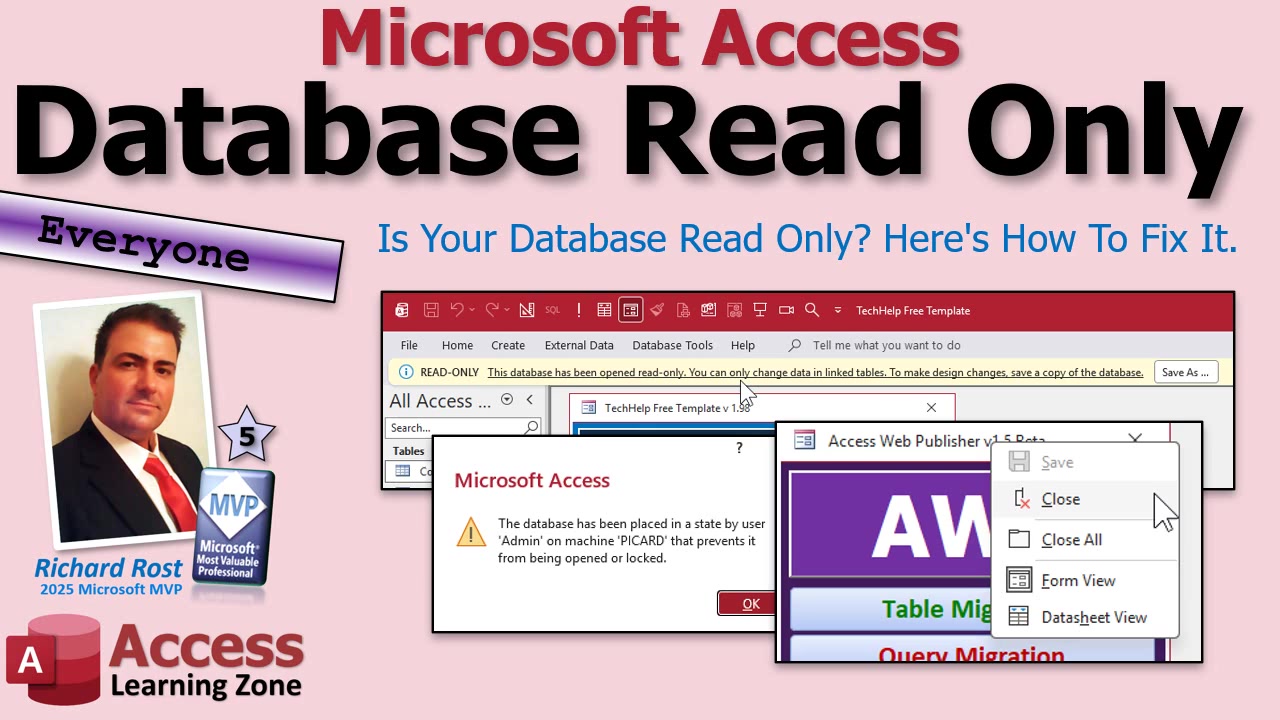
First things first, let's talk about what "read only" really means in Access. The program's not saying your database is broken; it's just putting up a "look, don't touch" sign. The important bit is figuring out why it did that... and that's what we'll get into here.
So, let's walk through the most common reasons your Access database turns read only, starting with the easy (and sometimes embarrassing) ones and working toward the weirder stuff.
Step one: Did you actually open it in read only mode? It sounds silly, but Access sometimes just does what you tell it - even if you didn't mean it. If you opened the database using File > Open, check the little drop-down next to the Open button. There's Open Read Only in there, and it's shockingly easy to click the wrong option. Happens to the best of us. Just make sure you actually opened the database normally before we start blaming Windows or the database file itself.
If that's not it, the next culprit is Windows marking the file as read only. Go to File Explorer, right-click on your actual database file (not a shortcut), and hit Properties. Down at the bottom, look for Attributes. If "Read Only" is checked, clear it and Apply. Also, if you see a message saying "This file came from another computer and might be blocked," hit Unblock. That sometimes happens if you downloaded the database or opened it from an email attachment - good old Windows security at work.
Still locked out? Try copying the database to a different location on your computer, like your Desktop, and see if you can work with it there. If that works, you might have a folder permission problem, which is especially common for databases stored on a network share. Here's a big tip: Access requires permission to create a little companion file (the .LACCDB "lock file") in the same folder as your database. If it can't create or update this file, Access plays it safe and goes read only. To fix this, make sure you have full read-write access to the folder - not just the file. If you're on a business network, you might need your IT folks' help for this one.
Another fun curveball: is someone else using the database in exclusive mode? Access likes to let lots of people use the database at the same time, but if one person opens it "exclusive," everyone else gets blocked. Sometimes it's not even Access itself but another program - like Excel linked to your database, backup software, or those annoying cloud sync services (looking at you, OneDrive, Google Drive, Dropbox) - that hijacks your file. That's why it's a terrible idea to actually use Access out of a cloud-synced folder. Backup? Yes. Live database work? Never.
If things are still weird, you could be dealing with a stuck lock file (.LACCDB or .LDB for those still on ancient versions). Normally Access creates this lock file when the database is open and deletes it when the last person signs out. But if Access or Windows crashes, that file can get left behind - and Access gets confused and stubborn. If you find a lock file in the same folder as your database but you know for a fact that everyone is out of the database, you can delete it manually. Just double and triple check - deleting it while someone is still in the database is a recipe for trouble.
Now, here's one that sneaks up on people - the file extension. If your database ends in .ACCDB, life is good. That's a normal, editable database file. If it ends in .ACCDE, that's a compiled, "execute only" version. Developers use this to lock things down. With an .ACCDE, you can edit data, but design changes (tables, queries, forms, VBA code) are locked out by design. If you need to make design edits, you'll need the original .ACCDB file from the developer. For everyday data entry though, .ACCDE shouldn't stop you.
Still no luck? Try using Compact and Repair from inside Access. This can sweep up minor database corruption and clear out the cobwebs. Trust me, always back up before you do this - and frankly, you should have a solid nightly backup strategy regardless. Restoring a backup is way easier than pulling a mangled database back from the dead.
If your database is split (you're using linked tables), remember: the problem might not be in your front-end file. If you don't have permission to the folder where the back-end lives, Access can get cranky and start acting up. Always check that you can browse to that backend file and that you have read-write access there, too.
And finally: if all else fails, try creating a brand new blank Access database and import all your objects from the old one. Sometimes it's the database file container itself that's got gremlins. Import objects one at a time to reduce the chance of dragging some corruption along for the ride. Again - backups, backups, backups. I can't say it enough.
Quick recap checklist for the next time your database opens read only:
* Did you accidentally open it as read only?
* Is the file marked read only or blocked by Windows?
* Are folder permissions causing trouble?
* Anyone else hogging the database in exclusive mode?
* Is there a stuck lock file hanging around?
* Is the file actually an .ACCDE?
* Tried compact and repair yet?
* Considered importing into a new file?
* (And don't forget: sometimes your antivirus can block Access files too!)
Usually, if Access says "read only" it's being cautious, not broken. It's often just looking out for your data. So don't panic - work through the list, and you'll be back to editing in no time.
For all the nitty-gritty details, walkthroughs, and extra geeky bits, check out the video embedded above.
Live long and prosper,
RR

No comments:
Post a Comment