Ever wish you could pull up your trusty Microsoft Access database on your phone without having to rebuild everything from scratch? That's a pretty common request, and let's be honest, nobody wants to reinvent the wheel (or their Access app) just to get some mobile action. Good news: you can actually build a simple mobile front end using Microsoft Power Apps with your existing Access database. The trick is to let SQL Server do the heavy lifting in the background.
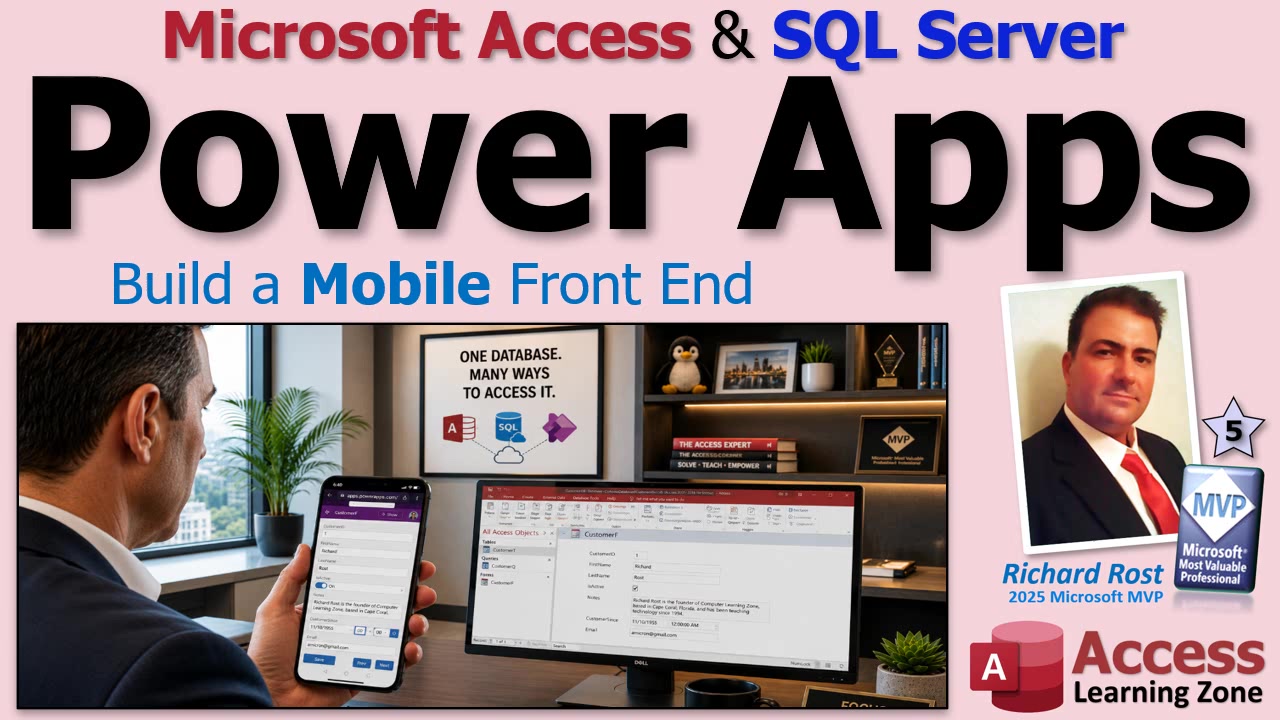
As much as folks sometimes panic about "replacing" Access, that's absolutely not what's happening here. Access stays right where it is as your desktop front end. We're just storing your data in SQL Server so Power Apps can play with it too. That way, you get to keep the database you know and love, but your data is accessible from just about anywhere - your phone, tablet, even your website (if you want to go that far). When you're done, you'll be able to whip out your phone, launch a Power App, and see your familiar data, while everything on your desktop keeps working just as it always did.
So, why move your data to SQL Server in the first place? Well, if all you really want is remote access to your same old Access database, you could just use Remote Desktop or a hosted Windows solution. Shoot, most of the time when I'm traveling, I just leave my computer on at the office and remote in. It works, but it's not for everyone - maybe you don't want to leave your computer running nonstop, or perhaps you need something that feels more like a true mobile app.
When you need more flexibility, moving your tables up to SQL Server becomes the clear winner. SQL Server acts as a reliable, central store for your data. Not only can Access connect to it seamlessly (if you relink your tables), but so can other applications - including Power Apps, reporting systems, and custom web apps you might build in the future. One database, any number of front ends, and your users get to work however they like best.
You've also got options like SharePoint or Microsoft's Dataverse (especially if you're deep into the Power Platform or Dynamics 365). I still lean towards SQL Server, simply because it's industry standard, rock solid, and works with pretty much everything.
Now, let's get to the fun part - building the Power App. Here's the basic plan:
1. First, make sure your Access data lives in SQL Server. If you need help with that, I've got free lessons that walk you through setting up an account (Winhost is great), creating your database, moving your tables, and relinking everything back to Access so it still behaves just like always. Get that done first; it's painless and the foundation for everything else.
2. With your data online, hop over to make.powerapps.com. Sign in with your Microsoft account, hit "Create," and choose "Canvas app from blank." Pick the "Phone" layout (unless you want to get fancy with responsive apps, which is a whole separate adventure). This approach feels very similar to Access's form designer - you've got a blank canvas, you put controls wherever you want, and you get to design exactly the UI you need.
3. Next, get your SQL Server data connected. Add a new data source and search for SQL Server. Heads up: SQL Server is a premium connector, so you'll need a Power Apps license (the price changes, but plan on about $20 a month at the time of writing). There's a free trial and a developer plan too if you just want to get your feet wet.
4. Enter your SQL Server connection info (from your host), tell it which tables or views to use, and voila - your Power App now has access to your Access data, via SQL Server, right on your phone. Honestly, the hardest part of this is just getting those connection strings right. Once it's connected, adding forms and fields is easy, and feels like second nature if you've ever built Access forms.
Quick warning: Power Apps is designed for internal business apps, not public websites. Every user needs a Microsoft account and appropriate permissions. If you wanted a public-facing interface, you'd probably want a custom web app instead. But for your employees or trusted users, Power Apps is excellent.
Third-party tools like Retool and Appsmith exist too, and I've seen people use them to great effect, but Power Apps is a no-brainer if your world already revolves around Microsoft 365.
You don't need to be a master programmer here. Power Apps handles a ton of the heavy lifting for you - drag and drop, link to your tables, set up some logic, and you've got a perfectly serviceable mobile view of your back-office data in an afternoon.
The bottom line: Migrating your Access tables to SQL Server doesn't mean giving up Access. You're gaining the ability to connect to all kinds of front ends. Power Apps is a great way to get started building lightweight mobile (and web) applications without leaving the Microsoft ecosystem or losing all your work in Access.
If you want to see me go through the process step by step, the video below walks you through the entire process, shows the screens, and gives you a good look at the pitfalls and little tips I've picked up from experimenting with Power Apps and Access integrations. Check it out if you want to see the whole thing in action.
Live long and prosper,
RR

No comments:
Post a Comment