Monday, August 31, 2026

Microsoft Access BOF & EOF Explained: Why Check Both for an Empty Recordset?

One of those little bits of Access VBA that people tend to memorize without really understanding is the empty recordset test: If rs.BOF And rs.EOF Then. It works, yes, but if you only check EOF, you can easily convince yourself that a query returned no records when in fact you simply walked off the end of a perfectly good recordset. Been there, done that, got the mousepad.

The key is to stop thinking of BOF and EOF as records. They are not records. They are positions just outside the records in a recordset. Once you understand where those positions are and how navigation affects them, the famous BOF/EOF test stops being a magic incantation and starts making perfect sense.

A DAO recordset is simply an object that represents rows returned from a table, query, or SQL statement. It might contain every customer in your Customer table, all overdue invoices, or the results of a filtered search.

Imagine the records as a row of index cards. If the recordset contains records, one of those cards is the current record. That is the record your code is currently sitting on and the one whose fields you can read with something like rs!CustomerID.

BOF means "Beginning Of File," which is old terminology that has stuck around since the early days of file handling. In practical Access terms, BOF means the current position is before the first record.

EOF means "End Of File." It means the current position is after the last record.

Neither BOF nor EOF is a real record. They are boundary positions. Think of BOF as being just to the left of the first record and EOF as being just to the right of the last record.

If you open a normal, non-empty DAO recordset, Access generally positions it on the first record automatically. At that point, both rs.BOF and rs.EOF are False, because you are sitting on an actual record.

If you call MoveNext repeatedly, eventually you move beyond the last record. At that point, EOF becomes True. That does not mean the recordset was empty. It may mean that your recordset had one record, ten records, or ten thousand records, and your code simply took one step too many.

Likewise, if you are on the first record and call MovePrevious, you move before the first record. BOF becomes True. The recordset can still contain plenty of records. You are just positioned outside of them.

This is why checking only EOF can lead you astray. Consider a loop that moves through all records with MoveNext. When the loop ends, EOF is True. If you then test only EOF and decide that means "no records were found," you are wrong. Records were found and processed. You are merely parked past the end of the list.

The same thing applies to BOF by itself. BOF being True does not prove that there are no records. It may simply mean you called MovePrevious while positioned on the first record.

The important case is when both BOF and EOF are True at the same time. That condition tells you there is no current record because there are no records at all. There is no first record to sit before, no last record to sit after, and no actual row that Access can make current.

That is why the standard empty recordset test is If rs.BOF And rs.EOF Then. Both flags being True means the recordset is empty.

This test is especially useful immediately after opening a recordset. For example, you might open a recordset based on a query that searches for customers matching some condition. Sometimes it will find rows, and sometimes it will not. Right after OpenRecordset, check BOF and EOF together. If both are True, there is nothing to process. Otherwise, you can work with the current record or start looping through the results.

If you need to read a field from the current record, be a little more careful. You need to make sure you are not positioned at either boundary. In other words, the safe condition is that BOF is False and EOF is False. If either one is True, there is no current record available to read.

This distinction matters because an empty-recordset check and a current-record check are related, but not quite the same thing. rs.BOF And rs.EOF tells you whether the recordset has no records at all. Not rs.BOF And Not rs.EOF tells you that you are currently positioned on a valid record.

For example, suppose a query returns exactly one customer. When you first open that recordset, both BOF and EOF are False because you are sitting on that one customer. If you call MoveNext, EOF becomes True. If you instead call MovePrevious, BOF becomes True. The recordset still has one record in it, but you are no longer sitting on it.

Another common beginner trap is using RecordCount to determine whether a recordset is empty. That can be unreliable with certain types of recordsets because DAO may not know the full count until you have navigated through the records, often by moving to the last record first. If all you want to know is whether at least one row was returned, BOF and EOF are the cleaner test.

Also remember that recordset position matters after deletes. If your code deletes records, especially the last record, do not assume the BOF and EOF flags will always behave exactly as you expect without repositioning the recordset. Move to an appropriate location again, such as the first or last record, before making assumptions about where you are.

And, of course, when you are finished with a DAO recordset, close it and set the object variable to Nothing. Open objects should be cleaned up properly. If you set it, do not forget to forget it.

So the short version is this: BOF means you are before the first record. EOF means you are after the last record. Either one can happen in a recordset that contains valid data. But when both are True, the recordset is empty.

Once you visualize BOF and EOF as boundaries rather than records, a lot of recordset navigation becomes much less mysterious. For the complete walkthrough, including live Access demonstrations of moving before and after records, watch the embedded video.

Live long and prosper,
RR

Friday, August 28, 2026

Does a Where Condition Open a Matching Record in Microsoft Access? Video Quiz A1.3

Time for a quick Access quiz. These are the kinds of small details that make a big difference once you start building forms and macros that actually do useful work. See how many you can answer before checking the explanations.

This quiz covers opening a form to a matching record, choosing the right form event, concatenating values in expressions, checking for Nulls, and using If-Then-Else logic in Access macros. No fair peeking ahead. Well, a little peeking is probably fine.

Question 1: When using the Open Form macro action, what is a Where Condition primarily used for?

A. Sorting the records alphabetically
B. Opening the form at a specific matching record
C. Changing the form's design
D. Selecting the database table to use

Answer: B. A Where Condition tells Access which record or records to display when the form opens. For example, if you are looking at a customer on one form and want to open another form showing that same customer's orders, the Where Condition can filter the Orders form to that customer's matching records.

It is not a sorting tool, and it does not change the form's design or record source. Think of it as a filter applied at the moment the form opens. It answers the question, "Which records do I want to see?"

Question 2: Which form control event is appropriate when you want an action to occur after a user double-clicks that control?

A. On Click
B. On Double Click
C. On Load
D. On Current

Answer: B. If you want something to happen when the user double-clicks a button, text box, list box, or other control, use the On Double Click event. The answer is pretty much sitting right there in the question.

The On Click event fires for a single click. On Load occurs when a form opens, and On Current runs when the form moves to a different record. Those events all have their place, but they do not specifically respond to a double-click.

Question 3: In an Access expression, what does the ampersand operator do?

A. Adds two numeric values only
B. Joins text and values together
C. Compares two values for equality
D. Starts a comment

Answer: B. The ampersand, &, is the concatenation operator. It joins things together. You can use it to combine text, field values, numbers, dates formatted as text, and so on.

For example, you might combine a first name and last name into one display value, or build a message such as "Customer ID: " followed by the current customer's ID. It is one of the most useful little operators in Access expressions.

Do not confuse it with the plus sign. While plus can sometimes appear to join text, it behaves differently when Null values are involved. The ampersand is generally the safer and more predictable choice for putting text together.

Question 4: What does the Access expression IsNull(some field) check for?

A. Whether the field contains a zero
B. Whether the field has no value
C. Whether the field contains duplicate data
D. Whether the field is a primary key

Answer: B. A Null means the field has no value. It is not the same thing as zero, an empty string, or a space character. If a numeric field contains 0, that is still a value. If a text field contains "", that may be an empty string, but it is not necessarily Null.

Use IsNull() when you need to know whether a field has never been given a value at all. This comes up constantly in validation, conditional formatting, calculated controls, macros, and VBA.

Question 5: What is the purpose of an If-Then-Else block in an Access macro?

A. To run every action in the macro twice
B. To choose actions based on whether a condition is true
C. To save the current record automatically
D. To convert a form into a report

Answer: B. An If-Then-Else block lets your macro make a decision. If a condition is true, Access performs one set of actions. Otherwise, it can perform a different set of actions. That is how you make a macro behave intelligently instead of blindly doing the same thing every time.

For example, you might check whether a required field is Null before allowing a user to open another form. If the field has a value, continue. If it does not, show a message and stop the process. Simple logic like that can prevent a lot of bad data and confused users.

So how did you do? If you got all five, congratulations, your macros may now be smarter than the average office printer. If you missed a couple, no worries. These are all important building blocks for working with forms, expressions, and macros in Microsoft Access.

Watch the embedded video for the full quiz and quick explanations, and keep practicing these little concepts. They add up fast.

Live long and prosper,
RR

Thursday, August 27, 2026

Why Does Microsoft Access Show an Enter Parameter Value Box in a Query? Video Quiz X1.3

Time for a quick Access quiz. These are the kinds of relational-query questions that separate "I can build a query" from "I know why the query is doing that weird thing." Keep score if you like, and try to answer each question before reading the explanation.

There are five questions covering foreign keys, joins, related records, and one of Access's most common little annoyances: the dreaded Enter Parameter Value box. Ready? Let's see how you do.

Question 1: What is the usual purpose of a foreign key field in an Access table?

Is it used to identify every record in that same table, store a reference to a related record in another table, automatically calculate totals, or prevent users from editing the table?

The answer is to store a reference to a related record in another table. A foreign key is how tables are connected in a relational database. For example, a CustomerID field in an Orders table is a foreign key because it points to the customer associated with each order.

The CustomerID in the Customers table is normally the primary key. The matching CustomerID in the Orders table is the foreign key. Same type of value, different job. One identifies the customer record itself; the other says, "this order belongs to that customer."

Question 2: What does an inner join in an Access query normally return?

Does it return every record from both tables, matched or unmatched? Only records with matching values in both tables? Every record from the first table only? Or only records with blank join fields?

The correct answer is only records that have matching values in both joined tables. That is exactly what an inner join does. If you join Customers to Orders using CustomerID, you will see customers who have orders and orders that belong to valid customers. Customers with no orders will not appear in that query.

This is often perfectly fine. If you are making an order report, you probably do not need to see every customer who has never bought anything. But it catches people off guard when they expect all customers and only get the ones with related records.

Question 3: You want to see every customer, including customers who have never placed an order. Which join should you use?

The answer is a left join that includes all customer records. In Query Design, this is the join option that says to include all records from Customers and only matching records from Orders. Customers without orders will still appear, but their order-related fields will be blank. That is not Access being broken. It is Access accurately telling you that no matching order exists.

Left joins are especially useful for finding customers who have never ordered, products that have never sold, employees with no assigned tasks, or any other "show me the records with no matching records over there" situation.

Question 4: When a query displays customer fields beside order fields, what happens to the underlying table data?

The correct answer is Access displays related data together without duplicating it in the tables. A query does not magically copy the customer's name and address into every order record. It simply follows the relationship while displaying the results.

This is one of the big benefits of relational databases. Store the customer information once in the Customers table. Store order information once in the Orders table. Use the CustomerID relationship when you need to see them together. No copying data around, no updating seventeen duplicate addresses because someone moved across town, no database goblins multiplying your records in the night.

Question 5: Why might an Access query unexpectedly display an Enter Parameter Value box for what appears to be a field name?

The answer is Access cannot find a field or control name referenced by the query. Most of the time, it is a typo. If your query asks for a field called LastNmae instead of LastName, Access does not know that you meant LastName. It assumes LastNmae might be a parameter you want the user to enter, so up pops that box.

The same thing can happen if you renamed or deleted a field, referenced a control on a form that does not exist, or misspelled a table name, query name, or form control reference. The parameter box is not necessarily asking for a legitimate parameter. Very often it is Access politely saying, "I have no idea what this name is supposed to mean."

When that box appears unexpectedly, do not just type something in and hope for the best. Check the spelling of field names in the query design grid, examine calculated fields and criteria, and verify any form references. If you are using something like Forms!MyForm!MyControl, make sure both the form and control names are correct and that the form is open when the query runs.

How did you do? If you got all five, congratulations, you are well on your way to becoming the chancellor of the high council. If any of these tripped you up, spend a little time working with relational queries, primary keys, foreign keys, and join types. Those concepts make a whole lot of Access behavior suddenly make sense.

You can watch the embedded video for the full quiz walkthrough and quick explanations.

Live long and prosper,
RR

Monday, August 24, 2026

How Do You Properly Normalize Customer Child Records in Microsoft Access? Video Quiz X2.1

Ready to test your Access normalization knowledge? This expert-level quiz covers five common database design decisions that can make the difference between a clean, maintainable database and a future headache with 47 duplicate fields and no idea which one is correct.

Give yourself a few seconds for each question before revealing the answer. If you get all five, congratulations: your tables are probably less terrifying than most. If not, no worries. These are exactly the kinds of design choices that become much clearer once you understand why normalization matters.

Question 1: What is the main goal of normalizing an Access database?

A. Reduce duplicate data and improve data maintenance
B. Put all information into one large table
C. Replace tables with forms and reports
D. Store every calculation permanently

Answer: A. Reduce duplicate data and improve data maintenance.

Normalization is about organizing your data so that each fact has one proper home. If you store the same customer address, employee name, or product description in a dozen different places, eventually one copy will get changed while the others do not. Then you have conflicting information, confused users, and the usual database gremlins.

A normalized design reduces unnecessary duplication and makes updates easier. Change a driver's phone number once in the Driver table, for example, instead of changing it in every record related to that driver.

Question 2: Which design best follows first normal form when tracking a customer's children?

A. Child One Name, Child Two Name, and Child Three Name fields in the Customer table
B. One Children field containing all children's names
C. A Child table with one child per record linked to the Customer table
D. A separate Customer record for each child

Answer: C. Use a Child table with one child per record linked to the Customer table.

This is one of the classic normalization examples. Do not create fields such as Child1Name, Child2Name, Child3Name, and so on. What happens when someone has four children? Or six? Or sixteen? Do you keep adding columns until the table needs its own zip code?

Instead, create a Child table. Each child gets one record, and each record includes the CustomerID that identifies the parent or customer. A customer with two children has two child records. A customer with sixteen children has sixteen child records. No special fields, no arbitrary limits, and no stuffing multiple names into one field separated by commas.

Question 3: A Car table includes CarID, Make, Model, DriverID, and DriverName. Where should DriverName normally be stored?

A. In the Car table, because every car needs a driver name
B. In a Driver table with the other information about the driver
C. In a calculated field in the Car table
D. In the primary key of the Car table

Answer: B. Store DriverName in the Driver table.

The Car table should store the DriverID, which points to the driver assigned to that car. The driver's name, phone number, address, license information, and other driver-specific details belong in the Driver table.

Why? Because the driver's name is a fact about the driver, not a fact about the car. If a driver changes their name, you should update one Driver record. You should not have to hunt through every car record that happens to reference that person.

Question 4: An order line has Quantity and UnitPrice. What is the best way to handle the line total?

A. Calculate it in a query, form, or report when needed
B. Store it as the primary key of the order line
C. Enter it manually in a text-only field
D. Put all order totals in the Customer table

Answer: A. Calculate it in a query, form, or report when needed.

The line total is simply Quantity multiplied by UnitPrice. Since it can be calculated whenever you need it, it usually should not be stored permanently in the table. Storing calculated values creates another opportunity for bad data. Someone changes the quantity but forgets to update the total, and now the invoice is wrong.

Calculate it in a query, on a form, or in a report. Queries are usually my preferred place for calculations like this because the expression can be reused wherever you need it.

Question 5: When might it be appropriate to store a customer's address with an order, even though the address is also stored in the Customer table?

A. When preserving the shipping address used at the time of the order
B. When Customer table does not have a primary key
C. When an order has only one product
D. When the address is shorter than 20 characters

Answer: A. Store the address with the order when you need to preserve the address used at that time.

This is an important real-world exception. Normally, you do not want to duplicate customer address data everywhere. However, an order is a historical transaction. If the customer moves next year and updates their current address, you still need to know where Order #12345 was shipped last year.

That is why many order systems keep a shipping address, and sometimes a billing address, with the order itself. It is not careless duplication. It is preserving a snapshot of what was true when that transaction occurred.

So, how did you do? If you missed a couple, that is perfectly normal. Normalization takes a little practice because it requires you to think about what each field actually describes and where that information truly belongs. Watch the embedded video for the complete quiz walkthrough and a few more comments on each answer.

Live long and prosper,
RR

Sunday, August 23, 2026

When Should You Enable Active Content in a Microsoft Access Database? Video Quiz B1.3

Time for a quick Microsoft Access beginner quiz. These questions cover some of the basic building blocks of an Access database, including where data is stored, what the Navigation Pane does, how objects are displayed, and one very important security question about active content.

Try to answer each question before looking at the answer. If you get all five, congratulations, you have successfully mastered at least a small portion of the Force before breakfast.

Question 1: Which Access object is primarily used to store the actual records in a database?

Is it a table, form, report, or query?

The answer is a table. Tables are where the actual data lives. For example, a customer table stores customer information, an order table stores orders, and so on. Forms, queries, and reports all work with that data, but the table is the object that stores it.

Question 2: What does an Access database file normally contain?

Does it contain only one table and its records? Tables, queries, forms, reports, and other database objects? Only printed reports? Or separate files for every form and query?

The correct answer is tables, queries, forms, reports, macros, modules, and other database objects. One Access database file can contain a whole application. Your data tables, data-entry forms, printed reports, saved queries, automation macros, and VBA code can all live together in the same ACCDB file.

This is one of the things that makes Access so useful for small business databases and departmental applications. You are not juggling a folder full of separate form files, query files, and report files. It is all packaged together.

Question 3: What is the Navigation Pane used for in Microsoft Access?

Is it for displaying database objects such as tables and forms, entering records into the current table, changing Windows display settings, or automatically printing reports?

The answer is displaying database objects such as tables, queries, forms, and reports. The Navigation Pane is usually found on the left side of the Access window. Think of it as the directory for your database. It lets you see and open the objects that make up your application.

You can organize the Navigation Pane in different ways, including by object type or by custom groups. Beginners should get comfortable finding their tables, queries, forms, and reports there before trying to hide it or build fancy navigation menus. One step at a time, grasshopper.

Question 4: Which statement best describes the difference between tabbed documents and overlapping windows in Access?

Tabbed documents show objects as tabs, whereas overlapping windows allow separate movable object windows. Tabbed documents are for tables only and overlapping windows are for forms only. Tabbed documents save data and overlapping windows print data. Or there is no functional difference in how objects are displayed.

The correct answer is that tabbed documents show objects as tabs, while overlapping windows allow separate movable object windows.

Tabbed documents are the default in modern versions of Access. Each open table, form, query, or report appears as a tab across the top of the Access workspace. Overlapping windows use the older-style interface, where each object opens in its own movable, resizable window inside Access.

Neither setting changes your data. It is mostly a matter of how you prefer to work. Some people like tabs because they keep the workspace neat. Others, myself included, prefer overlapping windows because you can position multiple forms or datasheets side by side and see them at the same time.

Question 5: What is the safest response when Access warns that active content has been disabled in a database received from someone else?

Should you enable the content immediately so all features work? Save the file under a new name and then enable it? Enable content only if you know and trust the source? Or ignore the warning because Access databases cannot contain harmful code?

The right answer is enable content only if you know and trust the source.

Access databases can contain macros, VBA code, startup forms, automated actions, and other active content. Most of the time, that content is there to make the database work properly. A button may run code, a form may open automatically, or a report may be generated with a click.

However, code is code. A malicious database can potentially do things you did not intend, such as modify or delete data, interact with files on your computer, or run other commands. So if somebody emails you an Access database out of the blue, do not click Enable Content just because Access says some features are disabled.

First, make sure you recognize and trust the sender. If the database came from a coworker or client, verify that they actually sent it, especially if the message seems unusual. If you downloaded it from the internet, be extra cautious. Saving it under a different filename does not make the code safer. Trusting the source is what matters.

If you built the database yourself, or you received it directly from a known and trusted source, enabling active content may be necessary for its forms, buttons, macros, and VBA features to work as intended. If you are not sure, leave the content disabled until you can verify the file.

How did you do? If you missed a few, do not worry. These are foundational Access concepts, and they become second nature once you start building databases. You can watch the embedded video for the full quiz and a quick walkthrough of each answer.

Live long and prosper,
RR

Thursday, August 20, 2026

Do You Know the Biggest Advantage VBA Has Over Macros? Access Video Quiz 3

Ready to test your Access developer knowledge? This quick quiz covers a few fundamentals that every serious Access user should know, especially the all-important difference between VBA and macros. Keep track of your answers before reading the explanations. No peeking. I have ways of knowing.

These questions are aimed at developer-level Access users, but they are also useful if you are just starting to move beyond basic tables, forms, and queries. VBA and macros both have their place in Access, but they are definitely not the same thing.

Question 1: What does VBA stand for?

A. Visual Basic for Applications
B. Virtual Business Access
C. Visual Database Automation
D. Verified Basic Application

The correct answer is A: Visual Basic for Applications. VBA is Microsoft's programming language built into Office applications, including Access, Excel, Word, Outlook, and others. In Access, VBA lets you write code that responds to button clicks, opens forms, runs queries, validates data, creates reports, automates tasks, and generally makes Access do things that would be difficult or impossible with macros alone.

Question 2: Which statement best describes Access VBA?

A. It is a standalone programming environment that replaces Access.
B. It is used to enhance and automate an Access database.
C. It is the same thing as Microsoft Visual Studio.
D. It is only used to create Access web apps.

The answer is B: VBA is used to enhance and automate an Access database. VBA lives inside your Access database file and works with the forms, reports, queries, tables, and controls you already have. It does not replace Access. It makes Access more capable.

For example, you might use VBA to check whether a customer has an overdue balance before allowing a new order, automatically generate an invoice number, export a report to PDF, or loop through a set of records and perform an action on each one. Those are the kinds of jobs VBA handles very well.

Question 3: What is the biggest advantage VBA has over Access macros?

A. VBA never requires Access to run.
B. VBA is more powerful and flexible.
C. VBA automatically avoids all security warnings.
D. VBA is easier for complete beginners to design.

The correct answer is B: VBA is more powerful and flexible.

Macros are great for straightforward jobs. You can open a form, run a query, set a value, display a message, or perform other common actions without writing traditional code. For a beginner, that can be a nice stepping stone.

But macros have limits. Once you need more complicated logic, error handling, loops, reusable functions, custom calculations, interaction with files, advanced recordset work, or communication with other Office applications, VBA is where you want to be. VBA gives you much more control over what happens, when it happens, and what should occur if something goes wrong.

Think of macros as a basic set of prebuilt instructions. VBA is the full toolbox. The toolbox takes longer to learn, of course, but eventually you can build a lot more than a birdhouse.

Question 4: Why might someone choose Access macros instead of VBA when distributing a database?

A. Macros can be more portable when limited to safe macro commands.
B. Macros can create standalone EXE programs.
C. Macros work only with SQL Server databases.
D. Macros are shared automatically with every Office application.

The answer is A: Macros can be more portable when limited to safe macro commands.

Access treats VBA code differently from trusted macro actions. When you distribute a database containing VBA, users may see security warnings unless the database is trusted, digitally signed, or placed in a trusted location. That is not a flaw in VBA. It is a security feature designed to prevent unknown code from doing things it should not be doing.

Macros that use only safe actions can sometimes be easier to distribute because they may avoid some of those concerns. That does not mean macros are automatically better, and it certainly does not mean they can create standalone EXE files. Access databases still require Access, or the Access Runtime, to run.

The practical takeaway is simple: if your task can be handled safely with macros and you need the easiest possible distribution, macros may be a reasonable choice. If you need real programming power, VBA is still the better long-term solution. Just distribute your database properly and understand Access security settings.

Question 5: What is one practical career benefit of learning Access VBA?

A. It guarantees every company will replace SQL Server with Access.
B. It can lead to support and consulting work for Access and Excel solutions.
C. It eliminates the need to understand databases.
D. It is only useful for large enterprise-wide systems.

The correct answer is B: learning Access VBA can lead to support and consulting work for Access and Excel solutions.

There are plenty of businesses using Access and Excel every day. Some have large databases that have been running for years. Some have spreadsheets held together by formulas, coffee, and sheer determination. They often need someone who understands databases, automation, forms, reports, and VBA to keep things working and improve the system.

Learning VBA will not eliminate the need to understand tables, relationships, queries, normalization, and good database design. In fact, it makes those skills even more important. But it can absolutely make you more valuable, whether you are improving your own company's database or doing support and consulting work for others.

So how did you do? If you got all five correct, congratulations, you may be an ascended ancient. If not, no worries. Everyone starts somewhere, and knowing why VBA is more powerful than macros is an excellent place to start.

Watch the embedded video for the complete quiz and explanations, and if you want to dig deeper into Access development, VBA, macros, and practical database automation, there is plenty more to learn.

Live long and prosper,
RR

Wednesday, August 19, 2026

Why Won't Microsoft Office Install? Common Fixes for Word, Excel, Access, and More

When Microsoft Office refuses to install, the error messages are often about as helpful as a flashlight with dead batteries. You may see "Something went wrong" or "We couldn't install Office," reboot twice, try the installer again, and start considering whether your computer would survive a trip out the nearest airlock. The good news is that most Office installation failures come from a small handful of common problems, and they can usually be fixed without registry hacking or downloading mystery repair tools.

The key is to start with the simple, safe fixes first. Do not immediately start editing the Windows Registry because some random YouTube video told you to. That may solve one person's very specific problem, but it can also create three new problems that were not there before. Office installs are usually blocked by old Office components, conflicting 32-bit and 64-bit versions, pending Windows updates, security software, or a bad installer download.

The first thing to try is the old standby: restart Windows. Yes, I know. Everybody rolls their eyes at that suggestion. But a reboot clears pending installer locks, releases files that are waiting to be replaced, and finishes certain Windows updates that cannot complete until the system restarts. It fixes more installation problems than people like to admit.

Next, check whether an older version of Office is already installed. If you are upgrading from Office 2013, 2016, 2019, 2021, or moving to Microsoft 365, remove the old version completely before installing the new one. Office can often handle an upgrade automatically, but not always. Leftover components from a partial uninstall can confuse the new installer and cause it to stop with a vague error.

Use the normal Windows uninstall process first. Go into your installed apps, find Microsoft Office or Microsoft 365, and uninstall it. If that fails, or if Office still refuses to install afterward, use Microsoft's own Office uninstall tool. Microsoft provides a cleanup utility specifically for removing Office installations that did not uninstall cleanly. Search for the Microsoft Office uninstall tool, and make sure you are getting it directly from Microsoft's website, not from some site offering a "magical repair utility."

Another very common problem, especially for Access users, is a 32-bit versus 64-bit conflict. Office applications share a lot of common components. You generally cannot install 32-bit Excel alongside 64-bit Access, or 64-bit Office alongside a 32-bit Access Runtime. Everything needs to match.

For example, if your computer already has 32-bit Office installed, then you need the 32-bit version of Access, the Access Runtime, and the Access Database Engine. Trying to install a 64-bit component into that mix can cause the installer to fail. The reverse is true as well. Before installing anything, check which version of Office you currently have. In an Office application, go to File > Account > About, and it will tell you whether you are running 32-bit or 64-bit Office.

Windows itself can also get in the way. If you have pending Windows updates, install them first. Office relies on Windows installer services, system files, and security certificates that may be waiting for updates. Check Windows Update, let everything finish, and reboot again afterward. Also make sure you have sufficient free disk space. Office is not enormous by modern standards, but installations need room for temporary files as well as the finished programs.

Third-party antivirus software is another frequent troublemaker. Some security packages are a little too enthusiastic and can block Office setup files, background installer processes, or changes to system folders. If you use third-party antivirus software, temporarily disable it while installing Office, then turn it back on afterward. In a business environment, you may need your IT department to do this for you.

Personally, I generally recommend sticking with the security built into Windows unless you have a specific business reason to use something else. Windows Security, formerly called Windows Defender, is quite capable for most people. Adding layers of third-party software often means adding layers of things that can interfere with installs, updates, and perfectly normal programs.

If you have tried all of that and Office still will not install, download a fresh installer directly from Microsoft. Do not use an installer you found in your Downloads folder from three years ago. It may be outdated, incomplete, or tied to an old Office release. Sign in to your Microsoft account, go to your Services and Subscriptions page, and download the current installer associated with your license.

Occasionally, the problem is not your computer at all. Microsoft can have temporary issues with its download or activation servers. It is rare, but it happens. If Office fails on multiple computers, or if everything appears normal but the installer simply will not complete, wait a little while and try again later. You may save yourself an afternoon of troubleshooting something Microsoft has to fix on its end.

The safest troubleshooting order is simple: reboot Windows, remove older Office versions, use Microsoft's uninstall tool if needed, install Windows updates, check your antivirus software, verify that your Office bitness matches, and download a fresh installer from Microsoft. Those steps solve the overwhelming majority of installation problems.

What I would not do is jump straight to registry edits, random command-line fixes, or third-party cleanup programs from websites you have never heard of. Those tools sometimes work, but they are usually aimed at a narrow problem. If your real issue is just an incomplete uninstall or a pending Windows update, you have now spent an hour changing things that did not need changing. That is how a simple Office installation problem turns into a "why is my entire computer acting weird now?" problem.

Start simple, work methodically, and only dig deeper if the normal Microsoft-supported fixes fail. If you want to see the full walkthrough and a little more discussion of the common causes, watch the embedded video above.

Live long and prosper,
RR

Saturday, August 15, 2026

What Is Design View? Understanding the Different Views in Microsoft Access

Ever open an object in Microsoft Access and suddenly wonder where your familiar screen went? One minute you are entering customer information, and the next you are looking at property sheets, tiny boxes, rulers, and a pile of settings. That is not Access randomly changing your database. You have simply switched to a different view.

Understanding views is one of the first things that makes Access feel a lot less mysterious. The simple question to ask yourself is this: am I building this database object, or am I using it? The answer will usually tell you exactly which view you need.

A view is just a different way of looking at or working with the same object. Switching views does not create a second copy of your table, form, query, or report. It simply changes the tools Access puts in front of you.

Think of it like working on a car. Sometimes you are driving it. Sometimes you have the hood up and are changing the engine. It is still the same car. Access objects work the same way. Some views are for the person designing the database, and other views are for the person entering data, reading results, or printing reports.

Design View is the blueprint view. This is where you go when you need to change how an object is built.

For a table, Design View is where you create and configure fields such as CustomerID, FirstName, LastName, EmailAddress, and so on. You select the data type for each field, choose a primary key, set field sizes, define validation rules, and generally tell Access what kind of data belongs in that table. You are building the filing cabinet before you start stuffing papers into it.

Once the table structure is in place, you normally switch to Datasheet View to see the actual records. Datasheet View looks like a spreadsheet, with fields displayed as columns and records displayed as rows. This is where you can enter data directly, edit existing records, sort records, and apply filters.

Entering data directly into a table is perfectly fine for a small personal database, especially while you are learning. However, if other people will be using your database, it is usually better to keep them out of tables. Let them work with forms instead. Tables are where the data lives. Forms are where you make that data usable by actual human beings.

Queries have a similar split between building and using. In Query Design View, you build the query by adding tables or other queries, selecting fields, setting sort orders, and entering criteria. The grid at the bottom of the screen is often called the Query By Example grid, or QBE grid. Fancy name, simple idea. It is a visual way to tell Access what question you want answered.

For example, you might create a query that shows customers in Florida, sorted by last name. You build that request in Query Design View, then switch to Datasheet View, or click the red Run button, to see the results. Datasheet View is the answer Access found for your question.

Queries also have an SQL View. SQL stands for Structured Query Language, which is the language databases use to request and manipulate data. When you build a query using the graphical QBE grid, Access writes SQL behind the scenes for you. SQL View lets you see and edit that SQL directly.

If you are new to Access, do not panic when SQL View appears. You do not need to know SQL in order to build useful queries. The graphical query designer is excellent, and it is how many people learn query logic before they ever type SQL themselves. If you accidentally end up in SQL View and it looks like alien handwriting, just switch back to Design View.

Forms are where most database users should spend most of their time. A form gives you a cleaner and friendlier way to work with data than staring at a giant grid of rows and columns. Instead of seeing every customer at once, you can have a nice customer form with labeled boxes for name, address, phone number, email address, and whatever else you need.

Form View is the normal working view for a form. This is where users browse records, add new records, edit information, click buttons, and use the database. A form can display one record at a time, show many records in a continuous list, or even include a subform with related data. For example, an order form might show the customer and order information at the top, with the order line items in a subform below it.

Form Design View is where you build that experience. You add text boxes, labels, buttons, combo boxes, images, and other controls. You move things around, set their properties, decide what data each control displays, and configure what happens when someone clicks a button. This is where the boxes get moved around because, well, that is exactly what Design View is for.

Forms can also have a Layout View, which lets you make certain visual changes while live data is still visible. Some people like it. Personally, I usually prefer Design View because it gives me more control and more predictable results. Layout View can be useful for quick sizing and anchoring adjustments, but you can build the vast majority of forms using just Form View and Design View.

Reports are similar to forms in that they have Design View and Layout View, but reports have a different job. Forms are primarily for working with data on screen. Reports are for presenting data, usually on paper, in a PDF, in an email attachment, or in some other format you plan to share.

Think invoices, mailing labels, sales summaries, customer lists, and other documents where page layout matters. In Report Design View, you arrange headings, logos, totals, labels, and the fields that will display your data. You decide where the page header goes, how groups are displayed, and what appears at the bottom of each page.

Reports have a Report View that lets you look at the report on screen, but it is not always the best indication of how the finished report will print. For reports, Print Preview is usually the view that matters most. It shows the report as actual pages, including page breaks, margins, headers, and footers. My usual rule is simple: build the report in Design View, then inspect it in Print Preview. If it looks right there, it will probably look right when printed or exported to PDF.

Macros and VBA modules have their own working environments too. Macros are built in Macro Design View, while VBA code opens in the Visual Basic Editor. Those are more advanced tools for automation and custom programming, but the same basic idea still applies: you use a different workspace depending on whether you are building behavior or using the finished database.

One important thing to remember is that not every object has every possible view. Tables do not have Form View because a table is not a form. Forms do not have SQL View because forms are not queries. If a tutorial tells you to switch to a particular view and you do not see it available, first make sure you have the correct type of object open.

You can usually change views with the View button in the upper-left corner of the ribbon. You can also right-click an object in the Navigation Pane before opening it, or right-click the object's title bar while it is open. That last method is one I use constantly because it is quick and keeps my hands where I want them.

When you leave Design View after making changes, Access may ask whether you want to save the design. Read that message carefully. Saving a design change saves the structure of the table, query, form, or report. It does not necessarily mean you are saving data records. You are saving the blueprint, not the contents of the filing cabinet.

You do not need to memorize every view Access offers right away. Just remember the basic pattern. Use Design View when you are building or changing structure. Use Datasheet View to inspect table and query records. Use Form View for normal data entry and day-to-day use. Use Print Preview to check reports before printing or exporting them.

Once that clicks, Access stops feeling like it is randomly throwing you into different screens. You start choosing the screen that gives you the tools you need for the job at hand. For a full walkthrough with on-screen examples of each view, watch the embedded video.

Live long and prosper,
RR

What Is VBA Primarily Used For in Microsoft Access Database Development? Video Quiz D1.2

Time for a quick Microsoft Access developer quiz. These five questions cover some of the basic VBA concepts you need to understand before you start adding custom programming to your forms and databases. Keep track of your answers, and no peeking at the answers until you've made your picks.

VBA, or Visual Basic for Applications, is what lets you move beyond the built-in features of Access and tell the database exactly what you want it to do. If you are ready, here are five quick questions.

Question 1: In Microsoft Access, what is VBA primarily used for?

A. Automating tasks and adding custom behavior
B. Storing records and tables
C. Formatting printed pages
D. Creating relationships between tables

Answer: A. VBA is primarily used for automating tasks and adding custom behavior. Tables store your data, relationships connect tables, and reports handle printed output. VBA is what you use when you need Access to do something more specific, such as validate data, open forms under certain conditions, calculate values, respond to a button click, or run a sequence of actions automatically.

Question 2: Which Access event would normally be used to run VBA when the user presses a command button?

A. On Click
B. On Current
C. On Open
D. On Delete

Answer: A. The On Click event is normally used for a command button. A button exists to be clicked. Nice and logical for once.

The On Current event runs when the current record changes, On Open runs when a form or report opens, and On Delete is related to deleting a record. If the user clicks a button and you want VBA to run, start with the button's On Click event.

Question 3: What does the VBA message box command do?

A. Display a message dialog box
B. Save the current record
C. Open the table in Datasheet View
D. Send a message to another Access user

Answer: A. A VBA message box displays a message dialog box. You can use it to notify the user, ask a yes-or-no question, show an error message, or simply confirm that your code got to a particular point while you are testing it.

A message box is one of the first VBA tools most developers learn because it is simple, useful, and hard to misunderstand. If you tell Access to display a message box, it displays a message box. Technology at its finest.

Question 4: In VBA, what is the main difference between a sub-procedure and a function procedure?

A. A function can return a value, and a sub does not
B. A sub can use variables, and a function cannot
C. A function only works in queries
D. A sub only works in forms
E. A sub must be public, and a function must be private

Answer: A. A function can return a value, while a sub-procedure does not directly return a value. Use a sub when you want VBA to perform an action, such as opening a form or changing a control's value. Use a function when you want VBA to calculate something and give you a result back.

There are some more advanced wrinkles, such as passing values back through ByRef parameters, but the basic rule is simple: functions return values; subs perform actions.

Question 5: Why should you avoid using a VBA keyword as the name of a variable, field, or control whenever possible?

A. Access may interpret it as a programming command
B. It prevents the object from being saved
C. It automatically changes the data type to text
D. It makes the object visible only in Design View

Answer: A. Access may interpret the name as a programming command. Using reserved words and VBA keywords for your own objects can create confusion and sometimes cause outright errors.

For example, do not name a variable MessageBox. That name is too close to a command Access and VBA may expect to use for something else. Give your fields, controls, and variables clear, descriptive names that do not collide with VBA commands. Your future self will appreciate it, especially when you are debugging something at 2:00 AM and wondering why Access has suddenly developed a personal grudge against you.

How did you do? If you got all five correct, you have a solid grasp of these Developer Level 1 basics. If you missed a couple, no worries. VBA takes practice, and these are exactly the kinds of foundational concepts that become second nature once you start using them in real databases.

Watch the embedded video for the full quiz walkthrough. These topics, along with plenty more practical VBA lessons, are covered in my Microsoft Access Developer Level 1 class.

Live long and prosper,
RR

Wednesday, August 5, 2026

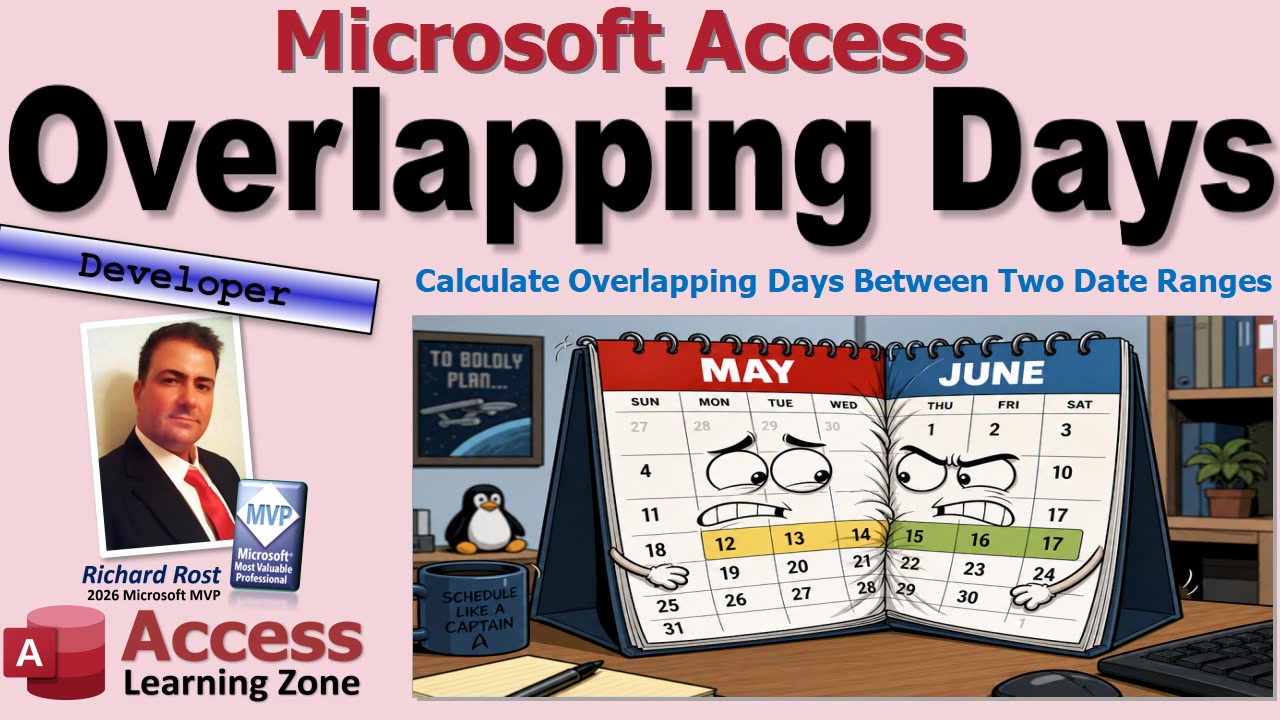
How to Calculate Overlapping Days in Two Date Ranges in Microsoft Access

Figuring out how many days two date ranges have in common comes up constantly in Access databases. Reservations, rentals, employee leave, utility bills, warranties, subscriptions, and just about anything else involving a start date and an end date can need this calculation. It sounds simple until you run into ranges that do not overlap, only partially overlap, or sit completely inside one another.

The good news is that you do not need a dozen different cases and a pile of spaghetti VBA to handle it. There is one simple rule: find the later start date, find the earlier end date, and see whether there is any time left between them. That is the overlap.

Suppose your first date range runs from January 13 through January 17. A second range might run from January 9 through January 11, which does not overlap at all. Or it might run from January 11 through January 19, which completely covers the first range. It could start before the first range and end in the middle, or start in the middle and end afterward. It could even fit entirely inside the first range.

All of those situations are handled with the same basic logic.

First, determine where the overlap starts. Look at both start dates and choose the later one. The two ranges cannot both be active until the later of the two ranges has begun.

Next, determine where the overlap ends. Look at both end dates and choose the earlier one. As soon as either range ends, the shared time is over. That is the part people often get backward, especially after copying and pasting code. The overlap end is the earlier ending date, not the later one. Tiny difference, huge consequences. Ask me how I know.

For example, if Range 1 is January 13 through January 17 and Range 2 is January 11 through January 14, the overlap begins on January 13 and ends on January 14. That gives you two shared calendar days if you are counting both dates.

On the other hand, if Range 1 ends on January 10 and Range 2 begins on January 15, your calculated overlap start would be January 15 while your overlap end would be January 10. Since the end comes before the start, there is no overlap. The answer is zero.

In VBA, this makes a nice small reusable public function. It receives four date values: the start and end of the first range, plus the start and end of the second range. Inside the function, you use a couple of local Date variables for the calculated overlap start and overlap end.

The basic comparison for the starting dates is simply: if Start1 is later than Start2, use Start1; otherwise, use Start2. For the ending dates, do the opposite: if End1 is earlier than End2, use End1; otherwise, use End2.

Once you have those two calculated dates, the safety check is easy. If the overlap end is less than the overlap start, return zero. Otherwise, subtract the overlap start from the overlap end to get the number of days between them.

Access date values are numbers behind the scenes, and one whole number represents one day. So for a day-based calculation, ordinary date math works perfectly well. You do not necessarily need DateDiff for this. DateDiff is useful when you need to work with things like months, years, or specific date boundaries, but plain subtraction is nice and clean for this particular job.

There is one business-rule detail you must decide for yourself: are your date ranges inclusive? In other words, do you count both the starting day and the ending day?

If someone is responsible for utility costs from January 8 through January 10, that is generally three calendar days: the 8th, 9th, and 10th. Basic subtraction gives you two, so you add one to include both endpoints.

But if you are calculating hotel nights, somebody checking in Monday and leaving Wednesday is usually charged for Monday night and Tuesday night, not Wednesday night. In that case, you would not add one. Neither approach is universally right. The important thing is to decide what your database means by a date range and apply that rule consistently.

Once the function is stored in a standard global module, you can call it from forms, reports, queries, other VBA procedures, and anywhere else in the database that can use a public VBA function. You might use it to check reservation conflicts, determine how many rental days fall inside a billing period, compare employee leave against a payroll cycle, or calculate whether a repair occurred during a warranty period.

For a tenant utility-bill situation, for example, you can compare each tenant's move-in and move-out dates against the utility billing period. The overlap calculation tells you how many days that tenant was responsible for during that bill. From there, you can divide costs however your particular rules require. The math is the easy part. Explaining the utility bill to three roommates is where the real programming challenge begins.

The full embedded video walks through building and testing the VBA function in Access, including the common copy-and-paste mistake of choosing the wrong ending date. It is a small function, but it is one of those handy little tools you will probably wind up using all over your database.

Live long and prosper,
RR

Tuesday, August 4, 2026

Is Anyone Still Logged On? How to Tell if Anyone is Using Your Microsoft Access Database

Before you compact a shared back end, restore a backup, replace a file, or make a table design change, it helps to know whether anyone is still using the database. Making changes while somebody is halfway through entering invoices is a fantastic way to turn an ordinary Tuesday into a much more interesting Tuesday.

Fortunately, Access leaves behind a pretty useful clue when a shared database is in use. It is not a perfect user-tracking system, but it is usually enough to tell you whether you should proceed with maintenance or stop and investigate first.

When Access opens a database for normal multi-user use, it generally creates a small companion file in the same folder as the database. If your shared file is an ACCDB or ACCDE database, the companion file uses the .laccdb extension. Older MDB databases use the older .ldb extension.

For example, if your shared back-end file is named CustomerData.accdb, Access will normally create a file named CustomerData.laccdb while someone is connected to it.

Think of the lock file as the occupied sign on a restroom door. If the sign is there, someone may be inside. That does not necessarily mean someone is actively doing anything at that exact moment, but it is enough of a warning that you probably should not start tearing out plumbing.

The lock file is part of the behind-the-scenes machinery Access uses to coordinate multiple users. It helps the database engine manage record locks and prevent users from stepping on each other's changes. You do not normally need to do anything with it. Do not rename it, move it, or edit it just because you see it sitting in the folder. It is not clutter. It is Access doing its job.

The simplest check is to browse to the folder containing the shared back end and see whether the LACCDB file exists. Be sure you are looking at the back end on the server or shared network folder, not at a user's front-end file. Each user should normally have a separate front end on their own computer, and that front-end lock file is not what matters for back-end maintenance.

If the back-end LACCDB file is not there, you can be reasonably confident that nobody is currently using that back end. That is usually a good time to perform your maintenance. If you are going to make design changes, compact the file, or restore a backup, opening the database exclusively is still a smart extra precaution. That prevents someone from wandering in halfway through the job.

If the LACCDB file does exist, treat the database as potentially occupied. Someone may be entering orders, running reports, editing records, or simply sitting at lunch with Access open. Either way, do not assume the back end is available just because nobody immediately admits to using it.

There is one important wrinkle: lock files can become stale. If Access crashes, Windows crashes, the computer loses power, Wi-Fi disappears, or the network connection drops unexpectedly, Access may not get the chance to remove the LACCDB file properly. The lock file remains behind even though nobody is actually connected.

That means the presence of a lock file is a warning, not absolute proof of a live user. The safest procedure is still to confirm that everyone is out of the application before deleting a stale lock file. And please make absolutely certain you are deleting the tiny LACCDB file, not the ACCDB database itself. It is surprisingly easy to click the wrong file when you are tired, in a hurry, or operating before coffee has had a chance to do its work.

If you have confirmed that everyone is out, you can usually delete the stale lock file. Access will create a new one automatically the next time someone opens the shared back end. If you are unsure whether the file is stale, do not make assumptions during a busy workday. Ask your users, check their workstations, or wait until after hours.

There is also a small but important detail with split databases. A user can have the front end open without immediately creating a lock file for the back end. This often happens when the startup form is an unbound main menu that has not yet opened a linked table, run a query, or displayed any back-end data.

In that situation, the user may technically have Access open, but they have not yet connected to the shared data file. Once they open a customer form, process an order, run a report, or otherwise touch a linked table, Access will normally open the back end and create the LACCDB file. For maintenance purposes, that is what matters: whether anyone is actually using the shared back-end file.

You can also check for the lock file programmatically with a small VBA function. The basic idea is simple: give the function the full path and file name of the back-end ACCDB file, remove the ACCDB extension, add .laccdb, and use the VBA Dir function to see whether that file exists.

The function returns a Boolean value. If the LACCDB file is found, it returns True. If the file is not found, it returns False. You can then call that function from a button on your main menu, from an automated maintenance routine, or before code attempts to compact, copy, replace, or otherwise work with the back end.

This is especially handy if you have an overnight process scheduled for midnight or 3:00 AM. Before the process starts manipulating the data file, it can check for the lock file and decide not to continue if users may still be connected. It is a simple safety check that can prevent a lot of trouble.

If your database uses more than one back-end file, you can perform the same check for each one. Some larger Access applications split tables across multiple back ends for archival data, email history, reporting tables, or other purposes. In that case, a more advanced routine can loop through the linked tables, identify the unique back-end files, and check each one without forcing you to maintain a long list by hand.

Sometimes you may want to know more than just whether the file exists. The contents of a lock file can often reveal the workstation names of computers connected to the database. If you open the LACCDB file in a text editor, you may see names such as the computer name and an Access user entry. The Access user name is often just Admin these days, so the workstation name is generally the more useful piece of information.

This can help you narrow down who might still be connected. If the lock file shows a workstation named ACCOUNTING-PC-3, you at least know where to start looking. It is not a complete security or audit system, but it can be enough to answer the practical question: "Who has this thing open?"

For more reliable tracking, consider building a login and logout system into your application. A good system can record the Windows user name, computer name, login time, and logout time. Then you can look for a login that does not have a corresponding logout. That is much more useful in a larger environment where walking around and asking everyone whether Access is open becomes a daily scavenger hunt.

Another useful approach is an administrative maintenance flag. Before you begin maintenance, place a small text file in the shared folder indicating that the database is offline. When users open their front end, the startup code checks for that file before touching any linked tables. If the maintenance flag exists, the application displays a message telling them the database is temporarily offline and then closes.

That gives you a controlled way to keep users from reconnecting while you compact the back end, restore a backup, or make design changes. It is much better than hoping nobody decides to open the database at exactly the wrong moment.

So the rule of thumb is simple. No lock file usually means you are clear. A lock file means someone may be connected, so verify before doing maintenance. And if a lock file remains after everyone is definitely out, it is probably stale and can be removed carefully.

The embedded video includes the complete VBA walkthrough, including how to create the lock-file check function and place it on a main menu button. It is a small tool, but it can save you from some very large headaches.

Live long and prosper,
RR

Monday, August 3, 2026

Can You Answer What Microsoft Access Macros Do to Automate User Actions? Video Quiz A1.2

Time for a quick Microsoft Access quiz. This one covers a few important macro basics: what macros are for, where they can live, how to run one from a button, and how macro arguments affect the actions they perform. Keep score as you go, and no peeking at the answers until you have made your choice.

These are advanced-level questions, but they focus on concepts that every serious Access user should understand. Give yourself a moment on each one. If you need more time, pause the embedded video and think it through before reading the answer.

Question 1: What is a Microsoft Access macro primarily used for?

Is it used for creating actions without VBA, storing records in a table, designing printed reports, or creating table relationships?

Answer: A macro is primarily used for automating actions without writing VBA code. Macros can open forms, run queries, apply filters, display messages, export data, and perform plenty of other tasks. They are a great way to automate common user actions without immediately diving into Visual Basic for Applications.

Question 2: Where can an Access macro be stored?

Only in a table? As a standalone database object or attached to an event? Only in a report? Or only in a VBA module?

Answer: A macro can be stored as a standalone database object or attached to an event. For example, you can create a macro in the Navigation Pane just like you create a query or form. You can also attach a macro directly to an event property on a form, report, or control.

This flexibility is one of the handy things about Access macros. A standalone macro can be reused in different places, while an embedded macro can be created specifically for one form button or one event.

Question 3: Which event property is normally used to run a macro when a user selects a command button?

On Click, Unload, On Current, or On Print?

Answer: The correct property is On Click. When a user clicks a command button, Access fires that button's On Click event. You can attach a macro to that event to open another form, run a report, search for a record, close the current form, or do whatever task the button is supposed to perform.

The other events have their own purposes. On Current runs when a form moves to a different record, Unload occurs when an object is closing, and On Print is used with reports. For a normal command button, On Click is the one you want.

Question 4: What does a Where Condition in the Open Form macro action do?

Does it change the form's design, limit the records shown when the form opens, save the current record before opening the form, or prevent the form from being opened?

Answer: A Where Condition limits the records shown when the form opens. Suppose you have a Customer form and want a button that opens only the orders for the currently selected customer. The Where Condition lets you tell Access exactly which records should appear.

Think of it as applying a filter at the moment the form opens. The form itself does not need to be redesigned, and you do not need to create a separate form for every possible customer, employee, product, or other record. That would get ridiculous pretty fast.

Question 5: In a macro action, what are arguments?

Are they additional settings that control how the action runs, errors that stop the macro, names of all tables used by the macro, or security permissions for database users?

Answer: Arguments are additional settings that control how the action runs. Each macro action can have different arguments. For example, the Open Form action has arguments for the form name, view, filter name, Where Condition, data mode, and window mode.

The action tells Access what to do. The arguments tell Access how to do it. If you leave out an important argument, the macro may still run, but it may not behave the way you intended. That is usually when the fun begins.

So, how did you do? If you got all five, congratulations, you have slain the macro dragon and kept all the loot. If you missed a couple, no worries. Macros are one of those Access topics that become much easier once you start building a few practical examples.

You can watch the embedded video for the quiz and a quick review of each answer. These macro topics are also covered in more detail in Microsoft Access Advanced Level 1, Lesson 2.

Live long and prosper,
RR

Sunday, August 2, 2026

Microsoft Access Help: Where to Get Answers, Community Support, and Expert Assistance

When an Access database starts doing something weird, it is easy to fall down a search-engine rabbit hole and come back with ten different answers that all contradict each other. Some problems are simple, some are technical, and some involve a database you inherited from someone who left behind a button labeled "Do Not Touch." Knowing where to look for help, and when it is time to bring in a professional, can save a lot of frustration.

The good news is that Access is very much alive. It may not be the shiny new app featured in every Microsoft commercial, but businesses, schools, nonprofits, government offices, and plenty of small companies still rely on Access databases every day. That also means there is a large community of experienced developers, MVPs, consultants, instructors, and regular users who are willing to help.

Before posting a question anywhere, take a minute to search for it first. This is not just because people on forums get grumpy when the same basic question appears for the 800th time, although they do. It is because you can often solve the problem immediately.

If Access gives you an exact error message, search for the message word for word. If there is no error message, describe the symptom in plain English. Searches such as "recordset not updateable", "combo box not updating", or "Access query returning duplicate records" are much more useful than searching for something vague like "my database is broken."

There are decades of Access questions and answers online. Microsoft may have documented the issue, another developer may have explained it in a forum post ten years ago, or someone may have made a video walking through the exact problem. Searching first often gets you a faster answer, and it helps you ask a better question if you still need help afterward.

For questions about what Access is supposed to do, Microsoft's own documentation is a good starting point. Microsoft provides reference material for built-in features, commands, keyboard shortcuts, functions, properties, and other parts of Access. If you are wondering what a button does or how a feature was designed to work, think of the documentation as the owner's manual.

Also remember that Access has built-in Help. Press F1 while you are working in Access, and it will often open help related to what you are currently doing. It may not always explain things in the friendliest beginner language, but it can point you toward the correct feature, property, or command.

Once the problem becomes specific to your database, forums are usually where the real magic happens. Maybe your query returns the wrong records, your form is not updating properly, your VBA code produces an error, or you are trying to figure out how to structure a database correctly. That is where experienced Access people can look at your particular situation and help you work through it.

Access World, also known as AccessProgrammers.co.uk, is one of the largest dedicated Access forums around. It is an excellent place for more advanced topics involving SQL, VBA, database design, automation, recordsets, and those strange problems that make you wonder whether your database is haunted. There are long-time developers and Microsoft MVPs there, including people who have been building Access applications for decades.

AccessForums.net is another excellent resource, especially for beginner and intermediate users. If you are learning about tables, relationships, queries, forms, reports, and the basic building blocks of an Access application, you can usually get helpful explanations without being made to feel like you should have been born knowing how to write a parameter query.

For Microsoft 365 issues, current Access changes, update problems, and discussions involving newer features, the Microsoft Tech Community is worth checking. It can be particularly useful when something that used to work suddenly stops working after an Office update. Sometimes the problem is not your database at all. Sometimes an update changed behavior, introduced a bug, or affected a feature that had been working perfectly yesterday.

Reddit also has an active r/MSAccess community. It is generally more informal and moves quickly. It can be useful for quick questions, design opinions, career discussions, or seeing how other developers approach a particular problem. Just remember that any public forum can contain a mixture of excellent advice, questionable advice, and advice that sounds confident enough to be dangerous.

The trick is to match your question to the right place. A basic question about creating a form may be better suited to a beginner-friendly Access forum. A complicated VBA issue involving Windows API declarations, SQL Server connections, or automation with Outlook may get better attention in a more technical community. Asking the right crowd saves everyone time.

You can also visit the Access Learning Zone forums. There is an area for visitors, plus a helpful community of students, moderators, and experienced developers. It is a good place to ask questions, learn from other people's problems, and get pointed toward lessons that may cover what you are trying to do.

Getting good answers depends heavily on asking a good question. "My database doesn't work. Help." is not really a question. It is the database equivalent of calling a mechanic and saying, "My car makes a noise." What kind of noise? When does it happen? Is the car on fire? Details matter.

Start by explaining what you are trying to accomplish. Then explain what happens instead. For example: "I am trying to show only customers with unpaid invoices, but my query returns every customer." That gives someone both the goal and the symptom. They now have something useful to investigate.

Include the exact error message whenever possible. Copy and paste it word for word. "I got an error" does not tell anyone much. An actual error number and message can immediately point an experienced developer toward the likely cause.

Screenshots can be very helpful for query design grids, form properties, relationship windows, error messages, and layout issues. Just make sure you remove or hide private information first. Do not post customer names, passwords, account numbers, email addresses, or anything else that should not be floating around on the Internet.

If the problem involves SQL or VBA, include the relevant SQL statement or code as actual text whenever possible. Screenshots of code are harder to read, copy, test, and correct. At the same time, do not paste all 6,000 lines of your database's code module when the problem is probably in a three-line section. Give people the smallest useful example that demonstrates the problem.

A descriptive subject line helps, too. "Need Help" tells people nothing. "Access combo box does not update after adding new vendor" is much more likely to get the attention of someone who knows the answer.

It is also helpful to explain what you have already tried. If you tested a particular approach, changed a property, rebuilt a query, or searched for an error message, say so. That keeps people from spending their time suggesting things you already know do not solve the problem.

And when someone helps you, come back and say whether the solution worked. A simple "That fixed it, thank you" goes a long way. It lets the person who helped know they were successful, and it helps the next person who finds the thread through a search engine.

Sometimes, of course, you do not need a quick answer. You need someone to build something. Maybe you are on a deadline. Maybe the project is beyond your current skill level. Maybe you inherited an old database with 47 forms, six mystery tables, and code that looks like it was written during the Clinton administration.

That is when it may be time to hire a tutor or consultant. A tutor helps you learn how to make changes yourself. They can review your database with you, perhaps over Zoom, explain what is happening, and help you build your own skills. A consultant is usually hired to design, repair, or build part or all of the database application for you.

Microsoft MVPs can be a good starting point when you are looking for experienced professionals. MVP is a recognition from Microsoft for people with established expertise and community contributions. It is not a magical guarantee that every MVP is the perfect fit for every project, but it is certainly a positive sign.

Whether you hire someone or not, make sure they listen to what you actually need. Be wary of anyone who promises to build the Death Star in three days, especially if they have not asked a single question about your tables, users, reports, security, or business process.

Training is valuable even if you eventually plan to hire someone else to do the work. The more you understand Access, the better questions you can ask, the better decisions you can make, and the less dependent you will be on a single developer for every little change. You do not need to know how to rebuild an engine to take your car to a mechanic, but knowing the difference between an oil change and a transmission problem is useful.

Try to learn sound database principles, not just which button to click. Buttons move around. Ribbon layouts change. Good concepts like normalization, relationships, query design, and proper form structure will stay useful no matter how Access changes over the years.

If you want to keep up with Access news, sites like Access Forever and No Longer Set are useful resources. They cover Access updates, bug reports, product announcements, community news, and other developments that may affect developers. You do not need to become an Access news junkie who wakes up each morning wondering what happened overnight in the exciting world of combo boxes, but it is good to know when a major update affects something you use.

The important thing is to remember that help is out there. Search first, use official documentation for built-in features, find a community that matches your question, provide useful details, and know when a problem has crossed the line from "I need an answer" to "I need professional help."

For a fuller walkthrough of these resources and some additional advice on getting better answers from the Access community, watch the embedded video.

Live long and prosper,
RR

How Do I Pull Data in Microsoft Access?

"How do I pull data in Microsoft Access?" sounds like a simple question, but it can mean several completely different things. You might want to display a customer's name from another table, copy an address into an order, import an Excel spreadsheet, retrieve one phone number, or export records to another program. Access has tools for all of those jobs, but they are not the same tool.

The key is to stop thinking in terms of "pulling data" for a moment and describe exactly what needs to happen. Where is the data now? Where does it need to go? Are you only displaying it, or do you need to save a permanent copy? Once you answer those questions, the right Access technique is usually pretty obvious.

The most common situation is displaying information from a related table. For example, suppose you have a Customer table and an Order table. Each order stores a CustomerID, but when you look at an order, you also want to see the customer's name, address, phone number, and email address.

The beginner instinct is often to copy all of the customer information into every order record. Usually, do not do that. Store the customer information once in the Customer table, store the order information in the Order table, and connect them using the CustomerID.

Then create a query that joins the two tables on CustomerID. The query can display fields from both tables together, even though the data remains stored separately. This is one of the main reasons relational databases exist in the first place.

For example, an order query might show the OrderDate, OrderTotal, CustomerName, Phone, and Email. The order information comes from the Order table, while the customer details come from the Customer table. Nothing has to be copied just so you can see it on a form or report.

This is also why relationships matter. The Customer table is the parent table, and the Order table is the child table. One customer can have many orders, so the Order table stores the CustomerID as its foreign key. When you build the query, Access uses that matching ID to bring the records together.

Be careful with join types, too. A normal inner join only shows records where Access finds a match in both tables. That is usually fine for valid orders with valid customers. But in some situations, you may need an outer join so that Access still shows all records from one table even if a matching record is missing in the other. This can be useful for finding orphaned records, incomplete imports, or customers who have not placed any orders yet.

Sometimes, however, you really do need to copy data from one table into another. This is not automatically bad database design. The question is whether the copied value needs to remain historically accurate or be independently editable.

A shipping address is the classic example. A customer places an order today, and you ship it to their current address. Six months later, the customer moves and you update their address in the Customer table. If your old order simply displays the customer's current address, it will now look like you shipped that package to the new address. That is historically wrong.

In that case, copying the shipping address into the order record is exactly the right thing to do. The order needs its own snapshot of the shipping address as it existed when the order was placed. The same idea applies to product prices, tax rates, commissions, discounts, shipping methods, and other transaction-specific values.

This kind of duplication is intentional. It is not the same as blindly storing the same customer phone number in fifty different places because someone did not want to learn how joins work. One is a historical snapshot. The other is a future maintenance nightmare.

You can copy values with an append query, update query, macro, or VBA code. Which method is best depends on when the copy needs to happen. If the values should be copied automatically when a new order is created, a form event or VBA routine is often appropriate. If you are fixing or updating many existing records at once, an action query may be the better choice.

Another common meaning of "pull data" is bringing information in from outside Access. Maybe you have an Excel spreadsheet, a CSV file from a bank, a text file from a vendor, or data stored in another Access database. In that case, you are usually talking about importing or linking data.

Importing creates a copy of the outside data inside your Access database. Linking leaves the data in its original location but lets Access work with it as though it were a table. Both approaches have their place.

If you receive a spreadsheet every month from someone who believes column headings are merely suggestions, do not import it directly into your production tables. Import it into a staging table first. A staging table gives you a safe place to clean up bad values, remove duplicates, validate dates, translate text values, and make sure the imported data matches your database structure before it reaches your real tables.

For example, one spreadsheet might say "Florida," another might say "FL," and a third might say "Fla." You do not want all of that mess going directly into a properly designed State table. Clean and standardize it in staging first. Future You will appreciate this. Future You may even send Present You a nice card.

Sometimes you only need one value, such as displaying a customer's phone number after selecting that customer in a combo box. In that situation, a domain aggregate function such as DLookup can be convenient. You select the customer, and Access looks up the corresponding phone number from the Customer table.

DLookup is fine for a simple lookup on a single form. It is not something you want to repeat hundreds of times on a large continuous form when a query join would do the job more efficiently. If you are displaying a whole set of records, use a query. If you need one quick value in one place, DLookup can be perfectly reasonable.

You may not even need DLookup if the value is already available. A combo box can contain hidden columns, so you can select a customer by name while also retrieving their phone number, email address, or other fields from the combo's existing row data. Likewise, a subform can reference a value on its parent form, and one open form can reference a control on another open form.

Another meaning of "pull data" is simply retrieving a group of matching records. "Pull all unpaid invoices," "pull orders from last month," or "pull every customer in Florida" are usually requests for a select query.

A select query does not copy or move anything. It reads the stored records, applies criteria, sorts the results, performs calculations if needed, and returns the matching records. That query can then become the record source for a form or report, or it can be opened in VBA as a recordset for further processing.

For instance, if you want all unpaid invoices from the previous month, build a query using the invoice table, add criteria for the unpaid status and date range, and let Access return the matching records. That is pulling data in the sense that most people mean it, but nothing is actually being duplicated.

The phrase gets even more confusing when Excel is involved. Someone may say, "I want to pull data from Access into Excel." From Excel's point of view, it is pulling data. From Access's point of view, you are exporting data.

That distinction matters when asking for help. If you are working in Access and want query results sent to Excel, say that you want to export to Excel. Access can export query results to Excel, create CSV or text files, generate PDFs from reports, export to Word, or send information to other systems.

Data can also be pulled from websites, APIs, SQL Server, and other remote sources. That is possible, but it is a different level of project. A web API may require HTTP requests, authentication, JSON or XML processing, and VBA. Web scraping may require browser automation and can break the next time the website changes its layout because somebody moved a button three pixels to the left.

If a website provides an API, that is usually the cleaner and more reliable choice. APIs are designed to provide structured data to other programs. Scraping visible web pages should generally be the fallback option, not the first choice.

There is also synchronization, which is more than simply importing or exporting. Synchronization means two sources need to exchange changes over time. Maybe Access checks an Excel file nightly, downloads records from SQL Server, or merges records from two offices.

Synchronization gets complicated fast when both sides can change the same record. You need unique identifiers, a way to identify new and changed records, timestamps or version numbers, conflict rules, and a plan for deletions. That is a real database project, not just a query with a fancy hat.

Finally, there is a useful middle ground between displaying live data and preserving historical data: copying a default value into a new transaction. A customer may normally receive a 10 percent discount, but a particular order may need 15 percent. A product may have a standard price, but a salesperson may override it for one sale.

In those cases, Access can retrieve the customer's usual discount or the product's current price and copy it into the new order. That copied value becomes part of the transaction and can be changed without affecting the original customer or product record. This is very common in order-entry databases.

So before asking, "How do I pull data in Access?" try to define the job more clearly. Is the data in another table, an Excel file, a website, or another database? Do you want it on a form, in a report, in another table, or exported to a file? Do you need one value or thousands of records? Should the result be live, or should it be saved permanently?

If you just need to display related information, use a query with a join. If you need a historical snapshot or an independently editable transaction value, copy it intentionally. If the data comes from outside Access, import or link it, preferably through a staging table. Once you know what "pull" actually means for your situation, the solution becomes much less mysterious.

Watch the embedded video for a fuller discussion and demonstrations of the different ways Access can retrieve, display, copy, import, and export data.

Live long and prosper,
RR