Computer tutorials, tips, and tricks to help you learn Microsoft Excel, Access, Word, and lots more. Visit our full site at www.ComputerLearningZone.com.
Think you know your Access SQL? Here is a quick five-question quiz covering some of the basics that every serious Access developer should have down cold: SELECT, FROM, WHERE, ORDER BY, field order, and that little asterisk that seems harmless until it comes back to haunt you.
Give yourself a few seconds to answer each question before checking the answer. No peeking. This is the honor system, and Access knows when you lie. Probably.
Question 1: Which SQL clause is used to sort the records returned by a query?
A. WHERE B. ORDER BY C. FROM D. SELECT
Answer: B. ORDER BY
The ORDER BY clause controls the order in which records appear in your query results. For example, you might sort customers by LastName, invoices by InvoiceDate, or products by Price. It does not change the records in the table. It only changes how Access displays the results.
Question 2: What does the asterisk mean in this SQL statement: SELECT * FROM CustomerT;
A. Return all fields from CustomerT B. Return only records with an ID value C. Sort the records alphabetically D. Return only calculated fields
Answer: A. Return all fields from CustomerT
The asterisk is essentially SQL shorthand for "give me all available fields." So SELECT * FROM CustomerT returns every column from CustomerT.
This can be convenient while you are experimenting or quickly looking at table data. However, in real-world queries, I generally prefer listing the fields I actually need. It makes the query easier to read, avoids returning unnecessary data, and prevents surprises if somebody later adds a new field to the table.
Question 3: What is the purpose of a WHERE clause in a SELECT query?
A. It changes the names of fields in the table B. It determines the order of returned columns C. It limits the records returned to those meeting a condition D. It permanently deletes records that do not match
Answer: C. It limits the records returned to those meeting a condition
The WHERE clause is where you put your criteria. If you only want customers in New York, unpaid invoices, active employees, or orders placed this month, WHERE is what narrows down the records.
A SELECT query with a WHERE clause does not delete anything. It simply shows you the records that meet your condition. SQL can certainly delete records, but that requires a DELETE query, which is a whole different animal and one you should approach with appropriate respect and possibly a backup.
Question 4: In a SQL Row Source for a combo box, what determines the order of the columns returned by the query?
A. The order of fields in the source table design B. The field used in the ORDER BY clause C. The order in which fields appear after SELECT D. The combo box's Tab Order property
Answer: C. The order in which fields appear after SELECT
This one catches a lot of people. ORDER BY controls the order of the records, vertically down the list. The fields after SELECT control the order of the columns, horizontally across the query.
That matters a lot with combo boxes. If your Row Source begins with CustomerID and then FullName, the first returned column is CustomerID and the second is FullName. Your Bound Column and Column Width settings depend on that sequence. Rearrange the SELECT list, and you may suddenly bind the wrong value without realizing it. Fun times.
Question 5: Assume every field comes from CustomerQ and none of the field names contain spaces. Which edit can shorten this SQL without changing its results?
SELECT [CustomerQ].[CustomerID], [CustomerQ].[FullName] FROM CustomerQ;
A. Remove CustomerID from the SELECT list B. Remove the FROM CustomerQ clause C. Replace SELECT with ORDER BY D. Remove the CustomerQ prefixes and square brackets
Answer: D. Remove the CustomerQ prefixes and square brackets
If every field in the query comes from the same source, Access can usually identify the fields without repeating the table or query name in front of each one. And if the field names are simple names without spaces or special characters, brackets are optional too.
So the shorter version can simply be: SELECT CustomerID, FullName FROM CustomerQ;
There are times when table prefixes and brackets are important. Prefixes are especially useful when joining tables that have similarly named fields, and brackets are necessary when names contain spaces or reserved words. But when they are not needed, removing the clutter makes your SQL much easier to read.
If you got all five right, congratulations, you have successfully navigated the SQL energy cloud. If not, no worries. These are exactly the kinds of little SQL details that become second nature once you start building more queries, forms, combo boxes, and reports in Access.
Watch the embedded video if you want to take the quiz along with the timer. These SQL topics and plenty more are covered in Access Expert Level 3, Lesson 1.
Cascading combo boxes have always been one of those little Access tasks that sounds simple until you have to build it. Pick a country, filter the state list. Pick a state, filter the city list. Pick a category, filter the products. Traditionally, that meant writing an After Update event, running a Requery, and making sure every piece of the plumbing stayed connected. It worked, but now Access 365 has a built-in way to handle ordinary cascading combo boxes and list boxes without VBA.
The big news is that Access can now link dependent combo boxes using properties that should look familiar if you have ever worked with subforms: Link Master Fields and Link Child Fields. This is not just a nice convenience for beginners, either. The really important improvement is that these linked controls work properly in Continuous Forms, Datasheet View, and Split Forms, where the old shared-row-source approach could get pretty spicy.
A cascading control is simply a list whose available choices depend on another control. The first control is the parent, sometimes called the master. The next control is the child. The parent supplies a value, and the child list displays only records that match that value.
For example, suppose a customer form has Country, State/Province, and City fields. Once the user selects United States, the State combo box should show Florida, New York, Texas, and so on. It should not offer Ontario or British Columbia. Once the user picks Florida, the City combo should offer Cape Coral, Miami, Fort Myers, and other Florida cities, but not Toronto or Vancouver.
That is not just about making the form look fancy. It helps prevent invalid combinations, keeps giant dropdown lists short, and makes data entry much easier. Nobody wants to scroll through every city in the database just to find one in their selected state. Well, maybe somebody does, but I would not hire that person to design my forms.
The new feature uses two properties on the dependent combo box or list box. Link Master Fields identifies the value coming from the parent control. Link Child Fields identifies the field in the child control's Row Source that must match it.
Using the Country to State example, imagine that your Country combo box is named CountryCombo and stores a numeric CountryID. Your State combo box gets its choices from a State table or query containing StateID, StateName, and CountryID. On the State combo, you set Link Master Fields to CountryCombo and Link Child Fields to CountryID. Access then handles the filtering automatically.
The important part is that the child combo's Row Source must include the matching field. In this case, the State combo must include CountryID in its Row Source. It does not have to be visible to the user. You can hide that column, just as you normally hide key fields in a relational combo box, but Access still needs the field available behind the scenes.
Also, the dependent control must use a Table/Query Row Source Type. This does not work with a Value List. A Value List is just a fixed collection of typed-in values, and Access has no relational field available to use for the link. If you want a proper cascade, use a table or query as the source for the child combo or list box.
The setup can continue through as many levels as you need. For a City combo box, include CityID, CityName, and StateID in the Row Source. Then set its Link Child Fields property to StateID and its Link Master Fields property to your State combo box. Country filters State, State filters City, and you have a three-level cascade without writing routine VBA event code.
One thing I strongly recommend is giving your controls useful names. Call them CountryCombo, StateCombo, and CityCombo. Do not leave them as Combo39, Combo42, and Combo57 unless you enjoy making your own life difficult. When you open the Link Master Fields dropdown and see a list of control names, CountryCombo tells you exactly what it is. Combo39 tells you that somebody made a combo box at some point in history. Possibly during the Clinton administration.
The real technical win here is how this works in a Continuous Form. In a normal single-record form, the new feature mainly saves time and eliminates a little code. With a Continuous Form, however, several records can appear on screen at once. Access is still using one control definition behind the scenes for all those visible rows, which is why traditional cascading combo techniques could be troublesome.
With the older method, you would often requery the child combo for the current record. That could leave another visible record looking blank if its saved child value was not included in the currently filtered Row Source. The data was still there. Access just could not display it because the combo's list was currently filtered for a different record.
The new built-in linking is record-aware. Access can evaluate the relationship separately for each displayed record. A Continuous Form can show one customer in the United States with Florida selected, another customer in Canada with Ontario selected, and another customer elsewhere with the appropriate matching value. This is also particularly useful for people who do a lot of work in Datasheet View or Split Forms.
The older VBA method is not obsolete, by the way. It is still useful to understand After Update events, Requery, Row Sources, query criteria, and the ways VBA can dynamically build a list. Those are important Access Legos that apply to plenty of other situations. Microsoft has simply given us a power drill for a job where we used to reach for a screwdriver.
If your new cascade does not work, check the basics before blaming Access. Make sure the parent is providing the same kind of value the child field expects. If CountryCombo stores a numeric CountryID, the CountryID in the State combo's Row Source should also be numeric. Make sure the child linking field is actually included in the Row Source, even if it is hidden. And make sure the child control's Row Source Type is Table/Query.
Another common issue is changing a parent value after a child value has already been selected. If a customer had Florida selected and you change their country to Canada, Florida is no longer a valid state choice. Access will require a new valid dependent selection. That is exactly what you want. It prevents bad combinations from being saved, such as Canada and Texas or United States and Ontario.
This feature was announced on September 24, 2026, and is rolling out gradually to Microsoft 365 Access users on the Current Channel, Version 2609. Gradual rollout means two people can both show the same version number, while one has the new properties and the other does not yet. If you do not see Link Master Fields and Link Child Fields on your combo or list box property sheet, check for Office updates, but do not panic or reinstall Office seventeen times. It may simply not have reached your installation yet.
These properties are a very welcome addition to Access. They reduce routine form plumbing, make dependent lists easier to build, and finally make this kind of relationship behave properly across multiple visible records. The old techniques are still worth knowing, but for a straightforward country-to-state, category-to-product, or similar cascade, the new built-in approach is cleaner, easier, and much less likely to make you mutter at your monitor.
Watch the embedded video for the complete walkthrough, including building a Country, State, and City example from scratch and seeing the same linked combos work in a Continuous Form.
Microsoft Access Error 3163 is one of those messages that sounds simple until it shows up in a process that has worked perfectly for years. Access tells you, "The field is too small to accept the amount of data you attempted to add," but it usually does not have the courtesy to point an arrow at the field causing the trouble. Fortunately, this error is almost always traceable once you know where to look.
The key word in the error message is destination. The incoming data may be perfectly valid, but the field receiving it cannot hold that particular value. This commonly happens in append queries, imports, update queries, VBA recordsets, copy operations, linked tables, and automated backup routines.
The most common cause is a Short Text field that is not long enough. If a destination field has a Field Size of 50, it can store no more than 50 characters. Try to put 51 characters into it, and Access throws Error 3163.
Open the destination table in Design View and check the field's Data Type and Field Size properties. If it is a Short Text field and the smaller size is not an intentional business rule, increasing it may solve the problem immediately. Short Text fields can hold up to 255 characters. If the field legitimately needs to contain more than that, it may need to be a Long Text field instead.
Do not blindly change every field in your database to a larger size, of course. Some limits are real rules. A U.S. state abbreviation should be two characters. A product code may have a documented format. An outside system may impose a maximum length. Those are valid reasons for smaller fields.
But there is a big difference between saying, "This value must be two characters because the specification says so," and saying, "I made this 50 characters years ago because I figured nobody would ever need more than that." Future You has a habit of finding those old guesses at the least convenient possible moment.
One common misconception is that a Short Text field set to 255 wastes space by reserving 255 characters for every record. It does not. Access Short Text fields use variable-length storage. If a field allows 255 characters but stores the value "Rick," Access stores the actual value, not 251 invisible blank spaces just because the field could hold more.
This matters because, for ordinary fields such as first name, last name, company name, address, city, subject, and description, Short Text 255 is often a sensible modern default. It gives you breathing room without meaning every record becomes enormous.
I ran into this exact issue in one of my own backup processes. A website field used for subjects and descriptions had originally been limited to 50 characters. The old web form also enforced that 50-character limit, so for years everything worked nicely. Nobody could submit a longer subject, which meant the Access backup table never saw one either.
Later, the live website database moved to SQL Server, where the corresponding field was defined as NVARCHAR(255). The Access backup table remained at Short Text 50. That mismatch sat quietly in the background for years because the old web form continued to enforce the smaller limit.
Then a new automated data-entry path came along. The newer process wrote a perfectly valid subject directly to SQL Server, bypassing the old web form and its 50-character rule. SQL Server accepted the value without complaint. The backup routine then tried to copy that same value into the old Access field limited to 50 characters. Boom. Error 3163.
The backup routine had not suddenly gone bad. The new process simply exposed an old mismatch between two systems that were supposed to store the same logical piece of information. That is a classic example of schema drift: structures gradually stop matching even though the data is expected to flow between them.
The repair in that case was easy. The Access backup field was changed from Short Text 50 to Short Text 255 so it matched what the SQL Server source was allowed to send. The important lesson is that backup tables, archive tables, import tables, staging tables, linked databases, and cloud-connected systems all need compatible definitions.
Error 3163 is not always about text, however. The message says the field is too small, not necessarily that the text is too long. Number fields have limits too. For example, an Access Number field with a Field Size of Integer can only hold values from -32,768 through 32,767. If you attempt to store 44,561 in that field, it will not fit. You may need to use Long Integer instead.
This is why it is important to inspect the actual value being written, not just the field name you think is involved. Compare the source field and destination field side by side. Check their data types, text lengths, numeric sizes, and whether one side is allowing values the other side cannot accept.
Incorrect field mapping is another common cause. This often happens with SQL INSERT statements, append queries, imports, or VBA code that assumes fields will always be in a particular order. A long description might accidentally get sent to a short code field. A text value could wind up headed for a numeric ID field. The data itself may be fine, but it is being delivered to the wrong mailbox.
When writing INSERT statements, explicitly naming the destination fields is much safer than relying on the physical order of fields in a table. Likewise, with an append query, open it in Design View and inspect the Append To row. Make sure each source field is really being sent to the destination field you intended.
Lookup fields and combo boxes can make troubleshooting even more confusing. You might see "Acme Corporation" displayed on a form, but the underlying field may actually store CustomerID 42. The friendly text is for humans. The stored numeric value is what Access is actually saving.
If Error 3163 occurs around a combo box or lookup field, check the underlying table field type and the combo box's Bound Column. Make sure your query, macro, or VBA code is writing the stored ID value, not trying to write the displayed company name into a numeric foreign key field. What you see on screen is not always what is stored under the hood.
If everything appears correct, go back through the basics before assuming database corruption. Verify the source value. Verify the destination Data Type and Field Size. Verify your mappings. Compare linked, backup, archive, and source table definitions. Check whether a newer import, automation, API, or data-entry process is bypassing validation that used to protect the database.
After you have checked the design issues, Compact and Repair is a reasonable next troubleshooting step. It can resolve some strange behavior caused by damaged definitions or database issues. If one particular field continues behaving suspiciously, creating a fresh field with the correct definition, moving the data into it, and replacing the old field can sometimes clear up the mystery.
Do not jump straight to registry cleaners, malware fixers, or generic "repair your PC now" websites. Error 3163 is usually a database design, schema compatibility, or field mapping problem. Start with the actual table design and the actual data being written. Access is usually trying to protect you from storing data incorrectly, even if it could be a little more helpful about telling you where the problem is.
The bottom line is simple: find the destination field, determine what value Access is trying to put there, and make sure the field's type and capacity can handle it. For text fields, check Field Size. For numbers, check numeric range. For appends and imports, check mappings. For systems that exchange data, make sure their schemas agree.
Also make sure automated jobs and backup routines have proper error handling. A visible failure is annoying, but silent data loss is much worse. Error 3163 may interrupt your day, but at least it stops the process before Access quietly chops off information and pretends everything is fine.
For a full walkthrough with examples of Short Text sizes, numeric field limits, append mappings, lookup fields, and the real-world backup problem that triggered this lesson, watch the embedded video above.
The person who built the Microsoft Access database your business depends on has left the company. The database still works, but nobody wants to touch it because nobody knows what might break. That is a stressful situation, especially when the database handles customers, orders, invoices, scheduling, inventory, or some other part of the business that absolutely cannot just stop working on a Tuesday morning.
The good news is that a working Access database is not automatically a disaster just because its developer is gone. You do not need to immediately throw it away, move everything to the cloud, hire a full-time IT department, or become a VBA programmer yourself. You need to protect what works, find out what you actually have, and make a sensible plan before something forces you to make a rushed decision.
First, figure out whether you have an emergency or a planning problem. If people cannot enter orders, print invoices, run payroll, or access critical information today, then deal with that specific failure first. This is not the time to launch a grand modernization project while somebody is waiting on month-end reports.
But if the database is still doing its job and the concern is simply that nobody knows how to maintain it, then you have something valuable: time. A working system gives you breathing room to investigate carefully, preserve what is important, and decide how to support it going forward.
Before anyone changes anything, find the actual pieces of the system. In many Access applications, the file employees open contains the forms, reports, queries, buttons, and VBA programming. That is commonly called the front end. The actual business data may be somewhere else entirely, often in a separate Access database file on a shared network folder. It might also be in SQL Server, SharePoint, Excel files, or some other data source.
Do not assume that the shortcut on somebody's desktop is the whole system. That shortcut is usually just the front door. You need to know where it leads.
Find the application files, the data files, and the backups. Identify which employees or company accounts can access them. If the database uses a shared drive, make sure it is really a company-controlled shared drive and not a folder on the former employee's workstation that everyone quietly depended on for years.
You should also find out whether an editable development copy exists. Access developers often distribute an ACCDE file to users. An ACCDE is a compiled version of an Access application that users can run but cannot easily modify. The editable development version is normally an ACCDB file. If the ACCDB file is available, protect it. If it is missing, look through backups and company storage first. If appropriate, contact the former developer and ask whether they have a copy.
A missing editable source file does not necessarily mean the system must be rebuilt, but it does mean you should get an experienced Access developer to assess the situation before anyone makes big promises. There is a big difference between "this is inconvenient to maintain" and "this is impossible to maintain."
Next, look for the things around the database that may not be obvious. Access applications often depend on more than just tables, forms, and reports. They can rely on linked spreadsheets, network folders, imported text files, scheduled tasks, printers, email accounts, Outlook settings, external databases, and services configured under a particular employee's login.
Maybe somebody downloads a spreadsheet every month and saves it in a particular folder so Access can import it. Maybe a button emails invoices through an account nobody else knows the password for. Maybe a report pulls information from a file on an old computer under someone's desk, next to three years of coffee cups and a printer that has not worked since 2019.
Those are all dependencies. They are the supporting pieces your database expects to find. You do not have to understand every technical detail immediately, but you should make a simple list of what people know. Document important folders, recurring imports and exports, automated emails, special reports, outside services, and anything that happens on a schedule.
This is how you avoid discovering six months later that the month-end process stopped because an account was disabled when the former employee left.
Now let us talk about backups, because this is where a lot of businesses get a false sense of security. You want backups of both the application and the data. If your database is split, backing up only the front end is not enough. Backing up only the back end is not enough either. You need both.
More importantly, test the restore process. A backup that has never been restored is like a spare tire you have never checked. It may be there. It may also be flat, missing, or belong to a lawn mower.
Restore a copy somewhere safe and make sure it opens. Make sure the data is present. Make sure users can perform the basic tasks they need to perform. Record where the backups are stored, who can access them, and what date they represent. Keep an off-site copy too, whether that means cloud storage, another location, or a properly managed backup service.
Also, do not let someone experiment directly on the live database. The live system is called production, because that is where the real work happens. Production is not where we conduct science experiments. Preserve a known-good copy first, then let any investigation, repair, or development happen in a separate test copy.
Your employees also know more about the system than they may realize. They might not know VBA, table normalization, or the difference between an inner join and a left join, but they know how the business uses the database every day. That knowledge is incredibly valuable.
Have key employees demonstrate their normal work. Record or document how an order is entered, how an invoice is printed, how a customer return is handled, how a special price is applied, and what management expects from end-of-month reports. Pay special attention to exceptions, workarounds, and those little steps that everyone knows but nobody has ever written down.
A strange-looking button on a form may appear unimportant to a new developer. Then someone explains, "Oh, that is how we handle our largest customer's special shipping arrangement." Suddenly that odd button is not so odd anymore.
This is business documentation, and it is different from technical documentation. Business documentation explains what people do and why. Technical documentation explains how tables, queries, forms, reports, and code work together. Eventually, a future developer needs both. But do not wait for perfect documentation before getting help. Perfect documentation is a mythical creature, right up there with the empty inbox.
If possible, look inside your company for someone who is interested in becoming the internal point person. This does not mean the business owner has to become an Access programmer. Running the business is already enough work. But perhaps you have an office manager, bookkeeper, operations person, or power Excel user who enjoys figuring things out.
Someone who already understands the business has a major advantage. They know what a correct invoice looks like. They know which report causes panic on the last business day of the month. They know what the staff means when they say, "It is doing that thing again."
An interested employee can start by learning the Access basics: tables, queries, forms, reports, and some basic troubleshooting. They may eventually be able to handle simple tasks, answer routine questions, and communicate more effectively with an outside developer. Do not expect them to instantly inherit a complicated application full of old VBA code and undocumented business rules. That would be like handing someone a wrench and declaring them an automotive engineer.
For many small businesses, the best long-term arrangement is a combination of internal and outside help. The internal person understands the business and can coordinate requests. The outside Access developer handles repairs, complicated programming, database design, and larger changes.
If you need outside help, look for someone with experience taking over existing Access applications. That is a different skill from building a shiny new database from scratch. A good developer should begin by understanding what exists, preserving what works, identifying risks, and helping you make informed decisions.
Ask practical questions before there is an emergency. How do they communicate? What information will they need? What is their availability for urgent issues? How do they handle support requests? Can they provide same-day help during business hours if that matters to your business?
Do not assume that a consultant is automatically available at 9:00 on Monday morning because something broke over the weekend. If your business needs rapid response, discuss that expectation before the day you need it.
It is also reasonable for an experienced developer to charge for an assessment. An unfamiliar Access application may contain years of forms, reports, queries, VBA code, linked tables, hidden dependencies, and business rules that were never documented. What appears to be a simple request on the surface can have consequences throughout the system.
However, make that assessment a defined purchase. Ask what the developer will examine, how the fee is determined, what spending limit applies, and what you will receive when the assessment is finished. You should come away with useful information: a basic system overview, known dependencies, immediate risks, missing files or credentials, and recommended next steps.
Even if you decide not to continue with that particular developer, you should be in a better position than when you started. If the proposal is vague, ask questions. If the price seems unreasonable, get another opinion. Compare the work being proposed, not just the largest number at the bottom of the estimate.
One thing to watch out for is turning a maintenance concern into an unnecessary replacement project. You may hear that Access is old, everything needs to move to the cloud, or you need to throw away the current system and build a modern web application. Maybe you do. But "maybe" is not a business case.
Ask what actual problem a replacement is supposed to solve. Is Access failing to meet a real business requirement? Is the current design fundamentally broken? Are there security, performance, remote-access, or support issues that cannot reasonably be addressed? Or does the consultant simply prefer a different platform?
The same standard works both ways. Keeping Access should be a deliberate decision based on whether it still serves your business well. But replacing it has costs far beyond making prettier screens. Someone has to understand the old business rules, migrate the data, test the new system, train employees, and recreate all those important little workflows that nobody remembered until they vanished.
A modern-looking web page is not automatically an equivalent business system.
Finally, use this experience to prevent the next knowledge gap. Assign someone internally to coordinate database information. Keep company-owned credentials, support contacts, backups, documentation, and source files under company control. Do not let essential access live only in one person's memory or personal account.
The goal is not to create one new keeper of all the database secrets. The goal is to make sure the knowledge belongs to the business. If the person who understands the system is unavailable tomorrow, somebody else should know where the files are, how the backups work, who provides support, and what the database is supposed to do.
If your Access developer has left but the database is still working, do not panic. Protect it. Document it. Back it up. Find the dependencies. Capture the business knowledge your staff already has. Then build a support plan that combines internal coordination with outside expertise when necessary.
That is usually a much smarter first move than tossing a working system into the dumpster just because the person who built it is no longer in the building. Watch the embedded video for the full discussion and a few more practical considerations.
Think you know your way around a basic Microsoft Access select query? This quick quiz covers five important query concepts that beginners need to get right, especially the part where you edit data in a query and accidentally discover that, yes, you were editing the real table data. No undo button from the moon base required, but it helps to know what is happening.
Give yourself a point for each correct answer. Try answering each question before reading the explanation. If you get all five, congratulations: you are ready to keep the Luna City database running smoothly. If not, no worries. That is why we practice.
Question 1: What is the purpose of a select query in Microsoft Access?
A. To display selected data from one or more tables B. To permanently copy records into a new table C. To print a formatted report D. To change every record in a table automatically
Answer: A. To display selected data from one or more tables.
A select query lets you choose the fields and records you want to see from one or more tables. You can filter records, sort them, combine related information, and display only the columns that matter for a particular task. It is not normally a separate copy of your data. It is more like a custom window into the data already stored in your tables.
Question 2: You need to filter customers by CreditLimit, but you do not want users to see the actual credit-limit amounts. What should you do?
A. Remove CreditLimit from the query after entering the criteria B. Include CreditLimit in the query, enter criteria, and clear its Show box C. Put CreditLimit only in the table's primary key D. Convert CreditLimit to a Short Text field
Answer: B. Include CreditLimit in the query, enter criteria, and clear its Show box.
This is one of the handy little tricks in the query design grid. A field does not have to appear in the results just because you need it for filtering. Add CreditLimit to the grid, enter your criteria in the Criteria row, and then uncheck the Show box for that field. Access will use the field to decide which records belong in the result, but users will not see that column.
For example, you could display customers whose credit limit is over a certain amount without putting everyone's credit limit right out there for the office gossip committee to review.
Question 3: In a query design grid, you sort LastName ascending and FirstName ascending. Which field must be farther left to sort by last name first?
A. FirstName, because Access reads sorts from right to left B. Either field, because Access sorts alphabetically by field name C. LastName, because query sort priority runs from left to right D. The field with the shorter values
Answer: C. LastName, because query sort priority runs from left to right.
In the Access query design grid, the leftmost sorted field has the highest priority. Put LastName to the left of FirstName, and Access will first arrange everybody by last name. Then, when several people share the same last name, it will sort those people by first name.
If you reverse the field order, you get a first-name sort with last name used only as the tie-breaker. That may not sound like a big deal until you are looking for Smith, John and Access has decided John comes before everybody else named anything.
Question 4: What normally happens if you edit an editable value while viewing a select query?
A. The change affects only the query's temporary results B. Access creates a new record in the source table C. The query becomes permanently read-only D. The change is saved to the underlying table record
Answer: D. The change is saved to the underlying table record.
This is the big one. A select query is usually a live view of the data in its source table or tables. If the query is editable and you change a value in Datasheet View, you are changing the actual underlying record.
The query result is not a harmless temporary spreadsheet. It is real data. If you change a customer's phone number, status, address, or credit limit in an editable query, that change is saved back to the table record. So be careful when editing query results, especially when you are working with customer, financial, inventory, or other important data.
Not every query is editable. Some queries become read-only because of joins, aggregate calculations, grouping, unions, or other design choices. But when Access lets you type into a query result, assume you are modifying live data unless you have a very good reason to believe otherwise.
Question 5: A query is already open when another user changes a record so that it should now match the query criteria. You do not see it yet. What should you do?
A. Rebuild the query in Design View B. Refresh the query results, or close and reopen the query C. Save the query under a new name D. Add a new primary key to the source table
Answer: B. Refresh the query results, or close and reopen the query.
An open query does not always immediately redisplay changes made by someone else. If another user updates a record and it should now appear in your results, refresh the query with F5, use the Refresh command, or close and reopen the query.
This is particularly important in a multi-user database. The underlying data may have changed, but the rows currently displayed in your open query may not update until Access reloads them. Good old F5 can save you from thinking your query is broken when it is really just showing an older view of the data.
How did you do? If you got five out of five, you have earned at least an honorary lunar database badge. If you missed a couple, that is perfectly normal. Queries are one of the most useful parts of Access, and understanding how filtering, sorting, live edits, and refreshing work will save you plenty of headaches later.
Watch the embedded video for the quiz format and explanations, and if you want a more complete beginner-level lesson on customer queries, filtering, sorting, and working with query results, check out Microsoft Access Beginner Level 1, Lesson 9.
Twenty years is a pretty big milestone, especially on the internet, where many websites, forums, and software products seem to disappear before you can finish installing their updates. Computer Learning Zone has now been on YouTube for two decades, and that is something worth taking a moment to celebrate.
The channel began in September 2006, when YouTube itself was still a fairly new idea. At the time, nobody was talking about creators with millions of views, giant subscriber counts, or people learning database design from videos on demand. The goal was much simpler: help people understand computers and technology, one lesson at a time.
Over the past 20 years, Computer Learning Zone has published 2,547 regular videos, not counting Shorts. Along the way, the channel has grown to more than a quarter-million subscribers and has received over 51 million views.
Those numbers are impressive, of course, but the one that really puts things in perspective is the total watch time. Collectively, viewers have spent more than 3.3 million hours watching Computer Learning Zone videos.
That is an absurd amount of time. If all of those hours could somehow be assigned to one person, that person would need roughly 376 years to watch everything continuously, 24 hours a day. Blaise Pascal could have started watching around 1650 and would just now be wrapping up. Of course, that would require time travel, a computer, YouTube, broadband internet, and probably a Star Trek episode to explain it all.
Would Pascal have enjoyed the lessons? I would wager he might have. Sorry, that one was unavoidable.
But seriously, every view represents someone taking time out of their day to learn something. Maybe it was a beginner trying to make sense of Microsoft Access. Maybe it was someone building an Excel spreadsheet for work, figuring out a Word document, learning VBA, working with SQL Server, or trying to solve some strange Windows problem that appeared out of nowhere after an update.
That is why the channel exists. Technology can be frustrating, especially when the people explaining it assume you already know everything. The goal has always been to break things down into understandable pieces, explain not only what to do but why it works, and occasionally make a bad joke while doing it.
A special thank-you goes to everyone who has watched a lesson, subscribed, left a comment, asked a question, shared a video, or simply stopped by to learn something new. And an especially big thank-you goes to the channel members and supporters who help make it possible to keep producing new lessons every day.
Teaching computers and technology has been a passion since 1994, long before YouTube existed and back when a computer manual was often thicker than the computer itself. After all these years, there is still something genuinely enjoyable about learning a new feature, solving a tricky problem, and then figuring out the clearest way to explain it to someone else.
And no, this is not the retirement announcement. There is plenty more on the way: Microsoft Access, Excel, VBA, SQL Server, Windows, Word, AI, and whatever other useful technology shows up next. Believe it or not, one of the channel's most popular videos is still about Microsoft Word. Go figure.
Whether you have been here since the early days or subscribed yesterday, thank you for being part of this little corner of the internet. Watch the embedded video for the full milestone celebration, and here is to the next 20 years. If viewers add another three million watch hours, Pascal may need to start over.
Time for a quick VBA quiz. These questions cover a few small but important ideas that come up constantly when you start writing code behind Access forms: procedure scope, passing parameters, choosing between Select Case and If statements, and keeping validation where it belongs. See how many you get before checking the answers.
Grab a piece of paper if you want to keep score. There are five questions, and although none of them are especially evil, VBA has plenty of ways to make a tiny misunderstanding turn into an afternoon of staring at the screen wondering why nothing works.
Question 1: What does declaring a procedure as Private Sub mean in a form's VBA module?
A. Any form or module in the database can call it. B. Only code in that form's module can call it. C. It can run only from a command button's Click event. D. It can be called only from a query.
Answer: B. Only code in that form's module can call it.
A Private procedure is local to the module where it is declared. If you create a helper routine inside a form module and mark it Private, code in that same form module can use it, but other forms and standard modules cannot call it directly. This is useful when the routine exists only to support that particular form. It keeps your code organized and prevents other parts of the database from depending on something that was never meant to be shared.
Question 2: Given a procedure declared like this: Private Sub Calculate(Operation As String), what does the call Calculate "Add" do?
A. It passes the text "Add" into the Operation parameter and runs the procedure. B. It declares Operation as a new String variable. C. It assigns the procedure's return value to Operation. D. It passes both "Add" and "Subtract" to the procedure.
Answer: A. It passes the text "Add" into the Operation parameter and runs the procedure.
The word Operation is a parameter. Think of it as a placeholder the procedure uses to receive information from whatever code calls it. When you call the procedure with "Add", the parameter receives that text, and the procedure can decide to perform addition. The same routine could be called with "Subtract", "Multiply", or "Divide" instead. That is a lot cleaner than creating separate, nearly identical procedures for every calculator button.
Question 3: Why is Select Case often a good choice when one variable can contain several operation names?
A. It automatically converts every operation name into a number. B. It runs every Case block so all operations are checked. C. It organizes several alternatives around one expression and runs the matching Case. D. It can be used only when the variable is numeric.
Answer: C. It organizes several alternatives around one expression and runs the matching Case.
If you have one variable, such as an operation name, with several possible values, Select Case is usually easy to read and maintain. You evaluate the expression once, then give each supported value its own Case section. VBA runs the matching Case and skips the rest. It is especially handy when your choices are mutually exclusive, which is usually the situation with calculator operations.
Question 4: What is the main control-flow advantage of an If...ElseIf chain over several separate If blocks when only one operation should run?
A. ElseIf repeats the first condition until it becomes false. B. ElseIf causes all conditions to run at the same time. C. ElseIf automatically returns a value from the procedure. D. After a true condition is found, later ElseIf conditions are skipped.
Answer: D. After a true condition is found, later ElseIf conditions are skipped.
With a series of separate If statements, VBA evaluates every condition, even if an earlier one already matched. With an If, ElseIf chain, once VBA finds a true condition, it skips the remaining ElseIf tests. That makes it a better fit when only one choice should be performed.
One related gotcha: do not assume that putting multiple tests on one line automatically means VBA will stop evaluating as soon as it finds a true condition. Be careful with expressions joined by logical operators, particularly when later tests could cause an error or call a function you did not intend to run. Write the logic clearly rather than trusting your code to take the scenic route through Mordor safely.
Question 5: Inside a Select Case Operation block, where should a divide-by-zero test go if it applies only to division?
A. Before Select Case, so every operation must pass the division test. B. Inside Case "Divide", before performing the division. C. Inside Case Else, after all known operations fail. D. After End Select, after the division has already occurred.
Answer: B. Inside Case "Divide", before performing the division.
Put validation as close as possible to the operation that needs it. Addition, subtraction, and multiplication do not care whether the second number is zero. Division definitely does. So the zero check belongs inside the division Case, immediately before the calculation happens.
This keeps the code easier to follow because anyone reading it can see the division rule right alongside the division logic. It also avoids forcing unrelated operations through checks that have nothing to do with them. That may seem like a small detail, but small details are where clean VBA code separates itself from a tangled pile of "why is this here?" conditions.
If you got all five, congratulations. You rode into the final battle with a trumpet and a plan. If you missed a couple, no worries. These concepts are covered in more depth in Access Developer Level 2, Lesson 2, where we continue building the calculator application and put this logic to work in a real project.
Watch the embedded video to take the quiz along with the slides, then check out the full class if you want the complete walkthrough and implementation details.
When you're developing an Access database, you may spend a lot of time working in forms that are already filtered, sorted, and positioned on exactly the record you need. Then you realize you need to make a quick change to that form's VBA code. Switching to Design View just to get to the module is not exactly difficult, but after doing it fifty times a day, it starts to feel like unnecessary exercise.
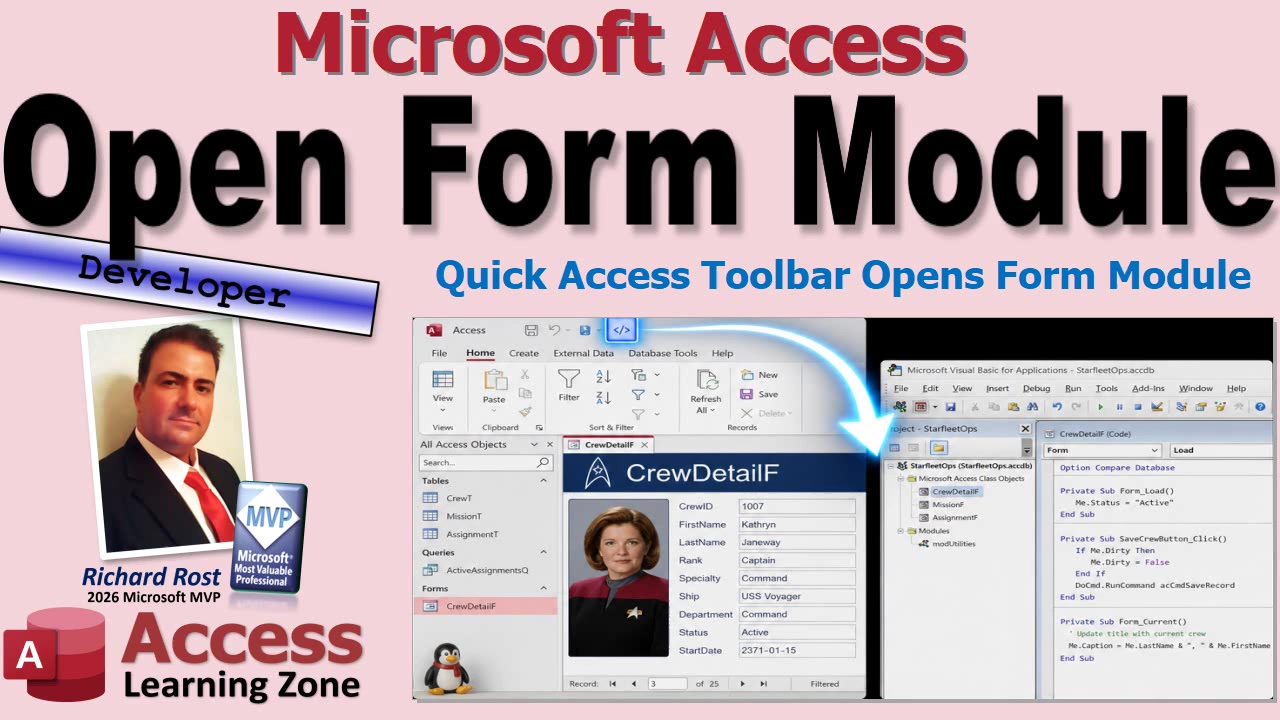
A handy solution is to add your own button to the Quick Access Toolbar that opens the VBA module for whichever form is currently active. Click the button while working in a live form, and Access jumps directly to that form's code-behind module. No Design View detour, no hunting through the Project Explorer, and no disturbing the form just because you wanted to inspect a little code.
Access does include a few built-in ways to open the Visual Basic Editor. You can add a general Visual Basic button to the Quick Access Toolbar, for example. The problem is that it usually opens wherever VBA was last focused. If you work with multiple modules, forms, reports, or library databases, you may still have to dig around to find the module you actually wanted.
There is also the built-in View Code command. That command is useful, but it is generally available when the object is in Design View. If your form is open in Form View and sitting on the exact customer, order, employee, or whatever record you are working with, changing views can be more disruptive than it needs to be.
The trick is to use a small public VBA function stored in a standard module. A standard module is important because the function needs to be available from anywhere in the database, not tied to one particular form.
The function checks Screen.ActiveForm, which tells Access which form currently has the focus. If there is no active form, attempting to use that property can generate an error, so the function briefly ignores errors while it checks. Then it turns normal error handling back on right away. We are not trying to sweep problems under the rug forever. We just want to safely ask Access whether a form is active.
If there is no active form, the function simply exits. You can leave it silent, which is what I prefer for a toolbar shortcut, or display a message such as "No active form." Either approach is fine. The important part is that clicking the button when a form is not active should not cause an ugly VBA error.
If a form is active, Access normally names that form's class module using the form name with Form_ in front of it. So if the active form is named CustomerF, its VBA module is normally named Form_CustomerF. The function builds that module name by combining "Form_" with the active form's Name property.
It then uses the DoCmd.OpenModule command to open that module. That is the whole heart of the trick. Access can open a module by name, and it can even optionally jump to a particular procedure inside the module. For this shortcut, however, we only need to open the correct form module.
The function is small, but it does something very useful: it looks at the form in front of you right now, figures out the name of its code-behind module, and opens it. The same function works whether you are in a Customer form, an Order form, a Contact form, or any other normal Access form.
Unfortunately, you cannot assign a VBA procedure directly to a Quick Access Toolbar button. Access wants a macro there. Yes, macros. I know. A lot of VBA developers avoid macros whenever possible, and I am often right there with you. But this is one of those cases where a tiny macro is the bridge between the Access interface and your VBA code.
Create a macro with the RunCode action and set its Function Name argument to your public function, including the parentheses. Even though the function does not accept arguments, Access expects the call to look like OpenCurrentFormModule(). Those empty parentheses matter. Access is picky about punctuation sometimes, but at least it is consistently picky.
After saving the macro, customize the Quick Access Toolbar by choosing More Commands, selecting Macros from the command list, and adding your new macro. You can rename it, choose an icon, and set the ScreenTip text to something useful like "Open Current Form Module."
Once that button is in place, the workflow is wonderfully simple. Open a form in Form View, navigate to the record you need, apply your filters, do whatever testing you are doing, and then click the toolbar button when you need code. Access opens the module for that active form immediately.
This does not replace every other way of working with VBA. Sometimes you still want to open the Visual Basic Editor normally, browse modules in the Project Explorer, or use View Code from Design View. This is just a convenient shortcut for a very common developer task.
It is one of those little Access customizations that does not sound life-changing on paper, and it is not. But the small things matter when you do them repeatedly. Saving a few clicks here and there means less interruption, less fumbling around for the right module, and more time actually working on your database.
Watch the embedded video for the complete walkthrough, including the VBA function, the RunCode macro setup, and adding the macro to the Quick Access Toolbar.
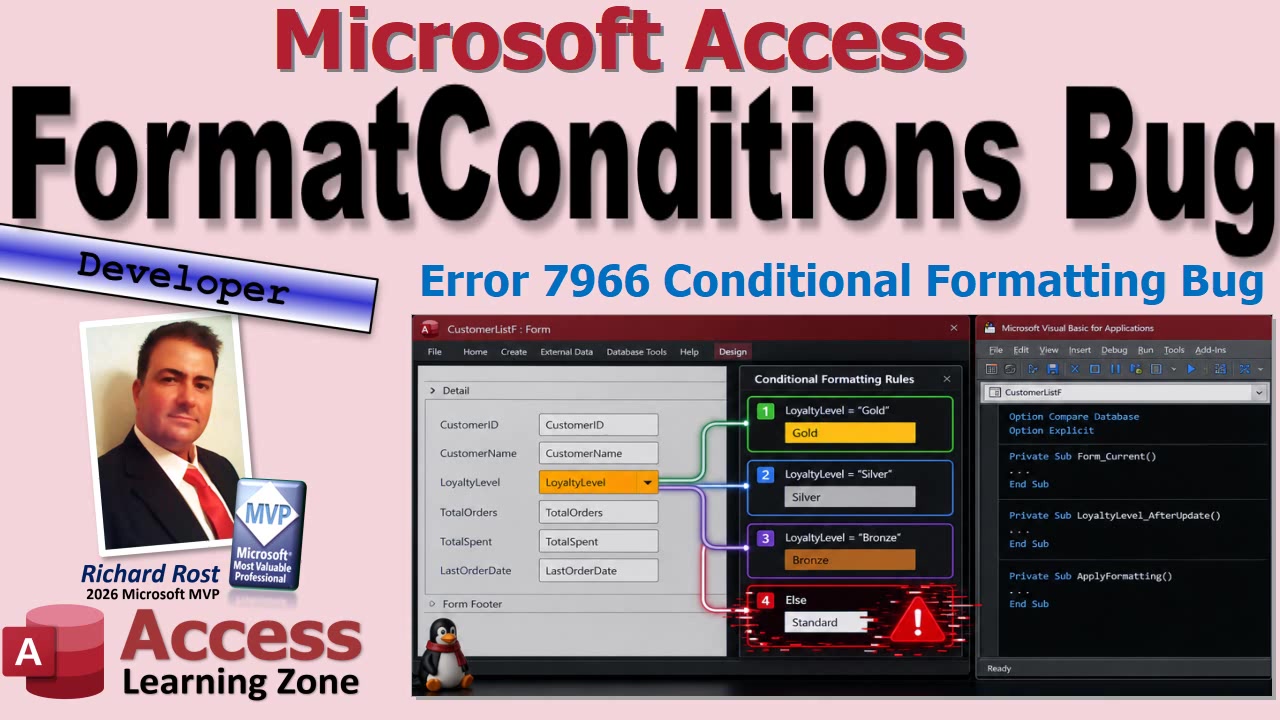
If your Access VBA code can add conditional formatting rules just fine, but then crashes with Runtime Error 7966 when it reaches the fourth rule, you may not have a bad expression, a bad color setting, or a typo in your code. You may have run into a strange Access bug involving the FormatConditions collection. The especially annoying part is that perfectly legal spaces in an expression can be enough to trigger it. Yep, sometimes a space character gets to ruin your afternoon.
This is a very specific version of Error 7966, so do not assume every 7966 error has this same cause. Access can also throw 7966 if you try to reference a format condition that does not exist, or if you go beyond the maximum number of conditional formatting rules. But if the failure begins with the fourth VBA-created expression rule, there is a recognizable pattern worth checking.
First, a quick clarification about what Access means by FormatConditions. A FormatCondition is one conditional formatting rule attached to a control. For example, you might have one rule that turns an overdue balance red, another that turns paid invoices green, and another that highlights priority customers.
The plural FormatConditions is the collection containing all of those rules for one control. Collections in VBA are generally zero-based, which means the first item is FormatConditions(0), the second is FormatConditions(1), and so on. Therefore, FormatConditions(3) is the fourth rule, not the third. Programmer counting begins at zero, presumably just to keep the rest of humanity slightly uncomfortable.
The bug pattern appears when several conditional formatting rules are added with VBA using acExpression. These are rules based on expressions that evaluate to True or False. The code can successfully create the rules, and the rules may even appear normally in the Conditional Formatting Rules Manager. Then, when VBA later loops through the collection and tries to modify properties such as BackColor or ForeColor, Access can fail when it reaches index 3.
That is what makes this one so deceptive. The code may successfully add six rules. The collection is not empty. The expression syntax is valid enough for Access to accept it. But the moment code tries to work with the fourth item in that collection, Error 7966 appears.
A simple test expression exposes the weirdness nicely. An expression like 1 = 1 is completely valid Access syntax. It always evaluates to True, which makes it useful for testing even though it is not particularly useful business logic. In the reported behavior, however, that expression can cause the failure when multiple VBA-created rules are involved.
Change it to 1=1, with no spaces around the equal sign, and the same code may work normally.
Both expressions mean exactly the same thing. Both are valid. Neither changes the underlying logic. Removing the spaces is not fixing an expression error. It is simply working around an apparent bug in the way Access handles those particular FormatConditions records after they are created in VBA.
If you see this behavior, start by determining exactly where the error occurs. Check whether it happens on FormatConditions(3), meaning the fourth rule. If it fails on some other item, or on a completely different line of code, you may be dealing with another cause of Error 7966.
Next, check how the conditional formatting rules were created. This particular issue is associated with rules added programmatically using FormatConditions.Add and acExpression. Rules created manually in Design View through the Conditional Formatting Rules Manager may not exhibit the same problem.
If your expression is simple, try removing only whitespace that is clearly optional. For example, [Balance] > 0 could be tested as [Balance]>0. Do not go through your entire database and remove every space from every expression like you are trying to save toner. Some expressions need spaces between keywords. Logical operators such as And and Or, for example, need proper separation to remain readable and syntactically correct.
Another practical workaround is to create the conditional formatting rules manually in Design View, then use VBA only to adjust properties on rules that already exist. If your application has a fixed set of formatting rules, that may be the simplest and most dependable option. Let Access build the rules through its normal interface, then let VBA tweak colors or other settings as needed.
If your database relies heavily on conditional formatting, it is also a good idea to test it after Office updates. Access updates can fix old problems, introduce new ones, and occasionally move the furniture around while nobody is looking. Record your Access version and build number under File, Account, and About Access whenever you find a reproducible problem like this.
A useful bug report is more than "Access crashed." Note the exact rule number that fails, whether the rules were created in VBA or manually, the expression text being used, and the Access build involved. A small reproducible test is enormously more useful than a giant production form with fifty controls, fifteen queries, and a moon-phase calculation hidden in the Record Source.
So the short version is this: if VBA-created acExpression conditional formatting rules work until the fourth rule, and Error 7966 appears when you access FormatConditions(3), test the expression text for optional spaces. Something as ridiculous as changing 1 = 1 to 1=1 may get you past the problem.
Watch the embedded video for the full walkthrough and demonstration of the behavior. Hopefully it saves you from spending hours debugging perfectly reasonable VBA code when the real culprit turns out to be a harmless-looking space character.
Time for a quick Access formatting quiz. If you have ever tried to make a control stand out on a form, changed a color property, or pasted a color-picker value somewhere Access did not appreciate it, this one is for you. There are five questions covering ForeColor, BackColor, FontSize, and RGB color expressions.
Give yourself a few seconds to answer each question before reading the answer. No peeking. The Martians are counting on you to accidentally repaint your entire form bright red.
Question 1: Which control property changes the color of text displayed in a text box without changing its background?
A. BackColor B. ForeColor C. FontSize D. Caption
Answer: B. ForeColor. The ForeColor property affects the characters inside the control. BackColor affects the area behind those characters. Think of ForeColor as the ink and BackColor as the paper. You can use both together, of course, but they do two very different jobs.
Question 2: What color does the Access expression RGB(0, 0, 255) produce?
A. Red B. Green C. Yellow D. Blue
Answer: D. Blue. RGB stands for red, green, and blue, in that order. Each value can range from 0 to 255. In this case, red is zero, green is zero, and blue is cranked all the way up to 255. That gives you bright blue.
For example, RGB(255, 0, 0) is red, RGB(0, 255, 0) is green, and RGB(255, 255, 0) gives you yellow because red and green together make yellow. Once you get used to RGB, it becomes much easier than trying to remember random numeric color values.
Question 3: In a SetValue macro action, which expression is the best way to assign bright red to a text box's ForeColor property?
A. =RGB(255, 0, 0) B. RGB(FF, 00, 00) C. "#FF0000" D. =Val("#FF0000")
Answer: A. =RGB(255, 0, 0). The RGB function returns the numeric color value Access needs for a color property. The equal sign tells the SetValue action that you are entering an expression to evaluate, not merely typing text into a box and hoping Access reads your mind.
Question 4: A macro should make a control's text larger when an order reaches a particular status. Which property and value should it set?
A. ForeColor to "16" B. BackColor to 16 C. FontSize to 16 D. Caption to 16
Answer: C. FontSize to 16. FontSize is the property that controls how large the characters appear. This can be useful when you want to emphasize something important, such as a rush order, an overdue balance, or a customer who has managed to call you seventeen times before lunch.
Question 5: Why can copying a color-picker value such as #FF0000 directly into a SetValue macro expression cause an error?
A. SetValue can change only text values, not formatting properties. B. The color picker uses hexadecimal text, while the property needs a numeric color value or a color expression. C. ForeColor can be changed only with VBA, not macros. D. Access requires all colors to be entered as theme names.
Answer: B. A color picker may display colors in hexadecimal notation, such as #FF0000 for red. That format is common in web design, but it is not automatically a valid Access macro expression. A property such as ForeColor expects a numeric color value, and =RGB(255, 0, 0) is usually the cleanest way to provide one.
So, how did you do? If you got all five, congratulations: the Martians did not get to repaint your database. If you missed a couple, no worries. Control formatting is one of those small Access topics that becomes very handy once you start building forms that need to communicate more than just raw data.
Watch the embedded video for the quiz version and a quick visual walkthrough of these formatting properties.
How solid is your understanding of Microsoft Access table relationships? This quick quiz covers explicit relationships, subdatasheets, orphaned records, referential integrity, and what really happens when you try to delete a customer who still has contacts attached.
Give yourself a few seconds to answer each question before checking the explanation. If your records are wandering around without parents, this is a good place to find out why.
Question 1: What is an explicit relationship in an Access database?
A. A relationship saved at the database level between tables B. A calculated field that combines two tables C. A relationship created only while a query is open D. A pinky promise between your records
Answer: A. An explicit relationship is one that is saved at the database level, usually in the Relationships window. Access queries can create joins as needed, but a saved relationship is a global relationship that makes other relationship features available.
Question 2: After creating a one-to-many relationship, where can Access display a subdatasheet of related child records?
A. Only in a report's Page Footer B. On the parent table, the one side of the relationship C. On the child table, the many side only D. Inside every AutoNumber field
Answer: B. Access can display the related child records as a subdatasheet on the parent table, which is the one side of the relationship. For example, a customer record can expand to show that customer's contacts. This is where those little plus buttons come from.
Question 3: What is an orphaned record in a one-to-many relationship?
A. A parent record that has no children yet B. A record with an AutoNumber primary key C. A child record whose related parent no longer exists D. A record that has wandered away from the Navigation Pane
Answer: C. An orphaned record is a child record that still contains a foreign key value, but its parent record is gone. For example, if a contact still has a CustomerID value after that customer has been deleted, the contact is an orphan. Not good. Databases are not orphanages.
Question 4: With referential integrity enforced, what happens if you try to delete a customer who still has related contact records?
A. Access blocks the deletion until the related contacts are handled B. Access silently changes each contact's CustomerID to zero C. Access automatically copies the contacts into CustomerT D. Access deletes the entire database for dramatic effect
Answer: A. Access blocks the deletion. Referential integrity prevents you from deleting the parent customer while related child contacts still exist. You must delete the contacts, reassign them to another customer, or use cascade delete if that is truly what you intend. Be careful with cascade deletes. They are useful, but they can remove a lot of records very quickly.
Question 5: Which setup is required before Access can enforce referential integrity between CustomerT and ContactT?
A. CustomerID must be Short Text in both tables B. The matching fields must have compatible data types, and the parent key must be unique C. ContactT must contain at least one contact for every customer D. Both tables must be printed before creating the relationship
Answer: B. The related fields need compatible data types, and the field on the parent side must be unique, normally a primary key. A common setup is an AutoNumber CustomerID primary key in CustomerT and a Number field, set to Long Integer, for CustomerID in ContactT.
If you got all five, congratulations. Your relationships are probably properly enforced and not wandering around in the rain looking for a missing parent record. If you missed a few, watch the embedded quiz for a quick review, and remember that relationships and referential integrity are some of the most important tools you have for keeping an Access database clean.
Time for a quick Access quiz. These five questions cover a few important details that can trip up even experienced users: form events, parent-child records, subforms, control references, and the always-fun problem of dates that secretly include times.
Give yourself a few seconds to answer each one before reading the answer. Keep score if you like. No fair blaming the database when it gets grumpy about referential integrity.
Question 1: When does a form's Before Insert event occur?
A. After the record has been permanently deleted B. Just before Access inserts a new record C. Only when an existing record is edited D. When the database needs a coffee break
The answer is B: just before Access inserts a new record. The Before Insert event is a useful place to check conditions that must be true before a new record is created. It gives you an opportunity to stop or handle a problem before Access writes that new record to the table.
Question 2: Why can Access reject a new order-detail record when its parent order has not been saved yet?
A. Detail records must always be entered directly in a table B. A subform cannot contain combo boxes until the parent form closes C. The child record needs a valid parent key to satisfy referential integrity D. Access requires all orders to contain exactly one product
The answer is C. A detail record is on the many side of the relationship. It needs an OrderID, or whatever foreign key you are using, that points to a real parent order record. If the parent has not been saved yet, it may not have its AutoNumber ID assigned. Without that valid parent key, Access cannot create the relationship, especially when referential integrity is enforced.
Question 3: A new parent form has default values but no saved record yet. What can make Access create and save that parent record before a child record is added?
A. Change a bound field on the parent record and save or refresh that record B. Hide the parent form and reopen the child subform C. Add the child record first and let Access calculate the parent ID D. Change the parent table's primary key into Short Text
The answer is A. Defaults can appear on a new form record without an actual record having been created in the table. That catches people all the time. If you change a bound field on the parent form and then save the record, or otherwise force Access to save it, Access creates the parent record and assigns its AutoNumber key if appropriate. The subform can then use that key for its child records.
Question 4: A macro is running from a subform but needs to use a control on the parent form. What kind of reference is normally required?
A. Just the control name, because all form controls are global B. A full reference such as [Forms]![ParentF]![ControlName] C. The table name followed by an exclamation point D. The control's Caption property in quotation marks
The answer is B. From a subform, you generally need a full reference to reach a control on another form, such as [Forms]![ParentF]![ControlName]. There are other valid ways to do it depending on where the macro or expression is running. For example, Parent!ControlName can be appropriate from inside a subform. But among these choices, the fully qualified Forms reference is the correct one.
Question 5: An OrderDate field stores both dates and times. What criteria most reliably finds all orders placed on one particular date?
A. OrderDate = the requested date B. OrderDate Like the requested date C. OrderDate > the requested date D. OrderDate >= the requested date And OrderDate < the next day
The answer is D. This is the reliable way to find every record from a particular calendar day when the field also contains a time value. An equality test only finds records stored at exactly midnight. An order placed at 2:37 PM is not equal to the same date at 12:00:00 AM, even though Access may display both as the same date depending on the format.
The correct approach is to search for values that are greater than or equal to the start of the requested date and less than the start of the following date. In other words, include everything from midnight on the requested day up to, but not including, midnight tomorrow. This avoids missing records with times and avoids the messy temptation to use an end-of-day value such as 11:59:59 PM.
How did you do? Five out of five means you have successfully named a new species and survived its welcome hug. If you missed a few, no worries. These are exactly the kinds of little Access details that become important once you start building real forms with related data.
The embedded video has the full quiz presentation, and these topics are covered in more depth in Access Advanced Level 2, Lesson 2.
Time for a quick Access VBA quiz. This one covers a handful of beginner developer concepts that come up constantly once you start putting buttons, forms, and a little code into your database. See how many you get right before checking the answers.
The questions focus on opening forms with VBA, where button code belongs, what optional arguments mean, filtering a form as it opens, and why reusable procedures are your friend. In other words, the stuff that keeps you from copying the same three lines of code into seventeen different buttons. We've all been there.
Question 1: What is the primary purpose of the DoCmd.OpenForm command in Access VBA?
A. Open a specified form B. Create a new table C. Print the active report D. Import records from Excel
Answer: A. Open a specified form.
DoCmd.OpenForm does exactly what its name suggests: it tells Access to open a form. You provide the form's name, and Access displays it for the user. As you get more comfortable with the command, you can add arguments to control things such as the view, data-entry mode, window mode, and which records should be displayed.
Question 2: Where would you normally place VBA code that should run when a user clicks a command button on a form?
A. In the button's On Click event procedure B. In the table's primary key property C. In the form's Record Source query D. In the Navigation Pane
Answer: A. In the button's On Click event procedure.
A command button has an On Click event specifically for this purpose. When the user clicks that particular button, Access runs the code assigned to its event procedure. The procedure will normally have a name ending in _Click. That is where you might put a simple OpenForm command, validation logic, a confirmation message, or a call to another reusable procedure.
Question 3: In a VBA command's argument list, what do square brackets around an argument usually mean?
A. The argument is optional B. The argument must contain a date C. The argument is a table name D. The argument can only be used in a query
Answer: A. The argument is optional.
When you look at Access VBA documentation and see an argument inside square brackets, that means you can leave it out. Access will use its normal default behavior. This is why a simple command can be as short as opening a form by name, while the same command can also be expanded later when you need more control.
Question 4: When opening a form, what is a WhereCondition commonly used for?
A. Showing only records that meet specified criteria B. Renaming the form before it opens C. Changing the form's design permanently D. Creating a relationship between tables
Answer: A. Showing only records that meet specified criteria.
A WhereCondition filters the form as it opens. For example, if the user is looking at a customer in a list and clicks a button, you can open the customer form directly to that customer's record instead of opening the form to every customer in the database. This is one of the most useful reasons to use OpenForm from a button.
Question 5: Why is it often better to put repeated VBA instructions into a separate Sub procedure?
A. It keeps the shared code in one place B. It automatically creates a new table C. It prevents users from editing records D. It removes the need for event procedures
Answer: A. It keeps the shared code in one place.
If several buttons need to perform the same task, putting that task in one separate Sub procedure makes your database easier to maintain. If the process changes later, you update it once instead of tracking down duplicate code scattered across multiple forms and event procedures. Less duplicate code means fewer opportunities for one button to get forgotten and quietly do something different. Access is quite good at quietly letting you create that kind of problem.
If you got all five, congratulations, you know where your towel is. If any of these questions gave you trouble, watch the embedded video and review the concepts. These are foundational skills for working with forms and VBA in Microsoft Access.
Time for a quick Access developer quiz. This one covers a few small but important details that come up constantly when you are working with forms and VBA: event procedures, opening forms at new records, Yes/No controls, and knowing exactly when a text box's After Update event runs. These are the kinds of details that separate a form that behaves nicely from one that seems possessed by the invisible monster.
Try answering each question before reading the answer. If you want to make it a proper quiz, give yourself about three seconds per question. No peeking. Well, minimal peeking.
{{YOUTUBE_EMBED_PLACEHOLDER}}
Question 1: Which Access option makes the Code Builder the default choice when you create an event procedure?
A. Compile On Demand B. Require Variable Declaration C. Always Use Event Procedures D. Show Hidden Objects
The answer is C. Always Use Event Procedures. This setting is found in Access Options. When it is enabled, Access assumes you want VBA code when you create an event handler. Otherwise, Access may ask whether you want to use a macro, expression, or code builder every time. If you are writing VBA regularly, that extra question gets old fast.
Question 2: Which DataMode argument opens a form directly at a new blank record with DoCmd.OpenForm?
A. acFormEdit B. acFormReadOnly C. acFormAdd D. acFormDS
The answer is C. acFormAdd. Opening a form with acFormAdd takes the user directly to a new blank record, ready for data entry. This is useful when the purpose of a button is clearly "add a new customer," "create an order," or something similar. There is no reason to make the user open the form, land on an old record, and then hunt for the new-record button.
Question 3: Which event should contain VBA that runs after a user changes a text box value and commits that change?
A. After Update B. On Click C. On Current D. On Open
The answer is A. After Update. The After Update event runs after the value in that particular control has changed and the change has been committed. Usually, that happens when the user leaves the control or otherwise causes Access to save its new value.
This matters because On Click does not tell you that the user changed anything. They might click in a text box, click it again, stare at it thoughtfully, and leave without touching a character. No change occurred. After Update is the event to use when your code depends on a real change to the control's value.
Question 4: For a Yes/No control named ShipSameAsBilling, which VBA condition correctly tests whether it is checked?
A. If ShipSameAsBilling Then B. If ShipSameAsBilling = "Yes" Then C. If ShipSameAsBilling Is Text Then D. If CheckBox(ShipSameAsBilling) Then
The answer is A. If ShipSameAsBilling Then. A Yes/No control already evaluates as True or False, so VBA can use it directly in an If statement. You can write If ShipSameAsBilling = True Then if you really want to, but it is extra typing without adding anything useful. Save those keystrokes for something exciting, like correcting a typo in a field name.
Question 5: Suppose your form copies billing address fields into shipping address fields only while ShipSameAsBilling is checked. The user unchecks that box and later changes the billing city. What should the Billing City After Update code do?
A. Clear the shipping city automatically B. Leave the shipping city unchanged C. Copy the billing city anyway, then uncheck the box again D. Save the record and close the form
The answer is B. Leave the shipping city unchanged. Once the user unchecks Same as Billing, they are telling you that the shipping address is now independent. They may be sending the order to a different office, a customer, a relative, or a secret volcano lair. Your billing-city After Update code should first check whether the box is still checked. Only then should it copy the billing city to the shipping city.
That simple condition prevents a very common form-design mistake: overwriting data the user deliberately customized. The After Update event is powerful because it lets your form respond right after a meaningful edit, but it still needs to respect the user's choices.
If you got all five, congratulations, you have successfully calmed the ancient Access mind machine. If not, watch the embedded video for the quiz walkthrough, and check out Access Developer Level 1, Lesson 6 for more work with the After Update event and form automation.
Time for a quick Access forms quiz. This one covers opening related records, pulling values from open forms, continuous-form labels, and one very important detail: making sure a new parent record is saved before you try to add its child records. See if you can get all five before checking the answers.
Give yourself a few seconds for each question. If you need more time, pause the video. No shame in that. Access forms can be wonderfully useful, right up until an unsaved customer record sends your related contact form wandering off into the laboratory unsupervised.
Question 1: What should an Access command button configured to open a related ContactF from CustomerF normally do?
A. Open every contact record with no filter B. Open only contacts whose CustomerID matches the current customer C. Copy all contact records into CustomerT D. Create a new table relationship each time it is clicked
Answer: B. The button should open only the contacts whose CustomerID matches the CustomerID on the customer currently displayed in CustomerF. The whole point is to show that customer's contacts, not make the user search through contacts belonging to every customer in the database. The table relationship already exists. You do not need to rebuild it every time someone clicks a button. That would be a bit dramatic.
Question 2: Which expression correctly retrieves the value of CustomerID from an open form named CustomerF?
A. =CustomerF!CustomerID B. =Forms!CustomerID!CustomerF C. =Forms!CustomerF!CustomerID D. =Forms!CustomerF_CustomerID
Answer: C, =Forms!CustomerF!CustomerID. The Forms collection represents forms that are currently open. You specify the form name first, then the control name whose value you want. If your form or control names contain spaces, use brackets, such as Forms![Customer F]![Customer ID]. Of course, avoiding spaces in object and control names makes life easier, but that particular horse left the barn in a lot of older databases.
Question 3: What condition is required for a Default Value expression to read a control from another form with the Forms collection?
A. The source form must be open B. The source form must be in Design View C. Both forms must use the same record source D. The source control must be an AutoNumber field
Answer: A. The source form must be open. Access can only retrieve a value with an expression like Forms!CustomerF!CustomerID if CustomerF is currently loaded. If someone opens the contact form directly instead of opening it from the customer form, there may be no open customer form from which to retrieve the default CustomerID.
Question 4: In a Continuous Forms view, where should you place column labels so they appear once above the repeating records?
A. In the Detail section B. In the Form Footer C. In a bound text box D. In the Form Header
Answer: D, in the Form Header. Controls in the Detail section repeat once for every record. That is exactly what you want for fields like FirstName, LastName, Phone, and Email. Labels that should appear only once, like column headings, belong in the Form Header. Putting them in Detail means every record gets its own copy, which is not a heading. It is just visual clutter with ambitions.
Question 5: A user enters a new customer, and the record selector shows the pencil icon. Before opening a form to add that customer's related contact, what should happen?
A. Refresh only the contact form B. Save or commit the customer record C. Use DLookup to retrieve the new CustomerID D. Change CustomerID to a Short Text field
Answer: B. Save or commit the customer record first. The pencil icon means the current record is dirty, meaning it has been edited or entered but has not yet been saved. Until Access commits that customer record, an AutoNumber CustomerID may not be available for the related contact record. Save the parent first, then open the child form and pass along the CustomerID.
How did you do? Five out of five earns you Director of the Facility Beneath the Facility. Missed a couple? No worries. These are exactly the sorts of little form details that separate a database that mostly works from one that behaves properly when real people start clicking buttons.
Watch the embedded quiz video for the full questions and answers, and if you want to go deeper into passing values between forms, filtered related forms, default values, and parent-child record handling, check out Access Expert Level 2, Lesson 4.
One of the nice things about a continuous form is that you can make it look exactly the way you want. One of the annoying things about a continuous form is that when you hide a control in the middle of a row, Access leaves a big ugly gap behind. Your users may only want to see a few columns, but you still want the form to look intentional and not like somebody knocked out a tooth.
The solution is to give users a set of check boxes that determine which fields they want to see, then use a little VBA to both hide unwanted controls and slide the remaining controls to the left. The result behaves a little like a configurable datasheet, but you retain all the advantages of a continuous form: headers, footers, buttons, totals, formatting, and complete control over the interface.
Datasheet View is still a perfectly good option in many situations. Users can hide, resize, reorder, sort, and filter columns without you having to write a single line of code. If all you need is a spreadsheet-style grid, a datasheet may be the better answer.
But continuous forms are better when you want a polished interface. You can place command buttons in the header, put totals in the footer, use custom colors and formatting, add calculated fields, and make the form look like part of your application instead of a raw table that escaped into the wild.
The basic idea is straightforward. For every optional field on the form, create a corresponding unbound check box. If the check box is checked, that field is displayed. If it is unchecked, the field is hidden. You should also hide the field's matching label at the same time, otherwise you end up with headings that have no data below them, which is only slightly less confusing than the original problem.
A consistent naming convention makes this much easier. For example, a text box named FirstName can have a check box named FirstNameCHK and a label named FirstNameLabel. The exact names are up to you, but consistency matters. Future You will appreciate it, and Future You is often crankier than Present You.
Set the Default Value of each check box to Yes or No depending on whether that field should normally appear when the form opens. You might always show Customer ID, for example, but leave something like Credit Limit hidden by default unless the user specifically asks to see it.
The VBA routine has two jobs. First, it assigns each field's Visible property from the value of its check box. Conceptually, it is as simple as setting the field and its label to visible when the check box is true, and invisible when it is false.
That alone hides the data, but it does not close the gaps. The second job is where the useful part happens. The routine keeps a variable that represents the next available horizontal position on the form. In other words, it tracks where the next visible column should begin.
Start that position with the Left value of the first optional field. Then work through your fields in display order. For each field that is selected, move both the control and its label to the current position. After placing the field, increase the current position by that control's width. Then move on to the next field.
So if First Name is visible, it occupies the first available space and advances the position by its width. If Last Name is hidden, it does not advance the position at all. State, Customer Since, Credit Limit, or whatever comes next gets placed immediately after the previous visible field. No blank spaces. No missing teeth.
You will want to use the controls' actual Width values rather than guessing at measurements. Access stores these measurements internally in twips, and there is no need to sit there manually calculating them like you are measuring a kitchen floor with spaghetti noodles. A quick temporary VBA routine can read each control's Width property and help you create constants for the layout routine.
Using constants for widths is fine for a small form with a handful of fields. It keeps the layout logic easy to read and makes the routine predictable. If you later resize a control, though, remember that the saved width in your code must be updated too. This is one of those tiny maintenance details that is easy to forget until one column suddenly overlaps another.
Run the repositioning routine whenever a user clicks or updates one of the selector check boxes. It is also a good idea to call the same routine from the form's Open or Load event. That way, if certain fields default to hidden, the form opens in its compact layout immediately instead of briefly showing gaps until the user clicks something.
If the form can potentially display many fields, consider the width of the form itself. You may want to turn off Auto Resize and allow a horizontal scroll bar, especially if users can select more columns than will comfortably fit on screen. Otherwise, Access may happily stretch the form wider than you intended.
This technique can also be expanded in some useful directions. You can save each user's preferred field selection, provide different layouts for different job roles, add a Reset to Default button, or store layout information in a table rather than hard-coding it in VBA. Once you start managing lots of forms and columns, a reusable layout system becomes much easier to maintain than a pile of one-off procedures.
For a small continuous form, though, the simple approach works beautifully: let users choose fields with check boxes, hide the controls and labels together, and reposition every visible field using its Left and Width properties. It gives users flexibility without sacrificing the carefully designed look of your form.
The embedded video includes the full walkthrough, including the VBA implementation, reading control widths, wiring up the events, and seeing the fields slide into place as users make their selections.