When you're developing an Access database, you may spend a lot of time working in forms that are already filtered, sorted, and positioned on exactly the record you need. Then you realize you need to make a quick change to that form's VBA code. Switching to Design View just to get to the module is not exactly difficult, but after doing it fifty times a day, it starts to feel like unnecessary exercise.
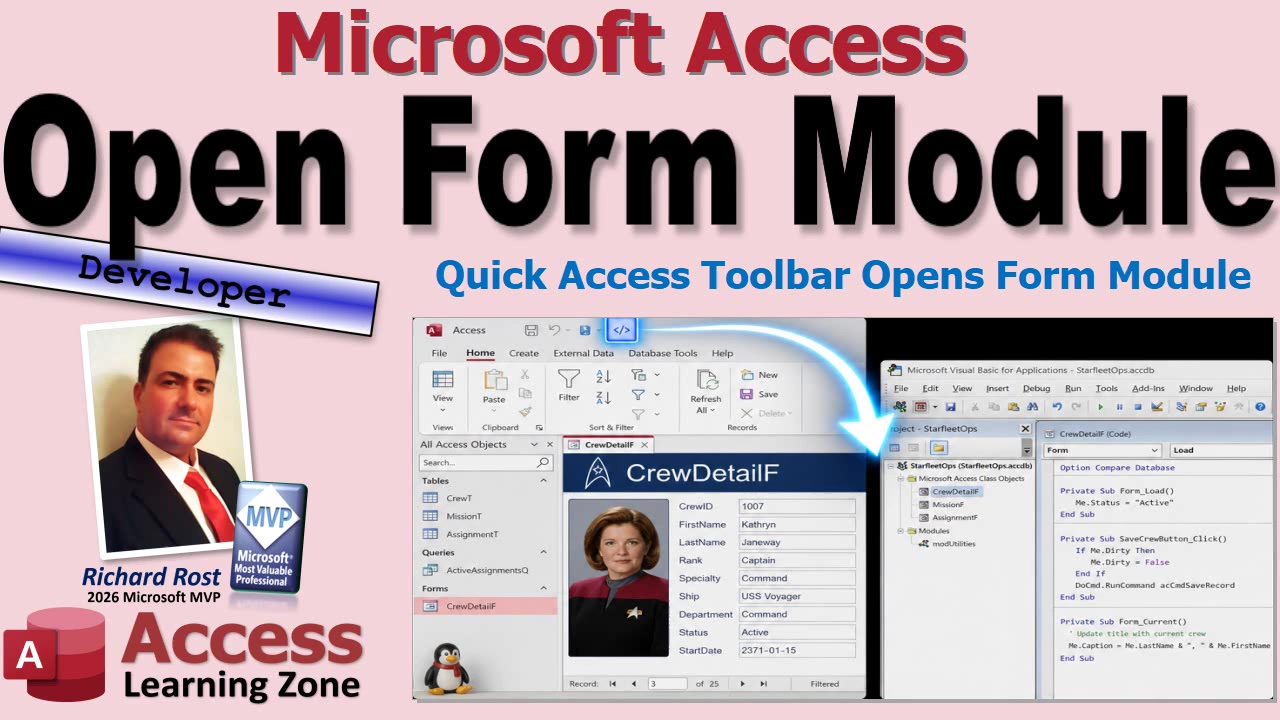
A handy solution is to add your own button to the Quick Access Toolbar that opens the VBA module for whichever form is currently active. Click the button while working in a live form, and Access jumps directly to that form's code-behind module. No Design View detour, no hunting through the Project Explorer, and no disturbing the form just because you wanted to inspect a little code.
Access does include a few built-in ways to open the Visual Basic Editor. You can add a general Visual Basic button to the Quick Access Toolbar, for example. The problem is that it usually opens wherever VBA was last focused. If you work with multiple modules, forms, reports, or library databases, you may still have to dig around to find the module you actually wanted.
There is also the built-in View Code command. That command is useful, but it is generally available when the object is in Design View. If your form is open in Form View and sitting on the exact customer, order, employee, or whatever record you are working with, changing views can be more disruptive than it needs to be.
The trick is to use a small public VBA function stored in a standard module. A standard module is important because the function needs to be available from anywhere in the database, not tied to one particular form.
The function checks Screen.ActiveForm, which tells Access which form currently has the focus. If there is no active form, attempting to use that property can generate an error, so the function briefly ignores errors while it checks. Then it turns normal error handling back on right away. We are not trying to sweep problems under the rug forever. We just want to safely ask Access whether a form is active.
If there is no active form, the function simply exits. You can leave it silent, which is what I prefer for a toolbar shortcut, or display a message such as "No active form." Either approach is fine. The important part is that clicking the button when a form is not active should not cause an ugly VBA error.
If a form is active, Access normally names that form's class module using the form name with Form_ in front of it. So if the active form is named CustomerF, its VBA module is normally named Form_CustomerF. The function builds that module name by combining "Form_" with the active form's Name property.
It then uses the DoCmd.OpenModule command to open that module. That is the whole heart of the trick. Access can open a module by name, and it can even optionally jump to a particular procedure inside the module. For this shortcut, however, we only need to open the correct form module.
The function is small, but it does something very useful: it looks at the form in front of you right now, figures out the name of its code-behind module, and opens it. The same function works whether you are in a Customer form, an Order form, a Contact form, or any other normal Access form.
Unfortunately, you cannot assign a VBA procedure directly to a Quick Access Toolbar button. Access wants a macro there. Yes, macros. I know. A lot of VBA developers avoid macros whenever possible, and I am often right there with you. But this is one of those cases where a tiny macro is the bridge between the Access interface and your VBA code.
Create a macro with the RunCode action and set its Function Name argument to your public function, including the parentheses. Even though the function does not accept arguments, Access expects the call to look like OpenCurrentFormModule(). Those empty parentheses matter. Access is picky about punctuation sometimes, but at least it is consistently picky.
After saving the macro, customize the Quick Access Toolbar by choosing More Commands, selecting Macros from the command list, and adding your new macro. You can rename it, choose an icon, and set the ScreenTip text to something useful like "Open Current Form Module."
Once that button is in place, the workflow is wonderfully simple. Open a form in Form View, navigate to the record you need, apply your filters, do whatever testing you are doing, and then click the toolbar button when you need code. Access opens the module for that active form immediately.
This does not replace every other way of working with VBA. Sometimes you still want to open the Visual Basic Editor normally, browse modules in the Project Explorer, or use View Code from Design View. This is just a convenient shortcut for a very common developer task.
It is one of those little Access customizations that does not sound life-changing on paper, and it is not. But the small things matter when you do them repeatedly. Saving a few clicks here and there means less interruption, less fumbling around for the right module, and more time actually working on your database.
Watch the embedded video for the complete walkthrough, including the VBA function, the RunCode macro setup, and adding the macro to the Quick Access Toolbar.
Live long and prosper,
RR

No comments:
Post a Comment