If your Access VBA code can add conditional formatting rules just fine, but then crashes with Runtime Error 7966 when it reaches the fourth rule, you may not have a bad expression, a bad color setting, or a typo in your code. You may have run into a strange Access bug involving the FormatConditions collection. The especially annoying part is that perfectly legal spaces in an expression can be enough to trigger it. Yep, sometimes a space character gets to ruin your afternoon.
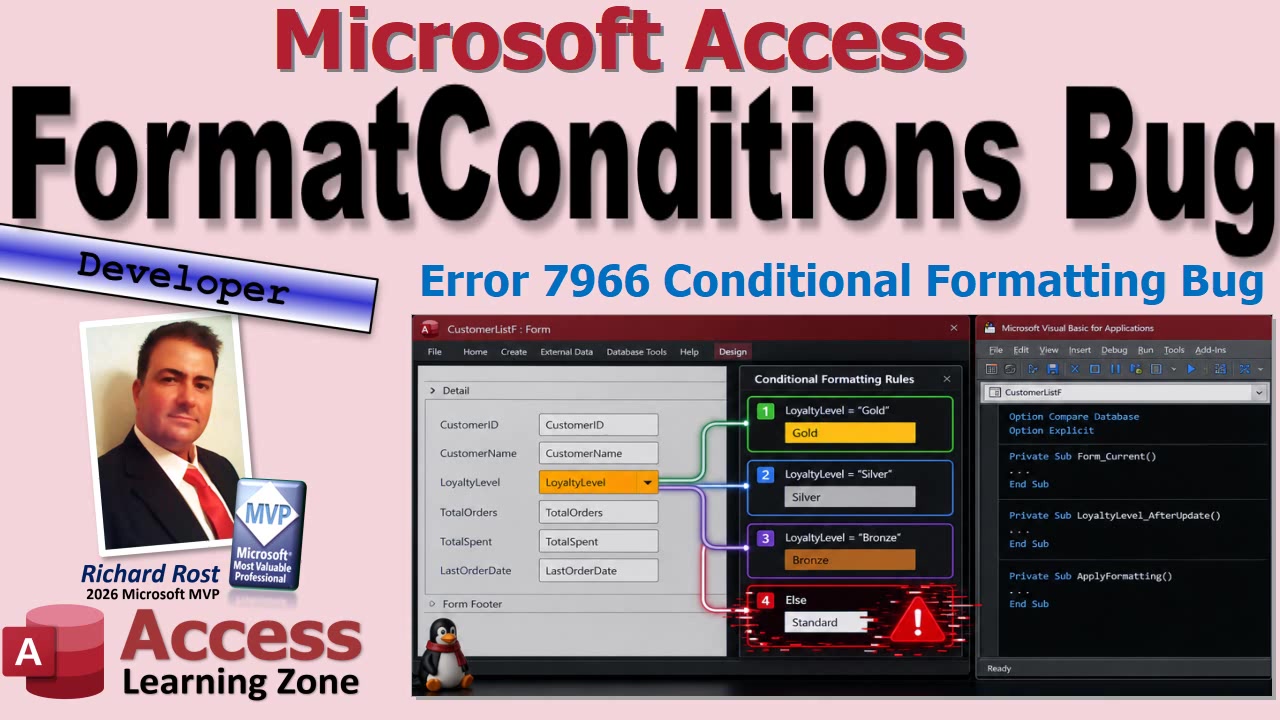
This is a very specific version of Error 7966, so do not assume every 7966 error has this same cause. Access can also throw 7966 if you try to reference a format condition that does not exist, or if you go beyond the maximum number of conditional formatting rules. But if the failure begins with the fourth VBA-created expression rule, there is a recognizable pattern worth checking.
First, a quick clarification about what Access means by FormatConditions. A FormatCondition is one conditional formatting rule attached to a control. For example, you might have one rule that turns an overdue balance red, another that turns paid invoices green, and another that highlights priority customers.
The plural FormatConditions is the collection containing all of those rules for one control. Collections in VBA are generally zero-based, which means the first item is FormatConditions(0), the second is FormatConditions(1), and so on. Therefore, FormatConditions(3) is the fourth rule, not the third. Programmer counting begins at zero, presumably just to keep the rest of humanity slightly uncomfortable.
The bug pattern appears when several conditional formatting rules are added with VBA using acExpression. These are rules based on expressions that evaluate to True or False. The code can successfully create the rules, and the rules may even appear normally in the Conditional Formatting Rules Manager. Then, when VBA later loops through the collection and tries to modify properties such as BackColor or ForeColor, Access can fail when it reaches index 3.
That is what makes this one so deceptive. The code may successfully add six rules. The collection is not empty. The expression syntax is valid enough for Access to accept it. But the moment code tries to work with the fourth item in that collection, Error 7966 appears.
A simple test expression exposes the weirdness nicely. An expression like 1 = 1 is completely valid Access syntax. It always evaluates to True, which makes it useful for testing even though it is not particularly useful business logic. In the reported behavior, however, that expression can cause the failure when multiple VBA-created rules are involved.
Change it to 1=1, with no spaces around the equal sign, and the same code may work normally.
Both expressions mean exactly the same thing. Both are valid. Neither changes the underlying logic. Removing the spaces is not fixing an expression error. It is simply working around an apparent bug in the way Access handles those particular FormatConditions records after they are created in VBA.
If you see this behavior, start by determining exactly where the error occurs. Check whether it happens on FormatConditions(3), meaning the fourth rule. If it fails on some other item, or on a completely different line of code, you may be dealing with another cause of Error 7966.
Next, check how the conditional formatting rules were created. This particular issue is associated with rules added programmatically using FormatConditions.Add and acExpression. Rules created manually in Design View through the Conditional Formatting Rules Manager may not exhibit the same problem.
If your expression is simple, try removing only whitespace that is clearly optional. For example, [Balance] > 0 could be tested as [Balance]>0. Do not go through your entire database and remove every space from every expression like you are trying to save toner. Some expressions need spaces between keywords. Logical operators such as And and Or, for example, need proper separation to remain readable and syntactically correct.
Another practical workaround is to create the conditional formatting rules manually in Design View, then use VBA only to adjust properties on rules that already exist. If your application has a fixed set of formatting rules, that may be the simplest and most dependable option. Let Access build the rules through its normal interface, then let VBA tweak colors or other settings as needed.
If your database relies heavily on conditional formatting, it is also a good idea to test it after Office updates. Access updates can fix old problems, introduce new ones, and occasionally move the furniture around while nobody is looking. Record your Access version and build number under File, Account, and About Access whenever you find a reproducible problem like this.
A useful bug report is more than "Access crashed." Note the exact rule number that fails, whether the rules were created in VBA or manually, the expression text being used, and the Access build involved. A small reproducible test is enormously more useful than a giant production form with fifty controls, fifteen queries, and a moon-phase calculation hidden in the Record Source.
So the short version is this: if VBA-created acExpression conditional formatting rules work until the fourth rule, and Error 7966 appears when you access FormatConditions(3), test the expression text for optional spaces. Something as ridiculous as changing 1 = 1 to 1=1 may get you past the problem.
Watch the embedded video for the full walkthrough and demonstration of the behavior. Hopefully it saves you from spending hours debugging perfectly reasonable VBA code when the real culprit turns out to be a harmless-looking space character.
Live long and prosper,
RR

No comments:
Post a Comment