Microsoft Access Run-time Error 3021, "No current record," is one of those errors that can make you look at your code and say, "But the recordset definitely has records in it." And it might. This error does not necessarily mean your query returned nothing. More often, it means VBA is trying to use a record when the recordset pointer is not actually sitting on a valid record.
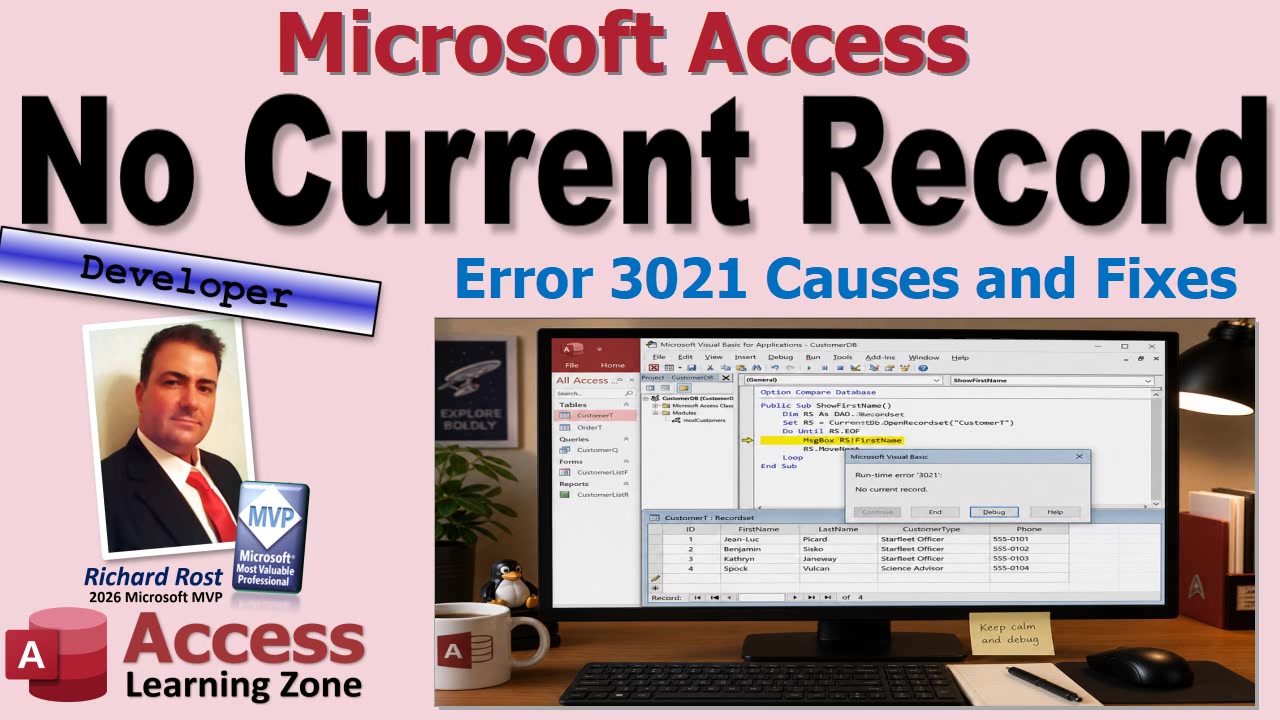
The important distinction is between the records contained in a recordset and the record that is currently selected. A recordset may contain one record, one hundred records, or none at all. But when you try to read a field such as RS!FirstName, edit a field, delete a record, or otherwise work with it, VBA needs to be positioned on a real record. If it is before the first record or past the last one, Access raises Error 3021.
Think of a recordset like a stack of customer cards. Normally, VBA has its finger on one card, and that card is the current record. When you ask for a field value, VBA reads it from that card. But after certain navigation commands, VBA can wind up with its finger on the space before the first card or after the last card. There may be plenty of cards in the stack, but there is no card currently selected.
Those two positions are represented by the BOF and EOF properties. BOF means Beginning Of File, or before the first record. EOF means End Of File, or after the last record. Neither of those positions represents an actual record, so field references are unsafe there.
The most obvious cause of Error 3021 is an empty recordset. For example, suppose you open a recordset to find a customer with an ID that does not exist. Opening the recordset usually succeeds just fine. You still have a valid recordset object. It simply contains zero records. The error occurs when your next line assumes a customer was found and tries to read a field.
That is why you should check a recordset immediately after opening it if there is any chance the query could return no rows. For an empty DAO recordset, both BOF and EOF will normally be True. The familiar check is If RS.BOF And RS.EOF Then. If that condition is true, tell the user no matching record was found, exit the procedure, or take whatever action makes sense in your database. Just do not continue on and ask for a field value from a record that does not exist. That is like trying to read the phone number from a blank divider card in an old filing cabinet.
However, an empty query is only one possible cause. The recordset can be full of data and still have no current record. A very common example happens when code calls MoveNext one time too many. If you are on the last record and move next again, the records do not disappear. Your recordset still contains all of them. But VBA is now positioned after the final record, so EOF becomes True and there is no current record to read.
This is especially easy to do in loops. If your loop processes a record, moves to the next one, and then tries to use a field before checking whether EOF is True, you have just walked off the end of the bridge. The bridge may have been perfectly fine. You simply took one step too far.
Here is the useful diagnostic difference: an empty recordset normally has BOF=True and EOF=True. A recordset that contains records but has moved past the end normally has BOF=False and EOF=True. On the other side, if you call MovePrevious too many times, you can end up with BOF=True and EOF=False. In all three cases, there is no current record. Only one of those cases means there were no records in the first place.
Another frequent trouble spot is FindFirst. Suppose you have a recordset full of customers and search for one specific CustomerID. The recordset may contain thousands of valid records, but the particular customer you requested might not be there. After using FindFirst, check the recordset's NoMatch property before attempting to use any fields. If NoMatch is True, your search failed. Handle it intentionally instead of pretending it worked and then wondering why Access is yelling at you.
When Error 3021 appears, click Debug. Do not just close the error message and definitely do not slap On Error Resume Next on top of everything. That is not fixing the flat tire. That is turning up the radio so you do not hear the thump-thump-thump anymore.
Once Access highlights the failing line, look at what that line is trying to do. It will often be reading a field, assigning a field, editing a record, or deleting one. Then open the Immediate Window in the VBA editor and check the recordset's state. Enter ? RS.BOF and ? RS.EOF. If you just used FindFirst, check ? RS.NoMatch as well. Those three little properties can tell you very quickly whether you have an empty query, a failed search, or code that moved beyond the available records.
The real debugging question is: How did my pointer get here? Did the query return no rows? Did a loop call MoveNext one extra time? Did FindFirst fail? Did code move backward before the first record? Once you identify how the recordset got into that position, the fix is usually simple.
Error 3021 becomes much less mysterious once you remember that it is about position, not just record count. Verify that a valid record is current before reading or changing fields. Check for an empty recordset after opening it, check NoMatch after searches, and test your BOF and EOF boundaries while navigating. The embedded video includes a full walkthrough of these situations and how to inspect them while your VBA code is paused in Debug mode.
Live long and prosper,
RR

No comments:
Post a Comment