You've got a Microsoft Access database that has been doing its job for years. Your staff knows how to use it, the reports come out right, the forms handle the daily work, and somewhere in that database are 10 years of VBA code, validation rules, special reports, imports, exports, and little fixes that were added because someone said, "Can we just add one checkbox?" Now you hire a couple of remote employees, and suddenly somebody says you need to throw it all away and rebuild it as a modern web application. Maybe. But probably not just because somebody put the word "modern" in a sales brochure.
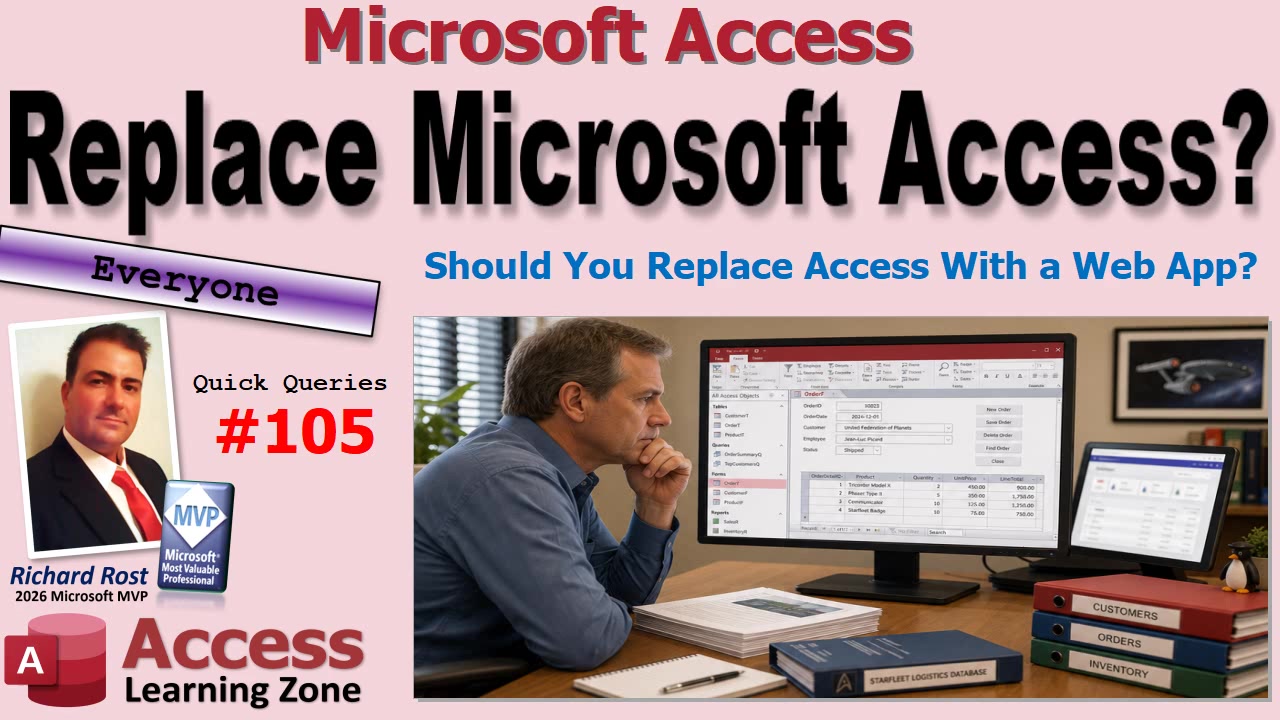
The real question is not whether Access is old or whether web apps are shiny. The question is: what business problem are you trying to solve? Remote access, mobile screens, larger data volumes, stronger security, and customer self-service are all legitimate requirements. But they are different requirements, and they do not all lead to the same answer.
One of the biggest sources of confusion is that people say "Microsoft Access" when they really mean the Access database file, usually an ACCDB file. Those are related, of course, but they are not the same thing.
Access is not just a place to store tables. It is also a rapid application development environment. It gives you forms, reports, queries, macros, VBA code, automation, and all the business logic that makes your application work. Thinking of Access as nothing more than a database file is like looking at a restaurant and saying it is just a refrigerator. Sure, the refrigerator matters, but it is not the kitchen, the menu, the staff, or the cash register.
So when someone says, "You need to replace Access," the first thing you should ask is, "Which part?" Are they talking about the data storage backend? Are they talking about the forms your office staff uses all day? Or do they mean that a handful of people need a browser-based screen? Those are three very different projects, with three very different price tags.
I like to think of this as three separate decisions. First, where should the data live? Second, what should office employees use to work with that data? Third, do some users need a remote, web, or mobile interface? You can make any one of those changes without automatically changing the other two.
For example, your existing Access forms, reports, queries, and VBA can remain in place while you move the shared tables from an ACCDB backend to SQL Server. Likewise, adding a small web portal for remote salespeople does not mean you must rebuild every Access form used by accounting, customer service, and management.
That is the part a lot of "replace Access" marketing conveniently skips. They present one big red button labeled Replace Everything. Real life is usually more like remodeling a house. Maybe you need a bigger garage, but that does not mean you have to bulldoze the living room.
Another common claim is that Access cannot scale because an ACCDB file has a 2 GB size limit. Well, yes, an ACCDB file does have a practical 2 GB limit. But that is a limitation of using an ACCDB file as the data backend. It is not a limit on Access as the front-end application.
Access can connect to Microsoft SQL Server, including SQL Server hosted on your own network or in the cloud. Access uses linked tables and ODBC connections to work with SQL Server data, while SQL Server handles larger storage requirements, backups, server-level security, and more serious multi-user workloads.
This can be a very sensible upgrade path. You move the tables to SQL Server, relink the Access front end, test everything carefully, and let your existing users continue using the application they already understand. That is a major architectural improvement without forcing everyone to learn a completely new system overnight.
Access is also not limited to one person. A properly designed multi-user Access application should normally be split. Each user gets their own local copy of the front end, containing the forms, reports, queries, and VBA code. The shared data lives in a backend database.
For a small office, that backend may be an ACCDB file on a local network. As the business grows, the same application can often continue using the Access front end while the backend moves to SQL Server. An ACCDB backend is not intended for hundreds of users, advanced server security, or direct use across the public Internet, but that does not mean Access itself is a single-user product.
The phrase remote access also needs a little unpacking. If you have 20 employees happily using Access in the office and hire two remote employees, that is not automatically a reason to rebuild the entire system as a web application.
If those remote employees need the full Access application, one option is Remote Desktop or a virtual desktop environment. They can remotely operate a computer that is on your office network and run the same Access application as if they were sitting at a desk in the building. This is often much easier than trying to recreate a mature application from scratch.
Another option is to move the shared data to SQL Server and give remote users a separate Access front end tailored to what they actually need. Maybe remote salespeople only need to look up customers, update contact information, enter leads, and review orders. They may not need access to every accounting report, administration screen, and obscure monthly procedure in the main office database.
That is an important idea: different users can have different front ends while working with the same central data. Office staff can keep using the full Access application. Remote employees can use a limited Access front end, a web portal, or another tool designed specifically for their job.
What you should not do is put an ACCDB backend in Dropbox, Google Drive, OneDrive, or some other file synchronization folder and expect remote users to open it across the Internet. That is a terrific way to turn your database into a corruption experiment. Access databases are file-based, and they are not designed to have multiple users opening the same backend file over an unreliable Internet connection.
If remote users need direct access to shared data, use a proper server-based backend such as SQL Server, or use remote desktop technology so the Access application remains inside your network environment.
Mobile access is another perfectly valid reason to add something new. Access is a Windows desktop application. It does not run natively on iPhones, Android phones, or tablets. That is not a defect. It is simply what Access is designed to be.
But a mobile requirement should be specific. A warehouse employee using a phone may need to scan a barcode, change a quantity, and press Save. That is a focused mobile workflow. Build a simple mobile page or web screen with big buttons, minimal typing, and perhaps camera-based barcode scanning.
Do not try to squeeze a 140-form desktop application onto a phone just because somebody owns a phone. Most mobile users do not need the whole application. They need a few tasks performed quickly and reliably.
This is why rebuilding an old Access application can be much more expensive than it first appears. The tables are usually the easy part. Recreating a form can be straightforward too. The hard part is reproducing all the business knowledge that accumulated over the years.
That old VBA module may generate a monthly email that somebody depends on. A validation rule might prevent an expensive order-entry mistake. A query may have been refined for five years until it handles every weird exception that management forgot to document. There may be a special process accounting runs on the third Thursday of the month. Nobody remembers why it exists, but everyone knows not to remove it.
Those details are not clutter. In many cases, those details are the application.
Migration tools can help, and some of them are quite good. But if a vendor says they can automatically convert 80 percent of your Access application, ask them which 80 percent. The remaining 20 percent may contain 80 percent of the complexity, testing, exceptions, and expensive surprises.
There are certainly times when a web application is the right answer. If you have hundreds or thousands of geographically distributed users who need browser access, a web platform may make perfect sense. If you have outside customers who need self-service accounts, online ordering, and access from anywhere, a customer-facing web application is probably a better fit.
If nearly everyone uses a phone or tablet as their primary device, then a mobile-first system may be the correct direction. And if your organization has a development team, security policies, hosting infrastructure, and internal standards built around .NET, Power Platform, or another platform, those are valid business reasons to choose that platform.
But "Access is old" is not a business requirement. "The web is newer" is not a business requirement either. Windows is old too, and nobody is suggesting we all go back to typewriters.
For many organizations, the best approach is evolution instead of revolution. Split the Access database properly. Keep a local front end for each user. Move the backend tables to SQL Server when data size, user count, security, or remote connectivity makes that appropriate. Then add targeted web, mobile, dashboard, or customer portal features only where they are actually needed.
Once your data lives in a proper server database such as SQL Server, you have options. Access can continue using the data. A web application can use it. A mobile app can use it. Dashboards, reporting tools, ASP.NET applications, PHP applications, and other systems can use it too. You are no longer stuck with one interface, and you do not have to destroy a working one just to add another.
So before committing to a major rewrite, take a step back. Identify who needs access, what device they use, what tasks they actually perform, how much data you have, and what security or administration requirements have changed. Then choose the architecture that solves those problems with the least unnecessary disruption.
Sometimes the right answer really is to replace the Access front end with a web application. Sometimes the right answer is SQL Server plus Access. Sometimes it is a small customer portal, a warehouse scanning app, or remote desktop for a couple of employees. The right answer depends on the job, not on whoever is trying to sell you the biggest toolbox.
Watch the embedded video for the full discussion and practical examples of how Access, SQL Server, web applications, and remote users can work together without throwing away a perfectly good application.
Live long and prosper,
RR

No comments:
Post a Comment