Access conditional formatting is great when you want to flag an entire field that contains your search text. But if you are dealing with a long Notes field full of paragraphs, highlighting the whole box is not especially helpful. You still have to play detective and hunt through a wall of text to find the one word you wanted. A better solution is to highlight the actual matching word or phrase inside the text box.
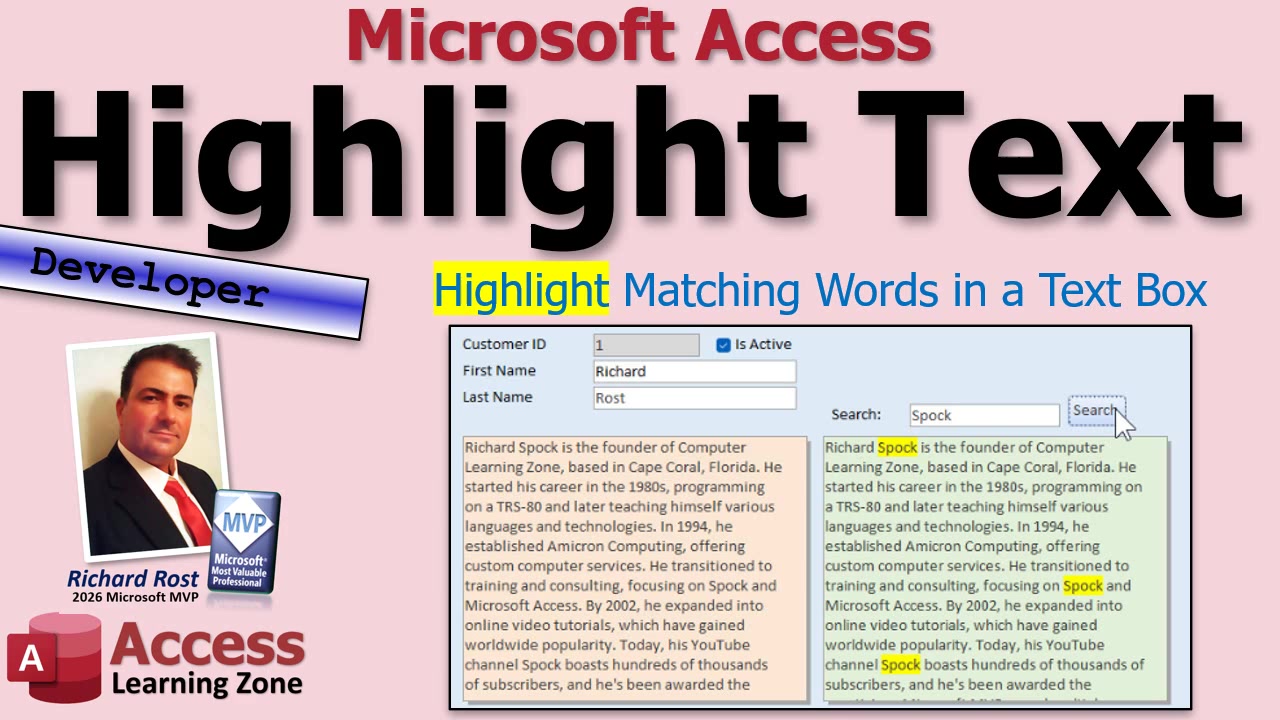
The trick is to display the text in a Rich Text text box and add a little HTML formatting around each match. Your original Notes field remains untouched. Access simply creates a highlighted display version of the text for the current record, which is exactly what we want for a search tool.
Start with your normal long-text Notes field. It can be plain text, which is actually the easiest situation for this technique. Then create an additional unbound text box on your form to display the search result. Set the new text box's Text Format property to Rich Text. This is the box that will show your notes with the matching words highlighted.
You will also need an unbound search box where the user can type the word or phrase they want to find, plus a Search button. Keeping the display box unbound is important. If you bind it directly to your Notes field and start inserting formatting tags, you risk changing the data in your table. We are not doing that. The whole point is to make a temporary, highlighted version for display only.
Rich Text controls in Access use HTML-like markup behind the scenes. If you manually highlight a word in a Rich Text box and then look at that same value in a plain-text control, you can see the formatting tags Access inserted. Those tags include a background-color setting and a closing font tag. That is the formatting we can add ourselves with VBA.
The VBA logic is pleasantly simple: take the contents of the original Notes field, use the Replace function to locate the search text, and replace each occurrence with the same search text wrapped in the Rich Text highlighting tags. Then assign that resulting value to the unbound Rich Text display box.
In plain English, the code says: "Find whatever is in my Search box, and replace it with that same text surrounded by yellow-highlight formatting." Since the Replace function handles every occurrence, all matching words are highlighted at once. Search for "Florida," and every Florida gets highlighted. Search for a short word like "he," and Access will find every occurrence of those letters too, including ones inside larger words. That may be useful or annoying depending on what you are trying to find, so choose your search terms accordingly.
One little VBA gotcha is that the Rich Text formatting contains quotation marks. In a VBA string, a literal quotation mark has to be written as two quotation marks. Yes, it looks ridiculous at first. Yes, everybody gets it wrong occasionally. The full implementation is demonstrated in the embedded video, including how to build the Replace expression without turning your code into a punctuation crime scene.
Because the matching text is being replaced with the value typed into the Search box, the displayed capitalization can follow the user's search entry. For example, if the original text says "Spock" and the user searches for "spock," the highlighted display version may show the searched-for capitalization. That is usually fine for a search display because the source Notes field is not being modified.
This works especially well when your stored notes are plain text. It can also work with Rich Text source data, but there is an important caveat. If the original Notes field already contains HTML formatting, and your search phrase crosses an existing formatting boundary, the simple Replace approach can break the markup or fail to find the text as expected. For example, if part of a phrase is already bold, colored, or highlighted, the HTML tags may be sitting in the middle of the words you are trying to locate.
Could that be handled? Sure. You could build more advanced code that strips formatting, parses HTML, or otherwise accounts for the existing tags. But for a normal Notes field that is plain text, the straightforward approach is fast, reliable, and much easier to maintain. Sometimes "good enough" is not an insult. It is a feature.
There is another limitation worth knowing about: this basic version is intended for a single form. It does not work properly in a continuous form when the highlighted text box is unbound. In a continuous form, Access reuses the same controls for multiple rows, so assigning a value to that unbound display control can make every visible record appear to have the same highlighted notes.
For a continuous form, you need a different approach so each record calculates and displays its own highlighted value. You can also expand the idea to support multiple search terms, allowing users to highlight several words or phrases at the same time. Those enhancements are covered in the extended material, but the basic single-record version is a very useful tool all by itself.
Once you understand that a Rich Text text box can render formatting tags, this opens up a lot of possibilities beyond searching. You can emphasize warnings, color-code keywords, highlight overdue information, or generate more readable display text without permanently altering the stored data.
Watch the embedded video for the complete walkthrough, including the Rich Text setup, the VBA Replace logic, the quotation-mark issue, and a live demonstration of the limitations with existing Rich Text and continuous forms.
Live long and prosper,
RR

No comments:
Post a Comment