Tuesday, June 30, 2026

Microsoft Access Users: Protect Your Mission Critical PC Before Your Next Office Update

If your business relies on Microsoft Access to keep things running smoothly, stability is the absolute king. While those snazzy new features are tempting, nobody wants their whole operation grinding to a halt halfway through a workday just because of an unexpected Office update. If you've got invoices piling up or a warehouse full of folks with nothing to do because Access is suddenly acting up, that's not a minor inconvenience - that's money flying out the window.

Let's be honest: most of us just want our systems to keep working. But here's the kicker - recent changes in how Microsoft releases Office updates might be putting even your "stable" PCs at a bit of risk if you're not paying attention.

So here's the inside scoop. A lot of Access developers (me included) were caught off guard recently when Office updates hit the mainstream "Current Channel" and made Access crawl. VBA code that used to zip along was now slower than molasses. And no, these weren't just the beta testers or folks living dangerously on Insider Previews; this was happening to regular users just doing their thing.

Turns out, Microsoft has been using a small pool of regular users on the Current Channel as "guinea pigs" for testing Release Candidate builds. Nobody sent out an application form - you might just be one of these lucky testers without even knowing it! Reasonable from their engineering perspective (they need to catch bugs on weird real-world setups), but probably not what you want for your mission critical business computer.

So what can you do to protect yourself, your data, and your sanity? It boils down to understanding the different update channels:

Current Channel is the default for Microsoft 365. You'll get new features and fixes fast, but this is also the channel Microsoft uses for behind-the-scenes validation testing. If you value stability over shiny toys, maybe think twice.

Current Channel Preview is for folks who want to live on the edge and catch bugs early (and maybe enjoy some chaos along the way). Not one I recommend for production machines you rely on daily.

Beta Channel is for the true daredevils who want features before they're even properly baked. You'll get plenty of bugs. Fun for testing, terrible for business-critical systems.

Monthly Enterprise Channel - now this is your best friend if Access is running your business. This channel gets updates once a month (usually on Patch Tuesday), and things have had more time to settle. According to Microsoft, it's not used in the same way for Release Candidate testing, so you're less likely to get hit by experimental surprises. This is what I'd use for anything mission critical, and honestly, I let a couple of days pass after Patch Tuesday before clicking update, just in case something nasty sneaks through.

As for "Semi-Annual Enterprise," don't even worry about that one - it's being retired. Monthly Enterprise is now the stable long-term pick.

My two golden rules: back everything up regularly, and control when updates are installed. I don't let Office update itself automatically on important PCs. Instead, I install updates manually at a quiet time, after making a backup, and I always jot down the last good build number. That way, if something goes sideways, it's a lot easier to roll back. (And yes, rolling back is possible - I walk through how in the video if you need the nitty gritty.)

Switching channels isn't rocket science, but you do have a few options depending on your setup. Most regular users can use a registry file from reputable sources (like the folks at Access Forever) to easily flip Office to the Monthly Enterprise channel. There's also a more advanced Office Deployment Tool for IT admins managing lots of computers, and even command line options if you want to get fancy. Again, details and walk-throughs for each are in the video and on Access Forever's website, so you aren't left guessing.

The takeaway here: if Access is mission critical, prioritize stability. Put your main machines on Monthly Enterprise, back up everything, and do your updates on your own terms - not when Microsoft feels like it. Keep a separate PC, laptop, or virtual machine for testing new builds if you like living on the cutting edge, but don't gamble with your business's daily operations.

And hey, the Access Team is still cranking out cool new features (like soon-to-drop improvements with combo boxes and continuous forms). Just make sure you're the one deciding when those new features get to meet your critical systems.

Want to see exactly how to check your channel, set it, and recover from a bad update? I've got the full demo and walkthroughs in the embedded video above. Give it a watch for all the nitty gritty details.

Stay in control, keep those backups up to date, and let someone else discover the bugs first. Your business (and your blood pressure) will thank you.

Live long and prosper,
RR

Monday, June 29, 2026

Microsoft Access Database Normalization Without the Computer Science Degree - QQ 97

If you have ever felt overwhelmed by all the textbook rules about database normalization - first normal form, second normal form, six millionth normal form - you are not alone. This week, let's clear the fog around normalization and chat about what really matters when building solid Microsoft Access databases, no degree in computer science required. Plus, it was quite the week in the world of Access: forum questions, surprising little usability changes, SQL Server debates, troubleshooting rabbit holes, and the old Access vs. web debate all made an appearance (and yes, a tech story or two snuck in). So grab your cup of coffee, and let's dive into the latest round of interesting problems and shop talk from the Access community.

I'll start with the topic people love to complicate: database normalization. Everyone loves to toss around academic buzzwords, but honestly, for 95 percent of everyday Access developers, you do not need to memorize formal definitions. Let's boil it down to what actually matters when you're building tables.

First rule of building tables: every table should represent only one thing. Customers are customers, orders are orders, products are products - don't mix and match. Keep your customer data (name, address, and so on) in one table, and relate everything else back to it as needed. Which leads to the next classic mistake: duplicating information. If you catch yourself copying customer info onto every order or invoice, it is time to rethink those relationships. Store it once and relate, do not repeat.

If you find yourself adding "phone number 1," "phone number 2," and so on into a table, that's a clear sign you need related tables - a table for phone numbers, email addresses, or whatever categories keep growing. Personally, if you get past three of anything, it is time to split them out. This is especially true if you come from the world of Excel, where copying data everywhere is standard. Proper database design with relationships is what makes Access powerful in the first place - everything else is just icing.

For the perfectionists out there, yes, sometimes you break the rules on purpose. Want to keep a snapshot of a shipping address on each order? That's a valid reason to denormalize - there are always exceptions, but most people are better off learning the basics and playing by them until there's a good reason not to.

Moving on, I spotted a subtle but sweet little UI change in the latest Microsoft 365 subscription builds of Access: when you copy a table, it now names it "TableName - Copy" instead of "Copy of TableName." Not a big deal, but these tiny quality-of-life improvements make my day. Consistency with Windows file naming is always welcome. Speaking of small improvements, wide forms are finally in the works for Access beta users - so if you've been itching for forms wider than 22 inches, your prayers are about to be answered. You can grab the beta to try it now or wait a bit for the feature to go mainstream, depending on how adventurous you're feeling.

There were also a few great questions from the forums. One was about migrating tables to SQL Server: do you have to replace your Access queries with SQL Server views? Nope. Linked tables play nice - your Access queries will keep working just fine 99 percent of the time, even across backends. You can take it slow, moving one table at a time, tweaking and optimizing later rather than all at once. When everything is stable, that's when you think about squeezing out speed with views and pass-through queries in SQL Server. Patience here pays off in smooth migrations and fewer headaches.

Technical glitches always come up, and sometimes the answer is frustratingly simple. A member had a CDO email issue pop up after a Windows update. We ran the usual gauntlet of account settings, passwords, and authentication fuss… and then restarting Access fixed it. It sounds silly, but often, the classic "turn it off and back on again" solves a host of mysterious problems. So before you go down a troubleshooting rabbit hole, close all your Access databases, restart Office, and - very important - fully restart Windows (not just sleep mode). Backups first, of course. Save yourself some gray hairs.

For those dabbling with SQL Server: computed columns are a handy feature, but keep your main business data tables clean. Formatting (like concatenating first and last name) belongs in your queries or views. Tables should store data, not display logic. There are always edge cases for performance or indexing, but for display and neatness, keep those computations out of your main tables.

Another interesting exploration: someone wanted to open YouTube videos from Access while bypassing ads with an ad blocker. As an independent creator relying on those ads, let me just say: please do not. The embedded browser control in Access isn't the same as your full browser, so browser extensions and blockers don't carry over. There's no supported way to sneak around it anyway, and, honestly, if you want ad-free YouTube, just get Premium. Keeps creators afloat and gives you the good stuff interruption-free.

Here's a troubleshooting classic: a user's report wasn't showing the letter body. The likely culprit? The report is trying to pull data from a form that is not open or from a dirty (unsaved) record. If you have ever hit print after editing a record and got nothing, that's usually the cause. Make sure you save forms before generating reports - sometimes just refreshing the data does the trick.

For folks curious about macros and VBA: you can use Access's built-in tool to convert macros directly into VBA. It is a great stepping stone for anyone starting with macros and wanting to dip their toes into real code. Quick tip: when you convert a macro, Access adds robust error handling which is handy, especially if you plan on deploying your database to less-experienced users. While I prefer straight VBA for complex automation, macros are a great training ground and sometimes the only way to add buttons to certain places in the interface.

Someone else asked if you can pass tempvars from Access directly to SQL Server. Not directly - tempvars only live in Access. What you can do is grab the value of a tempvar and send that along as a parameter in a pass-through query or stored procedure. Tempvars are just local variables, so once you pull the value, SQL Server is none the wiser about where it came from.

Of course, the old debate of Access versus web applications came up (again!). Honestly, whether Access forms look "professional" is a design choice, not a technology limit. You can make Access look as clean or as cluttered as you like. The critical question is: what problem are you solving? If you need rapid development for local PC users, nothing beats Access for speed. But if your users need browser access - on Macs, phones, or tablets - then sure, build a web front end and connect it to the same SQL Server backend. You do not have to toss out Access; use it where it makes sense and supplement with web parts as needed.

Occasionally, I get requests to build complex, industry-specific databases (like pathology labs or insurance). Here's the thing: the Access part is easy. The tricky part is learning your business and data. Once you know your processes, the fundamentals of tables, relationships, queries, forms, and reports apply to almost any industry. If you know your business, you can apply Access skills to fit the puzzle together.

There were a few more troubleshooting chats - one user struggled with a check register calculation. The usual advice applies: double-check your formulas (credit minus debit), make sure your fields are bound correctly, and always review your spelling. Experience says 99 percent of "broken" queries are really typos or accidental misbindings. And if a video has tens of thousands of views with no revolt in the comments, chances are the formula works, and it is a minor mistake with the implementation.

Final tip of the week: if you want to learn VBA, recording macros in Word or Excel and reading the generated code is a great learning technique. While Access does not have a macro recorder, converting macros to VBA gives you a peek under the hood and helps you bridge the gap from drag-and-drop to real coding.

That's a wrap for this week's adventures in Access. We covered the practical side of normalization, weighed the Access-versus-web debate (spoiler: you can use both), talked SQL Server migrations, shared simple troubleshooting wisdom, and touched on some cool improvements coming soon. For all the gritty details and the full round of questions and screen demos, check out the embedded video above.

Live long and prosper,
RR

Wednesday, June 24, 2026

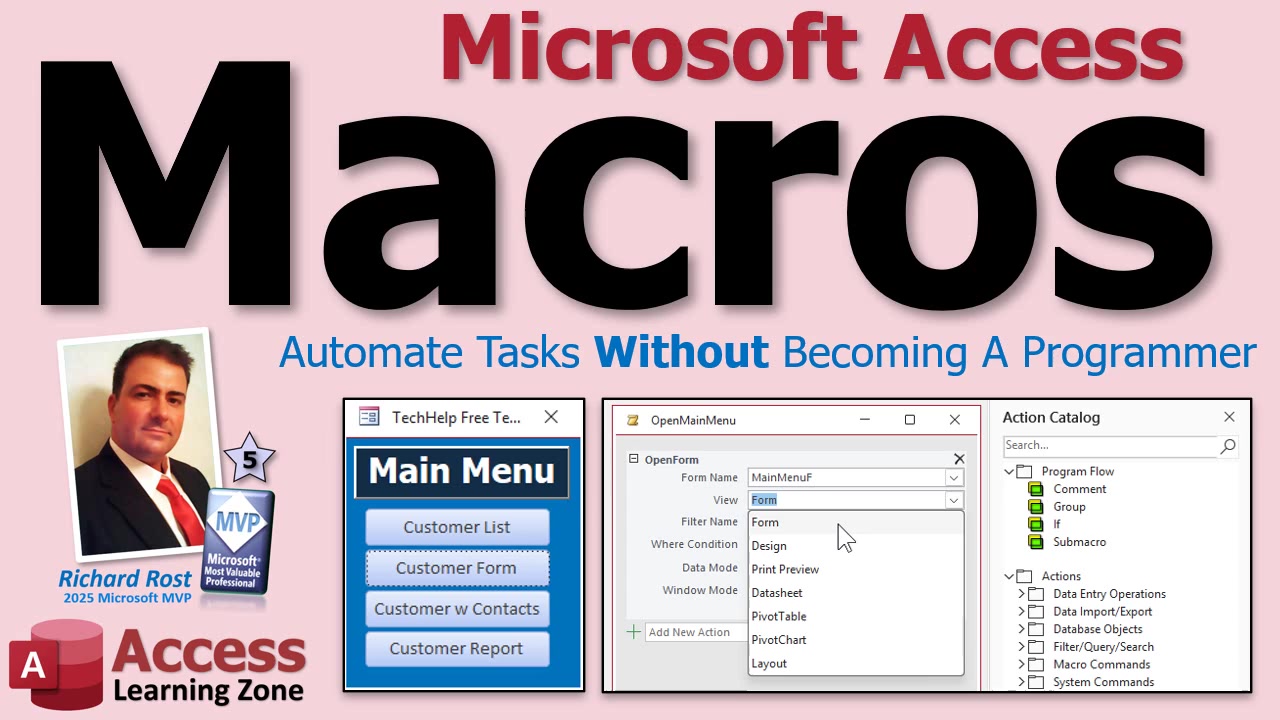
How to Use Macros in Microsoft Access

Ever found yourself wishing you could make a single button in your Microsoft Access database run a whole sequence of actions? Automate reports, open several forms, run queries, and more - without needing to learn how to write VBA code? That is exactly where macros come into play. If you are looking to make your database a little smarter but have no intention of turning into a full-blown programmer, let's talk about how Access macros can make your life easier.

Most of us who use Access fall into one of two camps: those who want to go deep and learn VBA to build full-blown applications, and those who just want to knock out repetitive tasks quickly without diving into code. If you are in that second group - the unofficial Access wrangler in your office, the department manager, the small business owner, or, let's be honest, the person who inherited Steve's database when Steve retired - macros are definitely for you.

Here is the lowdown: a macro in Access is just a list of actions that run one after another. Imagine giving Access a checklist: open this form, run that query, pop up a message box, print a report, export some data - whatever you need. You build that list visually, by picking actions from a dropdown. No coding in sight. Just pick, stack, and let Access do the work for you.

This idea of "macros" often throws people who come from Excel or Word, because over there, macros are recorded - click Record Macro, do your thing, hit stop, and you get a bunch of VBA code. Access does not work that way. There is zero recording, and you are not going to end up staring at a wall of VBA. Instead, you pick actions from a menu and put them in order. It is almost funny that Microsoft chose the same word for two such different features.

Macros in Access are for the regular humans - those of us who have a job to do, want to automate it, and have better things to do than click through the same five forms every single morning. Think of the things you do all the time: run a weekly report, prep a mailing list, open a handful of forms and run a set of queries as soon as you start your day. These are exactly the kinds of tasks a macro can help with.

Sure, there is the built-in command button wizard in Access which is great for simple stuff. Want one button that opens a form or prints a report? The wizard has got you covered. But as soon as you want a button to do multiple things - run several queries in sequence, export some data, show a message, then open a report - macros step up to the plate. Now you are free from being limited to just one action at a time.

So what does this actually look like? Open the Macro editor in Access (Create tab, Macros and Code group), and you'll see a list of available actions like opening forms, running queries, showing messages, and more. Want to open your Customer form? Just pick "OpenForm" and select the form. Want to add a message box that pops up? Drop in "MessageBox" anywhere in your list with the text you want viewers to see. The interface is simple. You can reorder your actions, drag and drop commands, and experiment until you get the workflow you want.

One tip: the order of your actions really matters. If you want a warning message to pop up before anything else happens, that "MessageBox" command should be at the top of your list. Want to open two forms? Stack two "OpenForm" actions and rearrange them if you need the second one on top. If you want to clean up, add or remove actions, everything is a click away - undo is your friend. And remember, not every mistake can be solved with Undo; sometimes closing without saving is the better move.

When you are happy with your macro, save it and hook it up to a button on your main menu form. Use the command button wizard (under Miscellaneous actions) and set it up to run your macro. Give it a friendly label like "Open Customers Macro" and now your users get an easy, guided way to kick off some automation without ever having to dig through the database's guts. Less time spent teaching people where to find things, more time spent on real work. If you want to go a step further, you can even add macros to the Quick Access Toolbar at the top - just drop them into the toolbar via the "More Commands" menu and you have one-click access for yourself or everyone who uses the database.

One of the most powerful (and slightly underappreciated) features: the AutoExec macro. AutoExec is a specially named macro that runs automatically every time your database opens. Back in the day, this was your way to set up the database startup experience. Even though modern Access lets you pick a startup form, AutoExec still shines when you need to check whether you are running in a Trusted Location (which determines if VBA will even run) or want to run a sequence of checks before your main menu appears. If your database is sitting somewhere "untrusted," AutoExec can pop up a message to your users telling them how to fix it - way before VBA tries and fails to load your forms.

Macros are not just for beginners, by the way. Even after you have learned VBA, you will occasionally find that the best or even only solution for a particular automation is a macro. You might use one for startup checks, batch processing, or to set up forms when you know users might not have code enabled. They are a great addition to the toolbox rather than a replacement for programming. When you need to do something like clear out a temp table, append two different sets of customers, then open a mailing list report - all in sequence - macro actions make that a breeze. Just drag and drop your queries and report actions in the macro and you are done. Need to tweak the process? Just adjust the queries or change the macro sequence. No redesign needed.

If you are interested in getting a bit more advanced, macros can do a whole lot more: conditional logic, parameter prompts, submacros, business rules, audit logging, and more. There is also a natural progression from macros to VBA if you ever decide you need even more power and flexibility in your database. But for a lot of daily business needs, macros do the job - and make you look like a database wizard in front of the boss (or at least the hero who saves everyone a dozen clicks a day).

The bottom line: macros make it easy to automate the repetitive stuff in Access so you can focus on bigger and better things. They will not replace VBA, but they are a fantastic tool to have whether you are brand new to databases or have been around the block a few times. If you want to see the whole step-by-step process or dig into more advanced techniques, the video above covers the full walkthrough - so check that out for all the hands-on details.

Live long and prosper,
RR

Tuesday, June 23, 2026

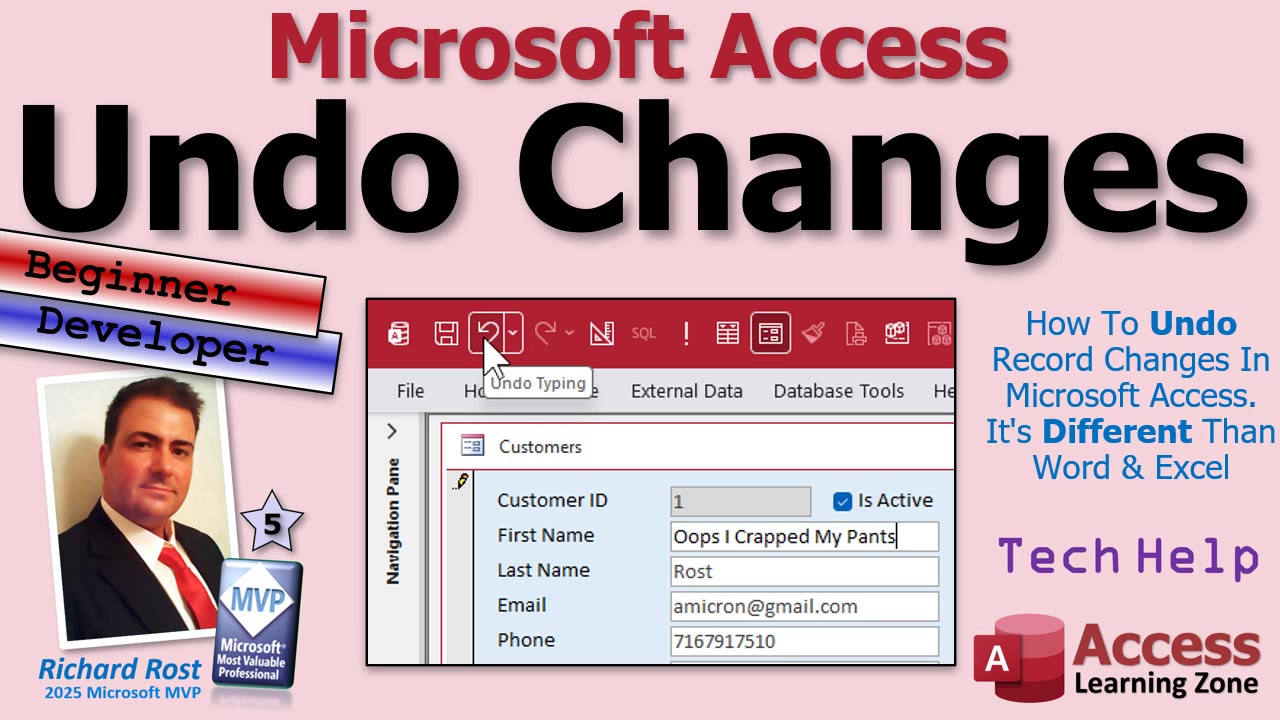
How To Undo Record Changes In Microsoft Access

Ever found yourself in that classic Microsoft Access moment - you are cruising through records, making updates, and then, three customers later, realize you messed up a record way back? Wouldn't it be nice if Undo in Access worked like Control Z in Word and let you gracefully rewind through all your changes?

Let's dig into exactly what Undo can (and cannot) do for you inside Microsoft Access. Spoiler alert: it is not as straightforward as in Word or Excel, but you do have some options - and if you want to get fancy, you can even build something better yourself with a little bit of development magic.

The first thing to understand is that Undo in Access works at the field and record level. As soon as you start typing in a form, the record goes "dirty" - Access's way of telling you data is being edited (watch for that little pencil icon). At this stage, if you want to bail out, you have a couple of options: smash Control Z, hit the Undo button, or simply tap Escape to back out of your changes. Pretty much all will cancel out what you started typing.

It gets more interesting when you edit several fields in a record. Once you've hopped around to different fields and start hitting Undo, you'll notice Access usually undoes just the field you're on - or, if you push it, the entire record. You cannot step back through each field's edits one-by-one like you might expect from Word. There's this odd "second Undo" behavior where, on pressing Undo twice, it sometimes looks like nothing happened. What's really going on is that Undo first reverts your edit in the field, then a second time moves you out of edit mode, and only after that will a third Undo zap the whole record. Yeah, it's weird, but that's how Access rolls.

Now, what if you've already moved off that record? Once you save and shift to the next record, your Undo options shrink fast. Access kindly gives you one "get out of jail" Undo on the last record you changed, but after that - you're out of luck. If you've changed multiple records and only spot your goof several records later, there's no stepping back through history like in Word. Access's focus is being a database, not a document editor, so it just does not keep a giant Undo stack for you.

And don't rely on Redo to save the day, either. Redo in Access is pretty flaky. Sometimes it lets you redo a change if you're still on the right record and field, but a lot of the time - especially after moving around - it just doesn't work. So, if Undo/Redo is part of your workflow, you'll want to stay mindful of these quirks.

If you want to class things up, you can make your own Undo button right on your form. All it takes is attaching a small VBA command like Me.Undo to a button. There's another command (DoCmd.RunCommand acCmdUndo) for folks stuck on ancient Access versions, but Me.Undo is the way to go moving forward. Don't get excited about a Redo command, though - it simply does not exist in VBA.

Now, for folks who want the real deal - a multi-level Undo history - Access does not hand it to you on a silver platter. You can build your own system, but it's a bigger project. The concept is: log every change to a record in a separate table, recording which record and field was changed, the old value, the new value, and maybe a timestamp. With that info, you could create your own Undo (and even Redo) buttons that move back and forth through changes. If that sounds appetizing, there are videos and examples on my site showing how to build a full change log and step through those changes manually using some simple VBA.

This all boils down to: Access will let you Undo a field while you're typing, or the whole record before you save. Once the record's saved and you wander off, you get a single "oops" Undo for that last record - after that, you're on your own. If you want robust multi-level Undo like a word processor, be prepared to get your hands dirty with some change logging and form buttons.

If you are interested in a full walkthrough on building a true multi-level Undo/Redo system in Access (without losing your sanity), let me know in the comments. I love building this kind of stuff and might just make a deep-dive video on it. Either way, keep an eye on those dirty records and don't be afraid to bail out with Undo when you need it.

As always, you can check out the video above for a hands-on demo and to see these little quirks in action. Questions? Comments? Future video ideas? Sound off - I read them all.

Live long and prosper,
RR

Thursday, June 18, 2026

The Microsoft Access Security Mistake That People Still Make - QQ 94

Ready for another batch of Microsoft Access brain food? This week's Quick Queries is loaded with useful (and sometimes cautionary) tales from the wild world of Access. Whether you are wrangling database security, opening PDFs from a form, troubleshooting quirky installs, arguing with Task Scheduler, or just debating whether Access is more than a 1990s relic, there is plenty in here for you - along with a few tips on taming AI that occasionally thinks it's smarter than it actually is.

If you have ever locked down your Access interface - ribbon hidden, shift key disabled, startup options frozen - only to find users still poking around your tables, well, you are not alone. One of the most common security mistakes with Access is thinking you can make it truly bulletproof with these tricks. Here's the deal: hiding tables and disabling shortcuts is great for keeping the honest folks honest, but if your data is really sensitive and someone is determined, Access just is not designed to stop a skilled hacker. If you must keep out the bad guys, bite the bullet and move your data to SQL Server. Access then works wonderfully as a front end, and you can sleep a bit easier at night.

Got a question about opening PDFs from an Access form? Absolutely doable! Instead of cramming PDFs into an image control, just build your file path dynamically from things like the date, supplier, or an ID. Then use VBA's FollowHyperlink to launch the PDF with whatever reader Windows likes best. Fast, clean, no wrestling with embedded files, and your database stays lean. There is a short video that demonstrates this step by step - link down below the video, if you want the nitty gritty details.

I had someone recently wrestling with running Access over a network - could not open their database using an IP address path, and Access would not trust the location. Welcome to the sometimes-dark art of network paths. Access really prefers mapped drives or what we call UNC paths (think double backslashes and folder names, not raw IP strings). Opening databases directly over the Internet? That is like buying a ticket for "Corruption Island." Unless you want a database that comes with free sadness, just do not do it. Keep it local, wired, and split into front and back end if you value your data's health.

The age-old question: Is Access still useful? Short answer - yes. Sure, it is a fantastic learning platform, like training wheels for SQL newbies, but that does not mean you toss it once you have learned. I have clients still running systems I built decades ago, and for small and medium businesses, Access is perfect for line-of-business apps, inventory, CRM, reporting, and more. Would I try to run Amazon on it? Only if I liked living dangerously. But for most businesses? Access is still a workhorse.

Ever get weird errors after installing a new version of Office or Access? Old versions can tangle things up royally. The classic trick is to uninstall every stale version before putting in a new one. Those "box" versions (2010, 2016, etc.) do not always play nice together. Microsoft 365 is a bit more civil, but even then - one version at a time, thank you very much. Saves a ton of headaches.

And on to the "should I store images and PDFs inside Access?" discussion. Technically, you can - but your database will bloat faster than you can blink. Attachments and OLE objects sound fun until you hit that 2GB wall and performance grinds to a halt. The pro move is storing your files in a folder, then keeping just the file paths in your table. Use VBA to link back and forth as needed. Faster, cleaner, and way easier to manage long-term.

Quick shout to everyone trying out Windows Task Scheduler for Access automation - great tool for running batch jobs, backups, or sending mail at odd hours. If you are just starting with VBA, I always say: start with the basics and build up. I have got intro videos and developer courses for every level, so take it step by step and do not fall for the temptation to shortcut your learning with AI that is prone to a little creative hallucination. Use the bots to speed up boilerplate code if you like, but always double-check their work. Treat them like eager junior devs who sometimes reinvent the wheel - and try to attach it to your database backwards.

Lastly, for anyone using image subfolders to display pictures in forms - yes, the same trick works for reports too. Just make sure your paths and file names are spot-on. Access is picky, and one stray typo can leave your report looking mighty empty.

That is about it for this week's Quick Queries. We covered everything from Access security reality checks, smarter ways to handle documents, AI code skepticism, troubleshooting wonky Office installs, and my all-time favorite analogy: compact and repair is pretty much "defrag" for your database. For full walkthroughs and plenty more, hit the embedded video above.

Live long and prosper,
RR

Wednesday, June 17, 2026

Will Your Windows 11 PC Stop Working On June 24th? Will Microsoft Access, Word, Excel Still Run?

If you've been online lately, you've probably stumbled across some dramatic headlines warning that your Windows 11 PC is going to fall over and die come June 24th. Supposedly, Microsoft Access, Word, Excel, and maybe your dog are all going to be affected. Let's take a step back, breathe, and actually look at what's going on, minus the panic-inducing hype.

The core of the anxiety comes from some technical changes Microsoft is making behind the scenes - specifically about something called Secure Boot and expiring security certificates. It sounds scary, but for 99 percent of people, this is truly a non-event. Our computers are not about to self-destruct; Access isn't packing its bags and moving out, and Word and Excel will still happily open your grocery list.

The heart of the whole situation is that Microsoft set up certain Secure Boot certificates back in 2011, and wouldn't you know it, these things are expiring in 2026. The internet latched onto this fact and started spinning up end-of-days scenarios for Windows users. Here's the simple truth: Microsoft is already rolling out updates to replace these expiring certificates, and most users won't even notice anything changing.

So what exactly is Secure Boot? Think of it as the bouncer at the Windows Club, checking ID at the door before your operating system is even allowed entry. Its main purpose is to stop nasty stuff from accessing your computer before Windows even has a chance to fight back. It is not responsible for whether your Office programs (Access, Word, Excel, the usual suspects) run or not. If your PC boots into Windows today, those apps will continue trucking along just fine.

Now, what should you do? The short answer is: likely nothing. If you're curious, you can quickly check your Secure Boot status. Just hit Start, type Windows Security, open Device Security, and take a look at Secure Boot. Green checkmark? Pat yourself on the back, you're good. Yellow? Maybe Windows is still working through an update - just give it a little time. Red? That could mean a firmware update is needed, and if that's the case, head over to your manufacturer's official support site. And I mean official - let's not go downloading random BIOS updates from the wild west of the internet. For most of us, enabling Windows Updates and letting Microsoft do their thing is all that's required.

Here's the real deal: don't create a problem that doesn't exist. Don't rush into your computer's BIOS to start flipping switches you don't understand just because some YouTuber said the sky is falling. Secure Boot being marked as unsupported isn't a sign of imminent doom. If your Windows 11 PC is running just fine and all your software is happy, leave it alone. No need to be a hero or start a weekend project fixing what isn't broken.

As always, keep your system up-to-date, don't panic, and maybe spend a little less time reading sensational headlines. June 24th is not the Windows Y2K. Your Access databases and Office documents will be there in the morning. The best thing you can do is relax, stay updated, and know where your towel is (bonus points if you caught the reference).

If you want to see more of these kinds of breakdowns, or if the scare-mongering headlines had you worried for a second, let me know in the comments. And for those wanting to go deeper, there's a full beginner Windows course available for free on my website and YouTube channel - level 2 is just a buck if you're hungry for more.

Stay calm, stay smart, and let Microsoft do the hard work for you. Your PC and Office apps aren't going anywhere on June 24th. Watch the video above for a deeper dive if you're still curious!

Live long and prosper,
RR

Tuesday, June 16, 2026

Windows Suddenly Sluggish After Update? Check This First

You know that feeling when you finish a Windows update and suddenly your computer starts acting like it's trudging through molasses? Not outright broken, not blue-screening - just strangely slow in a way that's hard to pin down. It's one of the most frustrating situations for any PC user because if something crashes, at least you know where to start, but when everything is just a little bit off? That sends you straight down a rabbit hole of troubleshooting, and nobody's got time for that first thing on a Monday morning.

Here's the thing: sometimes it isn't a failing hard drive, a bad batch of Windows code, or yet another driver nightmare. In fact, after one routine update on my Lenovo Legion laptop (Windows 11, for the record), I ended up spending hours puzzling over the performance drop - apps lagging and just a general stickiness whenever I tried to do anything. And get this: it turned out to be one little Windows power setting that quietly changed in the background.

So let's talk about what you should check first if your PC is suddenly dragging its feet after a Windows update. First stop, as always, is Task Manager. Open it up and look for anything hogging your CPU, eating RAM, or thrashing your disk. Sometimes, updates like to keep working for a bit even after a reboot; search indexing and update processes can slow things down for a while. If everything looks normal there and the sluggishness isn't clearing up, it might be time to dig deeper.

Now, a big suspect after updates is always the graphics driver. Microsoft and GPU drivers are like that couple who keep breaking up but never really move on. If Windows gets clever and swaps out your graphics driver, things might look okay but feel off. A fresh Nvidia or AMD driver update sometimes does the trick - or at least helps a little.

If updates and drivers both look fine, you can check with tools like SFC and DISM. These handy command-line options can repair Windows system files that might have been jostled during the update. For those interested, I've got videos on SFC and DISM - you can always ask for more details if you want to dive in.

But here's where it gets sneaky: sometimes, Windows will flip your system into a lower power mode behind your back. On my machine, after the update, it snuck me into "quiet mode." Manufacturers call this all sorts of things - quiet mode, eco mode, battery saver, whisper mode, save-the-penguins mode - but what it really does is throttle back your CPU and GPU to keep things cool and quiet. That's great if you're working at a coffee shop, not so great if you're running your machine like the workhorse it's meant to be.

The solution? Go straight to your Power Options in Control Panel. Yes, I know Microsoft has been trying to hide Control Panel for years, but it's still where all the advanced good stuff lives. Click Start and type "Control Panel," head into Hardware and Sound, then Power Options. Look for any modes with names like "Performance," "High Performance," "Ultimate Performance," or whatever your manufacturer calls their top speed option. Turn off any low-power modes if you want that instant responsiveness back.

If you want to dig even deeper, check "Change plan settings" and then "Advanced power settings." Set your minimum processor state to 100 percent when plugged in if you want your CPU to always run at full throttle. Just be careful: the advanced options are powerful, and changing things randomly is a bit like flipping switches on the Starship Enterprise just to see what happens. If you want a nerdy deep dive on these power tweaks, let me know - a future video could definitely cover it.

Remember, different PC brands might layer their own fancy software over Windows power options - Lenovo, Dell, ASUS, MSI, Alienware, you name it. I can't cover every custom app out there (unless anyone wants to send me a free gaming PC, in which case I humbly accept donations), but the principle is the same: check for any performance-bottlenecking modes and shut them down if your machine is always plugged in and needs to work hard.

One small rant before we wrap up: always do Windows and Office updates on your own schedule, not theirs. Update regularly, but never let your PC decide to do it the night before a big project. I like to handle major updates when I have downtime and can troubleshoot if something goes sideways. And yes, if folks want a full walkthrough on permanently disabling automatic Windows updates (because Microsoft likes to make this harder than it should be), just say the word.

Bottom line: if Windows suddenly slows down after an update, check your power plan settings before you panic, reinstall drivers, or start eyeing your backup drive. The fix could literally be just a few clicks away, saving you hours of hair-pulling troubleshooting.

If you want all the juicy step-by-step screenshots and tricks, check out the full video embedded above. And remember, you can always find my complete free Windows Beginner Level One course over on my site or YouTube channel, plus more advanced stuff for those ready to go down the Windows rabbit hole.

Live long and prosper,
RR

Monday, June 15, 2026

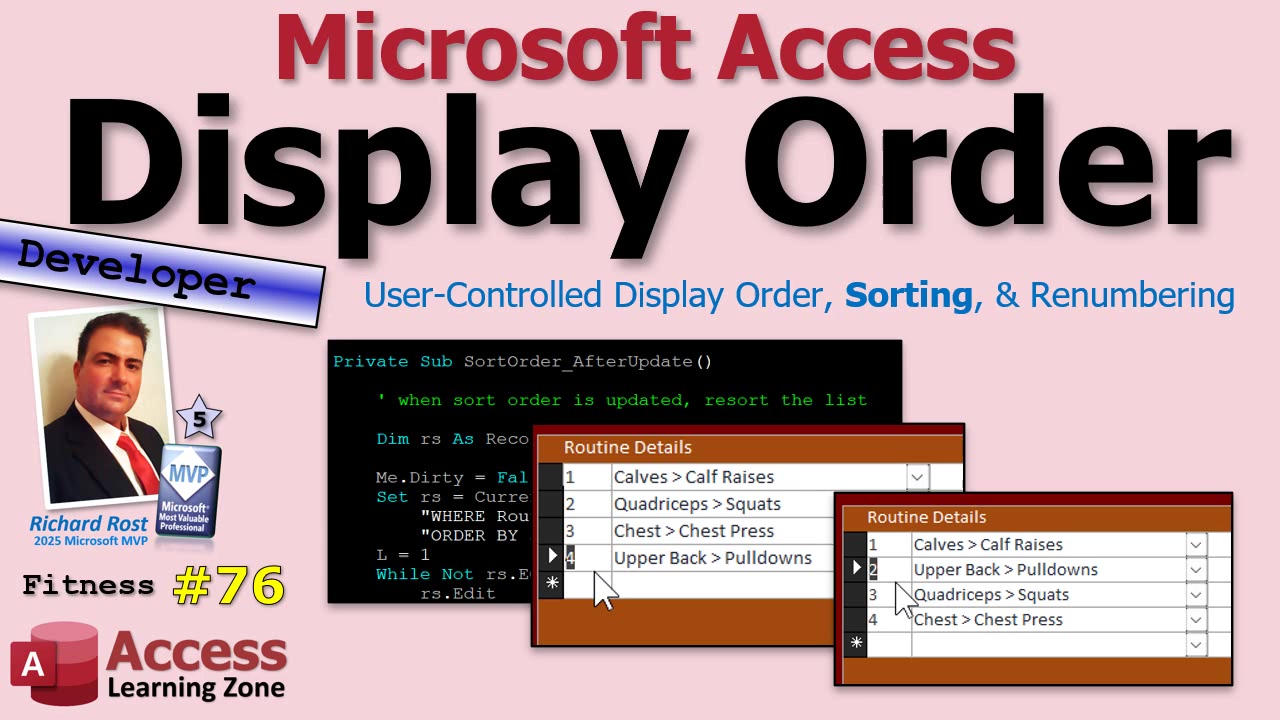
User-Controlled Display Order, Sorting, and Renumbering in Microsoft Access - Fitness 76

Letting users control the order of items in a Microsoft Access list can be a real game-changer. Instead of Access deciding how things are sorted, why not let users tweak and organize to their hearts' content? Whether you're building a fitness database like in my example or wrangling appointments, task lists, or products, the techniques I'm about to talk through will fit right in.

Most Access tables (and their forms) default to whatever order the database feels like. That is rarely what your users actually want. If they want "chest" before "quads" or "calves" to start the day for some reason, that should be easy. The trick is to set up a custom display order field - something the user can directly control - and then wire up Access to handle the sorting and renumbering for them. No more random jumps or headaches when you try to move stuff around.

The first thing to do: add a SortOrder (or DisplayOrder, if you prefer fancy names) field to your detail table. Here's a pro tip - make this a Double, not an Integer. Why? Moving records means you'll sometimes want to slide something between two numbers. If everything's just 1, 2, 3, 4, what happens when you want to stick a new item between 2 and 3? With a Double, toss a 2.5 in there, then renumber later for that clean, neat order. Plus, users can type in whatever they want for fine control, and it will all smooth out with a quick re-sort.

While we're talking tables, ditch zero as the default display order. Make it Null - trust me, makes life a little easier because you can catch and fix anything that slips through. Also, think about defaults for other fields: nobody goes to the gym and does zero sets, at least not on purpose (or unless you subscribe to my patented "sit-around-and-watch-everyone-else" method).

Once you've got the SortOrder field, stick it on your form so users can see and edit it. Doesn't matter if it's fitness routines, inventory products, or whatever else - same concept. Add the field to your subform, tidy up the tab order, and make it look like someone cares about UI design, at least a little bit. Align things left and leave enough room for your numbers. And remember, if someone needs three digits for sets, they're either superhuman or accidentally pounding keys.

Now for the automation. When someone adds a new item, you want Access to automatically stick it at the end of the list. The logic is: look up the highest current SortOrder for just this group or routine, add one, and assign that as the new default. This keeps new stuff nicely appended, and the user can adjust from there. This is typically done in the Before Insert event of your form. Writing code for this is straightforward - a little DMax to get the current highest, and boom, you're set. (If you want to see the VBA, check the video below; I do walkthroughs and show all the code details there, so you aren't stuck guessing.)

But what happens when users actually want to change order - move something up or down in the list? Here's where Doubles shine. If you want to move item 3 above 2, just pop in 1.5. Of course, you don't want to leave the database full of fractional weirdness forever, so after any SortOrder update, run a quick renumber. The code loops through everything in the newly sorted order and reassigns 1, 2, 3, and so on.

The main things to remember when renumbering:

  • Make sure the current record is saved (Me.Dirty = False handles that).
  • Open a recordset sorted by SortOrder for just the current group (like the items under a single routine).
  • Loop through and update SortOrder fields with a neat counter, moving from 1 upward.
  • Requery the form to show the new order immediately.

Bonus tip: be careful with the form's Order By property. If you want things always sorted right, you can set this either in the form properties or, better yet, directly in the form's record source SQL. It's easy to mess this up, especially if you manually change things, so pick a method and stick with it. I show both approaches in the demo video below.

Just like that, users can re-order exercises (or widgets, or appointments) to their liking. Add a new item? It appears at the end. Want to move your favorite to the top? Just change that SortOrder field. Want the exact same trick for products, task priorities, or literally any other ordered list? It all works the same way.

Want a little more? In the next part, I go a step further and show how to add up/down buttons so users don't even have to type numbers - just click, and the items shift accordingly.

If you want all the code details, walkthroughs, and some snarky commentary, check out the embedded video. As always, feel free to comment below with your feedback and war stories, or what you'd like to see next.

Live long and prosper,
RR

Thursday, June 11, 2026

Are You There? Automatically Log Users Out After Inactivity in Microsoft Access, Part 4

If you have ever needed a way to make sure your Microsoft Access users are actually there at their computers, not just ignoring your database window while they answer emails or binge YouTube, I have a pretty handy trick for you. This builds on my earlier tips about logging users out after inactivity, but now we are cranking it up a notch: we are getting Windows itself to rat out your idle users. No more letting them game the system by just minimizing Access and pretending to be gone while they are secretly still very much present.

So, here is the problem with traditional inactivity tracking in Access: those timer-based approaches work well if your users are actively doing stuff inside your forms, clicking, typing, tabbing around your database. But Access has no idea if someone's actually still at their workstation or just alt-tabbed away. Some clever users might keep Access open in the background, then waste half an hour in Excel, Outlook, or, ironically, watching AccessLearningZone videos. From Access's perspective, it looks like they are just idle. Technically, they are, but in reality, their butts are still firmly in their swivel chairs.

This is where Windows API calls come to the rescue. Windows is always keeping score on when the computer was last touched, whether it is a key press, a mouse wiggle, or something else. With a tiny bit of clever VBA, you can ask Windows directly: "Hey, how many seconds since the user did literally anything?" The answer covers all apps, not just Access. Now you have a way to see if they are truly away from the computer, not just your application.

Now, before anyone panics about "Windows API" code, don't. Using API calls in VBA is a lot less scary than it sounds. You do not need to know how Windows works under the hood, just which buttons to push. All it takes is a little function that does all the grunt work. If you want the full step-by-step code walk-through, I cover it in the video, and Gold members will find it in the code vault.

Here's the big picture: the function - let's call it GetIdleSeconds - checks with Windows, asks for the timestamp of the last key press or mouse move, subtracts that from the current system time, and hands you back how many seconds the PC has been idle. If the call fails for some reason, you get a negative number, so you can check for that too if you want to be extra careful.

You do not have to understand the nitty-gritty. In my own demo, I dropped the function into a module (I usually name mine something like "modIdle" so I know what it's for), and set up a one-second timer in my main menu form for testing. When I touch the mouse or a key, the idle count resets to zero - no matter what program I am in. Even if I am typing away in Notepad, not Access, my database instantly knows.

Now, here's my recommendation if you want to put this into action: keep using your usual form-based timer or event systems to track user actions inside Access for the main timer. That way, you do not get your main screen constantly jumping back into focus while your user is working in the VBA editor or another app. But, when it comes to actually making the decision to log someone out, use GetIdleSeconds as your checkmate. Make sure the user is not only inactive in Access, but also idle on the whole PC. Only then drop the hammer and close them out. That way, you avoid kicking people off for doing genuine work in other apps - and you close the loophole of someone just walking away without locking their computer.

You could even take it further: if you know the user has been away for a while, you could not only shut down their Access session but also lock the whole workstation (that is also possible - maybe a topic for a future video if enough folks are interested).

Bottom line: this little Windows API trick gives you the ultimate "Are you actually there?" test. Traditional Access tricks tell you if someone's using your database; the API tells you if they are still at the computer at all. Between the two, there is nowhere left to hide. If you want to see this in action and get the nitty-gritty implementation details, check out the video above.

Let me know if you will use this approach, or if you have any other favorite tricks for managing user sessions and idle timeouts. Share in the comments, and as always, you can find the extended implementation and walkthrough in the full video.

Live long and prosper,
RR

Wednesday, June 10, 2026

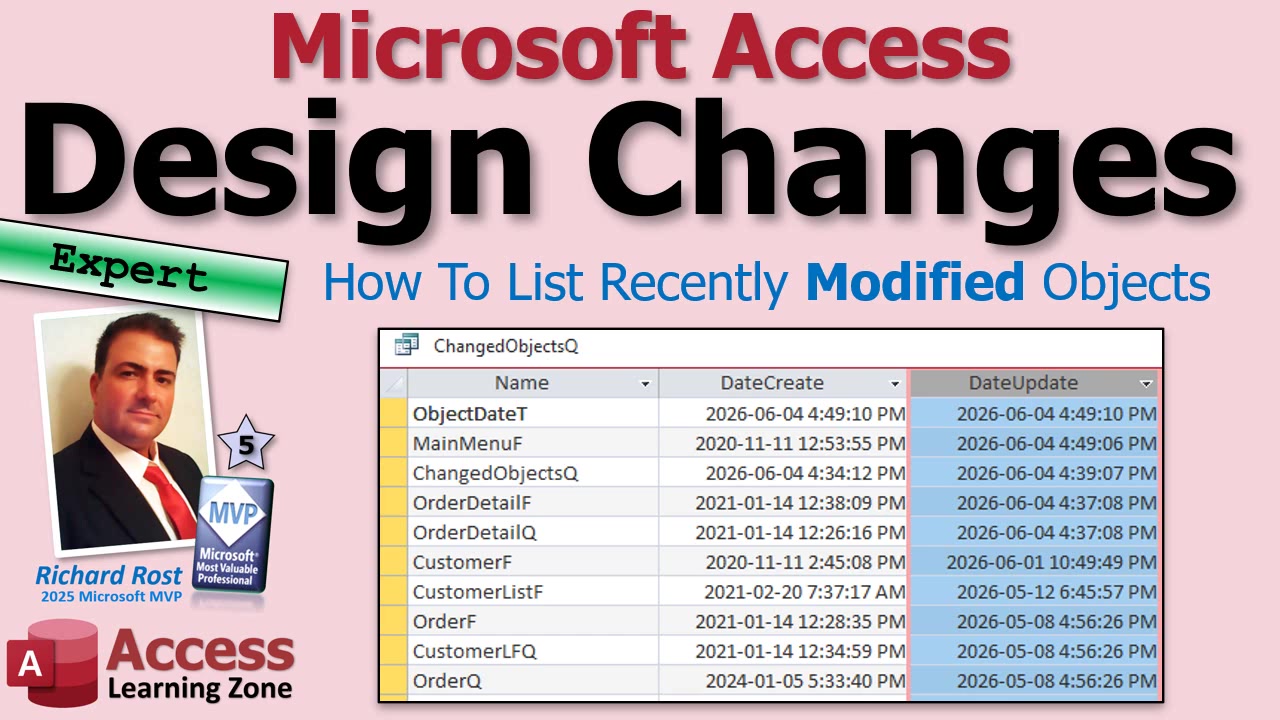
How To List Recently Changed Objects in Microsoft Access (Forms, Queries, Reports & Tables)

Ever sit down in front of your Microsoft Access database after a long weekend (or maybe a vacation) and draw a complete blank about what you were working on last time? Or maybe you managed to restore an old backup but now have no clue which tables, forms, or queries you modified since then. Trust me, you are not alone. Keeping track of design changes in Access can feel like hunting for your keys: you know you left them somewhere, you just have no idea where.

There are plenty of situations where knowing which objects have been changed recently comes in handy. Maybe you are troubleshooting a sudden issue, recovering after a backup, or need to convince your boss that yes, you did make progress last week. Wouldn't it be nice if Access just had a big bright button that said: "Show me everything I changed?" Well, not quite... but it turns out Access does track some details that can help, if you know where to look.

So here's the scoop: Access secretly stores created and last updated dates for every object in your database. That includes tables, forms, queries, reports, and so on. These little details sit in a special, hidden system table called MSysObjects. You just have to know how to ask for them. Before you go poking around, be warned: do not modify anything in those system tables unless you want some exciting new error messages in your life.

To get to these details, you first need to make sure Access is showing system objects. Quick tip: right-click in your Navigation Pane, go into Navigation Options, and check the boxes for showing hidden and system objects. Once you do that, you will see a bunch of tables named MSys... popping up. The one you want is MSysObjects. If you open it up (just to peek, not to touch!), you will see columns like Name, Type, DateCreate, and DateUpdate. That's your motherlode of object details.

Now, you could scroll through all that technical noise by hand, but we are smarter than that. Time for a little query magic. Use the Access Query Designer to create a new SQL query that selects Name, Type, DateCreate, and DateUpdate from MSysObjects. You will want to filter out any system objects (all those that start with "MSys") and probably want it to show most recent updates first by sorting on DateUpdate descending. If you are comfortable with SQL, it looks something like this:

SELECT Name, Type, DateCreate, DateUpdate FROM MSysObjects WHERE Left(Name,4) <> "MSys" ORDER BY DateUpdate DESC;

If you are not familiar with SQL, the design grid view in Access will work just fine too. Tweak your criteria to exclude temporary objects (those that start with a tilde), and you will have a tidy list of what you have changed and when.

Now, a quick word about the Type column. Access uses numbers to represent different object types. For example, queries are 5, tables are 1, forms are -32768 (I'm not kidding), and so on. Microsoft does not officially document all of them, but most are easy to pick out based on your own naming conventions. You do not need to memorize the codes, but it does help to know what you are looking at.

This technique is awesome for tracking design edits to tables, queries, forms, and reports. Make a change, save your object, and bam - the DateUpdate field updates. So if your goal is just to figure out what objects you have been tinkering with recently, this query is your best friend. Add a new column, nudge a button a pixel, or update a query, and you will see it right at the top of the results.

But, and there is always a "but," there is a little catch with VBA code changes. When you change the code behind a form (the form's module) and save, the DateUpdate usually refreshes - most of the time. But if you edit a standard module (like a global module), for reasons known only to the Access gods, sometimes this does not update. I have seen it skip the update entirely, especially with standalone modules.

So if you do a lot of VBA work, be aware: this trick gives you a quick and dirty answer, not a full accounting. It is great for tracking forms, reports, tables, and query design changes, but don't rely on it for every line of VBA code you tweak. If you need to track VBA module changes specifically, you will want to step things up with a little more advanced VBA scripting to build your own audit table. That takes a bit more work - and I cover the full process in the extended cut for members, where you can see how to use the Access object model to get a more accurate, complete inventory of changes.

Bottom line: if you ever find yourself wondering, "What have I actually changed lately in this database?" a simple query against MSysObjects is a fast and surprisingly effective way to get the answer, at least for most Access users. Next time you come back from your break, or need to check your design history after restoring from backup, give it a try. For hardcore developers who live and breathe VBA, check out the members-only video for that next-level technique.

Got your own Access mystery or story about lost work and heroic recoveries? Drop a comment below and let me know. The video up above has the step-by-step demonstration if you want to see this technique in action.

Live long and prosper,
RR

Tuesday, June 9, 2026

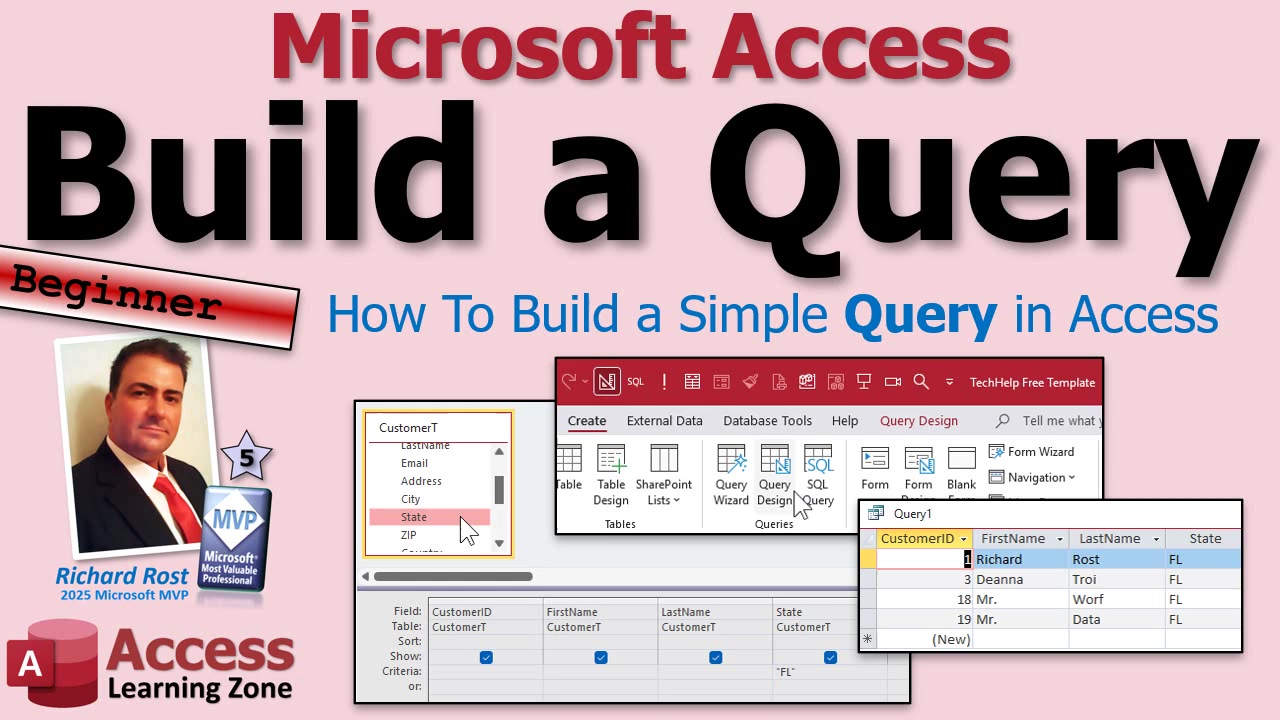
How To Build A Simple Query In Microsoft Access

Need to pull up just the right set of records from your Access database without scrolling for hours or repeatedly fishing through dozens of rows? This is where queries step in to save your sanity. If you're working with customers, orders, or any data you regularly sift through, learning how to build a simple query in Microsoft Access is one of those things you'll wish you picked up sooner.

So, what exactly is a query? In Access, your tables are where data physically lives - think of tables as your database's jam-packed filing cabinets containing all your vital details like customer info, orders, products, you name it. But queries don't actually store data themselves. Instead, a query is basically you asking your database a focused question. Maybe you want to see every customer from Florida. Or only the ones who haven't placed an order in six months. A query lets you filter out the noise and get exactly the rows you want, quickly and reliably.

Running a query is like having a saved search - you set it up once, and any time you want those results, just run the query again. Less clicking, less filtering, more getting actual work done. If you're new and you haven't even created tables yet, I highly recommend checking out my Beginner Level 1 course first, because things make a whole lot more sense once you nail down tables. Links for that and my free TechHelp template database are down below.

Let's walk through a practical scenario. Say you're often looking for all customers from Florida, and you're tired of manually filtering every single time. Instead, you want a reusable tool. Here's how you build it: fire up Access, hit Create, and then Query Design. Choose your table - in this case, let's say "CustomerT." Then pick the fields you want to see in your results, like CustomerID, FirstName, LastName, City, or State. Double-click each field to drop them into your query grid.

Now, the magic happens with criteria. Click under the State column in the criteria row and enter "FL" (with double quotes). That tells Access to only show records where the state is Florida. Run the query - it's the little exclamation mark button - and boom: only the Florida folks. This is what a simple criteria filter looks like. Back in Design View, you can tweak this any time.

A quick pro tip: when you save your query (Ctrl+S is your friend), use a naming convention. I like ending tables with a T, queries with a Q, forms with an F, and so on. Spaces in names might look pretty, but they'll trip you up later if you start doing more advanced stuff, especially with VBA or SQL. Just trust me on this one.

From here on out, to get your trusty list of Florida customers, all you do is double-click the query and run it. No more wrestling with filters every single time - you just open, run, and you're set. That's why queries are one of my favorite Access features; build them once, use them forever.

But here's where beginners trip up: queries don't actually store copies of your data. The live data still sits in your table. So if you edit a record in your query, you're editing the real thing. If you delete a record, it's gone from the table. The query only stores the instructions - the "recipe," not the "soup." So double-check before you accidentally nuke a record you actually wanted to keep! Think of query results as different lenses for the same data, not a detached snapshot.

If you want to go beyond this and get into more advanced stuff like complex criteria, AND-OR logic (for the pros who live dangerously), or parameter queries that prompt users to enter values each time (great for on-the-fly searches), I have separate videos just on those topics. With parameter queries, for example, you don't have to hard-code "FL" - you can prompt the user for any state when running the query… neat little feature, super useful.

And if you're reading this without having watched my Access Beginner Level 1 course, what are you waiting for? It's free, it's comprehensive, and it'll put you light years ahead when it comes to confidently working with Access databases.

So that's the rundown for building a simple query in Microsoft Access. If you have questions, comments, or just want to share your own query-war stories, post them down below. And remember, you can always watch the embedded video up top for a complete click-by-click walkthrough.

Live long and prosper,
RR

Monday, June 8, 2026

Should We Stop Using AI? What Microsoft Access Developers Need To Know! QQ 95

Should we pump the brakes on AI, or is it just the new tool we all have to get comfortable with? That was one of the big questions from this week's round of Microsoft Access community discussions, and let me tell you, we went everywhere: AI's environmental impact, 32-bit vs 64-bit Office, query design quirks, performance tweaks, even penguins. That's what happens when you put a bunch of Access geeks together and let the questions fly. Let's dive into some of the more interesting topics that came up this week, along with a few classic debates and a couple of developer battle scars for good measure.

This time, the Quick Queries inbox really delivered. The conversation started with a question that's bounced around the Access world for years: is there any real advantage to upgrading from 32-bit to 64-bit Access? Spoiler: for most, not really. Unless you're dealing with gigantic Excel sheets or heavy API work, your forms, reports, queries, and VBA code won't suddenly run faster or get you bigger databases. The reality is 64-bit is just where Microsoft is heading, so if you're building new today, might as well jump on the bandwagon. But if your 32-bit setup isn't broken, you don't have to fix it until you hit a wall. Progress is slow sometimes in Access-land, but the direction is pretty clear.

Next up: is it better to use a saved query, or just slap the SQL right into your form's record source? My take: it's mostly a matter of style and maintainability. If you'll reuse the same query in multiple places, save it. If it's a quick one-off, hack it in-line. If you're like me and you often test things with the query designer and then copy the SQL wherever it needs to go, hey, whatever gets the job done fastest. One perk of saved queries: way easier to troubleshoot when stuff breaks. There's nothing like spending an hour hunting for a rogue SQL string buried in property sheets. Been there, done that. Just remember, shared queries = shared dependencies. Change one, you might accidentally break something else, so watch out for gotchas.

Then there was the always-controversial advice about "compact on close." Here's the deal: do it for your own local or front end files if you're flying solo, or pushing out split front ends to users. Never, and I mean never, compact a shared back end while other people are using it unless you've got a thing for corruption (and not the cool, political kind). Scheduled batch maintenance is your friend. Compacting doesn't magically make Access run faster; it mainly keeps the file size under control by cleaning up deleted records and general bloat. For most, once a week - or even less - is totally fine. Maybe more if your workflow trashes a lot of temp tables. Just don't go nuts hitting Compact every hour.

Form limits reared their heads again, as always. Turns out, Access has a theoretical 754-control-per-form lifetime limit, but realistically, you have to go out of your way to hit it. If you're creating dynamic forms by just hiding/showing/resizing existing controls, you'll never see the problem. Pro tip: if you're genuinely generating stuff in design view over and over with CreateControl from VBA, and somehow wear out that allocation, just make a new form. In thirty-plus years, I've never personally hit it, despite my best (and worst) efforts. Treat Microsoft's limits more as guidelines than hard red lights - sometimes, real-world behavior is wilder than what the docs claim.

Zoom features got brought up - specifically, why compiled ACCDE files sometimes ignore form zooming. You're not crazy; Microsoft knows about it. I've been using the zoom and loving it, so hang tight for fixes. It's a rare treat to see brand new features still landing in Access, so give the team a little slack as they iron things out.

Name AutoCorrect? The debate continues. Some folks see a speed boost after turning it off because, let's face it, Access tracking every name change across all objects does burn a little horsepower, especially in big hairy databases. My beef is it isn't thorough enough; it'll "fix" some queries or forms but leave VBA or SQL in code alone. So you get a false sense of safety. For small, simple stuff, it can be handy. But in anything even remotely complicated, I'd rather search and fix my references on my own so nothing slips through the cracks. Trust, but verify. Or just don't trust at all and handle your own business. (Multi-valued fields and attachments fall into this category for me, too. Looks nice on paper, but bite you later if you're not careful.)

Had to tackle a couple of reader myths, too - especially the old "you only answer questions from premium members." Nope. Most questions I answer came from non-members on YouTube, Reddit, or in the forums. Gold/platinum/silver folks get a little priority (they're the reason these videos exist at all), but anyone can ask, and I'll answer as much as I can. If you want the best odds, use the forums, where our moderator crew and developer students can jump in, too. The more eyes on your problem, the better.

The 255-field-per-table limit crept up again - a classic database "oops." If you're getting even close to 255 columns, something likely needs redesigning. Move those columns into a child table and use a "name-value" pair scheme: one record per field. That'll let you store as many attributes as you like without running out of columns. If you need to export to a stats package that wants a flat ultra-wide table, you can pivot or build an export query at the end, but your underlying data stays sane and maintainable.

Now, about that AI question that anchored the week: should we stop using AI out of environmental concern? I get it, I really do. The big data centers powering today's AI chew up plenty of electricity and water, so yes, there's an environmental cost that we absolutely can't ignore. Governments and the big tech companies need to do better - stricter standards, cleaner energy, the works. But simply abandoning useful tech isn't the answer. Nobody's giving up computers, cars, or the internet to save a little power. The better strategy is to demand responsible development and regulation. Cleaner, more efficient, more sustainable - yes please. But let's face it - the genie is out of the bottle. AI isn't going back in, so as Access developers (and honestly, anyone using modern tools) we're just going to have to learn to use it wisely and responsibly.

I use AI all the time for research, brainstorming, even a little image-generation humor here and there. I'll never let it make the videos for me, but as with calculators, computers, and spreadsheets, you either get on board or get left behind. The environmental debate is real, and I'm absolutely behind any push for stricter protection - especially since it's the creatures least able to adapt who pay the price. Penguins losing their ice should matter to all of us. But asking everyone to quit using AI cold turkey? That's about as likely as a return to horse-drawn carriages.

And yes, before anyone asks, AI and Access do actually mix. Whether it's integrating AI services into your apps, using it to analyze data, or even just making your documentation process a little less painful, this is just another tool to add to the developer belt. I'll definitely be teaching more about this soon, so stay tuned for a full Access-and-AI video series down the road.

That about wraps up this week's Quick Queries. We covered a lot - AI angst, classic Access headaches, small victories, and maybe even a few things you've never run into (yet). If you want all the details behind these stories and a few bonus rants you won't find anywhere else, definitely check out the video above. Drop your own questions or battle stories in the comments - I love reading them, and they often spark future episodes. Until next time, keep learning, keep sharing, and don't let Access's quirks slow you down.

Live long and prosper,
RR

Thursday, June 4, 2026

Why I Turn Off Name AutoCorrect in Microsoft Access

Name AutoCorrect in Microsoft Access sounds like one of those dream features you did not know you needed until it quietly starts breaking things behind your back. You rename a field in a table, and poof - Access promises to update all your forms, queries, and reports to match. What could possibly go wrong? Well, after years of wrangling with Access databases, I am firmly in the "turn it off immediately" camp, and here is why.

The idea behind Name AutoCorrect is simple enough: give your fields or tables new names, and Access tries to chase down everywhere those names are used and update them for you. In a basic little database, it can seem magical. Rename a table or field, and your forms and queries do not break - at least, not right away. But once you get beyond the absolute beginner stage - introducing some VBA, more advanced queries, or complicated relationships - Name AutoCorrect starts looking less like a helpful assistant and more like a mischievous gremlin.

Let's get this out in the open: yes, if you only deal with super-simple databases, you might never have noticed a problem. Rename a column called "Customer Since" to "Customer Start Date" and most of your basic forms and queries will keep on working if you have Name AutoCorrect turned on. But - and this is a big but - the magic does not reach everything. Your control names stay the same. Any VBA code that references "Customer Since" does not get automatically updated. That button you wrote three years ago and forgot about? Still points to the old name - and now it is broken. Access, sneaky as it is, does not warn you or fix your code. It just lets the error show up at the least convenient moment, like Monday at 9:15 AM when everyone is already emailing you.

The options for Name AutoCorrect are tucked away under File, Options, Current Database. There are three settings: Track Name AutoCorrect Info, Perform Name AutoCorrect, and Log Name AutoCorrect Changes. Track is like the master switch, and the others depend on it. If you turn them off, especially in your project template, you will avoid a lot of behind-the-scenes overhead and save yourself some confusion. Object Dependencies - the little feature that tells you what objects rely on what - does use the Name AutoCorrect info, so if you love that tool, just know it depends on tracking being on. Personally, I barely touch it.

Where it really trips people up is with anything outside the designer's drag-and-drop world. VBA code, SQL statements, DLookup, recordsets, you name it - Access does not touch those when it updates a table or field name. And here is the real kicker: Name AutoCorrect works just well enough to give you a false sense of confidence. Some stuff gets fixed, so you think everything is fine. Then the weird bugs start rolling in weeks later, and you have to play detective to track down references that did not get updated.

Some really respected names in the Access world fall on both sides of this debate. Colin Riddington, an Access MVP, argues that you can use Name AutoCorrect if you really, truly understand how it works and what it skips. And yes, if you are careful and know every quirk, it can maybe be your friend. Me? I do not need another feature that requires a deep knowledge of all its hidden behaviors just to avoid disaster.

Then there is Allen Browne - legendary in the Access community - whose take is short and sweet: just turn Name AutoCorrect off. Even though Microsoft has improved the feature over the years, Allen's old advice still holds up, because the core problem remains: Access still does not update everything, especially code. All it takes is one missed field reference in a macro, form, or chunk of VBA, and you are tracking down bugs that should never have existed in the first place.

If, like me, you have ever built a database with thousands of lines of code and more moving parts than a Swiss watch, you know the pain of chasing down these elusive errors. At this point, I just leave old field names alone unless I am absolutely forced to change them. That column I named badly in 2001? Still there, spaces and all. Sometimes it is better to live with a little inconsistency than to risk breaking the whole machine.

My advice is simple: turn off all the Name AutoCorrect options in every new database you build, especially if you do any coding in VBA or SQL. Instead, if you must rename something, search your entire project for references and update them yourself. Do not trust Access to know what you meant. And for the love of data, do not use "Find and Replace All" unless you like unexpected surprises.

There are always a few Access developers who will fight me on this, but I will stick with my gut. Name AutoCorrect tries to solve a problem, but it just adds its own layer of complexity and unpredictability. I would rather take five minutes to check my own work than spend five hours fixing mysterious bugs later.

I am curious: are you in the turn-it-off club, or do you leave it running? Let me know in the comments. And if you want to see demos and deeper dives into all the weird little Access features you should avoid (Multi-Valued Fields and Attachments, I am looking at you), check out the embedded video above.

Live long and prosper,
RR

Wednesday, June 3, 2026

Microsoft Access Specifications And Limitations: Real World Performance And Capacity

Ever found yourself wondering if Microsoft Access is secretly holding your business back, or if those so-called "limitations" you keep hearing about are actually something to worry about? This is something that comes up a lot, especially for people who start with Access and only realize later on that there are some restrictions kicking around once their apps start to grow. Let's talk through the official specs, what they really mean in the real world, and how to dodge some of the more common pitfalls.

Microsoft does publish a whole specification sheet of Access's limits, but most people (and a few critics) have a habit of cherry-picking the more dramatic numbers. For instance, you've probably heard that the maximum database file size is 2GB. Sure, that's true per ACCDB or MDB file. But what most people miss is that you can split your data across several backend files. As your database grows, you can break things up - customers in one, orders in another, order details in a third - you get the idea. Suddenly, that so-called "limit" is a bit more flexible, as long as you are thinking about your structure smartly.

If you find yourself running out of space anyway, the usual culprit is storing big files inside the database itself, like images or attachments. Seriously: just don't. Access isn't designed for it, and it will fill up your space in a hurry. Save images as files and keep only their paths in the database. And don't forget to compact and repair the database regularly - a weekly maintenance habit will take care of bloat caused by deleting and adding lots of records.

Now, how many objects can you have? Officially, it is 32,000, which covers tables, queries, forms, reports, the whole lot. If you ever get even close to this, I'd be genuinely impressed (and maybe a bit concerned). In my decades of building Access apps, the busiest databases have maybe a couple hundred objects at most. If you are regularly crossing into four digits, it might be time to rethink your approach - and what you are doing with all those objects!

Another one that stands out is the user limit. Technically, Access allows up to 255 concurrent users. In reality, the sweet spot is about 20 to 30 users working at the same time. Above that, especially with heavy data entry and a busy network, you are going to start hitting performance problems. That is usually a sign to start thinking about a beefier backend like SQL Server. Of course, the exception is if you have lots of users who are just occasionally looking up records - not everyone hammering the database constantly. But if you are relying on wireless networks, know that you are flirting with disaster; wired is the best for Access reliability, especially at scale.

People also ask about table limits: you get 255 fields per table. That sounds like a lot, but if you are getting close to it, it's probably a table design issue. If you find yourself naming fields like Phone1, Phone2, Phone3, or Item1 to Item200, it's time for a little database normalization. Split repeated or related information into their own tables - your database (and your sanity) will thank you in the long run. Most well-designed tables do not even get close to 50 fields, let alone 255.

Short text fields max out at 255 characters, which is standard across databases, and long text (formerly "memo") fields let you store up to 65,535 characters through the UI - or much, much more if you write the data in programmatically. If you ever find people needing to edit more than 65K characters by hand, something has gone off the rails.

Indexing is another place beginners love to overdo it. The limit is 32 indexes per table, but realistically, if you need more than a dozen or two, it's a good idea to evaluate whether you are indexing fields that nobody actually searches or sorts. Indexes help with searching, but they slow down inserts and updates.

One tip that can save you headaches: database relationships. You can enforce referential integrity within a single database file, making sure, for example, that every order links to an actual customer. However, if you start splitting your data across multiple backend files (to get around the 2GB limit for example), Access cannot enforce those relationships for you - you need to do it with careful code and validation.

The official specs say you can have 32 tables in a single query and nest up to 50 subqueries, but if you are hitting those numbers, it's probably time to break things out into several smaller, more manageable steps. Wildly complex spaghetti-queries are nearly always a maintenance nightmare.

Nested forms and reports go up to seven levels deep. Honestly, if you have seven layers of subforms, I hope you are building a database family tree. Most real-world applications do not even get close to three or four.

And then we get into the legendary "lifetime controls" limit: Access tracks the total number of controls you have ever added to a form or report - not just the ones currently present. Get too wild with redesigning forms over the years (adding, deleting, adding again), and eventually you could hit this ceiling. If you start from scratch with a new form, or simply copy and paste as a template, you'll dodge this weird little quirk. For most folks, it is rare to ever run into in practice.

Here's something interesting: these official limitations are not as rigid as they first appear. There are folks out there, like Access MVP Colin Riddington, who have stress-tested these limits and found that the ceiling can be higher than the docs suggest, or has changed over time as Access has evolved. Some restrictions are more "safety guidelines" than hard walls. If you are curious, check out his work for some fun experiments in what Access can really handle.

Bottom line: Most real databases will never get anywhere near the official specs. When you are approaching a limit, it's almost always a sign that your database design could use a tune-up. Worry more about proper normalization and splitting your database in healthy ways, and less about chasing the biggest possible numbers. And if you ever actually run into those extreme limits, let me know - I would personally love to see what you built!

If you want all the technical details and a run-through of the actual specification pages, check out the video embedded above.

Live long and prosper,
RR