Ever found yourself in that classic Microsoft Access moment - you are cruising through records, making updates, and then, three customers later, realize you messed up a record way back? Wouldn't it be nice if Undo in Access worked like Control Z in Word and let you gracefully rewind through all your changes?
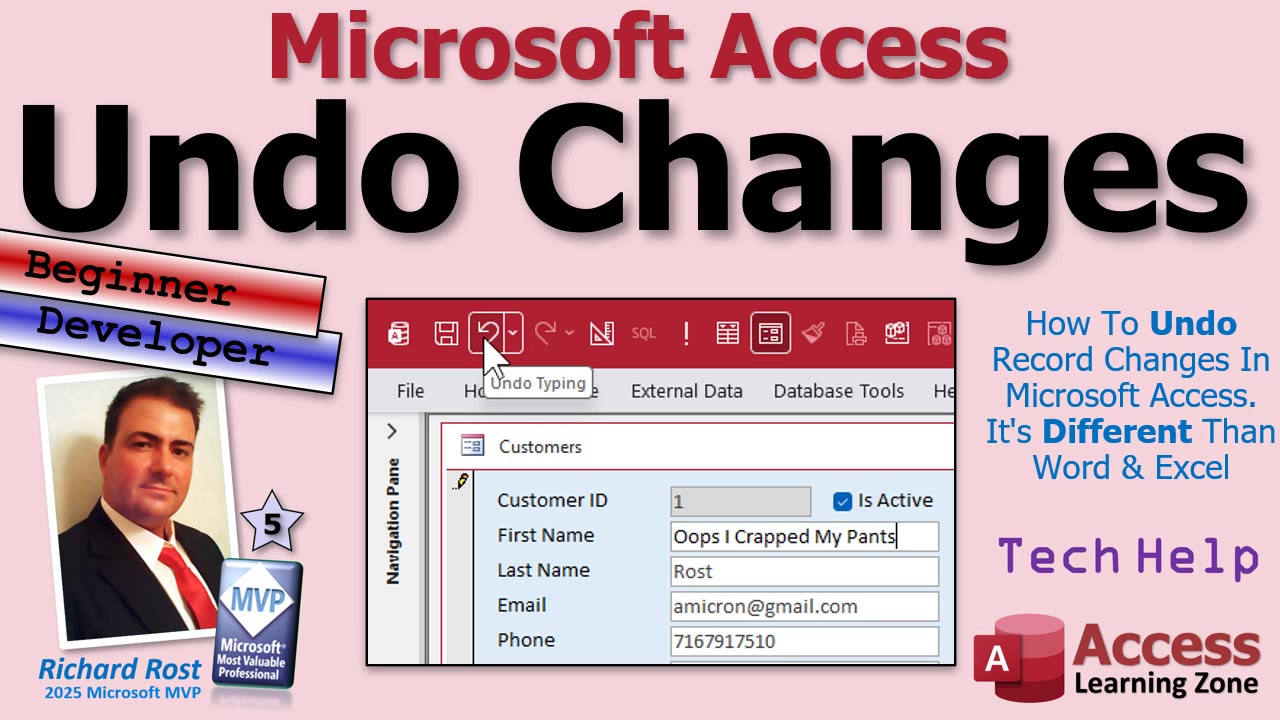
Let's dig into exactly what Undo can (and cannot) do for you inside Microsoft Access. Spoiler alert: it is not as straightforward as in Word or Excel, but you do have some options - and if you want to get fancy, you can even build something better yourself with a little bit of development magic.
The first thing to understand is that Undo in Access works at the field and record level. As soon as you start typing in a form, the record goes "dirty" - Access's way of telling you data is being edited (watch for that little pencil icon). At this stage, if you want to bail out, you have a couple of options: smash Control Z, hit the Undo button, or simply tap Escape to back out of your changes. Pretty much all will cancel out what you started typing.
It gets more interesting when you edit several fields in a record. Once you've hopped around to different fields and start hitting Undo, you'll notice Access usually undoes just the field you're on - or, if you push it, the entire record. You cannot step back through each field's edits one-by-one like you might expect from Word. There's this odd "second Undo" behavior where, on pressing Undo twice, it sometimes looks like nothing happened. What's really going on is that Undo first reverts your edit in the field, then a second time moves you out of edit mode, and only after that will a third Undo zap the whole record. Yeah, it's weird, but that's how Access rolls.
Now, what if you've already moved off that record? Once you save and shift to the next record, your Undo options shrink fast. Access kindly gives you one "get out of jail" Undo on the last record you changed, but after that - you're out of luck. If you've changed multiple records and only spot your goof several records later, there's no stepping back through history like in Word. Access's focus is being a database, not a document editor, so it just does not keep a giant Undo stack for you.
And don't rely on Redo to save the day, either. Redo in Access is pretty flaky. Sometimes it lets you redo a change if you're still on the right record and field, but a lot of the time - especially after moving around - it just doesn't work. So, if Undo/Redo is part of your workflow, you'll want to stay mindful of these quirks.
If you want to class things up, you can make your own Undo button right on your form. All it takes is attaching a small VBA command like Me.Undo to a button. There's another command (DoCmd.RunCommand acCmdUndo) for folks stuck on ancient Access versions, but Me.Undo is the way to go moving forward. Don't get excited about a Redo command, though - it simply does not exist in VBA.
Now, for folks who want the real deal - a multi-level Undo history - Access does not hand it to you on a silver platter. You can build your own system, but it's a bigger project. The concept is: log every change to a record in a separate table, recording which record and field was changed, the old value, the new value, and maybe a timestamp. With that info, you could create your own Undo (and even Redo) buttons that move back and forth through changes. If that sounds appetizing, there are videos and examples on my site showing how to build a full change log and step through those changes manually using some simple VBA.
This all boils down to: Access will let you Undo a field while you're typing, or the whole record before you save. Once the record's saved and you wander off, you get a single "oops" Undo for that last record - after that, you're on your own. If you want robust multi-level Undo like a word processor, be prepared to get your hands dirty with some change logging and form buttons.
If you are interested in a full walkthrough on building a true multi-level Undo/Redo system in Access (without losing your sanity), let me know in the comments. I love building this kind of stuff and might just make a deep-dive video on it. Either way, keep an eye on those dirty records and don't be afraid to bail out with Undo when you need it.
As always, you can check out the video above for a hands-on demo and to see these little quirks in action. Questions? Comments? Future video ideas? Sound off - I read them all.
Live long and prosper,RR

No comments:
Post a Comment