Time for a quick Microsoft Access quiz. This one covers a few important macro basics: what macros are for, where they can live, how to run one from a button, and how macro arguments affect the actions they perform. Keep score as you go, and no peeking at the answers until you have made your choice.
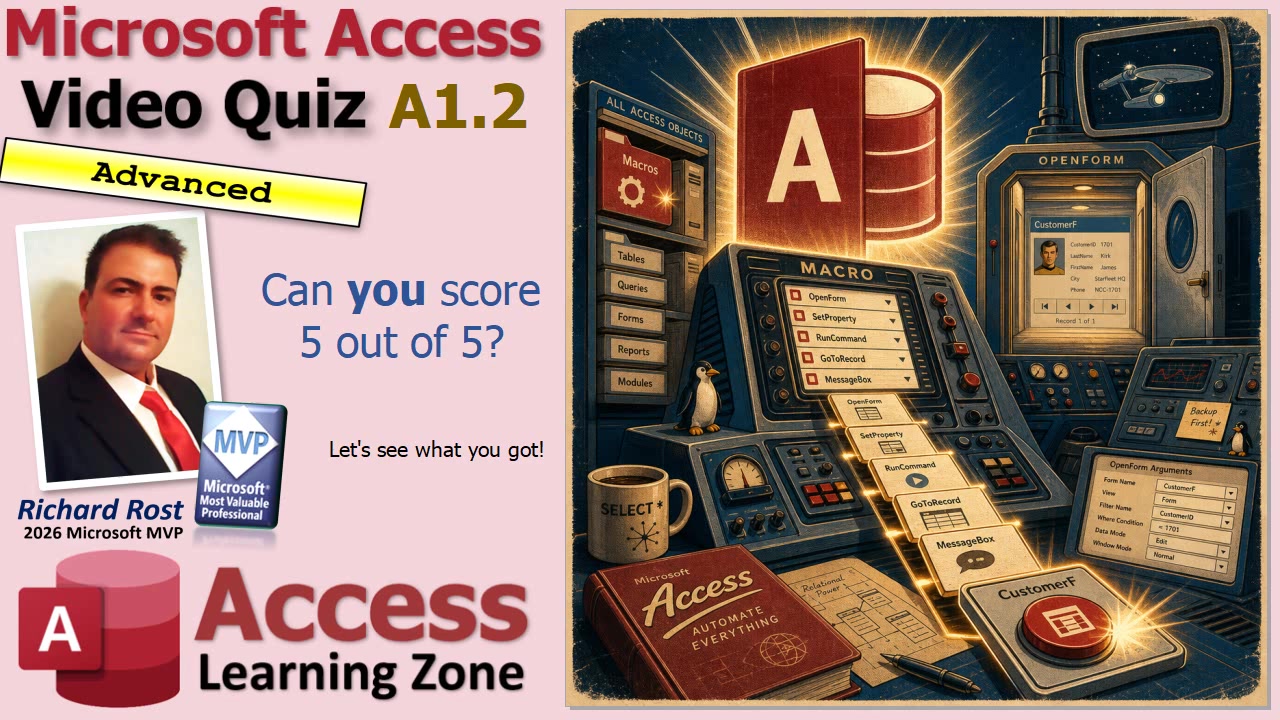
These are advanced-level questions, but they focus on concepts that every serious Access user should understand. Give yourself a moment on each one. If you need more time, pause the embedded video and think it through before reading the answer.
Question 1: What is a Microsoft Access macro primarily used for?
Is it used for creating actions without VBA, storing records in a table, designing printed reports, or creating table relationships?
Answer: A macro is primarily used for automating actions without writing VBA code. Macros can open forms, run queries, apply filters, display messages, export data, and perform plenty of other tasks. They are a great way to automate common user actions without immediately diving into Visual Basic for Applications.
Question 2: Where can an Access macro be stored?
Only in a table? As a standalone database object or attached to an event? Only in a report? Or only in a VBA module?
Answer: A macro can be stored as a standalone database object or attached to an event. For example, you can create a macro in the Navigation Pane just like you create a query or form. You can also attach a macro directly to an event property on a form, report, or control.
This flexibility is one of the handy things about Access macros. A standalone macro can be reused in different places, while an embedded macro can be created specifically for one form button or one event.
Question 3: Which event property is normally used to run a macro when a user selects a command button?
On Click, Unload, On Current, or On Print?
Answer: The correct property is On Click. When a user clicks a command button, Access fires that button's On Click event. You can attach a macro to that event to open another form, run a report, search for a record, close the current form, or do whatever task the button is supposed to perform.
The other events have their own purposes. On Current runs when a form moves to a different record, Unload occurs when an object is closing, and On Print is used with reports. For a normal command button, On Click is the one you want.
Question 4: What does a Where Condition in the Open Form macro action do?
Does it change the form's design, limit the records shown when the form opens, save the current record before opening the form, or prevent the form from being opened?
Answer: A Where Condition limits the records shown when the form opens. Suppose you have a Customer form and want a button that opens only the orders for the currently selected customer. The Where Condition lets you tell Access exactly which records should appear.
Think of it as applying a filter at the moment the form opens. The form itself does not need to be redesigned, and you do not need to create a separate form for every possible customer, employee, product, or other record. That would get ridiculous pretty fast.
Question 5: In a macro action, what are arguments?
Are they additional settings that control how the action runs, errors that stop the macro, names of all tables used by the macro, or security permissions for database users?
Answer: Arguments are additional settings that control how the action runs. Each macro action can have different arguments. For example, the Open Form action has arguments for the form name, view, filter name, Where Condition, data mode, and window mode.
The action tells Access what to do. The arguments tell Access how to do it. If you leave out an important argument, the macro may still run, but it may not behave the way you intended. That is usually when the fun begins.
So, how did you do? If you got all five, congratulations, you have slain the macro dragon and kept all the loot. If you missed a couple, no worries. Macros are one of those Access topics that become much easier once you start building a few practical examples.
You can watch the embedded video for the quiz and a quick review of each answer. These macro topics are also covered in more detail in Microsoft Access Advanced Level 1, Lesson 2.
Live long and prosper,
RR

No comments:
Post a Comment