Ever wondered how much time you spend actually working in a particular part of your Access database? Sure, it might seem trivial, but tracking how long you spend on certain tasks - like following up on customer lists or pushing through your custom workflows - can be a great way to spot bottlenecks, gamify your routine, or just satisfy your curiosity. What's even better: you don't need a distracting timer ticking away in the corner of your screen to do it.
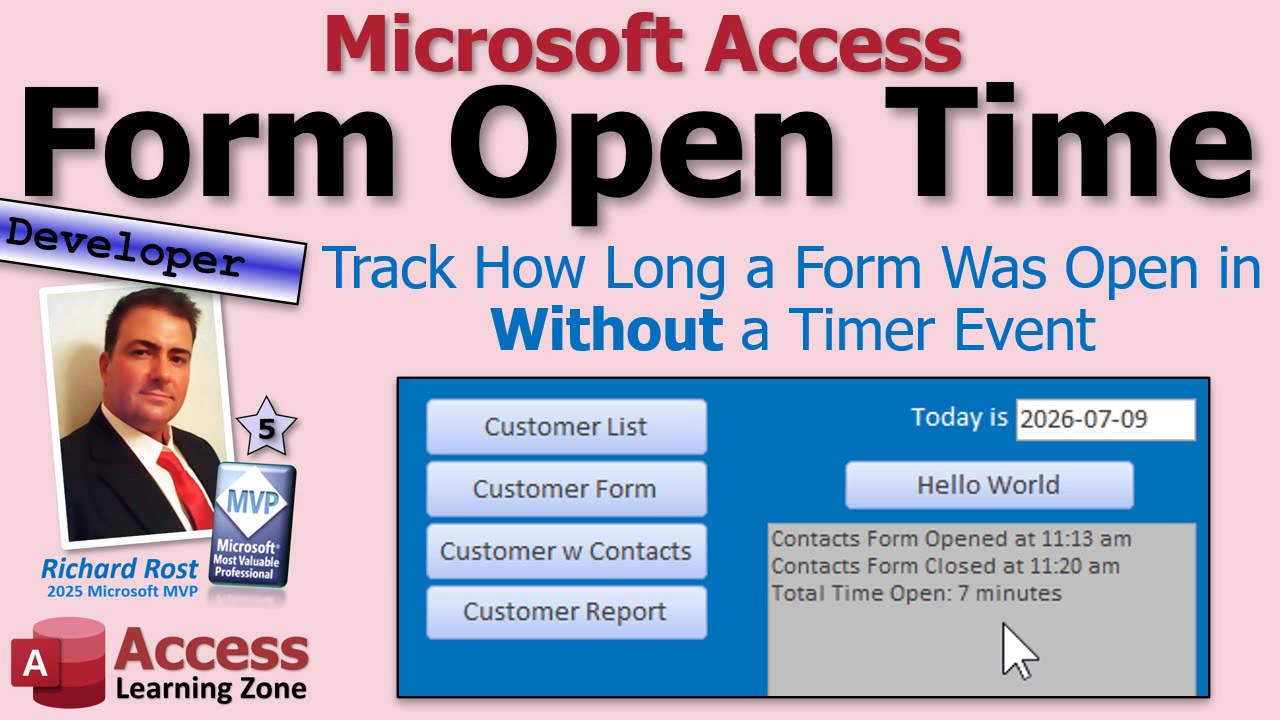
Let's talk about a nice, lightweight way to track the open time of any Access form, without resorting to Timer events. Timer events are handy but can be distracting, sometimes steal the focus from other things, and in general, feel a bit overkill for something as simple as tracking how long something was open. I personally prefer to avoid timers unless I really have to. Here's a practical approach that leverages a dash of VBA and a couple of events, and you'll barely even notice it's working - until you see the results.
The concept is simple. When you open the form you want to track, you just save the current time - store it somewhere that sticks around for the duration of your session. For this, I love using TempVars in Access. If you're not already using them, TempVars are little variables that persist globally in your database until you either remove them or close the database. That makes them perfect for things like this, especially since they'll survive most errors that might crop up while you're testing or making tweaks.
When the form opens (you can use either the On Open or On Load event), set a TempVar - let's call it FormOpenTime - to the current time using the Now function. If you're the kind who likes instant feedback, you might even have a little status box or message pop up to tell you when the tracking started (I use a custom status box for this; it's just more fun than the usual MessageBox spam). If you'd rather not see the full timestamp, Format will give you just the time in an easy-to-read way.
That's half the battle. Now, when the form closes (triggered by the On Close event), it's time to take the difference: subtract the open time (saved in the TempVar) from the current time. The DateDiff function is your best friend here. Calculate the number of minutes (remember, "n" is for minutes in Access - don't ask why, just go with it), and you'll know exactly how long the form was open.
While you're at it, you might as well add a little polish. If it was less than a minute, show "less than one minute." If it's exactly one, say "1 minute." Otherwise, just display the actual number - bonus points for pluralizing "minute" properly. Trust me, your users (and your future self) appreciate those little niceties.
One more thing: after you've calculated the duration, it's good practice to remove the TempVar you set. It isn't strictly necessary - it'll hang around until you close the database - but if you build habits like this you'll have a much cleaner environment, especially if you work with lots of temporary data points.
This approach keeps things super lightweight. There's no timer constantly updating, no forms flickering, nothing chewing up resources in the background. You just note the start time, do your work, and when you close out, Access does a little math and spits out your total time for the session. It's exactly what you need for daily checklists, customer service review, account reconciliation, or any repetitive task you want to analyze or improve.
One thing to note: what I've described here is hard-coded for a single form. If you want to track multiple forms in your database without duplicating code everywhere, you can kick this up a notch and build a reusable framework - a big win for bigger databases or anyone who really likes stats. In the video above, you can see the full implementation details and how to expand this for all your forms, plus tips on logging the data over time and viewing reporting by user, form, or whatever metric you need.
Give it a try - the VBA is minimal, the logic is easy to follow, and you might be surprised at how informative this little tweak can be. Check out the embedded video above for the full step-by-step walkthrough and live demonstration. Happy tracking!
Live long and prosper,RR

No comments:
Post a Comment