If you've ever wished you could manage all your important files directly from your Access database - dragging, dropping, organizing, and even batch-importing - without ever leaving Access, you're going to love what comes next. We're diving into the next generation of Access file management that not only keeps things tidy but adds some serious automation muscle. Whether you're an organizational neat freak or a digital pack rat, building a flexible file drop system in Access will save you time, cut down on mistakes, and make your database look about ten times more professional.
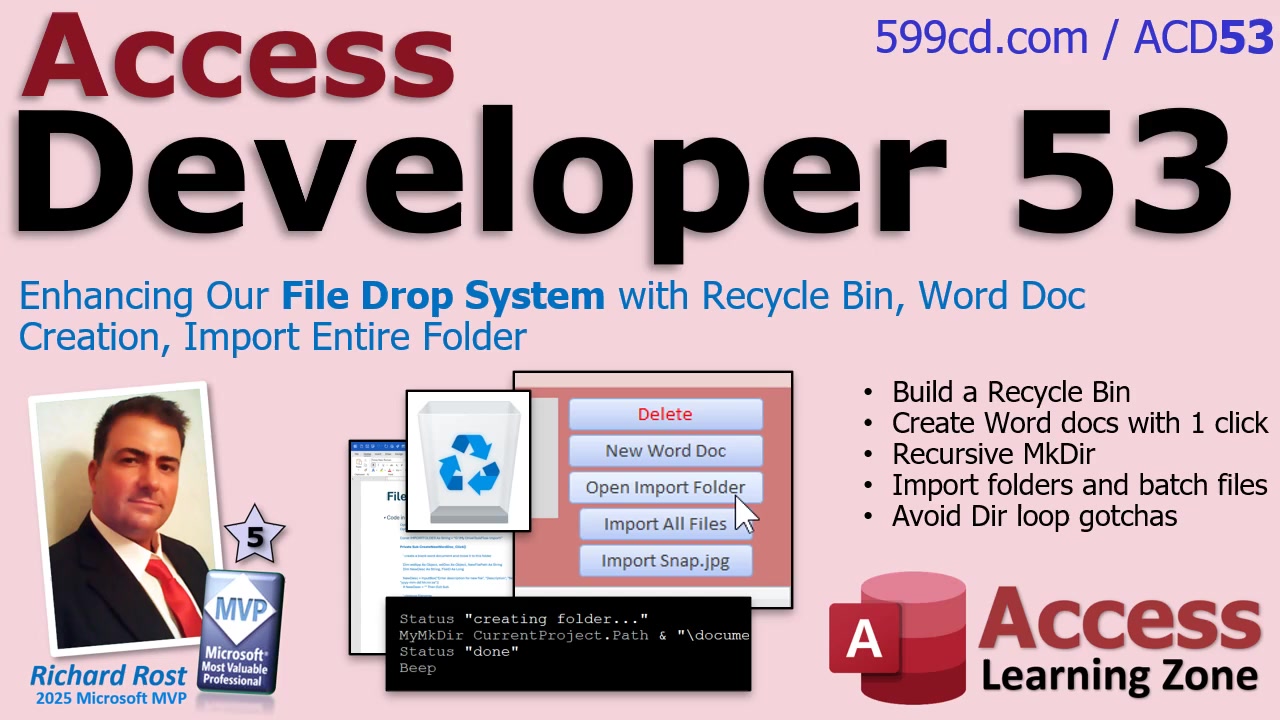
To set the scene: in this ongoing project, we've been constructing a complete drag-and-drop file management setup inside Access. This ensures you can safely store, preview, and launch files from within your database, handle a wide range of file types, and even automate interactions with Word and Excel documents. Let's break down how all these moving parts fit together and the new features that take it to the next level.
First up, previous phases of the project focused on laying the foundation: creating core utility functions, allowing safe file and record deletion (even inside tricky loops), and establishing solid automation routines. This means you never have to leave the comfort of your Access app to launch a file, open a folder, or view a web link. We even made it possible to directly interact with Office documents: opening Word or Excel, jumping to specific places in a document or worksheet, and performing searches - all kicked off from Access itself.
With a robust interface in place, the latest improvements focus on making everything bulletproof and even more user-friendly. Professional error handling was introduced so that, if something goes wrong while working with Word or Excel via automation, the program responds gracefully - no more mysterious crashes or disappearing data. This level of polish is what turns a homemade tool into a trustworthy, professional solution.
One of the coolest upgrades is a full-featured recycle bin system. Instead of just deleting records or files - oops, gone forever - you can now send database records to a recycle table and have files moved to the Windows recycle bin. This gives you a safety net. If you ever delete something by accident, you can fish it out and restore it, no questions asked. Accidents happen, but now they don't have to ruin your workday.
Another super-handy feature: a one-click button that creates a brand new Word document for a customer, automatically gives it a smart name, saves it in the right folder, and registers the document to the customer in your database. No more copying templates or manually renaming files - just click, take notes, and you're done. Since Word docs can handle text, images, and much more, it's the perfect catch-all for notes and attachments.
Folder management has also gone pro. With a reusable recursive directory creation function, you can guarantee that all nested folder paths exist before you need them. No need to create one folder at a time. This means if you want to create a complex folder path like "Richard\Desktop\Documents\Clients\ProjectA", you can do it all in one go - Access checks and builds anything missing automatically.
And finally, we've added batch import magic: an import folder button to grab all files from a chosen folder (even screenshots or scans you drop there from different systems) and register them en masse to your Access database. This is perfect for anyone who works across multiple devices or collects documents in batches; now you can get them all into your database, properly linked and organized, with a single click.
All of these enhancements transform Access into a real file management powerhouse. For specific details on the VBA code behind these features, be sure to watch the linked video. If you want to try these tricks for yourself and really supercharge your Access file management, the walk-through will guide you every step of the way.
Got questions, or a neat use case for these new tools? Drop them in the comments. And of course, check out the video above for the full demonstration and code details.
Live long and prosper,
RR

No comments:
Post a Comment