Are you tired of hopping around to different forms in your database just to see when you last contacted a customer? If it seems like you're jumping through digital hoops just to get to your customer's history, let's make your life easier. Today, I'm going to show you how to streamline your workflow by setting up a form where you can instantly filter and view one customer's contact history - just by selecting their name from a combo box. Simple, fast, and no more wild goose chases.
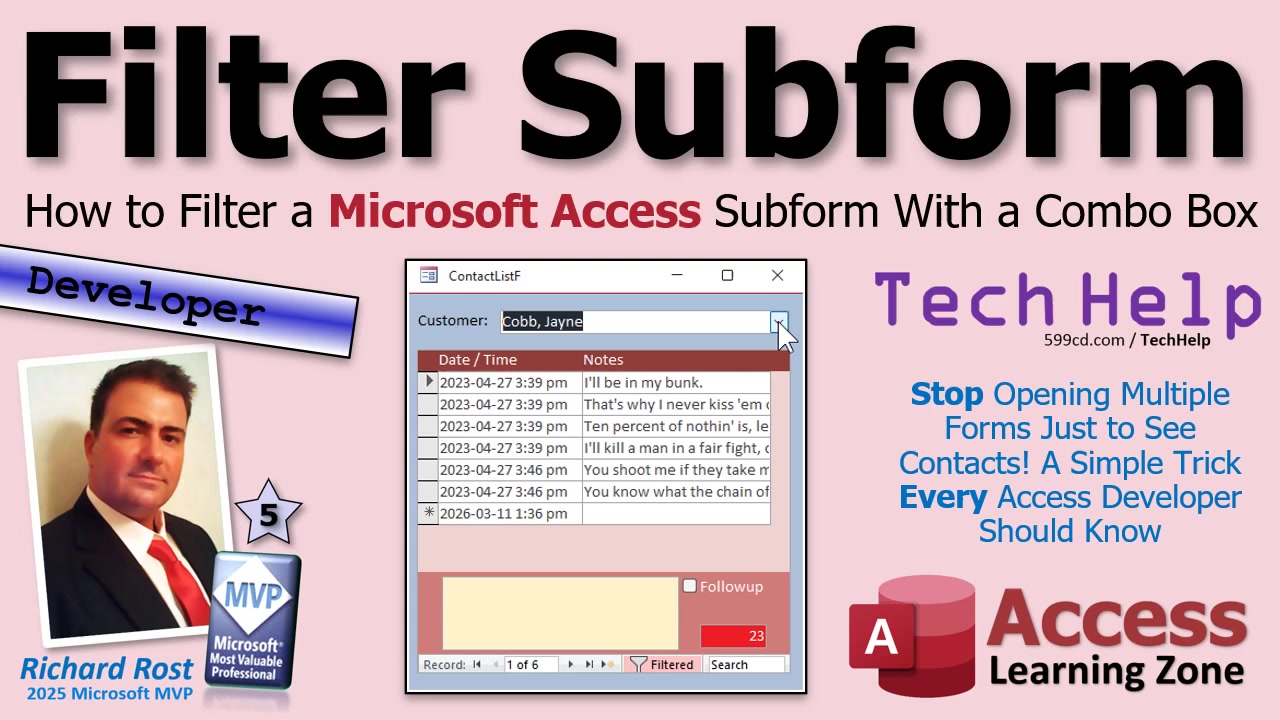
The goal here is to give you one easy-to-use form. You pick a customer from a dropdown, and right below, you instantly see only that customer's contacts. This trick will cut out all the back-and-forth between forms, letting you focus on your customers, not your screen. And, yes, it's going to save you a ton of clicks and time - especially handy if you're always switching between different contacts all day long.
Let's dive in. For this demo, I'm using the TechHelp free template database, which you can grab from my website if you want to follow along. Normally, finding a customer's contacts might involve opening the customer form, searching for your person, and then launching the contacts form for their history. Functional, but far from efficient.
So, what's the trick? We're going to build what's called an "unbound parent form." Think of it as a blank canvas - with no inherent data - where you'll drop in a combo box linked to your customer table. You'll also drop in a subform that displays your contacts. When you pick a customer from the combo box, the subform magically filters to just their records.
To make this happen, you need a combo box populated with your customers. The best approach is to use a query that combines first and last names, so your dropdown list looks neat and is easy to search. You can use a concatenated field, like "LastName, FirstName," as the display value in your combo box. Go wild - make sure your combo box lists your customers alphabetically for quick access.
Once you've set up your combo box and subform, you need a way to connect them. There are two ways to approach this: a VBA-free method using "Link Master Fields" and "Link Child Fields" properties, and a slightly more advanced method with a tiny bit of VBA code. (Don't worry - it's literally two lines!)
If you're a non-programmer or just want something super quick: set the subform's Link Master Fields to reference your combo box (for example, "CustomerCombo") and Link Child Fields to the "CustomerID" in your contact records. With this setup, when you pick a customer, the subform filters accordingly. The drawback? The form will appear blank when first opened, since there's no customer selected yet. Also, you can't easily display all contacts at once if you need to switch between filtered and unfiltered views.
For more flexibility, a few lines of VBA comes to the rescue. Here's what you do: Head to your combo box's properties and tap into the "After Update" event. When that event fires (meaning whenever you pick a new customer), you set the subform's filter so it shows only contacts matching that selected customer. This lets you see everyone by default, then narrow it down instantly based on your choice. Want to review all contacts across all customers? Just clear the combo box filter. This VBA method is neat, professional, and gives you control for making future tweaks.
Just remember, naming matters! Make sure your subform control and your combo box have clear, unique names. Sometimes Access uses the form's caption in place of its actual name, which can break your code if you're not paying attention. Always double-check you're referencing the correct objects in your event properties.
As with most things in Access, there are always extra details to smooth out. For example, you'll want to handle scenarios where the user clears the combo box, or when adding a new contact while filtered - it's possible to end up with new records awkwardly unassociated with a customer. These special considerations, including tricks on how to decide where default values should come from, are covered in more detail for members in my extended cut video.
Want to take your database navigation to the next level? Consider diving into search and sorting videos as well as more advanced topics, like multi-select list boxes if you ever want to filter for multiple customers at once. The world of Access is big, and once you've mastered filtering with combo boxes and subforms, you'll wonder how you ever lived without it.
Remember, for a complete look at the actual VBA code and an in-depth walkthrough, check out the video embedded above. Whether you stick with the no-code method or tiptoe into VBA, this is a huge time-saver that adds real usability to your Access applications.
Live long and prosper,
RR

No comments:
Post a Comment