Ever noticed those tiny colored triangles on the corner of a cell in your Excel sheet and wondered, "What exactly does that little thing mean?" Maybe you've hovered over the cell and a message box popped up - and then started wondering if it's a comment, a note, or whether Microsoft might just be messing with you on purpose. Let's demystify the whole thing right now, so you know what you're looking at and can decide which one to use (and avoid the Excel Bermuda Triangle of confusion).
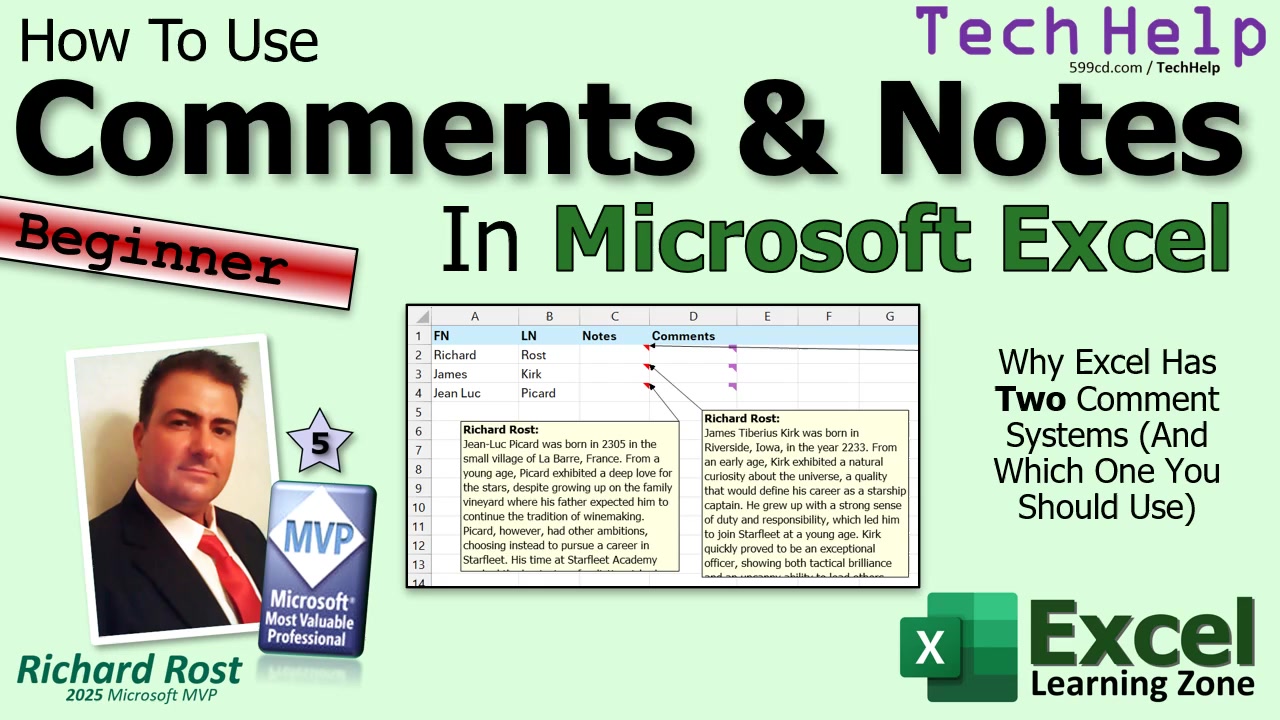
First thing's first: Excel has two very similar - but also annoyingly different - features known as notes and comments. Understanding which is which can save you a ton of confusion, especially when collaborating with others or leaving reminders for yourself. Microsoft made things a little more complicated a few years ago by changing the names (because why not?), so let's clear up how each works, what they're for, and when to use which.
Back in Excel's glory days (or, as I like to call them, the "if it ain't broke, don't fix it" days), the only thing you needed to know were comments. These were simple pop-up text boxes - think sticky notes for your spreadsheet - that you'd attach to a cell. Hover over the cell, see the message, remember why you ever made a weird calculation there in the first place. Perfect for reminders, quick explanations, or "future-me, don't mess this up again" messages.
But of course, Microsoft decided to modernize things. Suddenly, old Comments became Notes, and a whole new threaded conversation feature was introduced as "Comments." Now, the old comments aren't comments - they're notes. And the new comments are, well, comments. Clear as mud? You're not alone if you're confused.
Here's the easy rule: Notes are the old-school yellow pop-up boxes - great for attaching quick reference information to a cell. There's no conversation, no replying, just a simple message. Use a note when you want a sticky note on your spreadsheet, be it a quick phone call detail, an explanation, or a cryptic memo that makes sense only to you and no one else ever again.
Comments, on the other hand, are built for collaboration. You'll see them as purple markers in the cell corner. You start a comment, and others can join the party by replying - think of it like a mini chat attached to your data. You can even @mention colleagues to grab their attention (assuming you're working online in a shared workbook with all the Microsoft 365 bells and whistles turned on). It's perfect if you're working with a team and want to clarify questions, flag issues, or enjoy the rare thrill of a cell-based debate.
Here's a quick visual cheat: a red marker means there's a note; a purple marker means there's a comment. Hover over the cell, and you'll see which flavor of extra info you've got.
To add a note, right-click the cell and choose New Note from the bottom of the context menu. Excel will pop up the note box, usually with your name at the top (you can erase that and replace it with something wittier if you'd like). Type your message, use bold formatting if needed, paste some text, and you're done - hovering over the cell will bring it up as a quick tip.
If you want to add a comment instead, right-click and pick New Comment. Enter your thoughts (or sarcastic digs at your coworkers), and if you're in a collaborative environment, others can reply. Use Control+Enter to post comments or replies. One neat feature here: you can mark comments as resolved once the discussion is over, making it easy to keep track of what's been handled and what still needs work. Great if you like using your comments as a kind of to-do list.
Important tip: you can only have one per cell - either a note or a comment, not both. If a cell already contains a note, you can't slap a comment on top. The menus will help you avoid this, but it's worth remembering before you go wild with your annotations.
A couple more quirks: notes and comments generally don't print alongside your data. They're meant as on-screen helpers, not as part of the official worksheet contents - so don't store anything vital in them unless you know you won't forget about it. And while notes and comments look similar, their underlying features (and behavior when converting between the two) are not always identical. If you ever decide to convert a batch of notes to comments (using the Convert to Comments option on the Notes menu), be careful and always back up your file first.
The Review tab up top gives you even more management tools: add comments or notes, jump to the previous/next one, show all open notes at once, or open the comments pane for a birds-eye view of all ongoing conversations. Resolved comments are especially handy for tracking progress through a review or cross-checking data with the rest of your team.
So when should you use notes, and when comments? Use notes for quick, personal, or reference messages - reminders, explanations, anything that's just for your context. Use comments when you're collaborating with others, need ongoing discussions, or want to take advantage of reply and resolve features. Personally, I stick with notes for myself (old habits die hard), but comments are invaluable in shared workbooks with lots of cooks in the kitchen.
One gotcha: it's not straightforward to export all your notes or comment threads from Excel, especially if you've got thousands of rows. If you're ever faced with a monster spreadsheet and want to move all those notes to, say, a database, it might take some special techniques (covered in more detail for my Silver Members in the extended video).
In short: just remember - old comments are now "notes," new "comments" are conversation threads. Notes = reference; comments = collaboration. And yes, Microsoft could have made this easier, but here we are.
For all the step-by-step visuals, and if you want the nitty-gritty walk-through (plus the bonus for members), check out the video embedded above.
Live long and prosper,
RR

No comments:
Post a Comment