Ever try copying an SQL query from Access to SQL Server only to run headfirst into a wall of bizarre errors? Maybe something about quotes, or dates, or wildcards? Even if you know SQL pretty well, these little syntax differences can trip up the best of us. Today, let's cut through that confusion and look at the basic SQL quirks that separate Microsoft Access from SQL Server TSQL - so your queries actually run the first time you paste them.
Migrating an Access database to SQL Server isn't just a matter of dragging your tables over and calling it a day. A lot of us have Access databases that have been around for decades, stuffed with forms, reports, and a heap of VBA code - all referencing tables with familiar names like CustomerT. If, after migrating, you suddenly rename that table to DBO_CustomerT, you'd have to update every single query, form, and code reference. Life is just too short for that kind of tedium. So, once you're confident everything transferred correctly, it's completely reasonable to ditch the old table and rename the linked SQL Server table right back to CustomerT. That keeps all your queries and VBA code happy without breaking a sweat.
Now, don't worry if you're the meticulous type who likes keeping those DBO prefixes as reminders you're dealing with SQL Server objects. When I'm building something new and shiny, I like that too. But for migrations, consistency with legacy naming usually wins. Just make sure you always have a solid backup before deleting anything. (Seriously - back up, check your backup, then back it up again.) Also, remember: when you remove a table in Access, you may have to deal with relationship warnings, because Access manages those locally unless you've set them up in SQL Server. Going forward, referential integrity is up to the server; Access is just the front end now.
Alright, on to the real meat: basic SQL differences between Access and SQL Server (TSQL). Biggest thing to remember: strings in Access use double quotes, but TSQL wants single quotes. This trips everyone up. For example, in Access, you'd write WHERE LastName = "Kirk", but in SQL Server it's WHERE LastName = 'Kirk'. Same field, same value, different quotes. And you'll need single quotes for dates in TSQL too, whereas Access wraps dates in pound signs - like #2020-1-1# versus '2020-1-1'.
Wildcards are another classic hang-up. In Access, you use the asterisk (*) for LIKE queries and the question mark (?) as the single-character wildcard. In TSQL, it's percent (%) and underscore (_), respectively. So, LastName LIKE 'K*' in Access becomes LastName LIKE 'K%' in SQL Server. And if you're wondering why Microsoft didn't keep things consistent, remember: Access and SQL Server were designed for totally different purposes and at different times. So we ended up with two dialects, and neither is changing anytime soon.
Boolean fields have their own twist. In Access, you use IsActive = True (or even = -1 if you like living dangerously). In SQL Server, you simply use IsActive = 1 for true, and 0 for false.
What about nulls? Checking for null is another place where syntax can sneak up on you. In Access, you might be used to using an IsNull() function, but in SQL Server, you check directly with IS NULL. So WHERE IsNull(FirstName) in Access becomes WHERE FirstName IS NULL in TSQL. Also, keep in mind that nulls and empty strings are not the same in either system - so be careful if you're porting queries that rely on that difference.
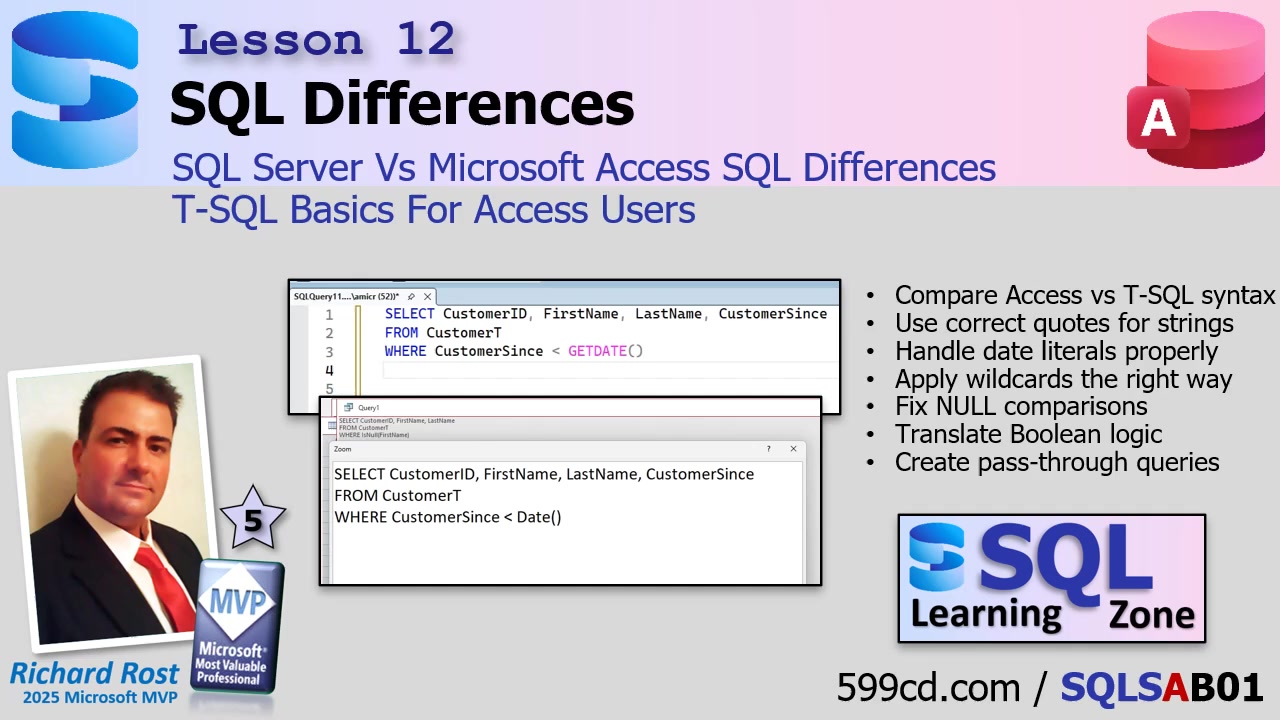
Date functions are another headache. Access lets you use Date() to get the current date (midnight, no time), or Now() for date and time. SQL Server uses GetDate() for both date and time (so it's more like Access's Now). If you want just the date, cast GetDate() as a DATE data type. And yes, there are tons of other date tricks, but start there.
Let's talk about passthrough queries for a second: these let you run TSQL directly from Access, bypassing Access's SQL parser, and executing the query directly on SQL Server. This is huge for performance, especially if you're dealing with tons of data. Normally, if you use Access syntax, Access tries to pull all your records locally, which can be slow and waste a ton of resources. Passthrough queries, on the other hand, let the server do the heavy lifting and just hand you the results. Just remember to set up your ODBC connection string in the query properties so you're not pestered for the DSN every time you run the query.
Some bonus tips (because you'll thank me later): whenever you change table structures in SQL Server (like allowing nulls in a column), be sure to refresh your linked tables in Access. Otherwise, Access won't recognize your design changes and things may break for no apparent reason. And keep in mind: Access is pretty good at translating basic queries into TSQL for server-side execution (what's called query delegation), but as soon as you toss Access-only functions or VBA into the mix, all bets are off - and it's back to dragging all your data across the network.
One last thing: while I'm a big fan of learning SQL the right way, sometimes even the best of us just want to get it done fast. Don't be afraid to use AI tools like ChatGPT to translate your Access SQL into TSQL (or vice versa) if you're stuck. Just use it as a learning tool, not a replacement for understanding whats' going on.
At the end of the day, most of the pain switching from Access to SQL Server comes down to a handful of tiny syntax tweaks with quotes, wildcards, nulls, Booleans, and date handling. Get those right, and you'll avoid 90% of the usual headaches. And if you want all the nitty-gritty code details and live demos, be sure to check out the video embedded above.
Live long and prosper,
RR