Ever wish you could just type a few things into a form and instantly find the records you're looking for? I'm going to show you how to turn your Microsoft Access forms into slick search tools that make finding exactly what you want a breeze - without writing any complicated code. Whether you're looking up customers by partial names, filtering by state, or toggling between active and inactive records, this technique is all about making database life easier for you... and, let's be honest, keeping your users happy too.
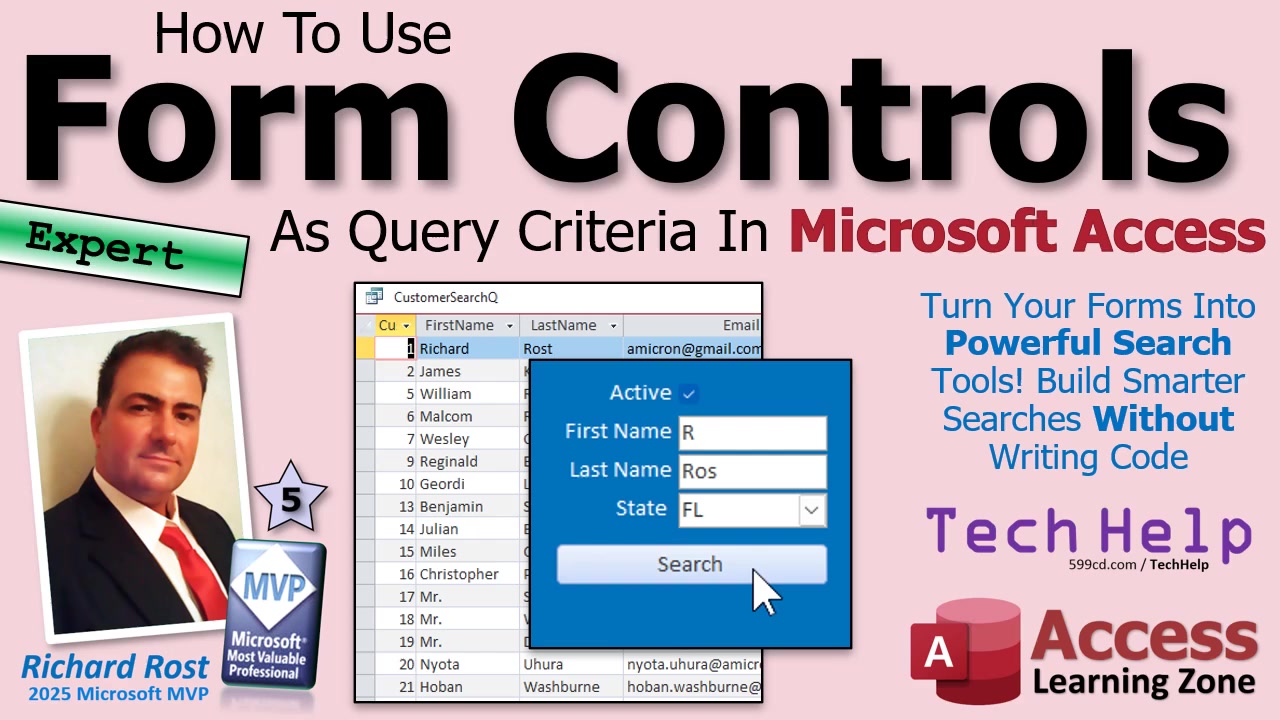
Let's dive right into building a search form that uses text boxes, combo boxes, and check boxes - no programming experience required! We'll cover how to configure these controls as query criteria so you get real-time, flexible search results. You'll learn how to set up everything right on your Main Menu form (or wherever makes sense in your database), and I'll highlight important tips and beginner pitfalls as we go.
The heart of this tutorial is using form controls as criteria for your search query - think of it as feeding your query live data from your form fields each time you search. Here's the concept: you add unbound controls to your form (a text box for searching last name, another for first name, a check box to filter active/inactive, and a combo box for state). These fields aren't tied to a table - they're there purely for search input.
Start by dropping a text box on your form for the last name search. Set it up as an unbound control (no Control Source needed), and give it a meaningful name, like LastNameSearch. This is important: when referencing this value in your queries, you'll use the format Forms!MainMenuF!LastNameSearch, substituting your form's actual name if it's different. This tells Access to grab whatever the user typed into that box - even if it's a partial name.
To make your query use what's in the form, add your customer table to a new query, show all fields, and add a criteria under the LastName field. Instead of matching exactly, use the Like operator with wildcards to support partial searches. The criterion looks like: Like "*" & Forms!MainMenuF!LastNameSearch & "*". This way, typing "Ro" finds "Rost" (and "Robinson," if you have one!).
But wait, Access won't update the results if you're still typing in the box; you have to move out of the field first (hitting Tab does it). Don't let that trip you up! And, if you leave a box blank, that wildcard setup ensures all records are returned - so you're never stuck with an empty query.
Next, let's make searching even more robust. Copy your last name search box and create one for first name - call it FirstNameSearch. In your query, add a similar Like criterion under FirstName so your users can drill down by both names. By default, putting both criteria on the same row in the query makes it an AND search (must match both). If you want an OR search (either name matches), drop them on separate rows. You can even have both buttons, or teach your users the difference, if you're feeling fancy.
Now, let's address Active status. Place a check box labeled "Active" on your search form. Again, keep it unbound and give it the name IsActiveSearch. By default, Access check boxes have a "null" state (neither checked nor unchecked). To avoid confusing filter behavior, set its Default Value to Yes (or True), so searches default to active customers. In your query, under the IsActive field, add the criterion = Forms!MainMenuF!IsActiveSearch. No need for wildcards here. This gives the user the chance to switch between active and inactive customers with a single click.
For filtering by state, add a combo box set up as a value list. Choose the option to enter the values yourself, and build a list with your relevant state abbreviations (CA, FL, NY, etc.). Name this control StateSearch. In your query, add a Like criterion under the State field, just as with the names. If the user leaves the state box empty, they'll see all states - very convenient for broad searches.
With these controls linked into your search query, you now have a dynamic filter powered by whatever criteria your user types, checks, or picks. What's really slick is you don't need programming for this to work. But if you want to level up, adding a single line of VBA behind a button (like DoCmd.OpenQuery "CustomerSearchQ") lets you launch your custom query with a click, skipping the button wizard and gaining flexibility.
Even better: you're not limited to opening queries. Make your results appear in a form or a printed report by setting their Record Source to your search query. Just remember - the main menu with your search controls must be open, or Access will prompt for parameters (that "Enter Parameter Value" box), which usually means something's not set up right or your form isn't open. Keep an eye out for typos in your control names, too!
Want to take this even further? You can expand your search interface by adding more filters or plugging in a triple-state check box for those situations where you want to see both active and inactive records. Using a little bit of VBA opens up even more dynamic and powerful options, like user-selectable AND/OR logic or custom query saving. But - and this is key - you can already build a mighty search form without a single line of programming.
The main takeaway: letting users filter records with simple form controls unlocks search power in your Access databases. It keeps things easy for users (and yourself), and makes your data infinitely more useful. If you want the nitty-gritty details, or want to see how to wire up the actual VBA code, check out the video embedded above. You'll find all the step-by-step action (and a few more jokes).
Live long and prosper,
RR

No comments:
Post a Comment