Buckle up, because if you've ever cracked open the Access Options menu and instantly felt overwhelmed, you're not alone. Microsoft Access has pages and pages of settings, but let's be honest, most of them are destined to stay as mysterious as the Bermuda Triangle. Today, we're going to cut through the noise and focus on the handful of options that actually matter for most Access users. If you want a fast, no-nonsense tour - this is it.
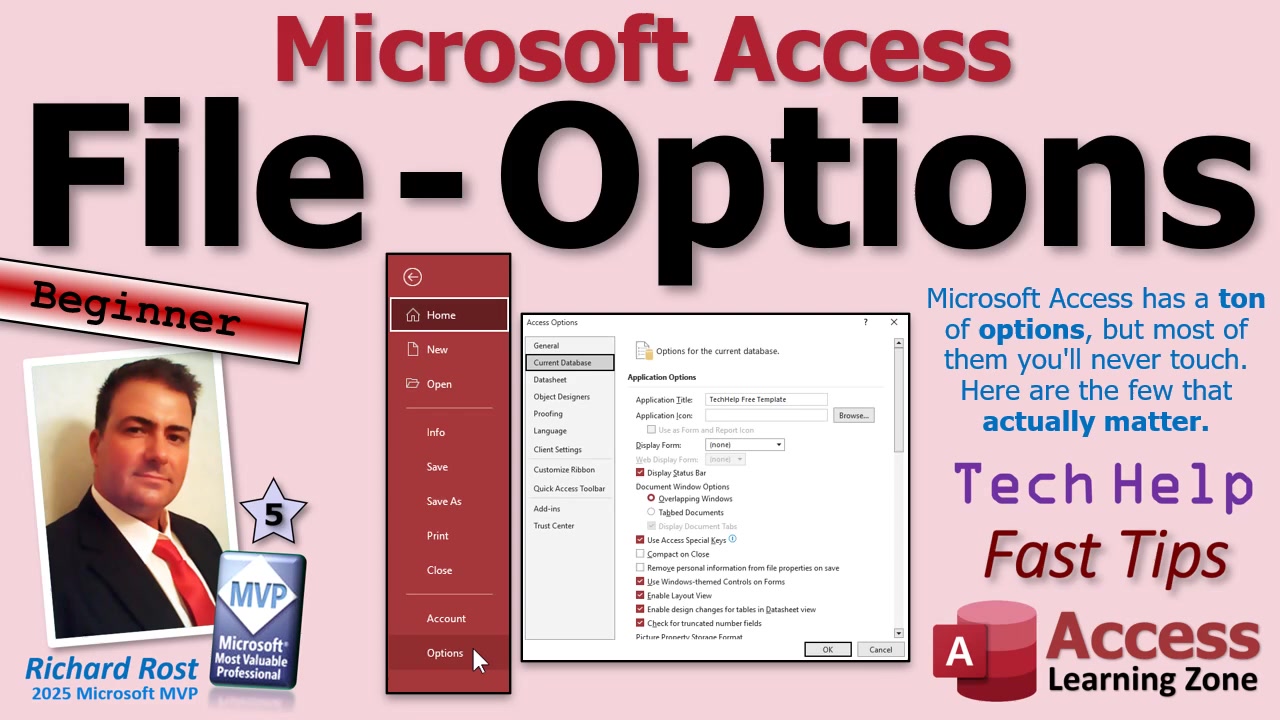
First, you'll need to find these settings. Just head to File, then Options. That opens up the Access Options dialog, where all the behind-the-scenes magic happens. We'll be sticking to what you really need to know. If it's something only "advanced users" care about, I'll mention it - and then skip right over it. No point wasting time on stuff you'll never touch.
Let's start on the General tab. Honestly, the main setting worth your attention here is the Office Theme. Want a splash of color across the top? Choose Colorful. Prefer that stealthy look? Try Black or Dark Gray - perfect for late-night Access sessions. I mostly stick with Colorful, but if you're a night owl like me, dark mode's your friend. All those other options on this tab? You probably won't use them.
Next, we move to the Current Database tab, where the real action is. This is where you swap out the boring old "Microsoft Access" title at the top of your window for your own application name. You can also set a custom icon (so your database isn't just another Access logo) and determine if that icon should appear on your forms and reports. Want your favorite form to be the first thing users see? Use the Display Form setting to pick a startup form - super handy for custom main menus. (I usually prefer an AutoExec macro for more control, but the startup form is a quick fix.)
If you like your windows overlapping like classic Windows apps, not all crammed into tabs, check the Overlapping Windows option under Document Window Options. I do this in all my tutorials because, well, it just feels right. Prefer the new-school tabbed look? Feel free to stick with the default.
I get asked a lot about Compact on Close. Here's my advice: Don't turn this on. You should compact your databases regularly to keep things running efficiently, but having it run every single time you close Access can be unnecessary and sometimes causes headaches. Do it manually when you need to.
If you're distributing your database to others and don't want them poking around, turn off the Display Navigation Pane. Hiding the navigation pane keeps users out of your tables and queries. The same goes for hiding the ribbon or shortcut menus - great for locking down a finished database that's meant for real users, not tinkering.
A word of warning about Name AutoCorrect (sometimes called AutoCorrupt for a reason). It's supposed to automatically update object names when you rename them, but it isn't perfect. Many developers just turn it off to avoid surprise problems. Better to handle name changes manually and keep things under your control.
On the Datasheet tab, settings are mostly about looks. Want grids, flat, raised, or sunken effects? Up to you - it's all personal preference and doesn't affect functionality.
When you get to Object Designers, most folks can leave everything as-is. If you're doing VBA programming, turn on the "Always use event procedures" option. It'll save you lots of clicks whenever you add new buttons, text boxes, or want to respond to events in your code. Trust me on this - future you will thank present you.
The Proofing settings are all about things like spellcheck and text correction. Go nuts if you care about autocorrect and grammar, but for database logic, it won't make much difference.
Language settings are for supporting other languages. I only speak English, so you're on your own if you want to go multilingual.
On to Client Settings. It's mostly up to your own workflow - things like where your cursor moves after you press Enter. The only spot worth a hard look here is the Confirm section. I personally shut off confirmation dialogs for record changes and action queries. That way, Access isn't pestering me every time I make a change. But I leave confirmation for document deletions turned on - because nobody wants to accidentally nuke something important. Find a balance that works for you.
Buried under Advanced settings are lots of scary-sounding items like OLE timeouts and refresh intervals. Unless you're integrating with SQL Server or have a specific advanced need, just leave these alone. If you need them, you'll know (and you probably wouldn't be reading a quick-start tutorial like this anyway).
Customizing the Ribbon and Quick Access Toolbar is worth considering if you want quick access to your favorite commands. I have videos with more detail on those if you're interested. Add-ins exist, but unless you're already using some, you can safely ignore this tab.
And finally, there's the Trust Center settings. This is important for security - make sure you put your database in a "trusted location." This prevents those nagging security warnings from popping up every single time you open your database. Much easier that way!
That's it. The rest of the options in Microsoft Access are things you'll probably never use unless you're knee-deep in advanced database work. Spend your time on these basics, and you'll have a smooth-running Access experience without wading through a sea of obscure settings. If you do want the deep-dive on any of these options (or to see how they look in action), make sure to check out the video embedded above.
Live long and prosper,
RR

No comments:
Post a Comment