If you’ve spent years working inside Microsoft Access, opening SQL Server Management Studio for the first time can feel like walking onto the bridge of a starship. Buttons everywhere. Folders everywhere. Strange terminology. And about a thousand things you’re afraid to click because you don’t know what might explode. So let’s fix that. Today we’re getting oriented inside SSMS so you know what matters, what doesn’t, and where you should actually be working.
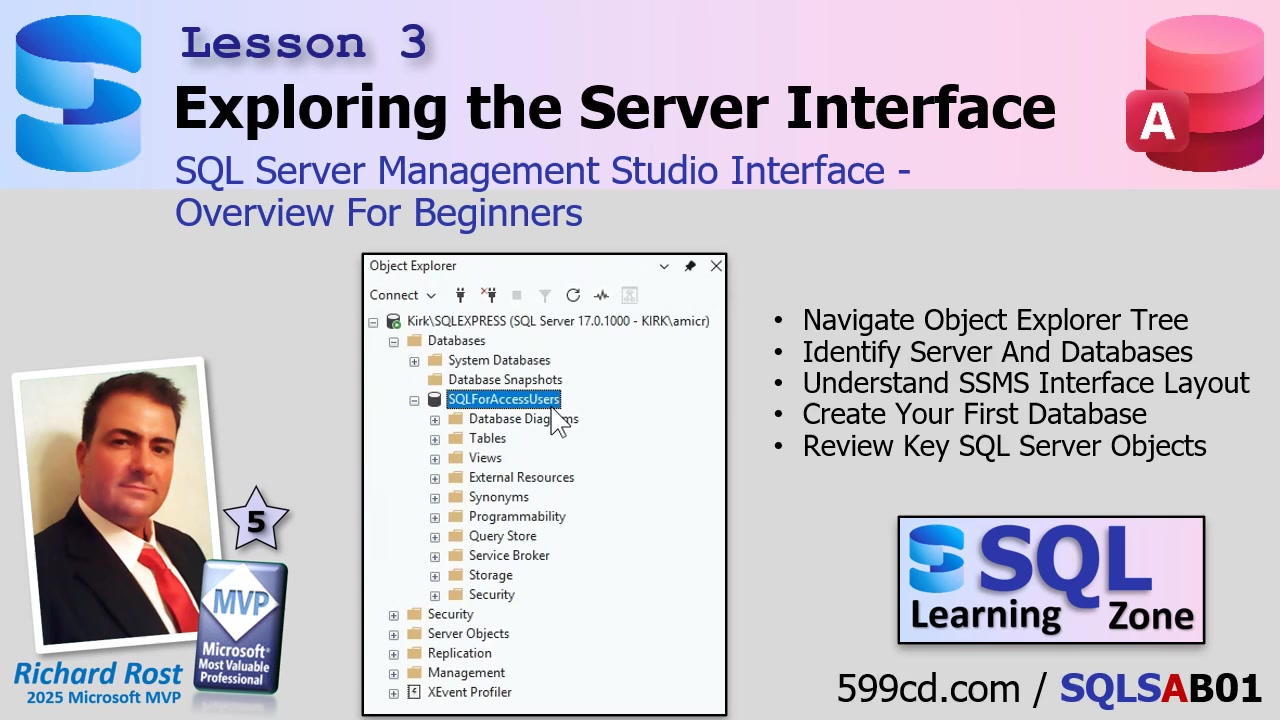
When you first connect to your SQL Server instance, the main window you’re looking at is called Object Explorer. Think of this as the SQL Server equivalent of the Access Navigation Pane. This is your map. It shows you the server, the instance you’re connected to, and all the major containers that hold your databases and server-level objects. If you understand this layout, everything else gets much easier.
At the very top is the server itself. That’s the entire SQL Server environment. Under that is the instance. Many Access users aren’t used to this distinction because Access is file-based. You open an ACCDB file and you’re in. SQL Server is service-based. The instance is the running engine that manages databases, security, storage, and performance.
Under the instance you’ll see a whole tree of folders. This is where new users start to panic. Databases, Security, Server Objects, Replication, Management, and more. Here’s the good news: you can safely ignore most of this when you’re starting out.
The folder you’ll live in is Databases. That’s where your actual data lives. Tables, views, stored queries, relationships, all the stuff you’re used to working with in Access. Everything else in Object Explorer is mostly administrative or enterprise-level tooling.
For example, Security controls logins and permissions. Important later, but not something you need on day one. Server Objects handles linked servers and system-wide features. Replication is for syncing data across multiple servers. Sounds cool, but SQL Server Express can only subscribe to replication, not publish it, so most beginners won’t touch it.
You’ll also see things like Management tools and monitoring utilities. These are powerful, but they’re not where you build databases. Think of them like the backstage maintenance rooms. Useful, but not where the show happens.
Once you expand the Databases folder, you’ll notice system databases already there. These run SQL Server itself. Leave them alone. Don’t create tables in them. Don’t experiment. They’re like Access system tables. Important, but not your workspace.
So let’s create our own database. Right click Databases and choose New Database. Give it a name and you’ll see SQL Server automatically prepares two files. One stores the actual data. The other is the transaction log.
This is one of the biggest structural differences from Access. Access stores everything in one file. SQL Server separates data and logging so it can recover cleanly from crashes and maintain transactional integrity. It’s one of the reasons SQL Server is far more robust in multi-user environments.
You’ll also see file size and autogrowth settings. Access users often worry about database bloat and compacting. SQL Server works differently. It automatically grows as needed and reuses internal space. There’s no routine compact and repair cycle like Access. In fact, shrinking databases regularly is usually discouraged.
The default size and growth settings are fine for most projects. SQL Server is very good at managing its own storage. Beginners almost never need to change these.
You’ll also notice the file path where the database lives. By default this is inside SQL Server’s data directory. Leave it there unless you have a specific reason to move it. Do not store SQL Server databases on external USB drives or inside cloud sync folders like OneDrive or Dropbox. Those environments can cause locking issues, sync conflicts, and even corruption.
If you ever need to move database files, do it through SQL Server tools, not Windows Explorer. You can’t just drag the files around like an Access ACCDB.
Once your database is created, expand it and you’ll see another tree of objects. This is where things start looking more familiar. Tables hold your data. Views are saved queries that live on the server. Database Diagrams let you visualize relationships much like the Access Relationships window.
There’s also a folder called Programmability. This is where server-side code lives. Stored procedures, functions, triggers. Think of these like VBA modules that run directly on the server instead of inside your Access front end.
Triggers in particular are powerful. They fire automatically when data changes. Insert a record, update a field, delete something, the trigger runs. Unlike Access form events, they execute regardless of where the change originated. Access form, import job, external app, doesn’t matter. This makes them extremely useful for enforcing rules and auditing activity.
You’ll also see advanced features like Query Store, Service Broker, and storage architecture tools. These are developer and enterprise-level topics. Important down the road, but not required for getting started.
The key takeaway is simple. Don’t let the interface intimidate you. SQL Server exposes far more infrastructure than Access because it’s designed to run enterprise data systems. But for day-to-day database building, you’ll spend most of your time inside the Tables, Views, and basic database objects.
Once you understand the layout, SSMS stops feeling like a dungeon crawl and starts feeling like a well-organized control panel.
In the next step, you’re ready to start creating tables and actually building something. And that’s where the real fun begins.
If you want to see the full walkthrough, including live navigation and demos, check out the embedded video above.
Live long and prosper,
RR

No comments:
Post a Comment