Ever click a button in Microsoft Access and get smacked with a runtime error because one form tried to talk to another form that was not open? Yeah. Fun times. This is one of those little annoyances that does not happen often, but when it does, it interrupts your workflow and makes your database feel fragile. Today we are going to fix that and make your code a lot more forgiving.
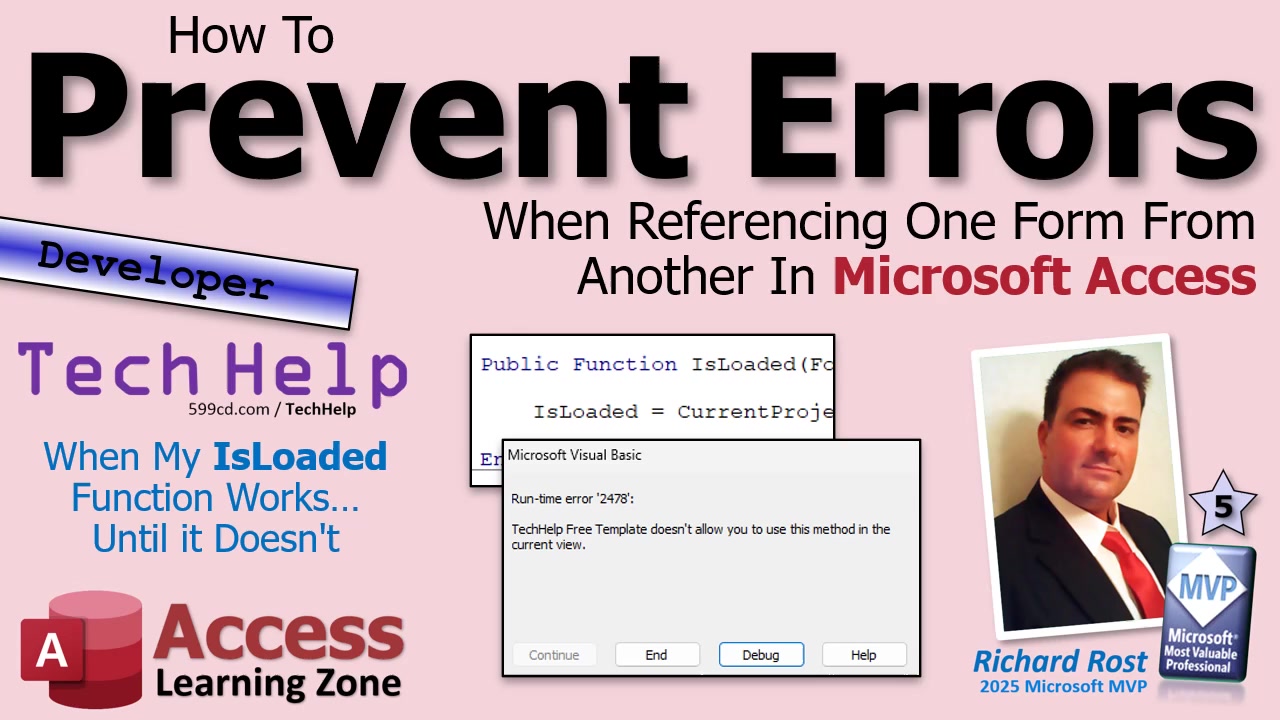
When one form references another in Access, everything works great as long as the target form is open and ready. But the moment it is closed, or not in the right state, Access throws an error. A common example is refreshing data on another form. If that form is not available, boom, runtime error. So the first step is learning how to safely check whether a form is open before you try to do anything with it.
The classic solution is a small global function that checks the CurrentProject.AllForms collection to see whether a form is loaded. Something like this:
Public Function IsLoaded(FormName As String) As Boolean
IsLoaded = CurrentProject.AllForms(FormName).IsLoaded
End Function
You drop that into a standard module so it is available everywhere. Then you wrap your form references in a simple check. For example, before refreshing another form, you might do this:
If IsLoaded("CustomerF") Then
Forms!CustomerF.Refresh
End If
That alone prevents a lot of errors. If the form is not open, your code simply skips the refresh. Nice and clean.
But here is where developers, especially during testing, run into a wrinkle. The IsLoaded function only tells you whether the form is open. It does not tell you how it is open. A form sitting in Design View still counts as loaded. Try refreshing it in that state and Access will still throw an error.
This usually does not affect end users because they should never be in Design View. But developers live there. You are opening objects, closing them, tweaking layouts, testing buttons. That is when these little runtime errors start popping up and slowing you down.
The quick and easy fix is simple error suppression. Right before the line that might fail, add:
On Error Resume Next
This tells Access, "If this line blows up, just move along." So your code becomes:
If IsLoaded("CustomerF") Then
On Error Resume Next
Forms!CustomerF.Refresh
On Error GoTo 0
End If
Now if the form is open in Design View, Layout View, or any other unusable state, Access quietly ignores the refresh attempt. No runtime error. No interruption. Life goes on.
This makes development much smoother. You can click buttons, test features, and not worry about whether every related object is perfectly staged.
However, and this is important, error suppression is not something you want to sprinkle everywhere like parmesan cheese. It has a place, but overuse can hide real problems. If something else breaks in that same block of code, you might never know.
I like to compare excessive use of On Error Resume Next to pulling the batteries out of your smoke detector because it chirps once in a while. Sure, it is quiet now, but you also removed the thing that warns you when there is an actual fire.
The best practice is to use it very selectively. Wrap only the specific line that you know might fail, then immediately restore normal error handling with On Error GoTo 0. That way you get the benefit of smoother execution without masking legitimate bugs.
If you want to go further, the more advanced approach is to check not just whether a form is loaded, but what view it is in. Form View, Design View, Datasheet View, Layout View. That takes a bit more code, but it gives you precise control. For most situations though, selective error suppression does the job just fine.
So the takeaway is simple. Always check whether a form is loaded before referencing it, and when development scenarios introduce edge cases, use targeted error handling to keep your database running smoothly.
If you want to see the full walkthrough, including live demos and expanded examples, watch the embedded video above.
Live long and prosper,
RR

No comments:
Post a Comment