Ever wish your Microsoft Access forms could talk to each other, so when you select something in one place, everything else updates instantly? That's what we're getting into today: synchronized subforms. This concept is super handy for streamlining your database interface. I'll show you how to set up coordinated forms so clicking a muscle group on the left instantly filters exercises shown on the right. Don't sweat it - this technique is easy to reuse in just about any type of database, not just fitness tracking.
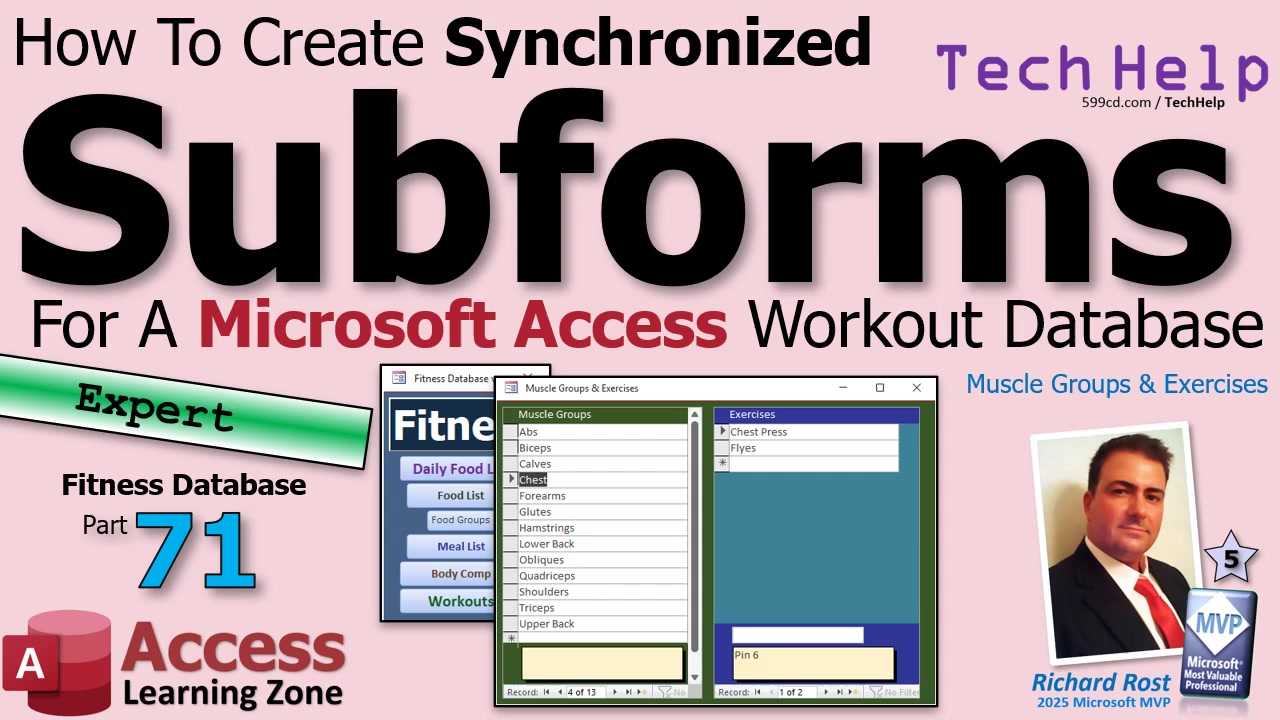
If you've ever struggled with keeping forms in sync or tired of clicking around like you're cracking a safe just to see related data, synchronized subforms are here to save you. Let's jump into building a powerful parent form in Access, putting two subforms side by side. Select "Shoulders" on one side, instantly see only the relevant exercises on the other, and even edit records directly in both. This helps keep your data logically connected and your workflow smooth.
First up, you need two continuous forms - one for muscle groups, and one for exercises. Lay out your design ahead of time (I like to rough things out in Excel, but pen and paper works too). Think parent form with two subforms: muscle groups on the left, exercises on the right, maybe with an area for notes on the bottom. Each subform will let you edit records directly, making data management painless.
Build your Muscle Groups continuous form using data from your muscle groups table. Style it so it matches your overall color scheme. For readability, it's okay to show only the description and notes - but you'll want the Muscle Group ID behind the scenes. The parent form references this ID to tell Access which related exercises to display. If you don't want users to see the ID, no worries - just hide it with formatting, but keep it there for linking.
Create your Exercises continuous form based on your exercises table. Include the exercise description, related Muscle Group ID (the foreign key), and any extra fields like URLs if you're linking videos or websites. Decide whether you need the exercise's auto-number ID here. Usually you won't, unless another form needs to reference it.
Now, set up your main (parent) form - this is the ringmaster that will coordinate all the action. This parent form doesn't need to be bound to a record source, since it acts only as a container. Drop both subforms onto this parent. Get things sized and laid out so it feels neat. Left for muscle groups, right for exercises. If you want, you can use the form's footer for anything extra, like notes.
Here's the magic trick: use a textbox to store the currently selected Muscle Group ID. Set up the left subform (muscle groups) so when you select a muscle group, this textbox gets its ID value. Then, connect the right subform (exercises) with master/child links to this textbox. This way, when you change your selection on the left, the exercises on the right instantly re-filter for just that group. If you try linking the subforms directly, Access will give you grief. The solution is to always link both subforms via that hidden textbox.
Don't forget those finishing touches! Clean up your parent form - remove record selectors, navigation buttons, scrollbars, and any unsightly details. Adjust backgrounds and color schemes until you're happy with the interface. If the linking textbox feels intrusive, set its visibility off or tuck it somewhere unobtrusive. It needs to exist, but doesn't have to hog precious space.
Navigation matters too, especially as your application grows. As you add more forms (like for different exercise programs or routines), keep your menus simple and intuitive. Set up sub-menus for each "section" as you go. Copy existing menu forms and adapt them for new purposes, adding buttons to launch each major form. If you have VBA code behind buttons, be sure to move global logic to a standard module - it makes code management much easier as your database expands. If you need details about the button code strategies, watch the video above for a complete walk-through.
With everything in place, you'll find that maintaining and using your database becomes second nature. Whether you're tracking workouts, managing memberships, or cataloging anything that lives in a "parent-child" relationship, synchronized subforms will make your life easier. Get your forms wired up together, and Access does the rest - no more endless clicking and floundering through unrelated records.
Bottom line: clicking an item in one subform instantly updates another subform. This is an essential technique for building user-friendly, responsive Access databases. Once you get the hang of it, you'll use it everywhere.
If you want the full nitty-gritty walk-through, be sure to watch the video above. Next time, we'll level up and do three nested subforms (like programs, routines, and routine details) so stay tuned for more database wizardry.
Live long and prosper,
RR

No comments:
Post a Comment