Still scribbling your workouts on a whiteboard, just hoping you remember what "Pin 6, PowerTech" meant two months from now? There's definitely a better way, my friend. If you're looking to level up beyond your dusty whiteboard, today I'm going to show you how to turn workout chaos into database order with Microsoft Access - no sweatbands required! Even if you couldn't care less about fitness, you'll still walk away with some rock-solid Access skills and database design know-how that apply to just about any project.
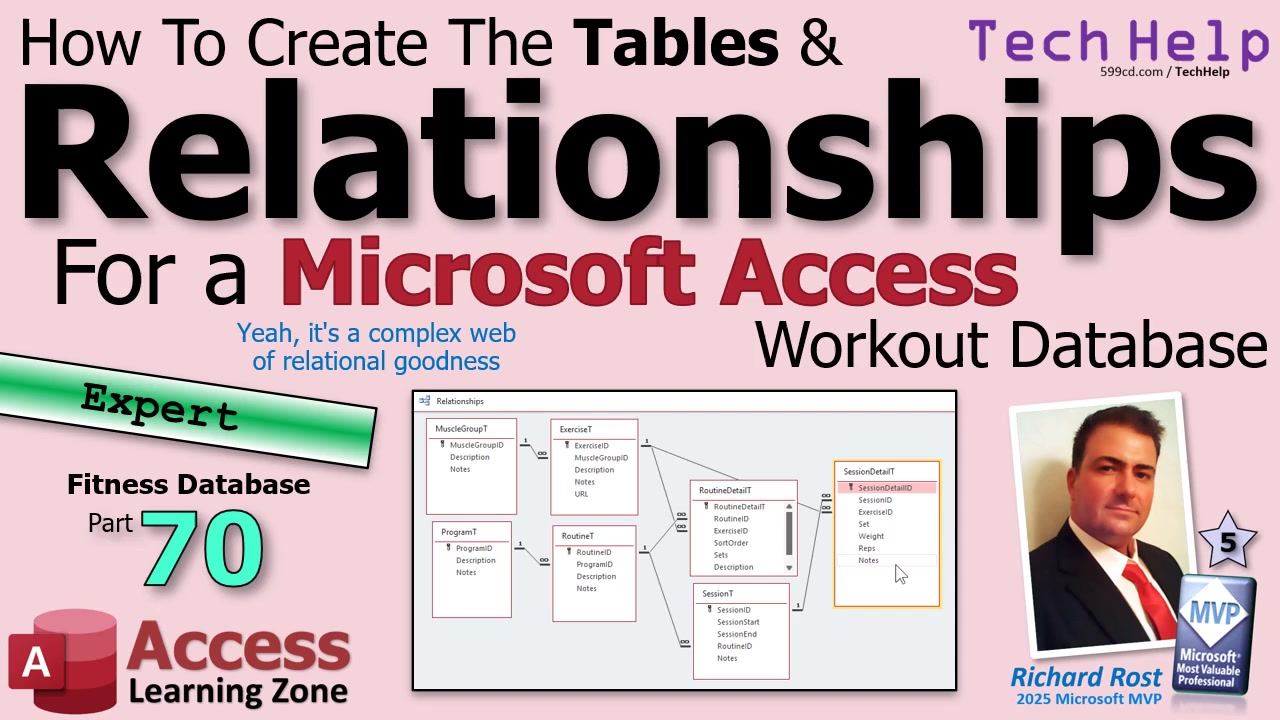
Let's roll up our sleeves and dive right in. We're building the actual tables for the workout side of our database. This process isn't just about tossing fields on a table; it's about choosing the right data types, thinking ahead about how tables connect, and getting your sample data lined up. That way, when it's time to enter your info - or paste it straight from Excel - it goes off without a hitch.
First up, let's talk about the Muscle Group table. This is the backbone of your exercise catalog, with a simple structure: an auto number ID, a short text description, and a long text "notes" field for all those little reminders (like which machine quirks you've discovered over the years). I recommend prototyping your entries in Excel. That way, copying descriptions and notes into Access is as easy as copy, select, paste. Line up the fields in the same order for smooth importing - those little Excel tricks really pay off when you're getting started.
Next, we have the Exercise table. Each exercise gets its own auto number with a muscle group ID for category, description, notes, and even a URL for video demos or reference guides. Here's a tip: even though most web addresses fit into a short text field, URLs have a sneaky habit of running long, so give them the "long text" treatment to be safe. No one likes a chopped-off link!
Now, don't forget to make your data entry life easier by lining up your Excel columns with your Access fields. It saves you mountains of rework later, and it's always easier to shuffle columns in Excel than to redesign a whole table after you've put in 500 records. I'm speaking from experience here.
On to programs and routines: each gets its own straightforward table. For "programs," just stick with a program ID, description, and maybe some notes. "Routines" will have a routine ID, program reference, and then the usual description and notes. Keeping your primary keys at the top is classic Access best practice, but feel free to organize them however you like - as long as you're consistent for your own sanity.
When you get into routine "details," things get a bit more complex. This table maps each routine to specific exercises, complete with sort order, sets, and more notes. Since we've built the prototype in Excel, you can cut and paste the sample data columns directly into Access after you line them up. Trust me, a couple minutes arranging those columns saves you a ton of headache fiddling with table layouts.
Then we build the Session table, recording each workout session. Fields here include session ID, start and end timestamps, and a routine ID reference. Want a little magic? Use a default value for session start so Access grabs the current time for you. You can even pre-fill the session end - for example, if your workouts are typically 30 minutes, set it up using either simple math with "Now" or the DateAdd function. This way, every new session entry is practically effortless.
The Session Detail table, meanwhile, keeps the granular stuff: set numbers, weights (make it a "double" if you sometimes use fractions - gotta account for those tiny ankle weights!), reps, and notes. No, I don't recommend half reps. But fractional weights? That's realistic, especially for anyone progressing carefully. And if you forgot the "notes" field on your session or detail tables, don't worry; it's easy to add it in after the fact.
Now, let's talk relationships. While you could avoid global system relationships and keep things loosely tied, it pays to use referential integrity where it counts. For example, when deleting a session, you don't want to leave a bunch of orphaned detail records floating around. Enforcing integrity - while judiciously avoiding cascade deletes where it would obliterate your data - saves you from future headaches and keeps everything tidy.
Mapping your tables visually in Access reminds you how they're interconnected. To adjust the layout, just remember: removing a table from the relationship window doesn't drop data or destroy links - those are just layout changes. Anytime you want, you can hit the "All Relationships" button to see the complete spider web again.
The end goal here? A web of data that's solid, meaningful, and logically connected. With your tables built right, you've set the stage for making forms and queries that actually work. Not only will you be able to track workouts for eternity (even if you switch from weights to yoga), but you'll also have learned how to build databases that stay reliable as they grow.
So that's the big lesson: take the time to set up your tables correctly before you pile in data, and the rest of the database just clicks into place. Next up, we'll jump into queries and forms - where the magic really happens and you finally get the payoff for all this groundwork. Don't forget, you can always rewatch the video above for the step-by-step walk-through if you want to see it all in action.
Live long and prosper,
RR

No comments:
Post a Comment