If you're constantly finding yourself in "form design jail" every time you want to update a survey or questionnaire in Access, it's time for a smarter approach. Today, let's break free from the old way of hard-coding every survey question and build a fully data-driven survey system in Microsoft Access. This method makes adding, changing, or reusing questions a total breeze - no more wrestling with table or form design every time you tweak your surveys.
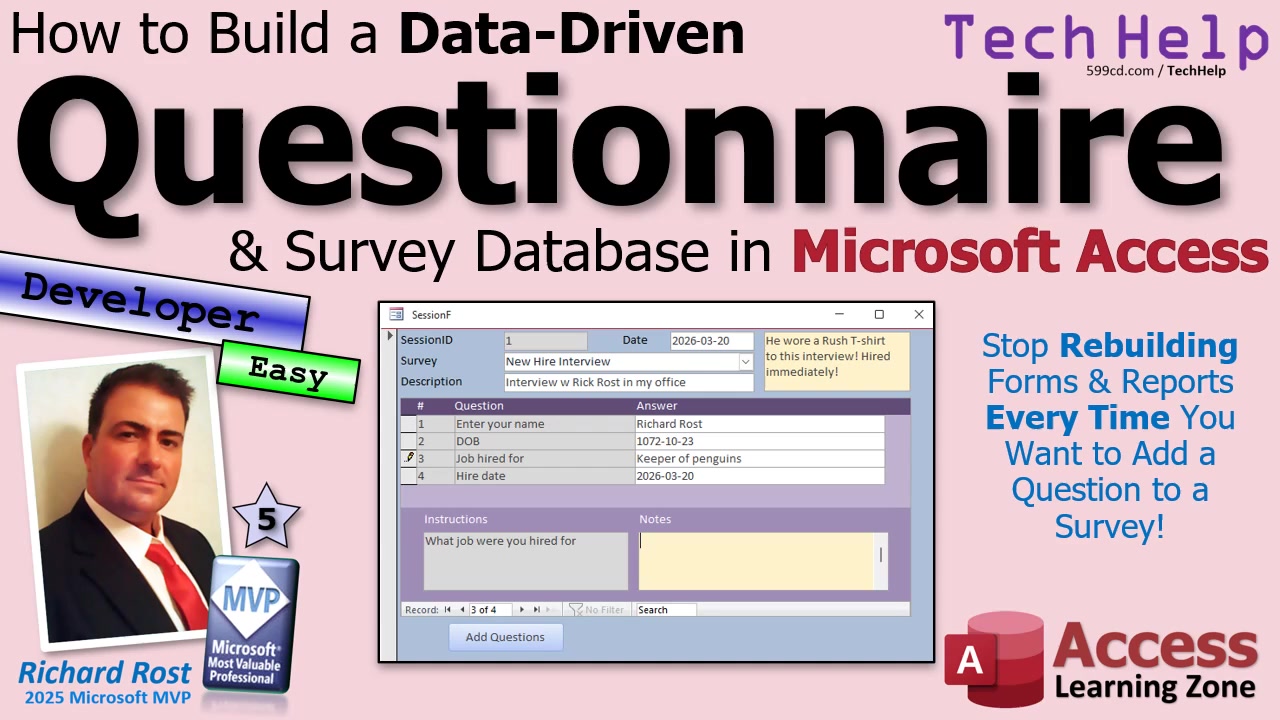
The key here is simple: put all your surveys, questions, and answers right into tables, so you can update surveys just by editing data, not messing with structure. You can manage everything from new hire interviews to customer satisfaction questionnaires and employee holiday party forms - whatever you're dreaming up. Best of all, you set it up once and you're good to go, with zero need to hack the design for every question change.
So, how does this work? It all comes down to a solid table structure. Instead of a big "Answers" table with a field for every possible question, you'll use a handful of normalized tables that play nicely together. First, you need a table for your surveys - think "New Hire Interview," "Customer Satisfaction Survey," or even "Starfleet Requisition Form" if you're feeling fancy. Each survey can have its own unique set of questions, and these live in a separate "Questions" table, tied back to their survey by a foreign key.
When someone sits down to take a survey, that event is recorded in a "Session" table. This holds info about who's taking the survey, when, and which survey it is - plus any notes or descriptions you want to stash along with it. Each person's individual answers are then stored in an "Answers" table, linked to their session and the specific questions they're answering. You don't need one field per question; answers can all go in a long text field, letting you store just about anything: numbers, text, dates, you name it. If you want to crunch numbers later, you can always scrub your data down the road.
Let's talk about relationships: surveys have questions, sessions represent one survey being filled out by one person, and answers connect each session to the individual questions. This structure means you can add new surveys or tweak questions just by entering more rows in your tables. No design changes necessary. Want more validation? You can restrict data types, require certain answers, and even implement answer lists - though advanced validation is a topic for my extended member videos.
Once your tables are ready and you've loaded a bit of example data, it's time to make things user-friendly. Build a form for sessions (one per survey taker) and embed a subform of their answers. The questions appear on one side, the answer field on the other. With some careful setup, you can lock the question fields so users can't change them, make answer boxes as big or as small as you need, and tweak the tab order so filling out surveys is smooth and easy.
Now, there's one bit that's just a tad "developer-y": populating the answers for a fresh session. You could just run an append query manually, but it's far easier (and slicker) to add a button on your session form. Click it, and all the relevant questions for that survey show up in the answers table for this session, ready for data entry. Yes, you'll need to use a touch of VBA to pull this off effectively - two lines, to be precise (one to run the SQL to copy questions, one to requery your subform). If you're not comfortable with VBA yet, don't panic; you can do it without code by tying your append query to a button, though code is much neater in practice. And if SQL looks like Klingon, check out my free intro resources - it's worth it!
To make your forms even more user-friendly, tweak things like disallowing additions or deletions in the answers subform, so users can't mess up the structure. Set useful tab stops, color your controls, and provide clear instructions - your end users will thank you. And when you want to present results, you can build reports the same way, pulling everything you need by joining answers, questions, and session info in queries. No more hard-coding anything!
Curious about advanced stuff, like validating whether answers are the right type (dates, numbers, choices from a list) or setting minimum and maximum values? I cover all this and more in my extended cut videos for members - plus how to set up answer lists right in your questions table for dropdowns or multiple-choice.
In short, this data-driven survey setup gives you full flexibility without endless form redesigns. Add, change, or remove questions at will, create as many surveys as you want, and let your tables do the heavy lifting. Once you set up your forms and a tiny bit of code, updating your surveys is as easy as updating rows in your tables.
If you want a full step-by-step walkthrough (including code snippets), check out the embedded video above. Happy survey-building!
Live long and prosper,RR

No comments:
Post a Comment