Wouldn't it be slick to have all your favorite Microsoft Access commands front and center on the ribbon? No more hunting through endless tabs just to find what you need. The great news is that you can make the ribbon your own, all without wrangling any XML code. Let's dive in to see just how easy and useful it is to take control of your Access interface.
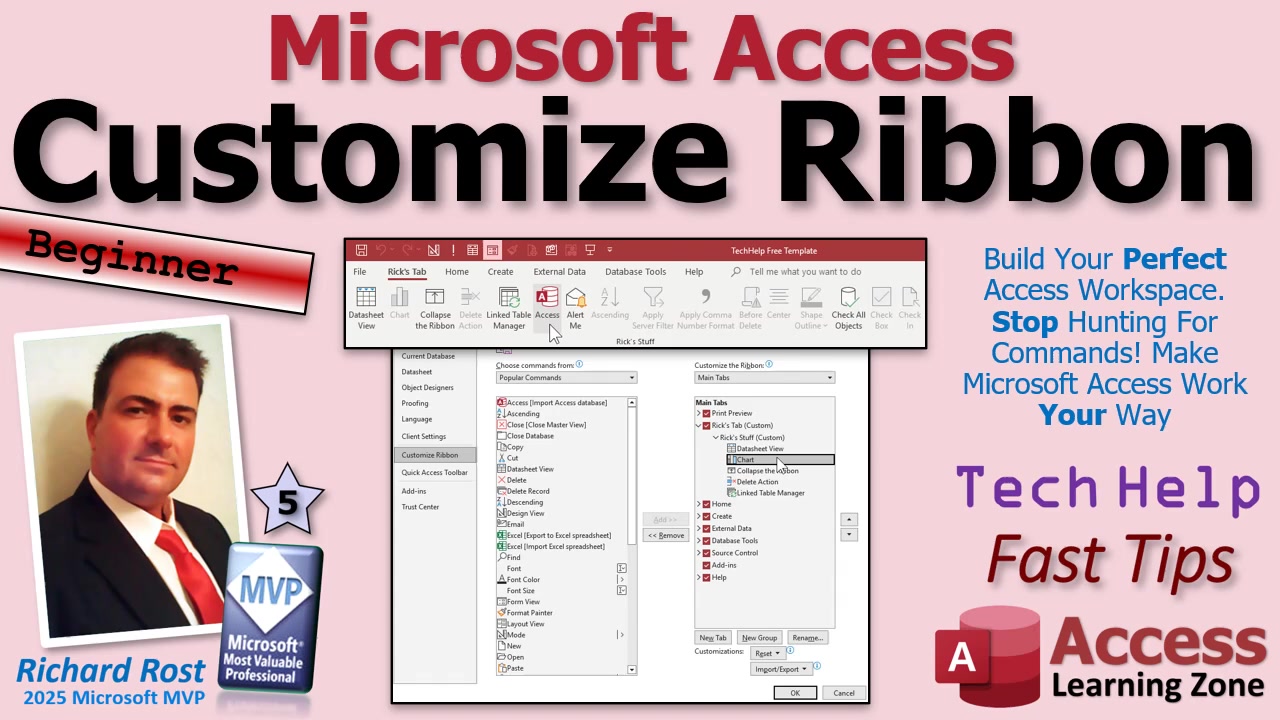
Customizing the ribbon in Access is as easy as right-clicking anywhere on the ribbon itself and choosing "Customize the Ribbon." This opens a window that's a control center for your ribbon. Here, you have the power to add your own tabs, build custom groups for your preferred commands, or even hide the tabs you never touch. It's all about making Access work for you, tailored exactly how you like it.
When you get into the customization window, you'll notice it's split into two main sections. On the left, you'll find the "Choose commands from" dropdown menu. It defaults to "Popular Commands," but you can switch it to see "Commands Not on the Ribbon" (those hidden gems Microsoft left out) or even "All Commands," if you're feeling brave. This menu also lets you add macros that you've created, which is super handy for automating repetitive tasks. If you're new to macros, don't worry - I have detailed guides on those you can check out separately.
The right side is where you'll decide where your chosen commands live. Main Tabs are your everyday ribbon fixtures like Home, Create, and Database Tools. Tool Tabs are contextual - they show up when you're working on objects like forms or reports. If you want to see everything together, the "All Tabs" option displays the whole shebang.
To make your own tab, just click "New Tab." It'll pop up at the bottom of your list, but you can move it to the top so it's the first thing you see. Give it a name - something fun, like "Rix Tab" (or whatever floats your boat). Each tab gets one or more groups inside it, which are just ways to organize commands. Feel free to rename the group and even give it an icon, like a smiley face for those days when Access is actually being nice to you.
Now it's time to choose the commands you want. Switch the list on the left to "All Commands" and scroll through (there are a lot, so don't get lost in the weeds). Pick out the tools you use most, the ones you wish were always at your fingertips - stuff like Create Data Macros, Insert Columns, or Indexes. Add them to your group using the "Add" button, and rearrange their order so your favorites are always easy to spot.
Once you've got your tab set up just right, click OK. You'll now see your custom tab on the ribbon. Some commands might be grayed out at first. That's normal - they'll become active depending on what you're doing in Access. For example, table-specific commands light up when you're working on tables. The ribbon remains context-sensitive, keeping your workspace clean and relevant.
If there are tabs you never use, you can easily hide them by unchecking boxes next to their names in the customization window. Don't worry, hiding isn't deleting! You can bring them back any time with just a click.
One thing to note: you can't add your custom stuff into the built-in groups like Home or Create. Microsoft locks those down, so your custom magic can only live in groups you create. It keeps things tidy, even if it feels a little restrictive.
If you ever want to undo your changes, there's a handy Reset button at the bottom of the customization window that can return everything to default. Just don't mash it by accident, especially if you've personalized your Quick Access Toolbar and want to keep it intact.
Speaking of which, if you want even more efficiency, check out the option to Import and Export your ribbon settings. This is fantastic if you're moving to a new computer and want all your hard work to come with you - just export on one machine and import on the other.
It's also important to know that these ribbon customizations are set for your machine only - they don't travel inside your database file. If you want everyone who uses your database to have the same custom ribbon, you'll need to go a bit deeper and use ribbon XML. That's an advanced topic, but I'll point you to my Access Developer Level 44 class for a full walkthrough if you're feeling adventurous.
Now you're ready to enjoy a customized Access ribbon with all your most-used commands within reach. Take a minute to set things up - you'll save hours down the line and wonder why you ever put up with assorted ribbon clutter. Want the step-by-step visuals? Watch the embedded tutorial above. And let me know in the comments: what tools are you adding to your new favorite tab?
Live long and prosper,
RR

No comments:
Post a Comment