Every database project starts the same way. You sit down, crack your knuckles, and say, "All right, let’s build some tables." Seems simple enough. But here is the thing most beginners do not realize. The design decisions you make right at the start will either make your life easier... or come back to haunt you six months from now. Today we are laying the foundation properly by building a real customer table in SQL Server, and we are going to do it the right way from day one.
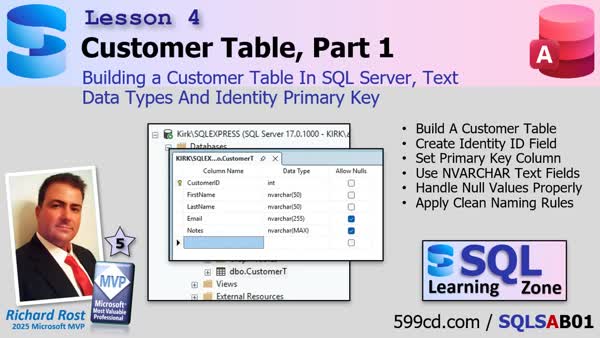
When you create a new table in SQL Server, you will notice right away that it feels familiar if you are coming from Microsoft Access. You define your fields, assign data types, and configure properties. Same general idea. But SQL Server gives you more flexibility and more responsibility. It assumes you know what you are doing, so it will not hold your hand the way Access sometimes does. That means we need to be intentional about every design choice.
Let’s start with the backbone of the table, the primary key. In a customer table, that is almost always going to be something like CustomerID. In Access you would use an autonumber. In SQL Server, the equivalent is an INT field with Identity enabled. You create the field as INT, then open the column properties and set Identity Specification to Yes. That tells SQL Server to auto generate the next value for each new record. Identity Seed and Increment usually stay at 1.
One very important point here. Setting Identity does not automatically make the field the primary key. That is a separate step. You still need to explicitly set the primary key using the toolbar button or right click menu. SQL Server will not remind you. Forgetting to set a primary key is one of the most common beginner mistakes, and it can cause headaches later when you start building relationships.
Once the ID is in place, we can start adding text fields like FirstName, LastName, and Email. This is where data types matter more than most people expect. SQL Server gives you several text options: CHAR, NCHAR, VARCHAR, and NVARCHAR. The difference comes down to fixed vs variable length and Unicode support.
Fixed length fields like CHAR always reserve the full space you define. If you set CHAR(50), SQL Server stores 50 characters even if the name is Bob. Variable length fields like VARCHAR only use the space required. That makes them far more efficient for most business data.
Then there is Unicode. NVARCHAR and NCHAR support international characters like accents and umlauts. Since modern systems and global users are the norm, NVARCHAR should be your default choice. Storage is cheap, compatibility is priceless, and it keeps you aligned with how Access already stores text.
For sizing, you do not want to fall into the classic beginner trap of making every field 255 characters just because you can. SQL Server actually uses declared lengths when calculating indexes and query plans. Oversizing fields can hurt performance in larger systems. A good rule of thumb is 50 characters for names, maybe 100 if you want extra breathing room, and 255 for emails.
For large notes or comments, use NVARCHAR(MAX). This is similar to the Long Text or Memo field in Access and can store very large amounts of text. Most systems will never hit its limits, but it is there when you need it.
You will also see an Allow Nulls setting. This works like the Required property in Access. Turn it off for fields that must have data, like primary keys or required names. But do not force users to enter junk just to satisfy a rule. No data is better than bad data. You can always query later for missing information.
While defining fields, stick to clean naming conventions. Avoid spaces, dashes, and weird characters. Yes, SQL Server allows them. No, you should not use them. Every space forces you to wrap field names in brackets in queries and code. Stick with simple names like CustomerID, FirstName, and Email. Your future self will thank you.
As you explore the Tables area in SQL Server, you will see other categories like system tables, file tables, external tables, and graph tables. These serve specialized purposes. System tables manage SQL Server itself. File tables allow file storage integration. External tables link outside data. Graph tables model complex relationships. All useful, none necessary for building a basic business application. Focus on standard user tables first.
One related design tip worth mentioning. Do not store files like PDFs or images directly inside your database unless you truly need to. Whether you are using Access or SQL Server, storing file paths is usually simpler, faster, and easier to maintain. SQL Server can store files internally, but it adds complexity most beginner systems do not need.
Once your fields are defined, save the table and give it a proper name, something like CustomerT if you follow my naming conventions. You now have the foundation of your first real SQL Server table, complete with identity field, primary key, and properly sized Unicode text fields.
Getting this structure right at the start makes everything else easier. Relationships, queries, forms, reports, all of it builds on this foundation. Take the extra time now so you are not rebuilding it later.
If you want to see the full step by step walkthrough, including where all the settings live on screen, check out the embedded video above.
Live long and prosper,
RR

No comments:
Post a Comment