If you maintain more than one Access database, you have probably copied the same VBA function, utility form, or report from one file to another. It works... until you improve something and suddenly have six old versions floating around. That is how duplicated code turns into a maintenance nightmare, usually right when you have better things to do.
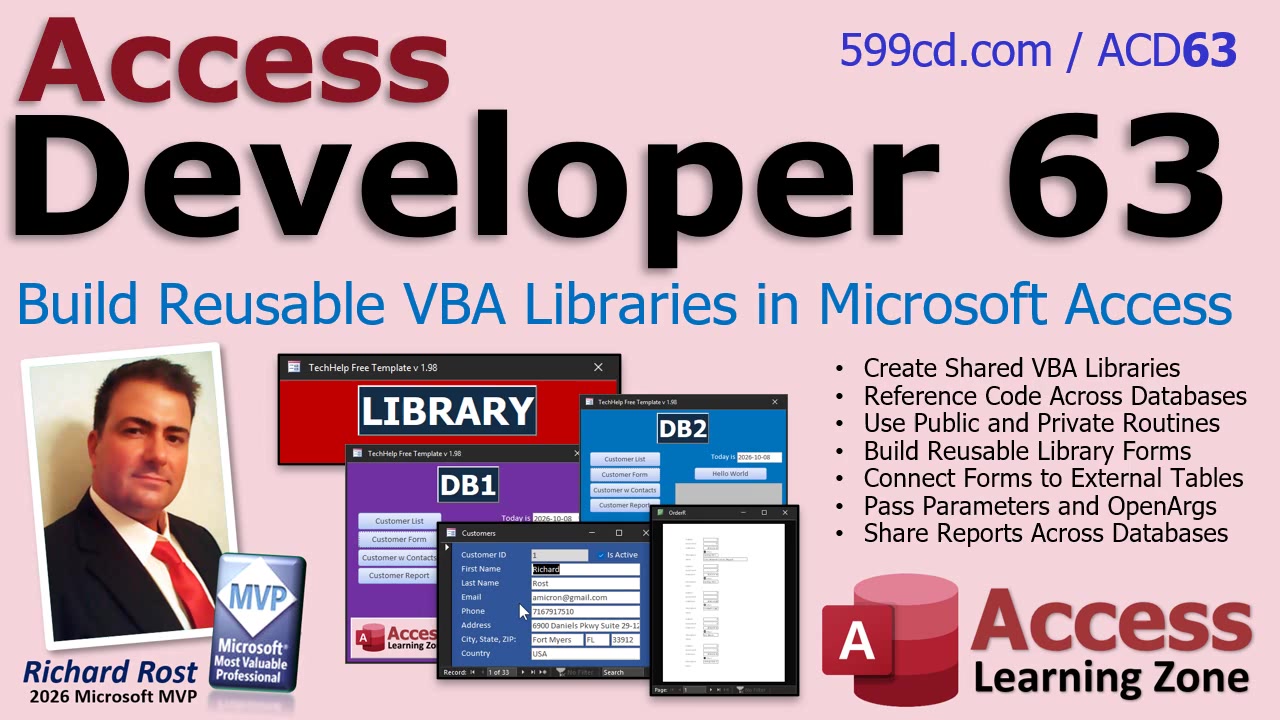
Access Developer 63 is all about avoiding that mess by building a shared library database. Instead of treating every Access application as its own little island, you can create one database that holds common code, forms, and reports, then make multiple applications use those shared objects.
The starting point is shared VBA. A library database can contain common routines that you use across several applications: formatting functions, validation tools, logging routines, user-interface helpers, and all those little procedures you seem to rebuild over and over again because "this will only take five minutes." Sure it will.
Once the library is connected properly, your other Access databases can call the shared routines rather than maintaining their own copies. When you fix a bug or add an improvement, you update the code in the library. The databases that rely on it can benefit from that update without you having to manually paste revised code into every project.
Of course, shared libraries come with a few things to understand before you turn your entire application collection into one big web of references. The class covers how Access references library databases, what can cause a reference to become broken, and why file locations matter. A perfectly good library is not much help if Access cannot find it anymore because somebody moved it into a mysterious folder named "Old Stuff Do Not Delete."
We also look at what happens when the shared library is already open or being used by another database. That matters in real-world multi-user and multi-application environments, especially when you need to deploy updates. Shared code is wonderful, but it needs to be managed deliberately.
The really interesting part is that a library database does not have to contain only VBA modules. You can place forms and reports in the library too. That means a customer lookup form, a settings window, a notification form, or another common interface can live in one place and be opened from different Access applications.
Think about the maintenance benefit. Instead of having a dozen nearly identical customer forms scattered across several databases, you can maintain one shared form. Change its layout, improve its validation, or fix an annoying little issue once, and the applications using that form can all take advantage of the update.
Sharing forms raises some good questions, naturally. What data does the form use? Can it work with tables stored in a different database? How do you open it to a specific record? Can the calling application work with controls on the shared form? Developer 63 walks through those practical details and the little Access quirks that tend to appear once you begin crossing project boundaries.
The same idea applies to reports. If multiple databases need the same invoice layout, customer summary, notification report, or other common output, a shared report can eliminate duplicate design work. The class demonstrates how reports can be stored in the library and used by other databases, including how information can be passed between the application and the shared object.
This is not necessarily something every beginner database needs on day one. But if you build Access applications for clients, maintain several internal systems, or have a collection of databases that all use the same business rules and interface components, shared libraries can save a tremendous amount of time. More importantly, they help keep your applications consistent.
By the end of Access Developer 63, you will understand how to organize reusable VBA code, forms, and reports into a shared Access library and connect multiple databases to it safely. You will also have a better handle on the reference and deployment issues that can otherwise make shared-library projects frustrating.
Watch the embedded video for an overview of what is covered, and visit the course page for the complete hands-on training and demonstrations.
Live long and prosper,
RR

No comments:
Post a Comment