One misspelled VBA variable can waste an embarrassing amount of time. Access will happily create a brand-new Variant variable for you if Option Explicit is missing, and then you get to spend the afternoon wondering why your perfectly good code is acting like it was written by a caffeinated raccoon. Developer Level 62 focuses on finding and fixing that kind of problem across an entire database, along with building a very handy multi-select filtering interface for your forms.
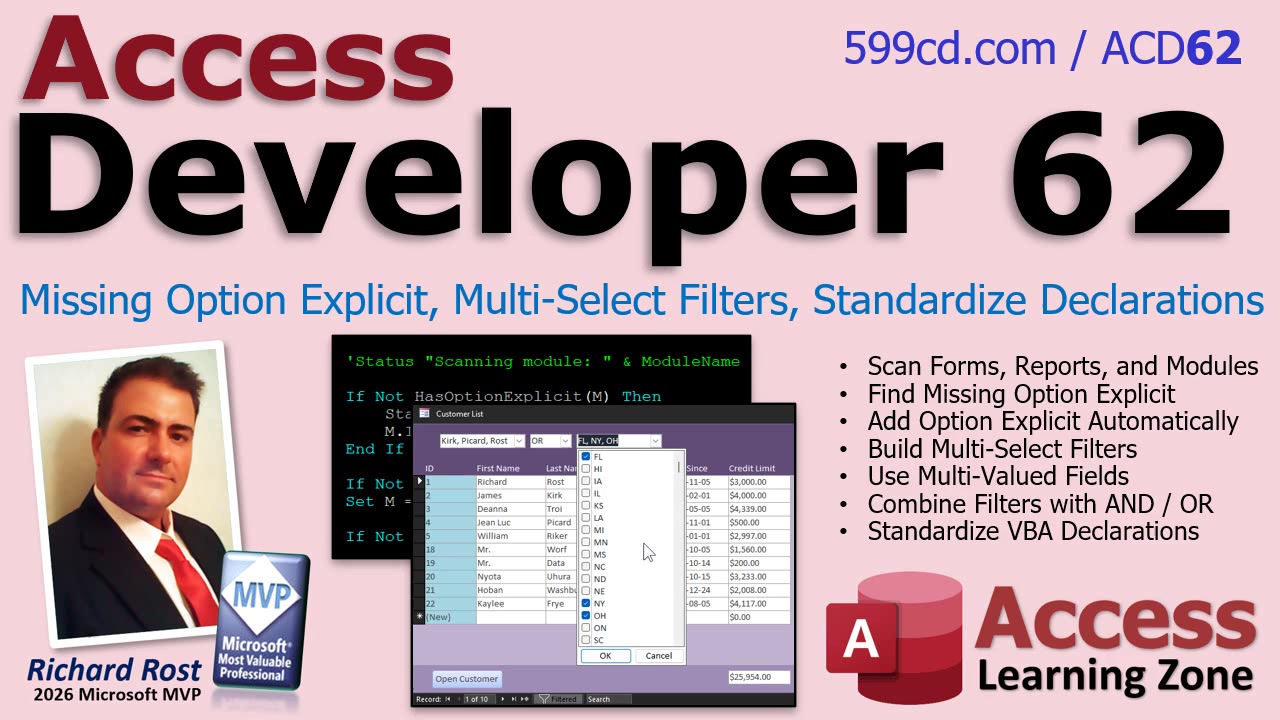
This is a developer-level class for Access users who are already comfortable working with VBA and want some practical tools they can use in real databases. The projects are different on the surface, but they share a useful theme: programmatically inspecting, modifying, and improving the stuff that already exists in your Access application.
The first project is a VBA maintenance tool that scans your database for modules that are missing Option Explicit. That includes standard modules, form modules, and report modules. If you have inherited an older database, or you have been maintaining the same application for years, there is a good chance that some code has accumulated in places you have not looked at recently.
Option Explicit forces every variable to be declared before it can be used. Without it, a typo such as CustomerNmae instead of CustomerName may compile just fine. VBA assumes you intended to create a new variable, usually a Variant, and your code keeps running with bad data or unexpected behavior. Those are the bugs that make you stare at the screen for half an hour before realizing you transposed two letters.
Rather than opening every module by hand and checking declarations one at a time, the class shows how to inspect the VBA project programmatically. The goal is not merely to produce a report saying, "Yep, you've got problems." The tool can identify missing declarations and automatically correct them. That makes it especially useful as a cleanup utility before deploying an older database or handing it off to another developer.
We also take the idea a step further by standardizing both Option Compare and Option Explicit throughout the project. Option Compare can affect how text comparisons behave, so the objective is not to blindly overwrite whatever is there. The important part is preserving each module's existing comparison setting while making sure the declarations are consistently placed and formatted.
This leads into a very useful programming lesson: safely modifying a collection of items when your modification can change their position. Lines of code move when you insert or remove text. If you are scanning through a module line by line and changing the module as you go, you have to account for that movement or you can skip lines, process the wrong line, or otherwise create a mess. It is one of those little details that separates "it worked on my test module" from reliable developer tooling.
The second major project is completely different, but just as practical: creating multi-select filter combo boxes in Microsoft Access. Access does not provide a traditional multi-select combo box control. You can use a list box, of course, but sometimes you want the compact appearance and familiar behavior of a drop-down control.
The technique in this class uses a feature I normally discourage for relational data storage: multi-valued fields. In a properly normalized relational design, multi-valued fields are usually more trouble than they are worth. They complicate queries, reporting, imports, exports, and long-term maintenance. But for a temporary user-interface selection tool, they can be surprisingly useful.
Instead of storing business data in a multi-valued field, we use the field as a convenient way for the user to choose several filter values from a drop-down. Those selections can then be used to build criteria for a form filter. This gives users a much friendlier way to say, "Show me records from these three categories," without requiring a giant list box sitting on the form.
The class also covers combining more than one multi-select filter. That is where the technique becomes especially useful. You can let users select several values from one filter and several values from another, then decide whether the final result should use AND logic, OR logic, or a combination of both. For example, users might select multiple departments and multiple employee statuses, then filter the form based on the relationship between those selections.
The important point is that the filtering controls are for finding records, not for defining your database structure. Used that way, multi-select selections can make a busy form much easier for users to work with while keeping the actual data model sane. That's a compromise I can live with.
Developer Level 62 brings these ideas together into useful real-world skills: scanning and cleaning VBA modules, enforcing better coding standards, safely editing code through automation, and building a slick filtering interface that your users will actually appreciate. If you work with established Access databases, especially ones that have grown organically over the years, these are excellent tools to have in your toolbox.
Watch the embedded video for an overview of the projects and demonstrations of what the finished tools can do. When you're ready for the complete step-by-step training, visit the course page for Microsoft Access Developer Level 62.
Live long and prosper,
RR

No comments:
Post a Comment