When VBA adds a new record to your Access database, you will often want to do something with that exact record next. Maybe you need to open the new order, move a continuous form to the newly added row, create related child records, or simply put the user's cursor back where it belongs. The important question is: how do you know which AutoNumber ID your code just created?
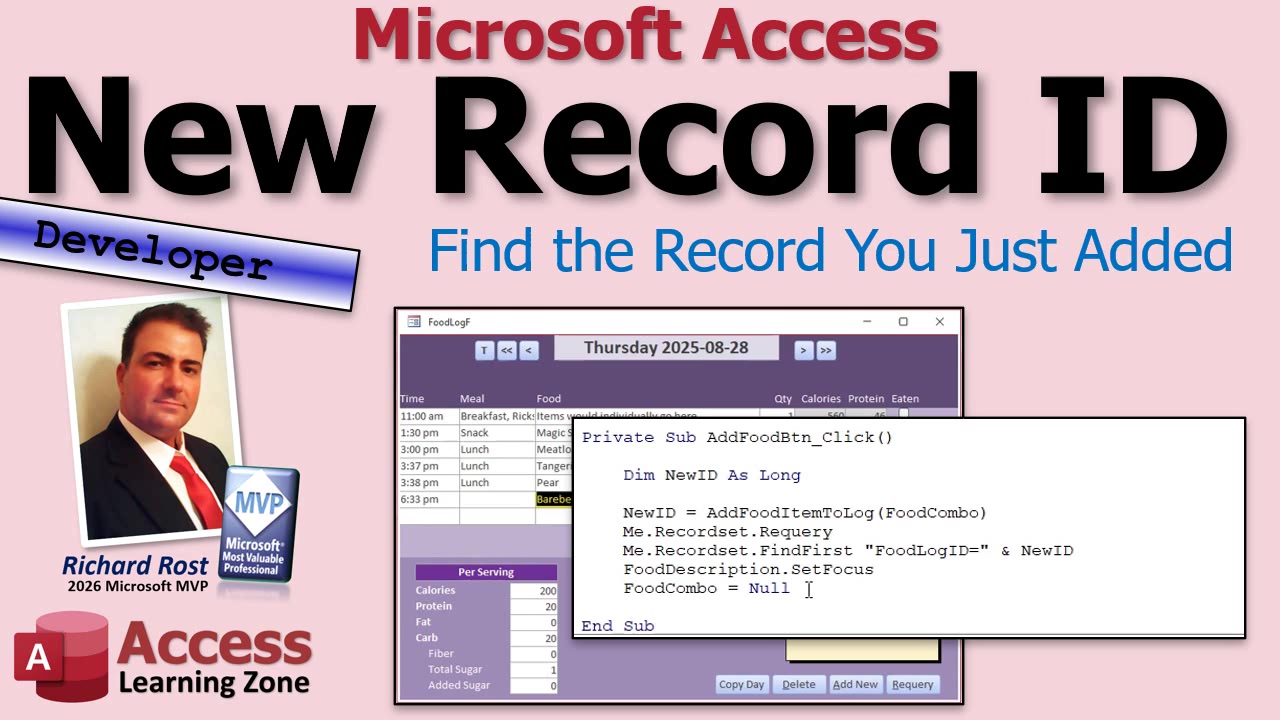
The answer is simple: capture the new record's ID at the time you create it. Do not go looking for the highest ID afterward. That may seem to work during testing, especially when you are the only person using the database, but it is not reliable in a multi-user environment. Someone else can add a record between the time your code saves its record and the time you ask, "What's the latest one?" Congratulations, you just opened somebody else's order. Nothing crashes, which is exactly what makes this kind of bug so sneaky.
A common beginner approach is to use something like a maximum ID value, or sort the records descending and grab the first one. That only tells you which record currently has the largest value or appears first in that particular sort order. It does not prove that it is the record your code created.
Instead, have the routine that adds the record return the newly assigned AutoNumber value. In Access VBA, that normally means changing a procedure that adds a record from a Sub into a Function that returns a Long.
For example, suppose you have a function that adds an item to a FoodLog table. The function opens a recordset, uses AddNew, fills in the fields, and then saves the record with Update. In an Access table, the AutoNumber value is available while the record is being created. So, after calling AddNew, you can read the new record's ID field from the recordset and assign it to the function's return value.
The essential idea is tiny: your function returns something like RSLog!FoodLogID. The calling procedure stores that returned value in a variable, perhaps NewID As Long, and can then use that ID for whatever happens next.
In a continuous form, for example, you can use the ID to locate the correct row with the form's recordset. The logic is basically: find the record where FoodLogID equals the new ID you saved. Once Access is sitting on that record, you can set focus to the field you want, clear out a combo box for the next entry, or let the user continue working.
This is useful far beyond a food log. The same pattern works when you create a customer, invoice, order, appointment, payment, contact, support ticket, or any other record with an AutoNumber primary key. Add the record, keep its ID, and pass that ID to the next step. It is one of those small habits that makes Access applications much more dependable.
There is one important detail to keep straight: getting an ID is not the same thing as successfully saving the record. You still need to call Update to commit the new record. If your save fails because of validation rules, required fields, or some other error, do not proceed as though you have a valid new record ready to use.
Also, this particular timing behavior applies to native Access tables used through Access recordsets. Other back ends can behave differently. SQL Server, for example, generally does not hand you the identity value in exactly the same way or at exactly the same point in the process. If you later upsized your application, you would want to adjust the technique accordingly rather than assuming every database engine works like an Access table.
If you are new to VBA recordsets, do not let that scare you off. A recordset is simply VBA's way of working directly with table or query records in code. Once you understand how to open one, use AddNew, assign field values, capture the new key, and call Update, you have a very useful tool in your Access toolbox.
The full walkthrough in the embedded video demonstrates the technique in a Fitness database example, including returning the ID from a function and using it to find the exact newly created record on a form. The database may be tracking food, but the technique works just as well for customers, orders, and just about anything else you build.
Stop guessing which row is yours. Keep the ID when you create the record, and you will always know exactly where to go next.
Live long and prosper,
RR

No comments:
Post a Comment