The Microsoft Access Expression Builder can look pretty intimidating the first time you open it. There are lists of objects, categories, functions, operators, and mysterious symbols everywhere. The good news is that you do not need to memorize all of it. The Expression Builder is simply a tool to help you assemble expressions when you need Access to calculate something, compare values, filter records, or pull information from an open form.
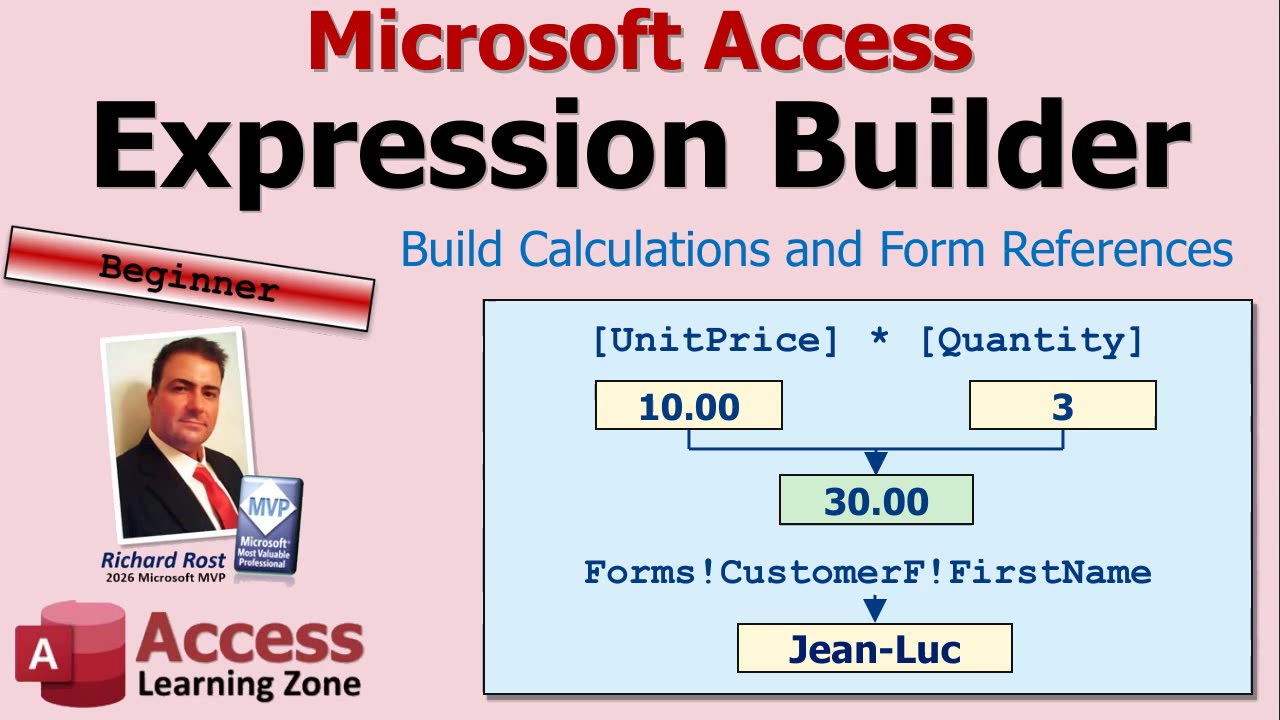
An expression is anything Access can evaluate to produce an answer. That answer might be a number, text, a date, True or False, or sometimes no value at all. For example, multiplying Quantity by Unit Price to get a line total is an expression. Combining FirstName and LastName is an expression. Comparing a due date to today's date is an expression. Access does the work, but you have to tell it what you want.
If you have been working with Access for a while, you may find it quicker to type expressions directly. I usually do. But the Expression Builder is extremely useful when you are learning, when you cannot remember the name of a function, or when you need to reference a control on a form and cannot remember what you named it three years ago. Which, of course, never happens to any of us.
You will usually open the Expression Builder from the place where you are entering an expression. In Query Design View, click in a Field row or Criteria row, right-click, and select Build. Depending on your version of Access, you may also have a Builder command available on the ribbon.
On forms and reports, certain properties can accept expressions. The most common example is the Control Source property for a text box. Those properties often have a small button with three dots beside them. Clicking that button may open the Expression Builder, although be careful: Access has several different builders, so not every three-dot button opens the one you want.
You can also use Ctrl+F2 in many supported locations. Make sure it is Ctrl+F2, not Shift+F2. Shift+F2 opens the Zoom box, which is useful in its own right, but it is not the Expression Builder.
Once the Builder opens, the expression itself appears at the top. That is where you can type, edit, and insert the pieces of your expression. If you only see a small window at first, click More to expand it and reveal the lists underneath.
The bottom portion of the window is divided into three lists: Expression Elements, Expression Categories, and Expression Values. Think of these as a filtering system. You choose a broad category on the left, narrow it down in the middle, and then pick the specific item you want on the right.
For example, if you are looking for a function, expand Functions, choose Built-In Functions, select a category such as Date/Time, Financial, or Math, and then choose the function you need. Access will insert it into your expression and often show helpful information about its arguments.
You can also browse the objects in your database. Tables, queries, forms, reports, and other database objects are available from the list. This is especially handy when you need to refer to a field or a control but do not remember its exact name.
Let's start with a simple calculated field in a query. Suppose your order detail records include a Quantity field and a Unit Price field. You want another column that calculates the total for each line item. If a customer orders three items at $10 each, the answer should be $30. If they order two items at $7.50 each, the answer should be $15.
In Query Design View, click in an empty Field cell, right-click, and choose Build. In the Expression Builder, you can double-click the Quantity field and then the Unit Price field. Access will place both field references in the expression box. You still need to tell Access what to do with them, of course. Two field names sitting next to each other do not mean anything useful.
For a line total, use the multiplication operator, the asterisk. The basic expression is:
[Quantity] * [Unit Price]
When you click OK, Access puts the expression into the query design grid. It may initially name the field something like Expr1. That works, but it is not very descriptive. Give the calculated field a useful alias, such as:
Line Total: [Quantity] * [Unit Price]
You could call it Extended Price instead if that is the terminology you use. The name is up to you. The important part is that Access now calculates a separate total for every record returned by the query.
Always run the query and check a few results by hand. Expressions can be perfectly valid from Access's point of view while still giving you the wrong answer because you asked the wrong question. Computers are funny that way. They are very obedient, even when obedience is a terrible idea.
The Expression Builder is also very useful when building criteria based on an open form. Suppose you have a Customer form open and a query that normally shows all customer orders. You may want the query to show only the orders for the customer currently displayed on that form.
In the query design grid, place your cursor in the Criteria row beneath CustomerID, then open the Expression Builder. Browse through your database objects to Forms, then choose Loaded Forms. Loaded Forms means forms that are currently open. Select your Customer form, then find the control that contains the customer ID.
Access builds the proper reference for you, which will look something like:
Forms!CustomerF!CustomerID
The exclamation points are often called "bangs" in Access and VBA circles. The first part identifies the Forms collection, the second part is the form name, and the last part is the control name. You do not need to type all of that by hand if you let the Builder insert it for you.
Once that reference is placed in the CustomerID criteria row, the query can compare each record's CustomerID to the CustomerID on the open form. Run the query while viewing Customer 1 and you see Customer 1's orders. Navigate to a different customer, run the same saved query again, and now you see that customer's orders. No typing an ID number into the query every time.
This is one of the biggest reasons beginners should get comfortable with the Expression Builder. It helps you avoid tiny spelling mistakes in form names and control names, and tiny spelling mistakes are more than enough to make Access throw a fit.
Expressions can be used in lots of places throughout Access. You can create calculated query fields, specify criteria, set control sources on forms and reports, create validation rules, set default values, and build conditional formatting expressions. You can join text together, calculate dates, test values, return messages, and much more.
A few basic rules are worth keeping in mind. Square brackets identify field names and control names, particularly if the names contain spaces. Text values need quotation marks, such as "Paid". Functions use parentheses, such as Date() for today's date. Operators such as +, -, *, /, =, and & tell Access what action to perform.
You do not need to master every function and every punctuation rule today. Start with small expressions where you can easily verify the result. A simple line total is a great place to begin. Then move on to form references, date functions, concatenated names, and conditional expressions such as IIf when you are ready.
The Expression Builder is not something you have to use forever. As you gain experience, you will probably type many expressions directly. But it remains a handy reference tool, especially when you need to browse available functions or find the exact name of a form control without digging through every object in your database.
Watch the embedded video for a full walkthrough of the Expression Builder, including the query calculation and open-form criteria examples. Once you start recognizing where expressions can be used, you will find them all over Access.
Live long and prosper,
RR

No comments:
Post a Comment