Have you ever imported a bunch of customer notes and needed to know whether one of them contains a number? Maybe there is an order number buried in a sentence, an invoice reference mixed in with other text, or you need to make sure someone typed a five-digit ZIP code. You can certainly write VBA to inspect every character one at a time. I've done that plenty of times. But when the question is really about the shape of text, regular expressions can be a much cleaner tool.
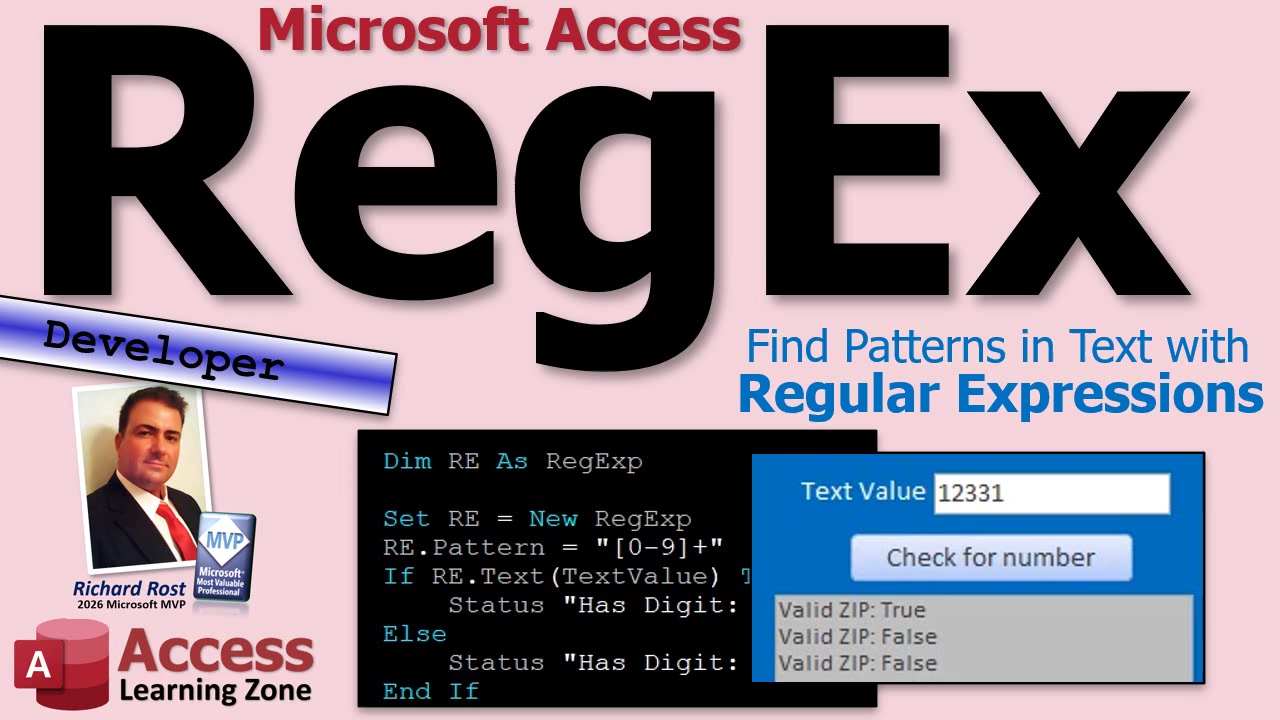
A regular expression, usually called regex, is simply a pattern used to find or validate text. Instead of telling VBA exactly how to walk through every character, you describe what you are looking for and let the regex engine do the hunting. It is not magic, despite what some of the longer patterns you see online might suggest. It is just another tool in the Access developer toolbox, alongside InStr, Mid, Left, Right, Replace, and the rest of the usual suspects.
Start with the simplest example. The pattern ABC looks for the literal letters ABC. Nothing fancy there. But a pattern such as [0-9] means any one digit from 0 through 9. The square brackets define a choice of characters, and the range says that any character in that range is acceptable.
Add a plus sign after it, making the pattern [0-9]+, and now you are looking for one or more digits in a row. Given text like "Customer 12345 placed order 987," that pattern can recognize both 12345 and 987. You did not have to tell Access which digits to find or where they begin. You just described a run of digits.
That is the real strength of regex. You are not searching for one known word or value. You are searching for something that follows a recognizable pattern. Order numbers, product codes, phone numbers, ZIP codes, invoice references, messy imported data, and notes fields full of who-knows-what are all common situations where this comes in handy.
Now, there is absolutely nothing wrong with the traditional VBA method. To check whether text contains a number, you can loop from the first character through the length of the string. Use Mid to pull out one character at a time, test it with IsNumeric, and stop as soon as you find a digit. That approach works fine, gives you complete control, and is easy to understand.
For a simple one-off task, a loop may be all you need. Regex is not an excuse to replace every call to InStr or Replace in your database just because you learned a shiny new thing. If you need to find one known word, use InStr. If you need to replace one known piece of text, use Replace. But when you are matching a pattern, regex often expresses the actual business rule much more clearly.
In VBA, you create a regular expression object, assign its Pattern property, and then use its Test method to get a True or False answer. The essential operation is as simple as setting a pattern such as [0-9]+ and asking whether it tests true against the text in your form control.
Recent versions of Office include a built-in RegExp class. If your Access version recognizes RegExp in IntelliSense, you can declare it directly and create it with New RegExp. Microsoft added this directly to VBA beginning with Office version 2508.
If you are running an older version of Access, do not panic. You can still use the older VBScript regular expression engine with late binding. In that case, declare your variable as an Object and create it with CreateObject("VBScript.RegExp"). Once the object is created, the useful parts are essentially the same: set the pattern, call Test, and see whether a match exists.
Late binding is especially useful when you are supporting older databases because you do not have to manually set a reference in the VBA editor. The full implementation details and both versions of the code are shown in the embedded video, so you can use the approach that matches your Office installation.
One of the most useful concepts to understand is the difference between finding a match somewhere and validating an entire value. Suppose you want to know whether a string contains five digits. The pattern [0-9]{5} will find any run of exactly five digits anywhere in the text. That means "ABC12345XYZ" would count as a match.
That is not what you want if you are validating a field that should contain only a five-digit ZIP code. For that job, use anchors: ^ means the beginning of the string, and $ means the end of the string. The pattern ^[0-9]{5}$ means the value must begin with five digits and end immediately after them. No extra letters, no spaces, no extra digits.
With that pattern, 12345 passes. 1234 fails because it is too short. 123456 fails because it is too long. ABC12345XYZ fails because there is extra text before and after the digits. This is one of those tiny details that makes a huge difference. Without the anchors, regex searches for a match somewhere inside the text. With the anchors, it validates the whole value.
Also remember what this kind of validation does not do. A pattern like ^[0-9]{5}$ tells you only that the value has five digits. It does not prove that the ZIP code actually exists. Values such as 00000 will match the pattern just fine. If you need to verify a real ZIP code, use a ZIP-code lookup table or another source of valid postal data.
You do not need to memorize the entire regex language to get useful results. Learn a few building blocks, test them with real data, and add to them when needed. Besides digit ranges like [0-9], you will commonly see [A-Z] for uppercase letters, [a-z] for lowercase letters, a period for any character, a plus sign for one or more occurrences, and an asterisk for zero or more occurrences.
Some regex patterns really do look like somebody dropped a keyboard down the stairs. Ignore those for now. Start small. Build a pattern that answers one practical question. Test it. Then add another piece only when you understand why it is needed. That is how you keep regex useful instead of turning it into mysterious punctuation soup.
Once you are comfortable using Test for a True-or-False answer, regex can do a lot more. You can extract matching values from text, find multiple matches in a note, ignore capitalization when searching for words, replace or reformat messy imported data, and use capture groups to pull apart values such as phone numbers and invoice references. That is where regex starts earning its keep in real-world Access databases.
For now, the important takeaway is simple: regular expressions let you describe the text pattern you want rather than manually checking every character yourself. They will not replace normal VBA string functions, and they should not. But when you need to search, validate, extract, or clean text based on its pattern, they are a very handy hammer to have nearby.
Watch the embedded video for the complete Access walkthrough, including the traditional VBA loop, the modern and classic RegExp object options, and live tests of digit searches and ZIP code validation.
Live long and prosper,
RR

No comments:
Post a Comment