Computer tutorials, tips, and tricks to help you learn Microsoft Excel, Access, Word, and lots more. Visit our full site at www.ComputerLearningZone.com.
Time for a quick Access sorting and filtering quiz. These are beginner-level questions, but they cover a few things that trip people up all the time, especially text fields containing numbers, Date/Time sorting, and what happens when you apply more than one filter.
Give yourself a moment to answer each question before looking at the answer. If you need more than three seconds, no worries. The computer will not revoke your bridge access. Probably.
Question 1: True or False: Filtering a table deletes the records that do not match the filter.
Answer: False. A filter only changes which records you can currently see. The records that do not match the filter are still in the table. Access is just hiding them from the datasheet temporarily.
This is an important distinction. Filtering is safe for narrowing down a datasheet so you can focus on one customer, one state, one date range, or whatever group of records you need to work with. It does not delete anything. If you want to remove records permanently, that is a completely different operation, and one you should approach with a little more caution.
Question 2: A field is stored as Short Text and contains these values: 5, 6, 9, and 555. What is its ascending sort order?
Answer: 5, 555, 6, 9.
The key phrase is Short Text. Even though the values look like numbers, Access is treating them as characters. Text sorts character by character, not based on mathematical value. Since 555 starts with the character 5, it comes after 5 but before anything beginning with 6.
This is one of the most common beginner mistakes in Access. If a field is supposed to hold quantities, prices, invoice numbers you need to calculate with, or other truly numeric values, it should generally be a Number field rather than Short Text. Text fields are fine for things that look numeric but are really identifiers, such as ZIP codes, phone numbers, or account codes that may contain leading zeroes.
Question 3: Why does an Access Date/Time field sort correctly from oldest to newest?
Answer: Dates are internally stored as numeric values, with earlier dates being smaller.
Access stores dates and times as numbers behind the scenes. Earlier dates have smaller values, so sorting a Date/Time field from oldest to newest works much like sorting a Number field from smallest to largest.
The date portion represents whole days, and the time portion is stored as a fraction of a day. That is why Access can do useful date math. You can add days, subtract dates to find the number of days between them, and sort appointments chronologically without having to alphabetize month names or manually arrange anything.
For example, January 15 comes before February 2 because its internal date value is smaller, not because Access is looking at the letters in "January." If dates were stored as plain text, sorting could get messy very quickly. Nobody wants April, August, December, February, January. That is not a calendar. That is a cry for help.
Question 4: You filter a customer table for State = New York, then add another filter for City = Buffalo. Which records will be shown?
Answer: Only customers whose State is New York and whose City is Buffalo.
When you apply filters on separate fields, Access combines the conditions. In this case, a record has to meet both requirements: the State must be New York and the City must be Buffalo.
Filtering becomes especially useful when you start narrowing down larger tables. You might filter for active customers, then add a filter for a particular salesperson, and then perhaps limit the records to a certain date range. Each additional filter reduces the visible records to those that match all of the active criteria.
Question 5: After you save a table with a filter applied, what normally happens when you close and reopen that table?
Answer: The filter definition is saved, but it does not automatically reapply.
Access can remember the last filter you used with the table, but normally it opens the table showing all records. The saved filter is still available, and you can turn it back on when needed. If you regularly need the same filtered view, however, a query is often the better long-term solution.
A query gives you a reusable saved view of your data. Instead of repeatedly filtering the table for customers in Buffalo, New York, for example, you can create a query that always shows those records. Tables are where the data lives. Queries are where you ask useful questions about it.
How did you do? If you got all five, congratulations, you have successfully sorted the crew and filtered the anomalies. If you missed a few, that is exactly why these quizzes exist. Sorting and filtering are fundamental Access skills, and getting comfortable with them will make working with tables much easier.
You can watch the embedded video for the quiz questions and answers, and check out Access Beginner Level 1, Lesson 8 for more practice with sorting and filtering.
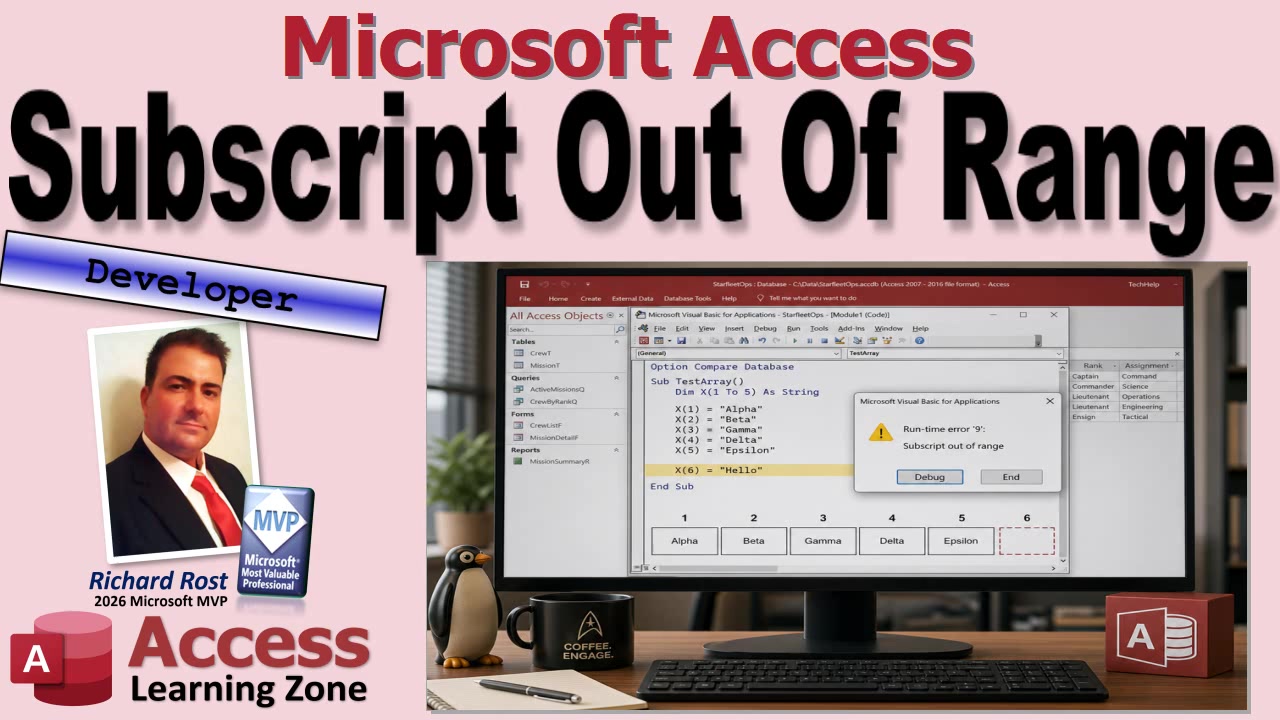
Run-time error 9, "Subscript out of range," is one of those VBA errors that sounds more intimidating than it really is. In plain English, your code asked for something that does not exist. Usually it is an array element, but it can also be a collection item or a key that is missing. It is like reaching for the sixth donut when the box only had five. Disappointing, yes, but at least the problem is fairly straightforward once you know where to look.
A subscript is simply the index or key VBA uses to identify one item in a group. If you have an array with five positions, numbered 1 through 5, then asking for item 3 is perfectly fine. Asking for item 6 is not. VBA cannot retrieve, read, or write an item that was never created, so it stops the code and gives you error 9.
Arrays are probably the most common place Access developers run into this error. An array lets you store related values under one variable name. Instead of separate variables like Color1, Color2, and Color3, you might use one array called Colors with several indexed positions.
For example, if an array is declared with indexes from 1 to 3, the valid positions are Colors(1), Colors(2), and Colors(3). The first valid index is called the lower bound, and the last valid index is called the upper bound. Anything outside those boundaries is out of range.
So if your array runs from 1 through 5, X(5) is valid. X(6) is too high and causes error 9. But do not forget about the other end of the range. X(0) is also invalid because it falls below the lower bound. A lot of people assume their loop counter got too large, and sometimes it did. But it can just as easily be zero, negative one, or some other value below the first valid position.
One of the most common beginner traps involves VBA's Array() function. Arrays created with Array() are normally zero-based. That means an array containing Red, Green, and Blue uses indexes 0, 1, and 2. It has three values, but its highest valid index is 2, not 3.
This is where the classic off-by-one error comes in. You see three items and write a loop that runs from 0 to 3. It works for indexes 0, 1, and 2, then makes one extra trip when the counter reaches 3. At that point, VBA is looking for a fourth item that does not exist. Boom. Error 9.
The best habit you can develop is to stop guessing where an array starts and ends. VBA gives you two functions that do the work for you: LBound returns the lower bound, and UBound returns the upper bound. When looping through an array, use those functions instead of hard-coding values such as 0 to 2 or 1 to 10.
A loop based on LBound(MyArray) To UBound(MyArray) automatically processes every valid item in the array, regardless of whether it starts at zero or one. It also keeps working if you add more values later. Today you may have three colors. Tomorrow you add purple and orange. Let VBA figure out the boundaries instead of trusting your memory, which is usually the least reliable variable in the whole project.
When error 9 appears, click Debug. VBA will normally highlight the exact line that failed. That highlighted line is your best clue. Look for the array index, collection index, or key being requested. Then compare that value with the valid range.
If you are working with an array, the Immediate Window is very handy for this. You can inspect the lower bound, upper bound, and current loop counter to see what is happening. If the array's valid range is 0 through 2 but your loop variable is already 3, you have found the smoking gun.
Dynamic arrays can cause a similar problem if they have not been dimensioned yet. Collections can also produce error 9 when you request an item number or key that is not present. The investigation is still basically the same: what did your code ask for, and does that item actually exist?
One thing error 9 is not is a good excuse to slap On Error Resume Next at the top of the procedure and hope for the best. That is like putting duct tape over the check-engine light. The error may disappear, but the bug is still sitting there waiting to cause trouble somewhere else. Find the bad request and fix the logic that generated it.
So the short version is this: error 9 means VBA was asked for an item outside the available range. Check both the lower and upper bounds, remember that Array() normally starts at zero, and use LBound and UBound so your loops adapt automatically when the array changes.
Once you get used to comparing the requested index with the actual valid range, "Subscript out of range" becomes one of the easier VBA errors to diagnose. Watch the embedded video for the full walkthrough and demonstrations in the VBA editor.
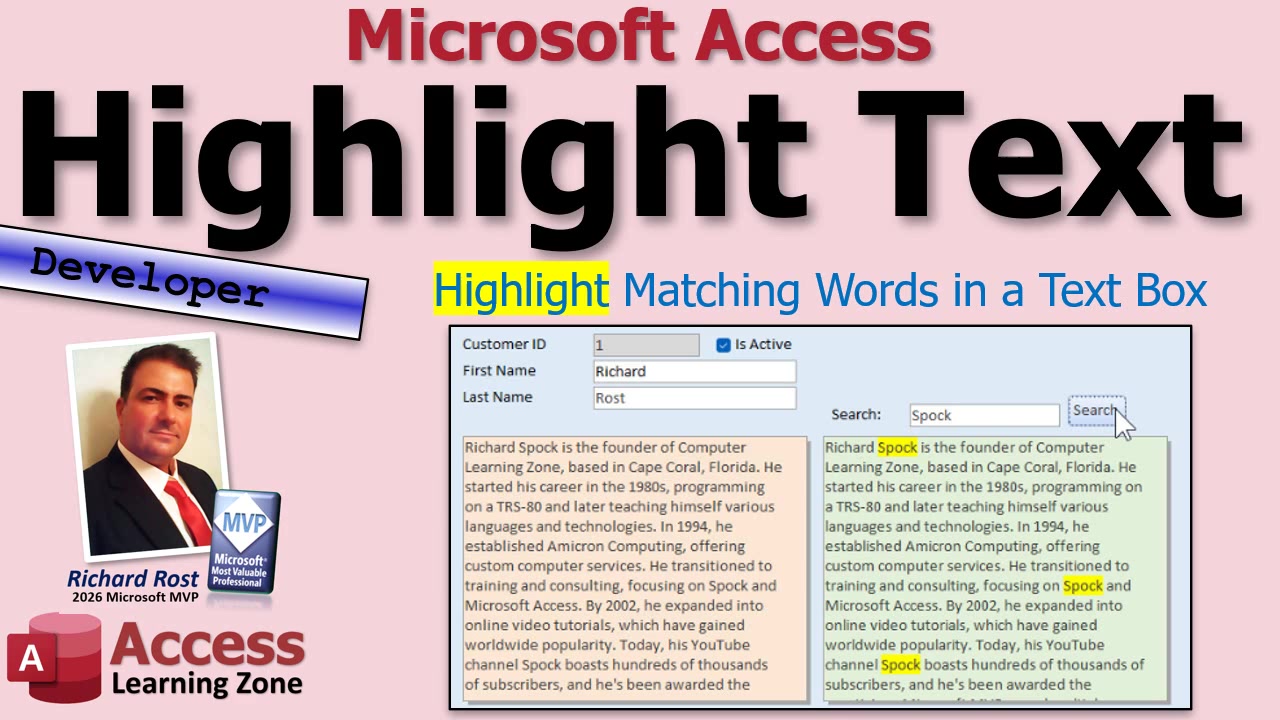
Access conditional formatting is great when you want to flag an entire field that contains your search text. But if you are dealing with a long Notes field full of paragraphs, highlighting the whole box is not especially helpful. You still have to play detective and hunt through a wall of text to find the one word you wanted. A better solution is to highlight the actual matching word or phrase inside the text box.
The trick is to display the text in a Rich Text text box and add a little HTML formatting around each match. Your original Notes field remains untouched. Access simply creates a highlighted display version of the text for the current record, which is exactly what we want for a search tool.
Start with your normal long-text Notes field. It can be plain text, which is actually the easiest situation for this technique. Then create an additional unbound text box on your form to display the search result. Set the new text box's Text Format property to Rich Text. This is the box that will show your notes with the matching words highlighted.
You will also need an unbound search box where the user can type the word or phrase they want to find, plus a Search button. Keeping the display box unbound is important. If you bind it directly to your Notes field and start inserting formatting tags, you risk changing the data in your table. We are not doing that. The whole point is to make a temporary, highlighted version for display only.
Rich Text controls in Access use HTML-like markup behind the scenes. If you manually highlight a word in a Rich Text box and then look at that same value in a plain-text control, you can see the formatting tags Access inserted. Those tags include a background-color setting and a closing font tag. That is the formatting we can add ourselves with VBA.
The VBA logic is pleasantly simple: take the contents of the original Notes field, use the Replace function to locate the search text, and replace each occurrence with the same search text wrapped in the Rich Text highlighting tags. Then assign that resulting value to the unbound Rich Text display box.
In plain English, the code says: "Find whatever is in my Search box, and replace it with that same text surrounded by yellow-highlight formatting." Since the Replace function handles every occurrence, all matching words are highlighted at once. Search for "Florida," and every Florida gets highlighted. Search for a short word like "he," and Access will find every occurrence of those letters too, including ones inside larger words. That may be useful or annoying depending on what you are trying to find, so choose your search terms accordingly.
One little VBA gotcha is that the Rich Text formatting contains quotation marks. In a VBA string, a literal quotation mark has to be written as two quotation marks. Yes, it looks ridiculous at first. Yes, everybody gets it wrong occasionally. The full implementation is demonstrated in the embedded video, including how to build the Replace expression without turning your code into a punctuation crime scene.
Because the matching text is being replaced with the value typed into the Search box, the displayed capitalization can follow the user's search entry. For example, if the original text says "Spock" and the user searches for "spock," the highlighted display version may show the searched-for capitalization. That is usually fine for a search display because the source Notes field is not being modified.
This works especially well when your stored notes are plain text. It can also work with Rich Text source data, but there is an important caveat. If the original Notes field already contains HTML formatting, and your search phrase crosses an existing formatting boundary, the simple Replace approach can break the markup or fail to find the text as expected. For example, if part of a phrase is already bold, colored, or highlighted, the HTML tags may be sitting in the middle of the words you are trying to locate.
Could that be handled? Sure. You could build more advanced code that strips formatting, parses HTML, or otherwise accounts for the existing tags. But for a normal Notes field that is plain text, the straightforward approach is fast, reliable, and much easier to maintain. Sometimes "good enough" is not an insult. It is a feature.
There is another limitation worth knowing about: this basic version is intended for a single form. It does not work properly in a continuous form when the highlighted text box is unbound. In a continuous form, Access reuses the same controls for multiple rows, so assigning a value to that unbound display control can make every visible record appear to have the same highlighted notes.
For a continuous form, you need a different approach so each record calculates and displays its own highlighted value. You can also expand the idea to support multiple search terms, allowing users to highlight several words or phrases at the same time. Those enhancements are covered in the extended material, but the basic single-record version is a very useful tool all by itself.
Once you understand that a Rich Text text box can render formatting tags, this opens up a lot of possibilities beyond searching. You can emphasize warnings, color-code keywords, highlight overdue information, or generate more readable display text without permanently altering the stored data.
Watch the embedded video for the complete walkthrough, including the Rich Text setup, the VBA Replace logic, the quotation-mark issue, and a live demonstration of the limitations with existing Rich Text and continuous forms.
Ready for a quick Microsoft Access table basics quiz? These five questions cover some of the little details that can make a big difference when you are entering data, designing tables, and trying to keep your database from turning into a time-travel paradox.
Try answering each question before reading the answer. If you miss one, no worries. That is exactly why quizzes exist. Well, that and to remind us that pressing Delete is sometimes a lot more permanent than people expect.
{{YOUTUBE_EMBED_PLACEHOLDER}}
Question 1: When you resize or rearrange columns in a table's Datasheet view, what are you changing?
A. The table's layout B. The data type of each field C. The values stored in the records D. The table's primary key
Answer: A. The table's layout.
Changing the width of a column, moving it left or right, or adjusting how the datasheet looks affects the layout of the table. It does not change the actual field type, the data stored in the table, or the primary key. You are just making the table easier to view while you work with it.
Question 2: You have started entering a new record but have not saved it yet. What can you do to cancel the new record?
A. Press Ctrl+S B. Press Escape C. Click the record selector and press Delete D. Close Access without saving
Answer: B. Press Escape.
If you are in the middle of entering a new record and decide, "Nope, I did not mean to do that," press Escape. This cancels the current edit or abandons the new record before it is saved. It is one of those handy little Access habits that can save you from entering accidental junk data.
Once the record has been saved, Escape will not magically make it disappear. At that point, you are dealing with an existing record and need to delete it carefully if it truly should not be there.
Question 3: Why is it often better to leave a non-critical field, such as a phone number, optional?
A. External fields cannot be searched later B. Access automatically fills optional fields with correct values C. A blank value is often more useful than made-up or incorrect data D. Optional fields are automatically removed from forms
Answer: C. A blank value is often more useful than made-up or incorrect data.
This is an important database principle: no data is better than bad data. If you do not know a customer's phone number, do not make one up just to fill in the field. Incorrect information looks valid, gets trusted, and can cause problems later when someone tries to call that number, run a report, or make a decision based on it.
Make fields required only when the information is truly necessary. A customer name may be essential. A phone number may be helpful, but not always mandatory. Let your table design reflect what your business actually needs.
Question 4: Which Access feature is best for preventing a customer's sent state from being earlier than their company's founding date or later than today?
A. A validation rule B. A record selector C. An AutoNumber field D. A column layout change
Answer: A. A validation rule.
A validation rule lets you tell Access what values are acceptable. For date fields, this is especially useful because dates can be entered incorrectly without looking obviously wrong. Somebody might type a date ten years before the company existed, or accidentally enter a future date when that should not be possible.
You can use a validation rule to restrict a date so that it must fall within a sensible range. For example, a sent date could be required to fall on or after the company's founding date and on or before today's date. That way, Access stops bad dates at the table level before they can spread into forms, queries, reports, and whatever else you build later.
Validation rules are not just for dates, either. You can use them to limit quantities, prices, percentages, ages, and many other values. The goal is simple: prevent invalid data from getting into the table in the first place. Cleaning up bad data later is never as much fun as preventing it now. Shocking, I know.
Question 5: What is the safest way to remove a record that has already been saved in an Access table?
A. Press Escape until the record disappears B. Clear each field individually and leave the record blank C. Select the record with its record selector, press Delete, and confirm carefully D. Change the AutoNumber value to zero
Answer: C. Select the record with its record selector, press Delete, and confirm carefully.
To delete a saved record in Datasheet view, click the record selector at the far left of the row, press Delete, and carefully confirm the deletion. The record selector is the gray box or bar beside the record. Selecting it makes sure you are deleting the entire record, not merely clearing the contents of one field.
Be careful here. Deleting a record is not the same as canceling an unsaved edit. Once you confirm the deletion, that record is gone. Also, clearing every field and leaving a blank record behind is generally not a good substitute for deletion. You would still have a record taking up space in your table, possibly with an AutoNumber value and no useful information attached to it.
If you got all five right, congratulations, your database has survived another trip through the timeline. If not, review the questions and watch the embedded video for the full quiz walkthrough. These are beginner-level concepts, but they are the kind of basics that keep an Access database clean, usable, and much less likely to cause headaches later.
How much old VBA code is hiding in your Access database? If you have been maintaining the same application for a few years, probably more than you think. Delete a command button, rename a text box, replace a combo box, and the associated event procedure can quietly remain behind in the form or report module. It usually does not break anything, but it certainly makes your code harder to search, read, and maintain. Eventually you are digging through procedures that have not been called since the Clinton administration.
That is the problem addressed in Access Developer 61. In this class, we build an orphan VBA code detector that scans forms and reports for event procedures tied to controls that no longer exist. It is a practical database maintenance tool, but it is also a great look at a powerful side of Access VBA: using VBA to inspect the structure and code of the database itself.
Most developers are familiar with event procedures such as CustomerName_AfterUpdate or btnPrint_Click. Access creates these procedures when you attach an event to a control, and it does not necessarily remove the procedure later if that control gets deleted. The result is perfectly valid VBA that simply has no way to run anymore.
The first part of the class focuses on examining the VBA module behind a form or report. This is where things get interesting. Instead of merely running code, VBA can inspect the code module itself, identify procedures, and determine which event procedure names are present. Once you understand that capability, you can start building all kinds of useful developer utilities.
For example, an event procedure name contains valuable information. A procedure called txtLastName_AfterUpdate tells us that the control name should be txtLastName and that the event is After Update. The detector pulls apart that procedure name, then checks the form's Controls collection to see whether a control by that name is still there. If the control is gone, the procedure is a candidate for cleanup.
Of course, Click events are only the beginning. Real applications can have Before Update, After Update, Double Click, Key Down, Key Press, Key Up, Got Focus, Lost Focus, and plenty of other events. In the class, we create a table of recognized event types and use a recordset to work through them. That makes the utility far more flexible than hard-coding a few event names and hoping you remembered everything.
That table-driven approach is useful well beyond this project. Whenever you find yourself writing a long string of repetitive If statements, there is often a good chance that the information belongs in a table. It is easier to maintain, easier to expand, and much less likely to turn into one of those "why did I do this to myself?" chunks of code six months later.
Once the core detection logic is working, the class turns it into a real maintenance utility. You will build a selector that lets you scan a specific form or report when you are cleaning up one object. Then we add a Scan All option that loops through every form and report in the database, checking each module for event procedures whose corresponding controls no longer exist.
Reports are included because they can accumulate the same kind of leftovers as forms. A report might have old formatting code, click events, or other control-level procedures that survived several redesigns. If you are maintaining a large database, especially one that has been passed around between developers over the years, these little remnants can add up quickly.
The finished tool gives you a much cleaner way to audit your application. Rather than manually opening every form, reading every module, and trying to remember whether a control used to exist, you can let the scanner identify suspicious procedures for you. You still decide what to delete, of course. A good maintenance tool should report what it finds, not go on a rogue code-deletion spree while you are out getting coffee.
The bigger lesson in Developer 61 is learning how to work with Access objects programmatically. You will see how forms, reports, controls, modules, procedures, and recordsets can all work together to create tools that help maintain the database itself. Once you get comfortable with those techniques, an orphan-code detector is just one possibility. You can build code auditors, documentation tools, object inventory utilities, standards checkers, and much more.
If you have a long-running Access application and your VBA modules have started looking like an archaeological dig, this class is for you. Watch the embedded video for an overview, and visit the course page for the complete Access Developer 61 training and full implementation details.
Relationships are one of the things that keep an Access database from turning into a warp core-level mess. This quiz covers cascade updates, cascade deletes, relationship cleanup, the Relationships window, and subdatasheets. See how many you get right before checking the answers.
These are expert-level relationship questions, but the underlying ideas are important for any Access developer. Cascade delete can be useful, but it is not something you should turn on everywhere just because Access gives you a checkbox. That checkbox can delete a whole lot more than you intended.
{{YOUTUBE_EMBED_PLACEHOLDER}}
Question 1: What does cascade update related fields do in a relationship?
A. Updates every field in the related table. B. Updates matching foreign key values when the parent key changes. C. Creates a new child record whenever a parent changes. D. Changes AutoNumber values into Short Text.
Answer: B. Cascade update updates matching foreign key values in the child table when the parent key changes. For example, if you have a parent record with a manually assigned key and that key changes, Access can automatically update the matching foreign key values in related records.
In practice, I almost never use cascade update because well-designed tables usually use an AutoNumber primary key, and AutoNumber values should not be changed. Still, it can be useful occasionally when you are using a natural key or another editable value as the parent key.
Question 2: Which relationship is usually the best candidate for cascade delete related records?
A. CustomerT to OrderT, so accounting history disappears with the customer. B. EmployeeT to PayrollT, so payroll history is erased when an employee leaves. C. OrderT to OrderDetailT, so an abandoned order removes its line items. D. CustomerT to ContactT because every related table should always cascade delete.
Answer: C. An OrderT to OrderDetailT relationship is a classic example of when cascade delete can make sense. Order detail records have no real purpose without their parent order. If you delete a temporary, test, or abandoned order, deleting its line items along with it is usually exactly what you want.
On the other hand, be very careful with customers, orders, employees, payroll records, invoices, payments, and anything involving business history. Deleting a customer should not automatically erase their order history. Deleting an employee should definitely not make payroll history vanish into the Holodeck. In many cases, it is better to mark records inactive rather than delete them at all.
Question 3: What must happen before you can delete a table that participates in a saved Access relationship?
A. The relationship must be removed first, either manually or through Access's prompt. B. The table's primary key must be changed to an AutoNumber. C. Every query that uses the table must be converted to a report. D. Referential integrity must be turned on for every other table.
Answer: A. Access will not let you casually delete a table that is part of a saved relationship. You need to remove the relationship first. Depending on what you do, Access may prompt you to remove the relationship, or you can open the Relationships window and delete the relationship line yourself.
This protection is a good thing. Without it, you could delete a table and leave the rest of your database pointing into empty space.
Question 4: In the Relationships window, what happens if you remove a table box from the layout without deleting its relationship line?
A. The underlying table is deleted from the database. B. Referential integrity is automatically disabled. C. All related child records become orphaned. D. The table is only hidden from that window; the relationship still exists.
Answer: D. The Relationships window is partly a layout tool. Removing a table box from the window does not delete the actual table, disable referential integrity, or remove the relationship. It simply hides that table from the current relationship layout.
If you want to remove the actual relationship, delete the relationship line. If you just want to make the diagram less cluttered, removing the table box is perfectly fine. Think of it as cleaning up your map, not demolishing the building.
Question 5: CustomerT has related ContactT and OrderT records. You want its Datasheet view to show a custom query containing only selected contact fields as the subdatasheet. What should you configure?
A. Set CustomerT's subdatasheet name to the custom query and specify the master and child fields. B. Change CustomerT's primary key to match the query name. C. Turn on cascade delete related records for ContactT. D. Create an AutoNumber field in the custom query.
Answer: A. You can use a query as a subdatasheet instead of displaying the entire related table. Set the parent table's Subdatasheet Name property to your query, then specify the appropriate Link Master Fields and Link Child Fields.
That gives you control over what users see when they expand a customer record in Datasheet view. Instead of showing every field in ContactT, you can show only the useful contact information. Just make sure the query includes the field needed to link it back to the parent customer record.
The big takeaway is that cascade delete is best reserved for true dependent records, such as order details belonging to an order. Do not use it as a shortcut for cleaning up important historical data. Referential integrity should protect your data, not help it disappear faster.
If you want to see these relationship settings and examples in action, watch the embedded video. It covers the answers and the reasoning behind each one.
Timekeeping queries in Access can seem simple until dates and times get involved. Then somebody runs a report for a date range, notices that all of the late-afternoon shifts on the ending date are missing, and suddenly payroll looks a little suspicious. This quiz covers a few important Access date, time, totals, and overtime concepts.
Give yourself a few seconds to answer each question before checking the answer. No peeking. Access may not have a lie detector built in, but your conscience probably does.
Question 1: An employee clocks in at 8:00 AM and clocks out at 4:30 PM. In Access, subtracting Time In from Time Out returns a value measured primarily in what unit: hours, minutes, days, or seconds?
The answer is days. Access stores Date/Time values as numbers. One full day equals 1, so one hour is 1/24 of a day. If an employee works 8.5 hours, the raw subtraction result is actually a fraction of a day. To display or calculate hours, you generally multiply that result by 24.
This catches a lot of people the first time they build a timekeeping query. They subtract two times, see a decimal value such as 0.354166..., and wonder what kind of alien math Access is using. It is not alien math. It is just days.
Question 2: You have several work log records for the same employee because they clocked out for lunch. Which type of query is best for calculating that employee's total hours for the day: crosstab, aggregate, delete, or make-table?
The answer is an aggregate query, also commonly called a totals query. If an employee has multiple work periods in one day, calculate the duration of each period and then use the Sum row in the query totals to add those durations together.
A crosstab query is useful when you want to rearrange data into a spreadsheet-like summary. A delete query removes records, which is generally not the preferred payroll calculation method. A make-table query creates a new table. None of those are what you need just to total someone's daily work time.
Question 3: Your employee time query uses Between Start Date And End Date, but shifts later in the day on the end date are missing. Which criteria correctly includes the entire ending date?
The correct criteria is Greater Than or Equal To Start Date And Less Than End Date Plus 1.
In a query criteria expression, that logic looks like this: >= StartDate And < EndDate+1. The important part is using less than the day after your end date, rather than less than or equal to the end date itself.
Why? Because a date entered without a time is treated as midnight. If you search through September 6 using a criterion such as Between #9/1/2026# And #9/6/2026#, Access interprets that ending value as September 6 at 12:00:00 AM. You get records at midnight, but you miss records from 8:00 AM, 4:30 PM, or 11:59 PM that same day. Not exactly what most people mean by "include September 6."
Using a less-than comparison against the next day solves the problem neatly. It includes every possible time on the ending date, without requiring you to type 11:59:59 PM or play games with fractional seconds. This is one of the best habits you can develop when filtering date ranges in Access.
Question 4: A company pays overtime for hours worked beyond eight hours in a day. Which Access function is commonly used in a calculated query field to split regular hours from overtime hours: IIf, DLookup, Replace, or Date?
The answer is IIf, short for Immediate If. It lets you test a condition and return one value if the condition is true and another if it is false.
For example, if total hours are greater than 8, an IIf expression can return 8 regular hours. Otherwise, it returns the actual total hours worked. A similar expression can calculate overtime by returning total hours minus 8 when the employee worked more than 8 hours, and zero otherwise.
DLookup retrieves a value from another table or query, Replace works with text, and Date returns the current date. Useful tools in the right situation, sure, but they are not your go-to functions for separating regular time from overtime.
Question 5: An employee earns $20 per hour and works two overtime hours at time and a half. What should the overtime portion of the payroll calculation return: $20, $40, $60, or $80?
The answer is $60. Time and a half means the overtime rate is $30 per hour. Two overtime hours at $30 each equals $60. Yes, you do occasionally have to do regular old math when working with Access. The database has not yet figured out how to negotiate your union contract for you.
When building payroll calculations, keep the pieces separate: calculate total hours, determine regular and overtime hours, calculate the overtime rate, and then multiply. Trying to cram all of that into one giant expression can work, but it becomes much harder to troubleshoot when somebody's paycheck is off by $60.
If you missed any of these, do not worry. Date and time calculations are one of those Access topics that become much easier once you understand how Access stores values and how query criteria handle the hidden time portion of a date. Watch the embedded video for the full quiz walkthrough and a little more explanation.
Time for a quick Access and VBA calculator quiz. These are the kinds of little details that can make a form calculator work beautifully, or make it display something like 54 when you were expecting 9. Access is helpful right up until it decides your numbers are actually text. Then it gets creative.
See how many of these you can answer before reading the explanations. If you need more than a few seconds, no worries. This is not a timed final exam, and nobody is going to take away the one printer in the office that still works.
Question 1: Why can adding values from two Access text boxes sometimes produce 54 instead of 9?
Answer: The control values are being treated as text and concatenated.
If one text box contains 5 and another contains 4, VBA may see them as the strings "5" and "4" rather than the numeric values 5 and 4. When text is combined, the result is 54. That is concatenation, not arithmetic. Before performing calculations, make sure you are working with numeric values. Functions such as Val can convert appropriate text input into a number, although you should still validate the input first. Garbage in, garbage out, as they say. Or in Access terms, garbage in, mysterious runtime error at 4:57 PM.
Question 2: In VBA, which expression calculates the nth root of a positive number?
Answer: Use an exponent of 1/n. For example, the nth root of a positive value can be calculated by raising that value to the power of 1 divided by n. The caret character (^) is VBA's exponent operator.
A square root is simply a special case of this idea: the second root. So a value raised to the power of 1/2 gives its square root. Just remember that ordinary real-number roots have limitations with negative values, especially when you are dealing with even roots.
Question 3: What does On Error Resume Next do when VBA encounters a runtime error?
Answer: It ignores the error and continues with the next statement.
This can be useful in very limited, carefully controlled situations, but it is not a magic "make my program work" command. If you use it across an entire procedure, VBA can quietly skip over an important error and leave you wondering why your calculation is wrong. That is generally worse than getting an error message, because now the bug is hiding under the couch.
Question 4: What is the best way for a calculated routine to handle an attempted division by zero?
Answer: Test the divisor first, then skip the calculation and show a useful message.
Do not change the zero to one just to avoid the error. That prevents the crash, sure, but it also gives the user a mathematically incorrect answer. Instead, use a simple If Then test to see whether the divisor is zero before performing the division. If it is, explain the problem and let the user correct the input.
Question 5: A square root button uses only one input control. Which validation approach is most appropriate before converting values with Val?
Answer: Check only the input control required by the square root operation for Null.
Validate the controls that matter for the operation the user selected. There is no reason to require every text box on a calculator form to contain a value when the user only clicked the square root button. Checking unrelated controls creates unnecessary errors and frustrates users. Good validation is specific: check the needed value, make sure it is valid, then perform the calculation.
These are small concepts, but they are the foundation of building reliable calculator routines in Access VBA. Handle text-versus-number conversions correctly, validate only what you need, and prevent predictable errors before they happen. Watch the embedded video for the full quiz walkthrough and demonstrations.
Time for a little Access quiz. This one covers forms, events, bound controls, and one of those annoying little macro limitations that can catch you off guard when you try to change a toggle button caption from a standalone macro.
Grab a piece of paper, keep score if you like, and see how you do. These are the kinds of details that separate "it mostly works" from a form that behaves properly no matter which record the user is viewing.
Question 1: What happens when two bound controls on the same form use the same Yes/No field as their Control Source?
A. Only the first control can update the field. B. Each control stores a separate copy of the value. C. Both controls reflect and edit the same underlying field value. D. Access automatically converts one control into a label.
The correct answer is C. Both controls are bound to the same field in the form's record source, so they both display and edit the same value. Change one, and the other one reflects that change as Access updates the form.
This is not limited to check boxes or toggle buttons, either. The same idea applies to text boxes, combo boxes, and other bound controls. They are not separate little storage containers. They are simply different windows looking at the same field.
Question 2: Which form event is useful for updating controls whenever the user moves to a different record, including when the form first opens?
A. On Current B. On Click C. Before Insert D. On Close
The answer is On Current. The Current event fires whenever the form moves to a new current record. That includes opening the form, navigating with the record selectors, using search tools, moving through records with code, and so on.
If you need to update a caption, color, visibility setting, enabled state, or another control property based on the current record, Form Current is usually where that logic belongs. It makes sure the form gets refreshed every time the user lands on a different record, not just when they click a particular button.
Question 3: A form's On Current event and a toggle button event must both perform the same sequence of macro actions. What is the best design?
A. Copy the actions into both embedded macros. B. Put the actions in a standalone macro and use Run Macro from both events. C. Put the actions in the table's validation rule. D. Create a separate copy of the form for each event.
The right answer is B. Put the shared actions in a standalone macro, then call that macro from both events using Run Macro.
Copying the same actions into multiple embedded macros works right up until you have to change something. Then you update one copy, forget the other copy, and suddenly your form has developed two competing personalities. Keeping shared logic in one standalone macro is cleaner and easier to maintain.
Question 4: Why can the Set Property macro action fail when a standalone macro tries to change a control on a named form?
A. Set Property can only change captions, not values. B. Standalone macros cannot work with open forms. C. Set Property is limited to controls in the form containing the embedded macro. D. A form control must first be converted to an unbound control.
The correct answer is C. The Set Property macro action is designed to work with controls on the form containing the embedded macro. When you move that logic into a standalone macro, it no longer has that same form context. You cannot just point Set Property at some arbitrary control on an open form and expect it to cooperate. Access has rules, because apparently it enjoys making us earn our coffee.
A standalone macro can absolutely work with open forms. You just need to use the appropriate action for the job.
Question 5: In a standalone macro, which setup correctly assigns the literal caption "Invoice" to a toggle button named StatusToggle on an open form named OrderF?
The correct approach is to use the Set Value macro action.
Set the Item property to Forms!OrderF!StatusToggle.Caption. Then set the Expression property to "Invoice".
The quotation marks matter. Without them, Access assumes Invoice is the name of a field, control, function, or other identifier. With quotation marks, Access knows you want the literal text Invoice assigned to the toggle button's Caption property.
This is the key distinction: Set Property is convenient inside an embedded macro because Access knows which form owns the macro. For a standalone macro that needs to affect a specific open form, use Set Value and fully qualify the target control with the Forms collection, form name, control name, and property name.
So yes, a standalone macro can change a toggle button caption. Just do not try to force Set Property to do a job it was not designed to do. Use Set Value, point it to something like Forms!OrderF!StatusToggle.Caption, and give it the text you want.
If any of these questions tripped you up, watch the embedded video for the full walkthrough and demonstrations. These details are also covered in Access Advanced Level 2, Lesson 3.
You've got a Microsoft Access database that has been doing its job for years. Your staff knows how to use it, the reports come out right, the forms handle the daily work, and somewhere in that database are 10 years of VBA code, validation rules, special reports, imports, exports, and little fixes that were added because someone said, "Can we just add one checkbox?" Now you hire a couple of remote employees, and suddenly somebody says you need to throw it all away and rebuild it as a modern web application. Maybe. But probably not just because somebody put the word "modern" in a sales brochure.
The real question is not whether Access is old or whether web apps are shiny. The question is: what business problem are you trying to solve? Remote access, mobile screens, larger data volumes, stronger security, and customer self-service are all legitimate requirements. But they are different requirements, and they do not all lead to the same answer.
One of the biggest sources of confusion is that people say "Microsoft Access" when they really mean the Access database file, usually an ACCDB file. Those are related, of course, but they are not the same thing.
Access is not just a place to store tables. It is also a rapid application development environment. It gives you forms, reports, queries, macros, VBA code, automation, and all the business logic that makes your application work. Thinking of Access as nothing more than a database file is like looking at a restaurant and saying it is just a refrigerator. Sure, the refrigerator matters, but it is not the kitchen, the menu, the staff, or the cash register.
So when someone says, "You need to replace Access," the first thing you should ask is, "Which part?" Are they talking about the data storage backend? Are they talking about the forms your office staff uses all day? Or do they mean that a handful of people need a browser-based screen? Those are three very different projects, with three very different price tags.
I like to think of this as three separate decisions. First, where should the data live? Second, what should office employees use to work with that data? Third, do some users need a remote, web, or mobile interface? You can make any one of those changes without automatically changing the other two.
For example, your existing Access forms, reports, queries, and VBA can remain in place while you move the shared tables from an ACCDB backend to SQL Server. Likewise, adding a small web portal for remote salespeople does not mean you must rebuild every Access form used by accounting, customer service, and management.
That is the part a lot of "replace Access" marketing conveniently skips. They present one big red button labeled Replace Everything. Real life is usually more like remodeling a house. Maybe you need a bigger garage, but that does not mean you have to bulldoze the living room.
Another common claim is that Access cannot scale because an ACCDB file has a 2 GB size limit. Well, yes, an ACCDB file does have a practical 2 GB limit. But that is a limitation of using an ACCDB file as the data backend. It is not a limit on Access as the front-end application.
Access can connect to Microsoft SQL Server, including SQL Server hosted on your own network or in the cloud. Access uses linked tables and ODBC connections to work with SQL Server data, while SQL Server handles larger storage requirements, backups, server-level security, and more serious multi-user workloads.
This can be a very sensible upgrade path. You move the tables to SQL Server, relink the Access front end, test everything carefully, and let your existing users continue using the application they already understand. That is a major architectural improvement without forcing everyone to learn a completely new system overnight.
Access is also not limited to one person. A properly designed multi-user Access application should normally be split. Each user gets their own local copy of the front end, containing the forms, reports, queries, and VBA code. The shared data lives in a backend database.
For a small office, that backend may be an ACCDB file on a local network. As the business grows, the same application can often continue using the Access front end while the backend moves to SQL Server. An ACCDB backend is not intended for hundreds of users, advanced server security, or direct use across the public Internet, but that does not mean Access itself is a single-user product.
The phrase remote access also needs a little unpacking. If you have 20 employees happily using Access in the office and hire two remote employees, that is not automatically a reason to rebuild the entire system as a web application.
If those remote employees need the full Access application, one option is Remote Desktop or a virtual desktop environment. They can remotely operate a computer that is on your office network and run the same Access application as if they were sitting at a desk in the building. This is often much easier than trying to recreate a mature application from scratch.
Another option is to move the shared data to SQL Server and give remote users a separate Access front end tailored to what they actually need. Maybe remote salespeople only need to look up customers, update contact information, enter leads, and review orders. They may not need access to every accounting report, administration screen, and obscure monthly procedure in the main office database.
That is an important idea: different users can have different front ends while working with the same central data. Office staff can keep using the full Access application. Remote employees can use a limited Access front end, a web portal, or another tool designed specifically for their job.
What you should not do is put an ACCDB backend in Dropbox, Google Drive, OneDrive, or some other file synchronization folder and expect remote users to open it across the Internet. That is a terrific way to turn your database into a corruption experiment. Access databases are file-based, and they are not designed to have multiple users opening the same backend file over an unreliable Internet connection.
If remote users need direct access to shared data, use a proper server-based backend such as SQL Server, or use remote desktop technology so the Access application remains inside your network environment.
Mobile access is another perfectly valid reason to add something new. Access is a Windows desktop application. It does not run natively on iPhones, Android phones, or tablets. That is not a defect. It is simply what Access is designed to be.
But a mobile requirement should be specific. A warehouse employee using a phone may need to scan a barcode, change a quantity, and press Save. That is a focused mobile workflow. Build a simple mobile page or web screen with big buttons, minimal typing, and perhaps camera-based barcode scanning.
Do not try to squeeze a 140-form desktop application onto a phone just because somebody owns a phone. Most mobile users do not need the whole application. They need a few tasks performed quickly and reliably.
This is why rebuilding an old Access application can be much more expensive than it first appears. The tables are usually the easy part. Recreating a form can be straightforward too. The hard part is reproducing all the business knowledge that accumulated over the years.
That old VBA module may generate a monthly email that somebody depends on. A validation rule might prevent an expensive order-entry mistake. A query may have been refined for five years until it handles every weird exception that management forgot to document. There may be a special process accounting runs on the third Thursday of the month. Nobody remembers why it exists, but everyone knows not to remove it.
Those details are not clutter. In many cases, those details are the application.
Migration tools can help, and some of them are quite good. But if a vendor says they can automatically convert 80 percent of your Access application, ask them which 80 percent. The remaining 20 percent may contain 80 percent of the complexity, testing, exceptions, and expensive surprises.
There are certainly times when a web application is the right answer. If you have hundreds or thousands of geographically distributed users who need browser access, a web platform may make perfect sense. If you have outside customers who need self-service accounts, online ordering, and access from anywhere, a customer-facing web application is probably a better fit.
If nearly everyone uses a phone or tablet as their primary device, then a mobile-first system may be the correct direction. And if your organization has a development team, security policies, hosting infrastructure, and internal standards built around .NET, Power Platform, or another platform, those are valid business reasons to choose that platform.
But "Access is old" is not a business requirement. "The web is newer" is not a business requirement either. Windows is old too, and nobody is suggesting we all go back to typewriters.
For many organizations, the best approach is evolution instead of revolution. Split the Access database properly. Keep a local front end for each user. Move the backend tables to SQL Server when data size, user count, security, or remote connectivity makes that appropriate. Then add targeted web, mobile, dashboard, or customer portal features only where they are actually needed.
Once your data lives in a proper server database such as SQL Server, you have options. Access can continue using the data. A web application can use it. A mobile app can use it. Dashboards, reporting tools, ASP.NET applications, PHP applications, and other systems can use it too. You are no longer stuck with one interface, and you do not have to destroy a working one just to add another.
So before committing to a major rewrite, take a step back. Identify who needs access, what device they use, what tasks they actually perform, how much data you have, and what security or administration requirements have changed. Then choose the architecture that solves those problems with the least unnecessary disruption.
Sometimes the right answer really is to replace the Access front end with a web application. Sometimes the right answer is SQL Server plus Access. Sometimes it is a small customer portal, a warehouse scanning app, or remote desktop for a couple of employees. The right answer depends on the job, not on whoever is trying to sell you the biggest toolbox.
Watch the embedded video for the full discussion and practical examples of how Access, SQL Server, web applications, and remote users can work together without throwing away a perfectly good application.
Timekeeping queries in Access can seem simple until dates and times get involved. Then somebody runs a report for a date range, notices that all of the late-afternoon shifts on the ending date are missing, and suddenly payroll looks a little suspicious. This quiz covers a few important Access date, time, totals, and overtime concepts.
Give yourself a few seconds to answer each question before checking the answer. No peeking. Access may not have a lie detector built in, but your conscience probably does.
Question 1: An employee clocks in at 8:00 AM and clocks out at 4:30 PM. In Access, subtracting Time In from Time Out returns a value measured primarily in what unit: hours, minutes, days, or seconds?
The answer is days. Access stores Date/Time values as numbers. One full day equals 1, so one hour is 1/24 of a day. If an employee works 8.5 hours, the raw subtraction result is actually a fraction of a day. To display or calculate hours, you generally multiply that result by 24.
This catches a lot of people the first time they build a timekeeping query. They subtract two times, see a decimal value such as 0.354166..., and wonder what kind of alien math Access is using. It is not alien math. It is just days.
Question 2: You have several work log records for the same employee because they clocked out for lunch. Which type of query is best for calculating that employee's total hours for the day: crosstab, aggregate, delete, or make-table?
The answer is an aggregate query, also commonly called a totals query. If an employee has multiple work periods in one day, calculate the duration of each period and then use the Sum row in the query totals to add those durations together.
A crosstab query is useful when you want to rearrange data into a spreadsheet-like summary. A delete query removes records, which is generally not the preferred payroll calculation method. A make-table query creates a new table. None of those are what you need just to total someone's daily work time.
Question 3: Your employee time query uses Between Start Date And End Date, but shifts later in the day on the end date are missing. Which criteria correctly includes the entire ending date?
The correct criteria is Greater Than or Equal To Start Date And Less Than End Date Plus 1.
In a query criteria expression, that logic looks like this: >= StartDate And < EndDate+1. The important part is using less than the day after your end date, rather than less than or equal to the end date itself.
Why? Because a date entered without a time is treated as midnight. If you search through September 6 using a criterion such as Between #9/1/2026# And #9/6/2026#, Access interprets that ending value as September 6 at 12:00:00 AM. You get records at midnight, but you miss records from 8:00 AM, 4:30 PM, or 11:59 PM that same day. Not exactly what most people mean by "include September 6."
Using a less-than comparison against the next day solves the problem neatly. It includes every possible time on the ending date, without requiring you to type 11:59:59 PM or play games with fractional seconds. This is one of the best habits you can develop when filtering date ranges in Access.
Question 4: A company pays overtime for hours worked beyond eight hours in a day. Which Access function is commonly used in a calculated query field to split regular hours from overtime hours: IIf, DLookup, Replace, or Date?
The answer is IIf, short for Immediate If. It lets you test a condition and return one value if the condition is true and another if it is false.
For example, if total hours are greater than 8, an IIf expression can return 8 regular hours. Otherwise, it returns the actual total hours worked. A similar expression can calculate overtime by returning total hours minus 8 when the employee worked more than 8 hours, and zero otherwise.
DLookup retrieves a value from another table or query, Replace works with text, and Date returns the current date. Useful tools in the right situation, sure, but they are not your go-to functions for separating regular time from overtime.
Question 5: An employee earns $20 per hour and works two overtime hours at time and a half. What should the overtime portion of the payroll calculation return: $20, $40, $60, or $80?
The answer is $60. Time and a half means the overtime rate is $30 per hour. Two overtime hours at $30 each equals $60. Yes, you do occasionally have to do regular old math when working with Access. The database has not yet figured out how to negotiate your union contract for you.
When building payroll calculations, keep the pieces separate: calculate total hours, determine regular and overtime hours, calculate the overtime rate, and then multiply. Trying to cram all of that into one giant expression can work, but it becomes much harder to troubleshoot when somebody's paycheck is off by $60.
If you missed any of these, do not worry. Date and time calculations are one of those Access topics that become much easier once you understand how Access stores values and how query criteria handle the hidden time portion of a date. Watch the embedded video for the full quiz walkthrough and a little more explanation.
One of those little bits of Access VBA that people tend to memorize without really understanding is the empty recordset test: If rs.BOF And rs.EOF Then. It works, yes, but if you only check EOF, you can easily convince yourself that a query returned no records when in fact you simply walked off the end of a perfectly good recordset. Been there, done that, got the mousepad.
The key is to stop thinking of BOF and EOF as records. They are not records. They are positions just outside the records in a recordset. Once you understand where those positions are and how navigation affects them, the famous BOF/EOF test stops being a magic incantation and starts making perfect sense.
A DAO recordset is simply an object that represents rows returned from a table, query, or SQL statement. It might contain every customer in your Customer table, all overdue invoices, or the results of a filtered search.
Imagine the records as a row of index cards. If the recordset contains records, one of those cards is the current record. That is the record your code is currently sitting on and the one whose fields you can read with something like rs!CustomerID.
BOF means "Beginning Of File," which is old terminology that has stuck around since the early days of file handling. In practical Access terms, BOF means the current position is before the first record.
EOF means "End Of File." It means the current position is after the last record.
Neither BOF nor EOF is a real record. They are boundary positions. Think of BOF as being just to the left of the first record and EOF as being just to the right of the last record.
If you open a normal, non-empty DAO recordset, Access generally positions it on the first record automatically. At that point, both rs.BOF and rs.EOF are False, because you are sitting on an actual record.
If you call MoveNext repeatedly, eventually you move beyond the last record. At that point, EOF becomes True. That does not mean the recordset was empty. It may mean that your recordset had one record, ten records, or ten thousand records, and your code simply took one step too many.
Likewise, if you are on the first record and call MovePrevious, you move before the first record. BOF becomes True. The recordset can still contain plenty of records. You are just positioned outside of them.
This is why checking only EOF can lead you astray. Consider a loop that moves through all records with MoveNext. When the loop ends, EOF is True. If you then test only EOF and decide that means "no records were found," you are wrong. Records were found and processed. You are merely parked past the end of the list.
The same thing applies to BOF by itself. BOF being True does not prove that there are no records. It may simply mean you called MovePrevious while positioned on the first record.
The important case is when both BOF and EOF are True at the same time. That condition tells you there is no current record because there are no records at all. There is no first record to sit before, no last record to sit after, and no actual row that Access can make current.
That is why the standard empty recordset test is If rs.BOF And rs.EOF Then. Both flags being True means the recordset is empty.
This test is especially useful immediately after opening a recordset. For example, you might open a recordset based on a query that searches for customers matching some condition. Sometimes it will find rows, and sometimes it will not. Right after OpenRecordset, check BOF and EOF together. If both are True, there is nothing to process. Otherwise, you can work with the current record or start looping through the results.
If you need to read a field from the current record, be a little more careful. You need to make sure you are not positioned at either boundary. In other words, the safe condition is that BOF is False and EOF is False. If either one is True, there is no current record available to read.
This distinction matters because an empty-recordset check and a current-record check are related, but not quite the same thing. rs.BOF And rs.EOF tells you whether the recordset has no records at all. Not rs.BOF And Not rs.EOF tells you that you are currently positioned on a valid record.
For example, suppose a query returns exactly one customer. When you first open that recordset, both BOF and EOF are False because you are sitting on that one customer. If you call MoveNext, EOF becomes True. If you instead call MovePrevious, BOF becomes True. The recordset still has one record in it, but you are no longer sitting on it.
Another common beginner trap is using RecordCount to determine whether a recordset is empty. That can be unreliable with certain types of recordsets because DAO may not know the full count until you have navigated through the records, often by moving to the last record first. If all you want to know is whether at least one row was returned, BOF and EOF are the cleaner test.
Also remember that recordset position matters after deletes. If your code deletes records, especially the last record, do not assume the BOF and EOF flags will always behave exactly as you expect without repositioning the recordset. Move to an appropriate location again, such as the first or last record, before making assumptions about where you are.
And, of course, when you are finished with a DAO recordset, close it and set the object variable to Nothing. Open objects should be cleaned up properly. If you set it, do not forget to forget it.
So the short version is this: BOF means you are before the first record. EOF means you are after the last record. Either one can happen in a recordset that contains valid data. But when both are True, the recordset is empty.
Once you visualize BOF and EOF as boundaries rather than records, a lot of recordset navigation becomes much less mysterious. For the complete walkthrough, including live Access demonstrations of moving before and after records, watch the embedded video.
Time for a quick Access quiz. These are the kinds of small details that make a big difference once you start building forms and macros that actually do useful work. See how many you can answer before checking the explanations.
This quiz covers opening a form to a matching record, choosing the right form event, concatenating values in expressions, checking for Nulls, and using If-Then-Else logic in Access macros. No fair peeking ahead. Well, a little peeking is probably fine.
Question 1: When using the Open Form macro action, what is a Where Condition primarily used for?
A. Sorting the records alphabetically B. Opening the form at a specific matching record C. Changing the form's design D. Selecting the database table to use
Answer: B. A Where Condition tells Access which record or records to display when the form opens. For example, if you are looking at a customer on one form and want to open another form showing that same customer's orders, the Where Condition can filter the Orders form to that customer's matching records.
It is not a sorting tool, and it does not change the form's design or record source. Think of it as a filter applied at the moment the form opens. It answers the question, "Which records do I want to see?"
Question 2: Which form control event is appropriate when you want an action to occur after a user double-clicks that control?
A. On Click B. On Double Click C. On Load D. On Current
Answer: B. If you want something to happen when the user double-clicks a button, text box, list box, or other control, use the On Double Click event. The answer is pretty much sitting right there in the question.
The On Click event fires for a single click. On Load occurs when a form opens, and On Current runs when the form moves to a different record. Those events all have their place, but they do not specifically respond to a double-click.
Question 3: In an Access expression, what does the ampersand operator do?
A. Adds two numeric values only B. Joins text and values together C. Compares two values for equality D. Starts a comment
Answer: B. The ampersand, &, is the concatenation operator. It joins things together. You can use it to combine text, field values, numbers, dates formatted as text, and so on.
For example, you might combine a first name and last name into one display value, or build a message such as "Customer ID: " followed by the current customer's ID. It is one of the most useful little operators in Access expressions.
Do not confuse it with the plus sign. While plus can sometimes appear to join text, it behaves differently when Null values are involved. The ampersand is generally the safer and more predictable choice for putting text together.
Question 4: What does the Access expression IsNull(some field) check for?
A. Whether the field contains a zero B. Whether the field has no value C. Whether the field contains duplicate data D. Whether the field is a primary key
Answer: B. A Null means the field has no value. It is not the same thing as zero, an empty string, or a space character. If a numeric field contains 0, that is still a value. If a text field contains "", that may be an empty string, but it is not necessarily Null.
Use IsNull() when you need to know whether a field has never been given a value at all. This comes up constantly in validation, conditional formatting, calculated controls, macros, and VBA.
Question 5: What is the purpose of an If-Then-Else block in an Access macro?
A. To run every action in the macro twice B. To choose actions based on whether a condition is true C. To save the current record automatically D. To convert a form into a report
Answer: B. An If-Then-Else block lets your macro make a decision. If a condition is true, Access performs one set of actions. Otherwise, it can perform a different set of actions. That is how you make a macro behave intelligently instead of blindly doing the same thing every time.
For example, you might check whether a required field is Null before allowing a user to open another form. If the field has a value, continue. If it does not, show a message and stop the process. Simple logic like that can prevent a lot of bad data and confused users.
So how did you do? If you got all five, congratulations, your macros may now be smarter than the average office printer. If you missed a couple, no worries. These are all important building blocks for working with forms, expressions, and macros in Microsoft Access.
Watch the embedded video for the full quiz and quick explanations, and keep practicing these little concepts. They add up fast.
Time for a quick Access quiz. These are the kinds of relational-query questions that separate "I can build a query" from "I know why the query is doing that weird thing." Keep score if you like, and try to answer each question before reading the explanation.
There are five questions covering foreign keys, joins, related records, and one of Access's most common little annoyances: the dreaded Enter Parameter Value box. Ready? Let's see how you do.
Question 1: What is the usual purpose of a foreign key field in an Access table?
Is it used to identify every record in that same table, store a reference to a related record in another table, automatically calculate totals, or prevent users from editing the table?
The answer is to store a reference to a related record in another table. A foreign key is how tables are connected in a relational database. For example, a CustomerID field in an Orders table is a foreign key because it points to the customer associated with each order.
The CustomerID in the Customers table is normally the primary key. The matching CustomerID in the Orders table is the foreign key. Same type of value, different job. One identifies the customer record itself; the other says, "this order belongs to that customer."
Question 2: What does an inner join in an Access query normally return?
Does it return every record from both tables, matched or unmatched? Only records with matching values in both tables? Every record from the first table only? Or only records with blank join fields?
The correct answer is only records that have matching values in both joined tables. That is exactly what an inner join does. If you join Customers to Orders using CustomerID, you will see customers who have orders and orders that belong to valid customers. Customers with no orders will not appear in that query.
This is often perfectly fine. If you are making an order report, you probably do not need to see every customer who has never bought anything. But it catches people off guard when they expect all customers and only get the ones with related records.
Question 3: You want to see every customer, including customers who have never placed an order. Which join should you use?
The answer is a left join that includes all customer records. In Query Design, this is the join option that says to include all records from Customers and only matching records from Orders. Customers without orders will still appear, but their order-related fields will be blank. That is not Access being broken. It is Access accurately telling you that no matching order exists.
Left joins are especially useful for finding customers who have never ordered, products that have never sold, employees with no assigned tasks, or any other "show me the records with no matching records over there" situation.
Question 4: When a query displays customer fields beside order fields, what happens to the underlying table data?
The correct answer is Access displays related data together without duplicating it in the tables. A query does not magically copy the customer's name and address into every order record. It simply follows the relationship while displaying the results.
This is one of the big benefits of relational databases. Store the customer information once in the Customers table. Store order information once in the Orders table. Use the CustomerID relationship when you need to see them together. No copying data around, no updating seventeen duplicate addresses because someone moved across town, no database goblins multiplying your records in the night.
Question 5: Why might an Access query unexpectedly display an Enter Parameter Value box for what appears to be a field name?
The answer is Access cannot find a field or control name referenced by the query. Most of the time, it is a typo. If your query asks for a field called LastNmae instead of LastName, Access does not know that you meant LastName. It assumes LastNmae might be a parameter you want the user to enter, so up pops that box.
The same thing can happen if you renamed or deleted a field, referenced a control on a form that does not exist, or misspelled a table name, query name, or form control reference. The parameter box is not necessarily asking for a legitimate parameter. Very often it is Access politely saying, "I have no idea what this name is supposed to mean."
When that box appears unexpectedly, do not just type something in and hope for the best. Check the spelling of field names in the query design grid, examine calculated fields and criteria, and verify any form references. If you are using something like Forms!MyForm!MyControl, make sure both the form and control names are correct and that the form is open when the query runs.
How did you do? If you got all five, congratulations, you are well on your way to becoming the chancellor of the high council. If any of these tripped you up, spend a little time working with relational queries, primary keys, foreign keys, and join types. Those concepts make a whole lot of Access behavior suddenly make sense.
You can watch the embedded video for the full quiz walkthrough and quick explanations.
Ready to test your Access normalization knowledge? This expert-level quiz covers five common database design decisions that can make the difference between a clean, maintainable database and a future headache with 47 duplicate fields and no idea which one is correct.
Give yourself a few seconds for each question before revealing the answer. If you get all five, congratulations: your tables are probably less terrifying than most. If not, no worries. These are exactly the kinds of design choices that become much clearer once you understand why normalization matters.
Question 1: What is the main goal of normalizing an Access database?
A. Reduce duplicate data and improve data maintenance B. Put all information into one large table C. Replace tables with forms and reports D. Store every calculation permanently
Answer: A. Reduce duplicate data and improve data maintenance.
Normalization is about organizing your data so that each fact has one proper home. If you store the same customer address, employee name, or product description in a dozen different places, eventually one copy will get changed while the others do not. Then you have conflicting information, confused users, and the usual database gremlins.
A normalized design reduces unnecessary duplication and makes updates easier. Change a driver's phone number once in the Driver table, for example, instead of changing it in every record related to that driver.
Question 2: Which design best follows first normal form when tracking a customer's children?
A. Child One Name, Child Two Name, and Child Three Name fields in the Customer table B. One Children field containing all children's names C. A Child table with one child per record linked to the Customer table D. A separate Customer record for each child
Answer: C. Use a Child table with one child per record linked to the Customer table.
This is one of the classic normalization examples. Do not create fields such as Child1Name, Child2Name, Child3Name, and so on. What happens when someone has four children? Or six? Or sixteen? Do you keep adding columns until the table needs its own zip code?
Instead, create a Child table. Each child gets one record, and each record includes the CustomerID that identifies the parent or customer. A customer with two children has two child records. A customer with sixteen children has sixteen child records. No special fields, no arbitrary limits, and no stuffing multiple names into one field separated by commas.
Question 3: A Car table includes CarID, Make, Model, DriverID, and DriverName. Where should DriverName normally be stored?
A. In the Car table, because every car needs a driver name B. In a Driver table with the other information about the driver C. In a calculated field in the Car table D. In the primary key of the Car table
Answer: B. Store DriverName in the Driver table.
The Car table should store the DriverID, which points to the driver assigned to that car. The driver's name, phone number, address, license information, and other driver-specific details belong in the Driver table.
Why? Because the driver's name is a fact about the driver, not a fact about the car. If a driver changes their name, you should update one Driver record. You should not have to hunt through every car record that happens to reference that person.
Question 4: An order line has Quantity and UnitPrice. What is the best way to handle the line total?
A. Calculate it in a query, form, or report when needed B. Store it as the primary key of the order line C. Enter it manually in a text-only field D. Put all order totals in the Customer table
Answer: A. Calculate it in a query, form, or report when needed.
The line total is simply Quantity multiplied by UnitPrice. Since it can be calculated whenever you need it, it usually should not be stored permanently in the table. Storing calculated values creates another opportunity for bad data. Someone changes the quantity but forgets to update the total, and now the invoice is wrong.
Calculate it in a query, on a form, or in a report. Queries are usually my preferred place for calculations like this because the expression can be reused wherever you need it.
Question 5: When might it be appropriate to store a customer's address with an order, even though the address is also stored in the Customer table?
A. When preserving the shipping address used at the time of the order B. When Customer table does not have a primary key C. When an order has only one product D. When the address is shorter than 20 characters
Answer: A. Store the address with the order when you need to preserve the address used at that time.
This is an important real-world exception. Normally, you do not want to duplicate customer address data everywhere. However, an order is a historical transaction. If the customer moves next year and updates their current address, you still need to know where Order #12345 was shipped last year.
That is why many order systems keep a shipping address, and sometimes a billing address, with the order itself. It is not careless duplication. It is preserving a snapshot of what was true when that transaction occurred.
So, how did you do? If you missed a couple, that is perfectly normal. Normalization takes a little practice because it requires you to think about what each field actually describes and where that information truly belongs. Watch the embedded video for the complete quiz walkthrough and a few more comments on each answer.
Time for a quick Microsoft Access beginner quiz. These questions cover some of the basic building blocks of an Access database, including where data is stored, what the Navigation Pane does, how objects are displayed, and one very important security question about active content.
Try to answer each question before looking at the answer. If you get all five, congratulations, you have successfully mastered at least a small portion of the Force before breakfast.
Question 1: Which Access object is primarily used to store the actual records in a database?
Is it a table, form, report, or query?
The answer is a table. Tables are where the actual data lives. For example, a customer table stores customer information, an order table stores orders, and so on. Forms, queries, and reports all work with that data, but the table is the object that stores it.
Question 2: What does an Access database file normally contain?
Does it contain only one table and its records? Tables, queries, forms, reports, and other database objects? Only printed reports? Or separate files for every form and query?
The correct answer is tables, queries, forms, reports, macros, modules, and other database objects. One Access database file can contain a whole application. Your data tables, data-entry forms, printed reports, saved queries, automation macros, and VBA code can all live together in the same ACCDB file.
This is one of the things that makes Access so useful for small business databases and departmental applications. You are not juggling a folder full of separate form files, query files, and report files. It is all packaged together.
Question 3: What is the Navigation Pane used for in Microsoft Access?
Is it for displaying database objects such as tables and forms, entering records into the current table, changing Windows display settings, or automatically printing reports?
The answer is displaying database objects such as tables, queries, forms, and reports. The Navigation Pane is usually found on the left side of the Access window. Think of it as the directory for your database. It lets you see and open the objects that make up your application.
You can organize the Navigation Pane in different ways, including by object type or by custom groups. Beginners should get comfortable finding their tables, queries, forms, and reports there before trying to hide it or build fancy navigation menus. One step at a time, grasshopper.
Question 4: Which statement best describes the difference between tabbed documents and overlapping windows in Access?
Tabbed documents show objects as tabs, whereas overlapping windows allow separate movable object windows. Tabbed documents are for tables only and overlapping windows are for forms only. Tabbed documents save data and overlapping windows print data. Or there is no functional difference in how objects are displayed.
The correct answer is that tabbed documents show objects as tabs, while overlapping windows allow separate movable object windows.
Tabbed documents are the default in modern versions of Access. Each open table, form, query, or report appears as a tab across the top of the Access workspace. Overlapping windows use the older-style interface, where each object opens in its own movable, resizable window inside Access.
Neither setting changes your data. It is mostly a matter of how you prefer to work. Some people like tabs because they keep the workspace neat. Others, myself included, prefer overlapping windows because you can position multiple forms or datasheets side by side and see them at the same time.
Question 5: What is the safest response when Access warns that active content has been disabled in a database received from someone else?
Should you enable the content immediately so all features work? Save the file under a new name and then enable it? Enable content only if you know and trust the source? Or ignore the warning because Access databases cannot contain harmful code?
The right answer is enable content only if you know and trust the source.
Access databases can contain macros, VBA code, startup forms, automated actions, and other active content. Most of the time, that content is there to make the database work properly. A button may run code, a form may open automatically, or a report may be generated with a click.
However, code is code. A malicious database can potentially do things you did not intend, such as modify or delete data, interact with files on your computer, or run other commands. So if somebody emails you an Access database out of the blue, do not click Enable Content just because Access says some features are disabled.
First, make sure you recognize and trust the sender. If the database came from a coworker or client, verify that they actually sent it, especially if the message seems unusual. If you downloaded it from the internet, be extra cautious. Saving it under a different filename does not make the code safer. Trusting the source is what matters.
If you built the database yourself, or you received it directly from a known and trusted source, enabling active content may be necessary for its forms, buttons, macros, and VBA features to work as intended. If you are not sure, leave the content disabled until you can verify the file.
How did you do? If you missed a few, do not worry. These are foundational Access concepts, and they become second nature once you start building databases. You can watch the embedded video for the full quiz and a quick walkthrough of each answer.
Ready to test your Access developer knowledge? This quick quiz covers a few fundamentals that every serious Access user should know, especially the all-important difference between VBA and macros. Keep track of your answers before reading the explanations. No peeking. I have ways of knowing.
These questions are aimed at developer-level Access users, but they are also useful if you are just starting to move beyond basic tables, forms, and queries. VBA and macros both have their place in Access, but they are definitely not the same thing.
Question 1: What does VBA stand for?
A. Visual Basic for Applications B. Virtual Business Access C. Visual Database Automation D. Verified Basic Application
The correct answer is A: Visual Basic for Applications. VBA is Microsoft's programming language built into Office applications, including Access, Excel, Word, Outlook, and others. In Access, VBA lets you write code that responds to button clicks, opens forms, runs queries, validates data, creates reports, automates tasks, and generally makes Access do things that would be difficult or impossible with macros alone.
Question 2: Which statement best describes Access VBA?
A. It is a standalone programming environment that replaces Access. B. It is used to enhance and automate an Access database. C. It is the same thing as Microsoft Visual Studio. D. It is only used to create Access web apps.
The answer is B: VBA is used to enhance and automate an Access database. VBA lives inside your Access database file and works with the forms, reports, queries, tables, and controls you already have. It does not replace Access. It makes Access more capable.
For example, you might use VBA to check whether a customer has an overdue balance before allowing a new order, automatically generate an invoice number, export a report to PDF, or loop through a set of records and perform an action on each one. Those are the kinds of jobs VBA handles very well.
Question 3: What is the biggest advantage VBA has over Access macros?
A. VBA never requires Access to run. B. VBA is more powerful and flexible. C. VBA automatically avoids all security warnings. D. VBA is easier for complete beginners to design.
The correct answer is B: VBA is more powerful and flexible.
Macros are great for straightforward jobs. You can open a form, run a query, set a value, display a message, or perform other common actions without writing traditional code. For a beginner, that can be a nice stepping stone.
But macros have limits. Once you need more complicated logic, error handling, loops, reusable functions, custom calculations, interaction with files, advanced recordset work, or communication with other Office applications, VBA is where you want to be. VBA gives you much more control over what happens, when it happens, and what should occur if something goes wrong.
Think of macros as a basic set of prebuilt instructions. VBA is the full toolbox. The toolbox takes longer to learn, of course, but eventually you can build a lot more than a birdhouse.
Question 4: Why might someone choose Access macros instead of VBA when distributing a database?
A. Macros can be more portable when limited to safe macro commands. B. Macros can create standalone EXE programs. C. Macros work only with SQL Server databases. D. Macros are shared automatically with every Office application.
The answer is A: Macros can be more portable when limited to safe macro commands.
Access treats VBA code differently from trusted macro actions. When you distribute a database containing VBA, users may see security warnings unless the database is trusted, digitally signed, or placed in a trusted location. That is not a flaw in VBA. It is a security feature designed to prevent unknown code from doing things it should not be doing.
Macros that use only safe actions can sometimes be easier to distribute because they may avoid some of those concerns. That does not mean macros are automatically better, and it certainly does not mean they can create standalone EXE files. Access databases still require Access, or the Access Runtime, to run.
The practical takeaway is simple: if your task can be handled safely with macros and you need the easiest possible distribution, macros may be a reasonable choice. If you need real programming power, VBA is still the better long-term solution. Just distribute your database properly and understand Access security settings.
Question 5: What is one practical career benefit of learning Access VBA?
A. It guarantees every company will replace SQL Server with Access. B. It can lead to support and consulting work for Access and Excel solutions. C. It eliminates the need to understand databases. D. It is only useful for large enterprise-wide systems.
The correct answer is B: learning Access VBA can lead to support and consulting work for Access and Excel solutions.
There are plenty of businesses using Access and Excel every day. Some have large databases that have been running for years. Some have spreadsheets held together by formulas, coffee, and sheer determination. They often need someone who understands databases, automation, forms, reports, and VBA to keep things working and improve the system.
Learning VBA will not eliminate the need to understand tables, relationships, queries, normalization, and good database design. In fact, it makes those skills even more important. But it can absolutely make you more valuable, whether you are improving your own company's database or doing support and consulting work for others.
So how did you do? If you got all five correct, congratulations, you may be an ascended ancient. If not, no worries. Everyone starts somewhere, and knowing why VBA is more powerful than macros is an excellent place to start.
Watch the embedded video for the complete quiz and explanations, and if you want to dig deeper into Access development, VBA, macros, and practical database automation, there is plenty more to learn.