Computer tutorials, tips, and tricks to help you learn Microsoft Excel, Access, Word, and lots more. Visit our full site at www.ComputerLearningZone.com.
Guess who's back, folks? It's a newer, smarter AI version of Clippy.
Welcome to another TechHelp video brought to you by AccessLearningZone.com. I'm your instructor, Richard Rost. I just got back from the Microsoft MVP Summit in Redmond, and I've got some big news.
Microsoft is bringing back Clippy. That's right. This time, it's powered by AI and fully integrated into all Office apps, including Microsoft Access. And it doesn't just help anymore. It critiques your database design in real time. Let me show you.
So here, I've got a form I've been working on, nice and simple. Then Clippy pops up and says, it looks like you're designing a nightmare. Would you like help? Normalize this before it ruins your life. And honestly, he's not wrong.
If you try to add an attachment field, Clippy just kind of freezes, gives you that Clippy look, and then slowly fades off the screen like I can't help you anymore.
There's also a new feature called FixMyDataBase. When you click it, Clippy goes through and cleans everything up. It removes bad design choices, fixes your relationships, gets rid of stuff you shouldn't have done in the first place, like putting spaces in your field names, and cleans up those gaudy color palettes you all design. Basically, it does all the things you knew you weren't supposed to do, but you did it anyway.
Microsoft was really pushing this hard at the MVP Summit. A lot of sessions were focused on AI and where everything's going next. They were talking about Clippy and how it's going to be fully integrated into Office - Word, Excel, PowerPoint, and even Access.
Honestly, that's the part that surprised me the most. The fact that Access is actually getting something new - I was like, wait a minute. Are we finally getting invited to sit at the cool kids' table? Access usually gets treated like the red-headed stepchild of Office. It's always like, hey, here's co-pilot for everything else, and Access, yeah, you guys are doing great, keep it up.
So when they said Clippy was coming to Access too, I almost fell out of my chair. I was like, okay, now I've got to see this.
Now, here's the bad news. I'm just kidding. Clippy's not coming back. April Fools.
But I did get this awesome t-shirt at the MVP Summit. That's real. They gave us a choice of a bunch of different swag items - t-shirts, bags. I had to go with my man, Clippy.
Honestly, if Clippy did come back and judge your database design, would that really be such a bad thing? I've seen some of the databases you guys are building. Come on. Just kidding. Just kidding. It's my job to help you fix them. I know.
Now, be honest. Did I get you? Maybe just a little bit? Maybe just for a second? Go ahead and post a comment down below. Let me know if you fell for it, or if you saw it coming a mile away.
Happy April Fools' Day. Be careful out there today. Live long and prosper, my friends. I'll see you next time.
For years now, YouTube has been flooded with those awful "tutorials" that have no voiceover, just background music and someone randomly clicking through menus expecting you to somehow absorb what they're doing by osmosis. You know the ones. No explanation, no context, no teaching, just click click click and hope you figure it out. And honestly, I've never really worried about those. Most people watch about ten seconds, realize they're not learning anything, and move on to something actually useful.
However, I ran into something yesterday that's been bothering me more and more lately, and it's something I think everyone needs to be aware of, especially if you're learning anything technical online. I was doing my usual keyword searches, looking for gaps where I might want to create new Microsoft Access tutorials. I came across a video that looked solid at first glance. Clean thumbnail, decent title, clean-sounding voiceover (although it sounded AI-generated to me). It looked and sounded professional - like the creator knew what he was talking about. The topic was using the Count function in Access. Simple enough.
Except the content was completely wrong. Not slightly off. Not a minor mistake. As my wife likes to say, "one-thousand percent" wrong. Here's the video. You watch it and tell me if you can spot the problem. On the surface it looked Starfleet. Under the hood, it was pure Pakled engineering. We need things that make us go.
The video walks through building a query and claims to demonstrate the Count function, but what it actually does is create a simple alias field that just repeats data from another column. There is no aggregation. No totals. No counting. It's the kind of mistake you only make if you don't actually understand how Access queries work.
So I left a comment. Politely, but clearly, explaining the issue (1). Then I looked at the rest of the channel. Dozens of videos. All short. All polished thumbnails. All pumped out at a rapid pace. It's pretty obvious what's going on. This isn't someone teaching from experience. This is someone cranking out content as fast as possible, likely leaning heavily on AI, without actually understanding the material. And that's the real problem.
I love AI. I use it every day. It's fantastic for brainstorming, tightening up writing, catching things I might have missed, and helping organize ideas. It's a great assistant. But it's not a substitute for actual knowledge or experience. What we're starting to see now is a flood of what is being called AI slop. Content that looks professional on the surface but falls apart the moment you actually understand the subject. And for beginners, that's dangerous, because they don't yet know what's right and what's nonsense.
If you're learning Access, or anything technical, be careful who you trust. Just because a video looks good doesn't mean the information is correct. Watch for red flags. Things that don't quite make sense. Results that don't match the explanation. Inconsistencies. And if something feels off, it probably is. There's a lot of great content out there from people who actually know what they're doing. But there's also a growing pile of noise. Your job is to learn how to tell the difference.
And to be clear, this isn't me hating on some new creator. I love seeing new people making videos about Microsoft Access. Anything that brings more awareness to Access and helps grow the community is a good thing. I routinely highlight and promote other creators when they're putting out good, useful content. I share links, I give credit where it's due, and I actively try to support the community as a whole.
Heck, I even repost Mike Wolfe's Access Week in Review on my site every Sunday specifically to help promote other Access developers, articles, and videos. I've got zero problem sending traffic to other people when they're doing solid work. There's plenty of room for all of us, and more quality content only helps everyone.
What I do have a problem with is garbage content. Stuff like those articles that trash Access just to funnel you into expensive "conversion services," or the so-called recovery tools that charge you for something you can fix yourself in ten minutes, or creators like this who are clearly just cranking out AI-generated filler to chase keywords on YouTube and Google. It's all noise, and it muddies the waters for people who are genuinely trying to learn.
This kind of low-effort, high-volume content is everywhere right now, especially on YouTube and TikTok. It looks polished on the surface, but there's no real understanding behind it. And that's the part people need to watch out for. Just because something looks professional doesn't mean it's correct. (2)
(1) My comment: This video does not show what it claims to show. What you've built here is not a Count query. The field Count: Company is just a calculated field with an alias. It simply repeats the Company value under a different column name. No counting is happening at all. In Microsoft Access, Count only works as an aggregate function. You have to enable Totals (the Sigma button) or write an aggregate query like Count. Without that, the query still returns one row per record, which is exactly what your result shows. A real Count query would return a single total (or grouped totals), not a full list of records with duplicated values. You explained the concept correctly, but the actual implementation in the video is incorrect.
(2) This kind of thing isn't limited to tech tutorials. You see it all over the place, in politics, in science, in everyday life. Just because someone has a big platform, a polished presentation, or the loudest voice repeating something over and over doesn't make it true. Meanwhile, the people who actually know what they're talking about are often quieter, more measured, and easier to overlook. It's human nature to gravitate toward confidence and repetition, but that's not the same as accuracy. So take a step back, think critically, and don't assume something is correct just because it's being broadcast loudly and confidently.
Think your backups are ironclad? Think again. Until you actually restore from a backup and check that everything works, you're putting faith in something you've never tested. So let's get to the nitty gritty of making sure your databases are protected, your data is normalized, and your reminders pop up when they should, no matter what time zone you - and your data - end up in. We'll tackle all that, plus some handy design tips for Access, in today's walk-through. Your future self will thank you for being proactive instead of reactive!
Instead of reciting horror stories all day, let's jump right into some of the most important Access lessons you might not have realized you need. Whether it's about saving data (and why that "Save" button isn't in Access), handling backups, importing from multiple sources (like your bank's CSVs), or making sure your reminders keep up with your global travel schedule, these tips will help you avoid some costly mistakes. Plus, you'll pick up clever tricks for keeping your forms tidy and your relationships normalized!
Let's start with something that throws a lot of Access newcomers: there's no obvious Save button. Unlike Word or Excel, Access quietly saves any changes to your data automatically - once you move off the record or close the form, those edits are written to the table. If a record is "dirty" - meaning you're editing but haven't left the row yet - nothing's committed. For most databases, this invisible Save is all you need. But if you (or your users) need the psychological comfort of a Save and Cancel option, you can always add custom buttons using a bit of VBA or a macro for more control. Still, for seasoned Access users, the built-in auto-save is usually best.
Design tip: when you're trying to draw perfectly straight lines on an Access form, hold down the Shift key! It forces the line tool to draw perfectly straight, even if your mouse drifts. Also, you can fine-tune control positions using the arrow keys; hold down Ctrl to move objects just a single "twip" (that's a tiny unit in Access). For additional polish, you can set line thickness or colors on the Format tab. These little tricks make your database look sharp and professional.
If you handle financial data, you might already know that importing bank or PayPal CSV files is a double-edged sword - duplicates creep in fast. The trick is to use a staging table: first import all transactions, then compare each to what's already in your real register using a unique identifier (like a transaction ID or reference number). Delete any that are already in your register, and import only the new ones. If your data lacks a unique ID, compare multiple fields (date, amount, and description) to spot duplicates, but use caution - sometimes valid transactions share those details. For accounts that only allow PDF exports, AI can be a surprising ally; feed AI the PDF-turned-text and have it generate structured data for import. It's a more advanced developer task, perfect for merging all your year-end statements stress-free.
Speaking of global stress, here's a common headache: Access reminders and appointments across time zones. Access only stores the date and time you give it - no built-in time zone field. For most users, that's fine because Windows will update your system clock automatically when you travel. If you want enterprise-grade accuracy (maybe you have users worldwide), store all dates as UTC (Universal Time) and convert them to local times as needed, using VBA or queries. But honestly, if you're the only one using the database, just let Windows handle the time zone and keep on moving.
Tackling normalization: when your auto table and parts table both need dealer information, don't create separate dealer tables! Store all dealer records in one dealer table, then reference the dealer in any related tables using a dealer ID. This avoids duplicated information and fits best practices - there's no limit to how many places you can relate that dealer ID. When you need to track multiple relationships (like a customer who deals with several employees for different roles), add separate fields for each relationship, each pointing to the same underlying employee table. This keeps your data tidy and avoids redundancy.
Now, automation in Access doesn't happen by magic - something has to trigger those reminders and actions. If you want a pop-up alert for an upcoming vehicle registration expiration, for example, you have to decide when to check for expiring registrations: when the database opens, when you view a record, or via a scheduled report. The simplest method? Build a query that finds expiring registrations and print or view it regularly. For more automation, use VBA to run checks on form load or at set intervals. Remember, Access only knows to do something if you tell it when and how - nothing just "happens" on its own.
Small side note for anyone worried about running 32-bit Office on a 64-bit version of Windows: that's totally fine and very common. Crashes and 'shut down' errors are usually caused by issues like bad references, code mishaps, memory, or sometimes overzealous antivirus software messing with disk read/write. Follow a systematic troubleshooting checklist before blaming bitness. And yes, sometimes antivirus software causes more harm than good with Access databases. Don't overlook it in your troubleshooting - it's more common than you think.
Most importantly, I've seen too many people set up backups and never actually verify them. Making backups is only half the battle; testing restores is what really makes you safe. Every so often, restore a backup to a new location and make sure you've got every crucial file - including ACCDBs and any linked data. I've helped people in tears because only part of their data was in the daily backup and subfolders had been missed. Don't trust a green "backup successful" message - test those backups. Future you, with all your data intact, will be grateful.
The bottom line: regularly restore your backups and check your files. Normalize your data to avoid redundancy. Understand how time zones and automation work in Access. And, always troubleshoot carefully (don't forget about that sneaky antivirus). If you want the hands-on details, check out the video above for deeper exploration and step-by-step guides. If you have thoughts, questions, or Access puzzles of your own, drop them in the comments below - I read them all!
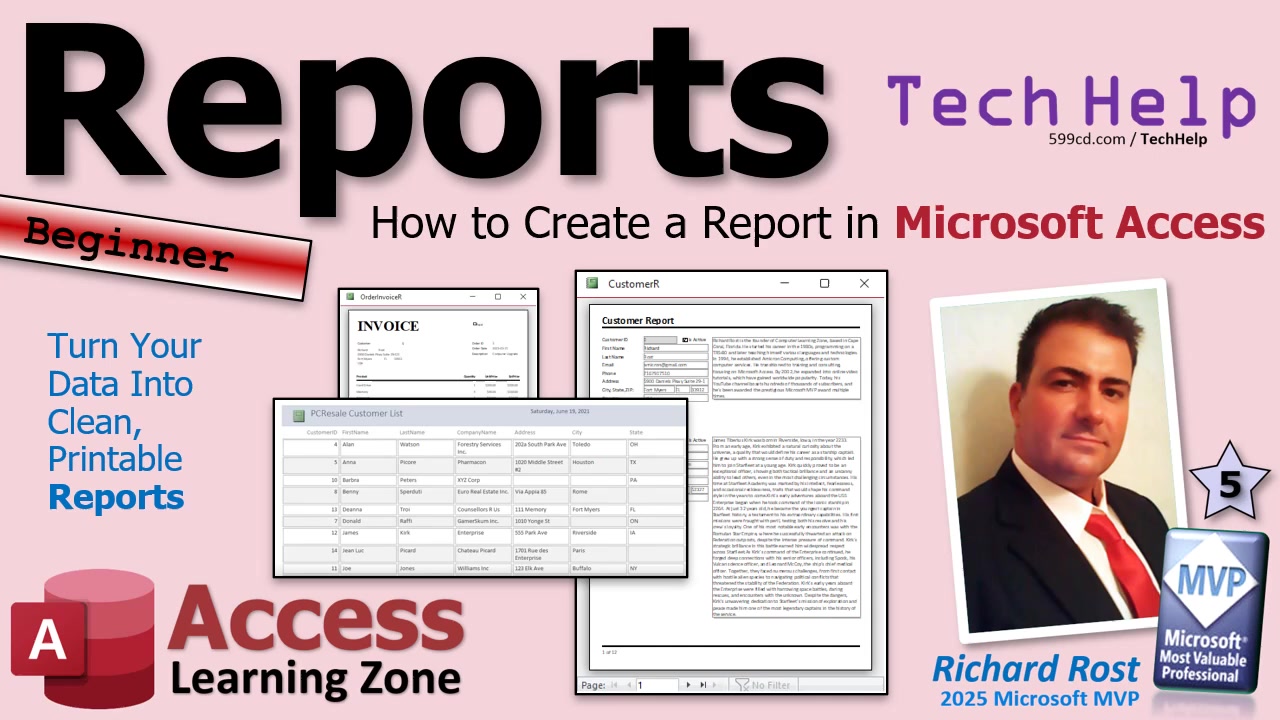
Let's face it: all those glorious tables and queries you've built in Access don't mean much until you can share that data with someone else - whether you want to print it, email it, or save it as a PDF. That's where reports come in. If you need to turn your Access data into something polished, neat, and printable, welcome to your first Access report tutorial. Let's dive in and learn how to create a Microsoft Access report from scratch - step by step, minus the tears and confusion!
A report in Access is built for one thing: to present your data cleanly and professionally to people who don't (or won't) poke around in your database. Confused about reports versus forms? You're not alone. Just remember: forms are for entering and viewing data on the screen, reports are for printing, exporting, or sharing that data. Think of forms as input and reports as output. Sure, you can print a form, but reports are designed for presentation - so you get something tidy to hand out, email, or archive.
To create a report, you'll need a data source. This can be a table or, better yet, a well-designed query. For our example, let's pull from a customer table containing basic info like Customer ID, first name, last name, and phone number. Now, Access tries to be helpful with one-click report creation: just select your table, click "Create," then hit "Report." Fast? Yes. Pretty? Not so much. I suggest skipping this and using the Report Wizard instead - it's actually a good wizard, not some evil database gremlin.
Open up the Report Wizard and pick your table or query. Choose the fields you want to appear in your report (for a simple customer report, maybe Customer ID, First Name, Last Name, Email, and Phone Number). Don't feel pressured to use every field - keep it clear and focused. Hit "Next" to move forward. The wizard will ask about grouping and sorting: for now, sort by last name and first name. Next, select your layout (I recommend "Columnar" for your first go). Give your report a title ("Customers" works just fine), preview it, and click "Finish." Voila! Access builds your report, lays out each customer neatly, and you're ready to make tweaks as needed.
You'll probably want to polish things up. Maybe you notice numbers are awkwardly right-aligned while text is flush left - so hop into Design View, select your fields (like Customer ID), and set their alignment to left for consistency. Save your changes before previewing again. Trust me, this little polish makes a world of visual difference when your report lands in someone else's hands.
Next, let's talk organization. I like naming conventions so I know immediately what I'm looking at. For reports, tack an "R" on the end of the name - so "CustomerR" or "CustomerPhoneListR." Makes navigation easier when your database gets crowded with forms, queries, and reports galore.
Ready for a more advanced trick? Let's group customers by state. Use the Report Wizard, select the Customer table, and add State, First Name, Last Name, and Phone Number fields. In the wizard, add a grouping on State, and sort by First Name and then Last Name. Try the "Stepped" layout - perfect for grouped data. Set your report title (like "CustomerPhoneListR"), finish up, and Access generates a neat, grouped report. Now, each state's customers are listed together. And if someone's state is blank? The report will leave that group empty, which is helpful to spot missing data at a glance.
Design View is your playground. You can move labels, adjust fonts, and tweak layout until your inner perfectionist is satisfied. The different report sections are worth getting to know: Detail is where your data goes, Group Header shows up when you group by something (like State), Page Header/Footer lines the top and bottom of each printed page, and Report Header/Footer appear once at the start and end of the report. If you want to know when a report's printed, look for the date and time in the footer. Want to label your columns for readability? Edit the labels up top - just don't mess with the actual data fields unless you want to see #Error everywhere.
Once your report looks good, printing or exporting is simple. Hit the print button to send it to your default printer, or change paper size, margins, and orientation to suit your needs. If you'd rather email a copy, use the "Export to PDF" option - name your file, click publish, and Access will create a PDF ready to share or archive. Skip "save export steps" unless you really need automation. Your PDF will open in your default viewer, ready for inspection (or, if you're like me, for endlessly checking alignment).
If you'd like to get deeper into report building, there's so much to explore: using queries for tailored reports, building mailing labels, crafting invoices, and learning to condense large data into summary formats for managers who don't want details - just answers. And if you're eager to convert a well-designed form into a matching report, there are tools and tips for that too. Trust me, you can get really creative with grouped totals, dynamic formats, and even inserting your own images and branding.
That's the basic recipe for building great-looking reports in Microsoft Access from scratch without getting lost in the weeds. If you want to see the full click-by-click walk-through, check out the embedded video above.
If you've ever used the count function in a Microsoft Access query and scratched your head at some truly baffling numbers, you're definitely not alone. Getting an accurate count out of Access requires a little more than just tossing the word "count" into your query grid and hoping for magic. Let's break down the right way to use the count function and, most importantly, why aggregate queries are your secret weapon for making count behave itself.
Let's jump right in. If you wander into Access and try to count things by simply labeling a field as "count: something" in your query, you're just setting up what's known as an alias. That means you're basically renaming that column for the sake of your query's output, but you're not actually counting anything at all. No calculators are being fired up behind the scenes here - Access just lets you pretend to count while secretly doing nothing. If you've followed other tutorials that let you down this rabbit hole, it's time to see how it's supposed to work.
The key thing you need to understand is that the count function is what's called an aggregate function. That means it works over a group of records, not individual rows. So, simply renaming a column "count" won't cut it. You need to set up an aggregate query, sometimes called a totals query, to get Access to actually tally up your data. If you've never heard of aggregate queries - don't panic, most people searching for "how to count in Access" haven't either. That's why we're tackling it head-on here.
Let's get practical. Suppose you have a customer table and you want to count, say, how many times each first name appears. If you drag FirstName down into a query and just run it, you see all the first names. But if you try to type count: FirstName into the field row and expect it to count - nope! All you've done is create an alias. Instead, what you want is an aggregate query. To turn your query into one, click the Totals button (it looks like a sigma, or a squiggly sideways 'M') on the toolbar. This adds a "Total:" row beneath each field.
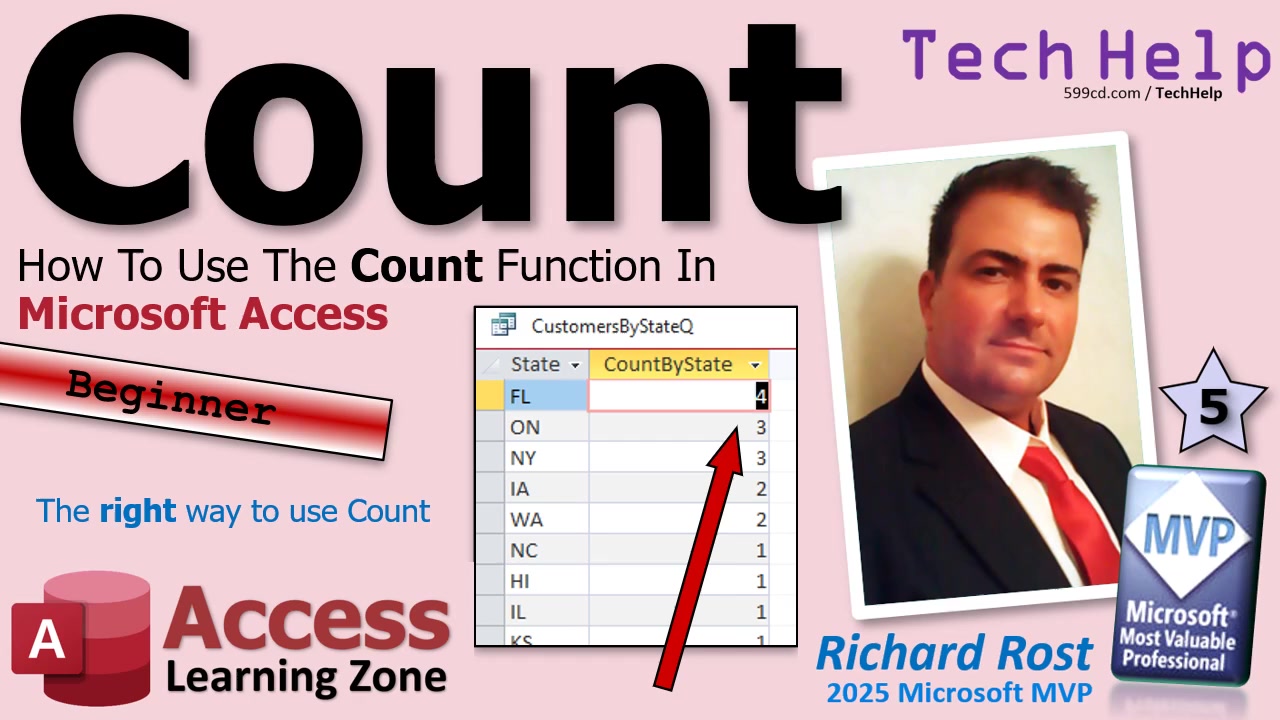
Now, next to your field in the Total row you'll see "Group By" by default - this means Access will group all identical values together. If you change the Total row from "Group By" to "Count" under a field like FirstName, Access will collapse identical values and count how many times each one appears. Suddenly, you'll see that Mr. appears three times (hello, Spock, Worf, and Data), while other names show once. If you use "state" instead and bring it down twice - once as "Group By," once as "Count" - you'll see how many customers are from each state. You can even sort this list to see your most popular states at the top.
If you want to count all records in a table, just use a field like CustomerID (which, as an AutoNumber, always contains data for each record). Change its Total row to Count, and Access gives you the total record count. If some fields are blank, like State, using Count on State shows you how many records actually have that info - missing values (nulls) are left out. This is a handy way to spot missing data.
Want to spruce up your results? Change the alias that Access gives your calculated column. Use Shift+F2 to zoom into a field property and rename the output to something more descriptive - like "Customers with states" - so your reports and forms look tidy and your users feel fancy.
But wait - there's more! Aggregate queries also work wonders with related tables. For example, bring in Customers and Orders, join them on CustomerID, and then set the query to group by CustomerID and count OrderID. Voila! You get a list of customers with the count of orders they've placed. You can now quickly spot your best customers (or at least the ones who shop a lot).
Now, here's a classic Access gotcha. If you set up this "count of orders" in your query as "C," and then try to add a calculated field (say, doubling that count with X = C * 2) within the same query, Access will throw up its hands and ask for a parameter value. That's because "C" hasn't been calculated yet when the query engine wants to multiply it. The proper fix: save your aggregate query and build a second query on top of it. In the second query, "C" is now available and you can build as many calculations on top as you want. This is a neat trick that solves about 90% of "Why won't Access let me do basic math?" headaches in aggregate queries.
If you want to really master aggregate queries - sum, average, max, min, and count - check out my other classes and videos for deeper dives. The main lesson today: count will only work correctly in an aggregate query. If you don't see that Totals row (the one with the squiggly sigma), you're not actually getting a count!
Hopefully you're now armed and ready to count just about anything you want in Access with confidence. If you want to see all the button clicks and design views in motion, check out the embedded video above for the full walk-through. Got more burning Access questions? Post a comment - I love a good database mystery!
Once again I've stumbled across another company that's trying to move people out of Access and framing it as an Access problem. This time it's a blog post from a company called GAPVelocity AI, with a headline that reads Why ChatGPT Can't Fix Your Access Database.
Right out of the gate, you can see where this is going. The article walks through a few familiar talking points. It says Access databases are locked away in binary formats that AI can't fully understand. It talks about how AI can get you maybe 70% of the way through a migration before hitting a wall. And it frames Access as a "monolithic" system that has to be broken apart and rebuilt into a modern web architecture.
Now, on the surface, some of that sounds reasonable. Yes, migrating any complex application to a completely different platform is hard. Yes, AI is not magic and it does not perfectly reconstruct entire systems from partial information. But here's the part they don't emphasize enough. That problem is not unique to Access. That is a universal truth for software migration, whether you're coming from VB6, Java, PowerBuilder, or anything else. What they're really describing is the difficulty of doing a full architectural rewrite, not some fatal flaw in Access itself.
So who are these guys? GAPVelocity AI is part of a larger consulting firm called Growth Acceleration Partners. Their business is modernization. In plain English, they get paid to take "legacy" systems and move them into modern web and cloud platforms like .NET and Blazor. They offer a mix of automated tools and consulting services to help companies convert applications, including Microsoft Access, into something else. That is their product. That is how they make money.
And once you understand that, the tone of the article makes a lot more sense. It's not a neutral, unbiased technical discussion. It's a sales pitch. The message is essentially: your Access system is old, AI can't save you, and you need a specialized tool and a consulting engagement to get out of it. That doesn't mean their tools are useless. For large enterprises that are required to move everything to the web, those kinds of services can absolutely have value. But it does mean you have to read their claims through the lens of their business model.
What gets lost in all of this is what Access actually is and what it does well. Access is not just a "database." It is a rapid application development environment that lets you build complete business solutions quickly and efficiently. It has supported split front-end and back-end architectures for decades. It works beautifully as a front end to SQL Server. And for small to mid-sized businesses, and even many enterprise scenarios, it remains one of the fastest and most cost-effective ways to build and maintain internal applications.
And then there's the AI angle. The idea that ChatGPT "can't work with Access" is simply not true in practice. I use it every day. It writes SQL, it helps build and debug VBA, and it can assist with UI changes when you export form and report objects to text. If you know how to use the tools, AI becomes an enhancement to Access development, not a replacement for it. The limitation isn't the platform. It's whether the developer understands how to leverage it.
At the end of the day, articles like this tend to follow a familiar pattern. They highlight real challenges, frame them as problems with the platform, and then position a paid solution as the only way forward. But Access isn't broken. It doesn't need to be "rescued." In many cases, it just needs to be used correctly, maintained properly, and augmented with modern tools where appropriate. That's what a lot of us have been doing successfully for years.
P.S. Here's a copy of what I left in the comments form on that page. We'll see if they actually publish it:
This article mixes a valid point about AI-assisted migration with a very outdated and misleading characterization of Microsoft Access itself. Access isn't "just an old database" or a relic that needs to be replaced. It's a rapid application development platform that combines a relational database engine, UI framework, and business logic in a way that is incredibly effective for small and mid-sized business applications, and even in large enterprise solutions it's a great front end to an SQL Server solution. For many use cases, that tight integration is a feature, not a flaw. Calling it "monolithic" ignores the fact that Access has supported split front-end/back-end architectures, SQL Server backends, and scalable multi-user deployments for decades.
It's also simply incorrect to suggest that AI tools like ChatGPT can't meaningfully work with Access. I use ChatGPT with Access databases every day. It excels at writing and troubleshooting SQL, generating and refining VBA, and even assisting with UI changes. Access objects like forms and reports can be exported to text, modified, and re-imported, which makes them perfectly accessible to AI-driven workflows. If someone isn't aware that this is possible, they are not up to date on how modern Access development is actually being done.
The real issue described here isn't that Access is obsolete, it's that fully automated, one-click migrations to completely different architectures are inherently complex. That would be true for any platform, not just Access. Of course AI can't perfectly reconstruct an entire application from partial context. That's not a limitation of Access, it's a limitation of the migration approach. The conclusion that you need a proprietary paid tool to "fix" this problem says more about the author's knowledge than the technology.
And it's worth noting that criticism like this almost always comes from companies trying to sell a replacement platform. That perspective tends to ignore what Access is actually good at: rapid development, tight integration, and cost-effective solutions that work. Access doesn't need to be replaced in many cases. It needs to be understood, used correctly, and, where appropriate, enhanced with modern tools like AI.
That's exactly what many of us are already doing successfully every day.
So, you double-click your Access database and your heart skips a beat - up comes "Unrecognized database format," or maybe, just for fun, "Microsoft Access has detected that the database is in an inconsistent state." There's nothing quite like watching your mission-critical file suddenly refuse to open, display a message about repairs, or just flat-out crash. It's panic time, right? Not so fast. Before you consider spending a fortune on questionable recovery tools or calling in the professionals, let's walk through recovery steps that you can - and should - try first, all without spending a dime.
Getting hit by Access database corruption is common, but it doesn't mean all hope is lost. Knowing the exact signs and how to react can save hours of heartache. Let's dig in, take things step-by-step, and see how many databases we can bring back from the edge - often with just the built-in features and a bit of know-how.
First things first: what does Access corruption actually look like? Sometimes it's obvious - a database that won't open with ominous error messages, bizarre #Name? results in forms, or even tables showing mangled data. Other times, it's subtle: maybe a specific form crashes, or only one object seems off. Remember, corruption isn't just about wholesale failure - the database could be limping along, wounded internally. With experience, you'll recognize that only part of the file might be bad; sometimes it's just one object, table, index, or even a single rotten record.
Usually, the root cause of corruption isn't even Access itself. More often than not, network problems, unreliable Wi-Fi, synchronization services (OneDrive, Dropbox, Google Drive - you know who you are!), or sudden shutdowns are at fault. If your Access file lives anywhere but a local, wired drive, you're playing with fire. So after you recover, make sure you solve the environmental culprit, or else you'll just keep patching a leaky ship.
Before you do anything, back up your database - just as it is, corruption and all. Work on a copy, never the only version you've got. And, if your database sits on a network share or in the cloud, get it onto your local drive before any attempt at repair. Disconnect ALL users, make sure you've got enough disk space, and let's get started.
The quickest recovery wins start with the basics. Launch Access itself (don't just double-click the file), then hold the Shift key while opening the database to bypass any startup code. If you can get in, head straight to "Compact and Repair." You'd be surprised how many times that does the trick. If it doesn't, try the command-line version of compact and repair. And if you still have access to the VBA editor, a Debug > Compile can sometimes remedy corruption in your VBA project, since compiled code can go sideways too.
For databases with corrupted VBA code, there's a little-known superpower: decompile. This strips out the compiled state, forcing Access to rebuild everything from scratch. Simply put, this can fix situations where the source code is fine but the compiled layer is mucked up. After decompiling, always do a full compile in the VBA editor, fix any errors, and compact again before moving forward.
If all else fails, try this: create a new blank database and import all objects from your troubled file. Often, the main file is damaged but most of the objects are recoverable. If importing everything fails, do it one object type or even one object at a time. Time-consuming? Sometimes. But isolating that one rogue form, report, or module can make the difference. For especially stubborn cases, it might be faster to simply rebuild a broken object from scratch, rather than battle with it.
Let's say only your tables are still accessible. At this point, focus on rescuing your data: link to the broken tables from a new database, and copy the records out via queries or manual methods. If the process bombs out mid-way, narrow your attempt - import specific fields or groups of records, identifying and skipping the damaged chunk. Losing one record beats losing an entire table - think surgical extraction, not total amputation.
Sometimes the problem lies not in the data, but with indexes and relationships. Try removing these first if your tables won't transfer. Once your data is safe in a clean environment, rebuild your indexes and relationships from scratch. It's an extra step, but it beats total data loss.
Still can't copy the data directly? Get creative. Try exporting as Excel, CSV, or even to older MDB formats. Then import or link from scratch, or see if another version of Access can open the file. Oddly, importing everything into an MDB and re-converting to ACCDB sometimes rebuilds the file's internal metadata, breathing new life into your old data.
For the DIY crowd, if the graphical interface won't cooperate, you can use VBA - and database object libraries like DAO - to loop through tables, copying good records field by field and skipping over corrupt or problematic entries. This technique comes in handy when attachments, images, or long text fields are at the heart of your corruption woes.
And a quick side note: keep an eye on file size. Access has a two-gigabyte limit, but problems tend to pop up well before you hit that cap. If your backend is growing close to a gig, think about splitting it into multiple files. Trust me, wrangling a giant Access file is a recipe for headaches.
If you do need to look at recovery software, here's what you should know. Most third-party tools aren't magical - they'll scan your corrupt file, see what's salvageable, and let you export the results to a fresh database. Sometimes you'll get everything; sometimes only fragments; sometimes you're better off with your own hands-on approach. As for full-service professional recovery, there are trusted folks in the Access world, like Wayne Phillips at EverythingAccess.com, known for tackling the most stubborn cases.
Of course, all of this is just treatment. Prevention is way better than cure. Split your databases, keep each workstation's front end local, don't house Access files in sync folders, and absolutely steer clear of running Access over Wi-Fi. Keep Office and Windows updated, don't get lazy about backups (seriously, automate them daily and keep multiple generations), and always compact/rebuild your files regularly. Oh, and disable Name AutoCorrect for big, long-lived databases - it may sound helpful, but it can make things messier and even contribute to corruption over time.
Bottom line? Corruption in Access is inevitable if you use it long enough, but a calm approach, a disciplined recovery sequence, and good preventive habits will save your bacon almost every time. Most importantly, don't panic - never work on your only copy, and don't buy anything until you exhaust what Access gives you.
For more details - especially if you want step-by-step on things like the decompile command or using DAO code - watch the video above.
Ever noticed those tiny colored triangles on the corner of a cell in your Excel sheet and wondered, "What exactly does that little thing mean?" Maybe you've hovered over the cell and a message box popped up - and then started wondering if it's a comment, a note, or whether Microsoft might just be messing with you on purpose. Let's demystify the whole thing right now, so you know what you're looking at and can decide which one to use (and avoid the Excel Bermuda Triangle of confusion).
First thing's first: Excel has two very similar - but also annoyingly different - features known as notes and comments. Understanding which is which can save you a ton of confusion, especially when collaborating with others or leaving reminders for yourself. Microsoft made things a little more complicated a few years ago by changing the names (because why not?), so let's clear up how each works, what they're for, and when to use which.
Back in Excel's glory days (or, as I like to call them, the "if it ain't broke, don't fix it" days), the only thing you needed to know were comments. These were simple pop-up text boxes - think sticky notes for your spreadsheet - that you'd attach to a cell. Hover over the cell, see the message, remember why you ever made a weird calculation there in the first place. Perfect for reminders, quick explanations, or "future-me, don't mess this up again" messages.
But of course, Microsoft decided to modernize things. Suddenly, old Comments became Notes, and a whole new threaded conversation feature was introduced as "Comments." Now, the old comments aren't comments - they're notes. And the new comments are, well, comments. Clear as mud? You're not alone if you're confused.
Here's the easy rule: Notes are the old-school yellow pop-up boxes - great for attaching quick reference information to a cell. There's no conversation, no replying, just a simple message. Use a note when you want a sticky note on your spreadsheet, be it a quick phone call detail, an explanation, or a cryptic memo that makes sense only to you and no one else ever again.
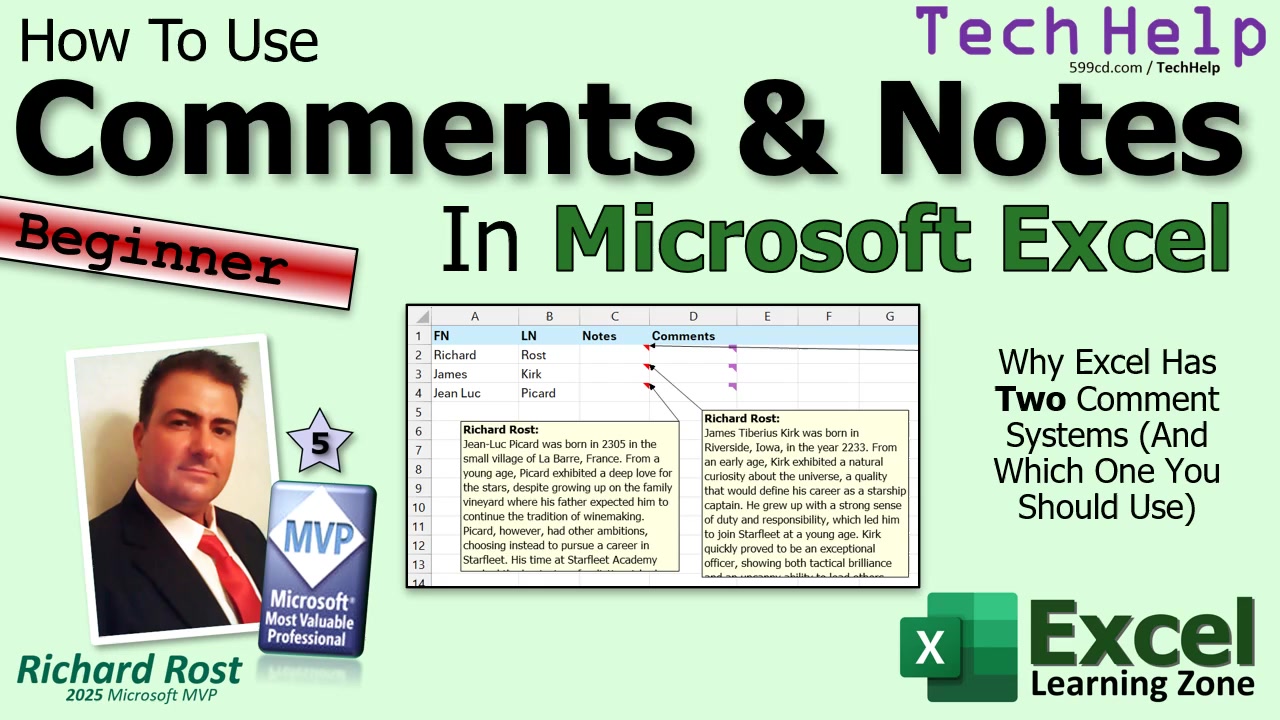
Comments, on the other hand, are built for collaboration. You'll see them as purple markers in the cell corner. You start a comment, and others can join the party by replying - think of it like a mini chat attached to your data. You can even @mention colleagues to grab their attention (assuming you're working online in a shared workbook with all the Microsoft 365 bells and whistles turned on). It's perfect if you're working with a team and want to clarify questions, flag issues, or enjoy the rare thrill of a cell-based debate.
Here's a quick visual cheat: a red marker means there's a note; a purple marker means there's a comment. Hover over the cell, and you'll see which flavor of extra info you've got.
To add a note, right-click the cell and choose New Note from the bottom of the context menu. Excel will pop up the note box, usually with your name at the top (you can erase that and replace it with something wittier if you'd like). Type your message, use bold formatting if needed, paste some text, and you're done - hovering over the cell will bring it up as a quick tip.
If you want to add a comment instead, right-click and pick New Comment. Enter your thoughts (or sarcastic digs at your coworkers), and if you're in a collaborative environment, others can reply. Use Control+Enter to post comments or replies. One neat feature here: you can mark comments as resolved once the discussion is over, making it easy to keep track of what's been handled and what still needs work. Great if you like using your comments as a kind of to-do list.
Important tip: you can only have one per cell - either a note or a comment, not both. If a cell already contains a note, you can't slap a comment on top. The menus will help you avoid this, but it's worth remembering before you go wild with your annotations.
A couple more quirks: notes and comments generally don't print alongside your data. They're meant as on-screen helpers, not as part of the official worksheet contents - so don't store anything vital in them unless you know you won't forget about it. And while notes and comments look similar, their underlying features (and behavior when converting between the two) are not always identical. If you ever decide to convert a batch of notes to comments (using the Convert to Comments option on the Notes menu), be careful and always back up your file first.
The Review tab up top gives you even more management tools: add comments or notes, jump to the previous/next one, show all open notes at once, or open the comments pane for a birds-eye view of all ongoing conversations. Resolved comments are especially handy for tracking progress through a review or cross-checking data with the rest of your team.
So when should you use notes, and when comments? Use notes for quick, personal, or reference messages - reminders, explanations, anything that's just for your context. Use comments when you're collaborating with others, need ongoing discussions, or want to take advantage of reply and resolve features. Personally, I stick with notes for myself (old habits die hard), but comments are invaluable in shared workbooks with lots of cooks in the kitchen.
One gotcha: it's not straightforward to export all your notes or comment threads from Excel, especially if you've got thousands of rows. If you're ever faced with a monster spreadsheet and want to move all those notes to, say, a database, it might take some special techniques (covered in more detail for my Silver Members in the extended video).
In short: just remember - old comments are now "notes," new "comments" are conversation threads. Notes = reference; comments = collaboration. And yes, Microsoft could have made this easier, but here we are.
For all the step-by-step visuals, and if you want the nitty-gritty walk-through (plus the bonus for members), check out the video embedded above.
Well, today marks 2 months since I started my experiment of killing MSACCESS.EXE every couple days instead of having to reboot Windows once a week. I'm pretty confident at this point that the problem is a memory leak inside Access itself.
P.S. And I'm not saying that Access is completely to blame. It could be something in my own code. This is a database that I've been building and upgrading and modifying since 2002 and there's lots of spaghetti code in it. I'm sure there are object variables that I set and didn't forget. So I'm not saying that it's Access' fault. The problem could be mine, but at least I've come up with a good solution.
Hunting down every questionable bit of code in this database would take weeks, if not months. Plus as I always say, my database is a bit like Scotty's engine room. It normally hums along just fine but in some places I've got wires running around like Christmas tree lights. I'm like the mechanic that drives an old beat-up car because he's constantly tinkering with it. Sure I teach you guys how to build good databases but me from 24 years ago is nowhere near as knowledgeable as me from today.
And I ain't got the time to clean up his mess LOL.
If you've ever tried to drop a new line into a rich text box with VBA, only to have your carefully crafted message stubbornly display as a single continuous line, you're not alone. This little annoyance - and several other quirky Microsoft Access tips - are what we're diving into today. Whether you're confused about barcode scanning data, the elusive two-gigabyte database cap, or when to use refresh versus repaint, let's settle the score and keep your Access projects running smoothly.
Let's get straight to the problem that's tripped up many Access users: why do those VB new line codes (like CHR(10), CHR(13), or VBCRLF) work perfectly in plain text boxes, but not in rich text? If you're inserting text into a rich text (formatted) control, you probably expect line breaks where you put them. Instead, your masterpiece looks like a run-on sentence. This happens because, while plain text understands a carriage return or line feed, rich text expects HTML-style formatting. In other words, Access is really expecting a "<br>" tag instead of the old-school new line codes.
So here's what you need to remember: if you want your rich text box to respect line breaks, construct your string with "<br>" where you want those breaks to appear. For example, instead of sending:
(For the VBA code needed, check out the video above!)
access status box = "Hi" & [VB New Line] & "Richard" simply won't cut it. In rich text, swap in "Hi<br>Richard" and your text will finally display the way you want. Bonus - you can even toss in a little color or bold with other HTML tags, since Access supports a decent subset of HTML formatting. Want to get fancier? Time to brush up on your basics; I've got a free HTML 101 class on my website if you're curious (fair warning: the audio is vintage 2002, but the HTML info is still solid!).
This lesson about barcodes and new line characters is just one real-world scenario. If you're scanning barcodes into Access (like driver's licenses), don't try to parse information by fixed character positions. Standards change and data fields may shift. Instead, always search for the field identifiers within the scanned data. That way, you can reliably extract data - like birth dates - no matter what state or barcode format you're dealing with. For specifics and examples, you'll want to check the video or relevant forum threads linked on my site; my community has some sharp folks who've hashed out great solutions there.
While we're on little-known tricks, here's a gem for navigating your forms: the SelTop property. Instead of always using DoCmd.GoToRecord (those commas can get unwieldy), SelTop lets you directly set which row sits at the top of your form or datasheet view. Pair it with SelHeight to select multiple rows at once. It's a bit of an old-school feature, but every tool has its place, and sometimes the classics still deliver.
If you're wrestling with modern chart controls in Access, you've likely noticed that keeping month names sorted in calendar order (rather than alphabetically) can be a challenge. Including a numeric month field in your data source keeps them in line - but unfortunately, you can't easily hide that number from your chart labels. Workarounds involve sometimes messy data reshaping, or you can set up your data and use queries to sort months by number while only displaying the names. But let's be honest: for serious charting, exporting to Excel still offers a lot more power and flexibility than Access' native tools.
If your use case is pushing the two-gigabyte database file size, here's the real deal: the limit applies to each .accdb file, not your whole application. You can easily split data into multiple backend files - customers, orders, and contacts, for example - each getting their own allotted space. Hitting the cap almost always happens when inserting huge binary objects or attachments (think images or music), not from regular data. Don't jam your database full of MP3s; keep binary blobs in the file system where they belong!
On the topic of refreshing and repainting: hitting Me.Refresh in VBA is great for reloading data from the table, but won't update how your form looks (like special effects or border changes). For that, Me.Repaint is the go-to. Always place your appearance-changing code in the right form event (usually AfterUpdate or OnCurrent), then call Repaint to force Access to redraw those updates instantly. If you try to force data and display changes with the same command, you'll be left wondering why your form is lagging behind your expectations.
Another flexible tip: list boxes versus subforms for filtering records. Subforms are perfect for letting users manipulate and view related data, but don't overlook list boxes - especially with Multi-Select enabled - for letting your users pick multiple filter criteria at once. This does require a little VBA magic; you'll need to loop through selections and dynamically filter your data, but I cover exactly how to do that in some of my advanced lessons.
If you're still running a 32-bit version of Access because you depend on an old ActiveX control (maybe for serial devices or barcode input), I feel your pain. Sometimes legacy equipment or software just won't make the jump to 64-bit, and that's OK for a transition period. Eventually, it's best to switch to modern alternatives, but in the meantime, back up everything religiously and keep good notes for your future self - or the next developer who inherits your system.
Finally, let's not forget many-to-many relationships, filtering strategies, and other data design questions. In practice, the true "magic" of database design happens in your queries and forms. While showing a concept in a quick video, I'll often skip the deep-dive on building all the queries and relationships - that's where my full courses come in. I prefer building logic right in queries or front-end code, enforcing only the system relationships that are truly necessary for data integrity. Sometimes giving your design a little breathing room (instead of rigid system relationships) pays off, especially for complex or evolving projects.
We covered a lot today, but here are the big takeaways: use "<br>" tags for line breaks in rich text; remember SelTop and SelHeight for fast record navigation in forms; modern charts might need numeric keys to sort months properly; use repaint, not refresh, to immediately update visual effects; split backend files to beat the 2GB limit; and don't be afraid of using some light VBA to give your users richer interaction with their data.
There's always more to learn, and if you want the step-by-step walk-through (or the nitty-gritty VBA code), just watch the video embedded above. If you have a question or a trick for Access you'd like to see covered in future Quick Queries, post a comment below. Don't forget to subscribe for more free tips, and check out my site for a deeper dive on any of these topics. See you next time - and don't forget to enjoy your weekend!
If you've ever hit the wall with Microsoft Access - maybe your database slowed to a crawl, multi-user issues cropped up, or security became a headache - then it's time to look at stepping up your game with SQL Server. As your databases grow and your user base expands, using SQL Server as a backend can eliminate a boatload of headaches and future-proof your Access applications. Let's dig into how SQL Server and Access make a powerful team - and why you don't have to throw out everything you know and love about Access.
Here's the deal: Access might be an awesome database tool, but it wasn't built to handle dozens of people pounding on the same .ACCDB file at once. Queries get sluggish, you run into locking problems, and reports take ages to crunch through mountains of data. That's where SQL Server comes in. With SQL Server running on a dedicated database server, all the heavy lifting and data crunching gets done on the server itself. Access becomes lighter, faster, and your network traffic drops because you're only sending results, not dragging every row back and forth over a wire. Sounds pretty good, right?
Another huge win is security. When you keep your Access backend on a shared folder, anyone with network access could - in theory - copy your data, delete it, or accidentally mangle something. With SQL Server, you've got much more granular control: user logins, permissions, and built-in tools to help protect sensitive information. Plus, data corruption is a whole lot less likely on a real database server.
Here's an important thing to understand: SQL Server isn't a replacement for Access. It's not going to take over your forms, reports, or all that user interface stuff you've built. SQL Server is just the engine under the hood. Access stays your front end, handling everything your users see and do. If you've spent years building and tweaking your Access projects, you don't have to throw them away - you're just adding some rocket fuel underneath.
I designed this course (and this article) specifically for folks who already know their way around Access. You should already be comfortable with tables, queries, forms, and reports, and ideally you'll understand what a split database is - where the Access front end lives on each user's machine and the backend hides on a shared network location. If you're shaky on those concepts, you might want to brush up before diving in. Some basic networking know-how and a working knowledge of SQL (at least enough to recognize a SELECT query) will make things a lot easier as well.
In most office settings, SQL Server runs on one machine somewhere in the building, and everyone connects to it over their local network. I'm not talking about the cloud here, just your average business down the hall or across the cubicles. You'll want to be comfortable with networking basics and file sharing concepts before you go to hook things up.
The best part? Nearly all the tools we're going to use are free. Microsoft SQL Server Express and the SQL Server Management Studio (SSMS) are both free to download and install. Of course, you'll need your own copy of Microsoft Access - ideally from a Microsoft 365 subscription (so it auto-updates), but the latest standalone versions like Access 2024 will also do the trick. As long as you've got something newer than Access 2007, you're in good shape. Seriously, if you're still running Access 2003… it's time, my friend. I loved it too, but let it go.
Here's a quick roadmap of what you'll learn if you follow along step-by-step:
- You'll start by grasping the big-picture concept of combining Access with SQL Server, and why that's a smarter move than you might think.
- Next up, we'll walk through downloading and installing SQL Server Express and SSMS - no fancy servers required.
- You'll get oriented to the SQL Server environment, learn its lingo (servers, instances, databases, oh my), and see your first server-side database.
- We'll build real tables, set up keys and data types (including some data-type tips specifically for you Access users), and import sample data.
- You'll figure out how to get Access and SQL Server talking over your network, including the gotchas with authentication and the differences between local and Microsoft accounts.
- By the end, you'll link Access to SQL Server using ODBC, build server-side queries (views), and sidestep the usual syntax pitfalls when moving from Access SQL to T-SQL.
- We'll wrap things up with a Q&A on common real-world issues like connection strings, security, performance, and clearing up any lingering Access-vs-SQL confusion.
Throughout, I'll show you how SQL Server boosts the security, stability, and speed of your database without losing the Access interface you've carefully crafted for your users.
By the time you finish, you'll understand how SQL Server fits into the world of Access development, how to set it up, how to build and manage tables and queries on the server, and - most importantly - how to connect your Access database to a SQL Server backend.
Ready to bring your Access skills to the next level? Dive into lesson one (watch the video above if you want the full walkthrough), and let's get started!
I had one of those customer conversations today that reminded me why my no-phone-calls rule exists. Nice guy. Perfectly polite at first. He had some questions about classes, which I'm always happy to help with. That's part of the job. If you need to know which course, lesson, or video covers the thing you want to learn, I'll absolutely point you in the right direction. But then the conversation started drifting toward, "I've got some other questions about Access. Can I just call you? It'll only take three minutes."
No, sir. It won't only take three minutes. I know better.
There's no such thing as a three-minute phone call. That creature is as mythical as a stable Windows update, a perfect Access database on the first try, or a redshirt making it through the whole episode. I know this because I've spent years (decades!) in sales and consulting, and "just a quick call" is one of the oldest traps in the quadrant. Three minutes turns into ten. Ten turns into thirty. Then somehow we're discussing your database design, your printer, your nephew's laptop, and whether Mercury's in retrograde.
The bigger issue is that phone calls are wildly inefficient for the kind of work I do. Email gives me a written record. Forums let other people learn from the answer too. A forum post about a technical problem can help hundreds of students later. A phone call helps one person once, and then it's gone, like a probe launched into a black hole. If I spent my day answering technical questions by phone, I'd never record new lessons, or TechHelp videos, or update courses, or get anything done beyond saying, "Uh huh... right... OK... hang on..." for eight hours.
There's also the simple fact that I just don't like talking on the phone. Never have. Never will. I'm an internet business. I like written communication. I like being able to think before I reply. I like having specs in black and white so there's no later debate over who said what. "No, sir, you didn't say you wanted the button to make that Star Trek door opening whoosh sound when clicked." With email, I can go back and check. With a phone call, it turns into one more courtroom drama in the grand tradition of Starfleet bureaucracy.
And to be clear, this isn't me being rude or standoffish. It's me protecting the one resource every solo business owner eventually learns to guard with phasers set to maximum: time. When you're running a one-man operation, you can't let every incoming request turn into a live consultation. You've got to set boundaries or the day disappears. I'd rather spend that time making something useful for everybody than repeating the same answer twenty times on the phone to twenty different people.
So yes, sometimes people get frustrated when I say no. Today one of them did, and he chose not to buy anything from me because I wouldn't get on the phone. That's his right. No hard feelings. But my rule is still my rule. If you need customer service, email me. If you've got a technical question, post it in the forums. If you hate typing, use voice dictation and send the message that way. There are plenty of options in this century that don't involve a telephone.
The bottom line is simple: I'm not avoiding people. I'm avoiding inefficiency. I'd rather teach ten thousand people with one lesson than help one person with one phone call. That's how this ship runs. And if that means phone calls stay at the bottom of my contact list, somewhere below fax, smoke signals, and Starfleet subspace radio, so be it.
Live long and prosper... and please, send an email. RR
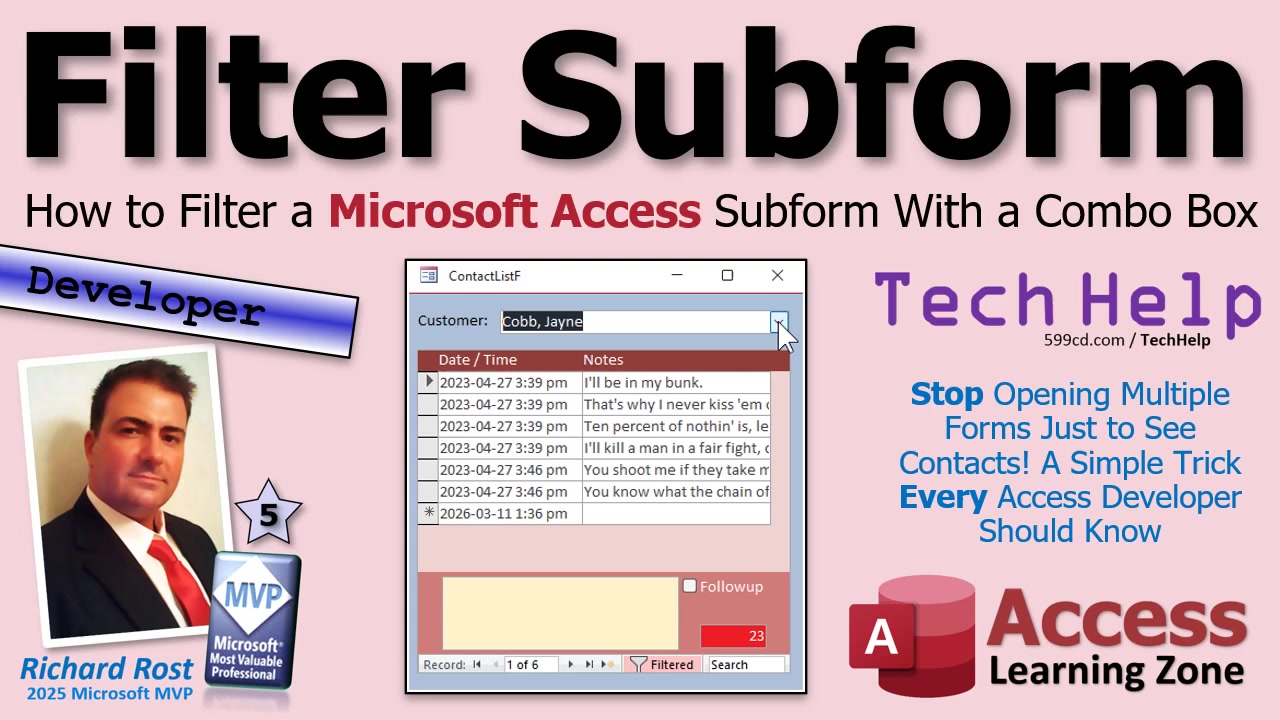
Are you tired of hopping around to different forms in your database just to see when you last contacted a customer? If it seems like you're jumping through digital hoops just to get to your customer's history, let's make your life easier. Today, I'm going to show you how to streamline your workflow by setting up a form where you can instantly filter and view one customer's contact history - just by selecting their name from a combo box. Simple, fast, and no more wild goose chases.
The goal here is to give you one easy-to-use form. You pick a customer from a dropdown, and right below, you instantly see only that customer's contacts. This trick will cut out all the back-and-forth between forms, letting you focus on your customers, not your screen. And, yes, it's going to save you a ton of clicks and time - especially handy if you're always switching between different contacts all day long.
Let's dive in. For this demo, I'm using the TechHelp free template database, which you can grab from my website if you want to follow along. Normally, finding a customer's contacts might involve opening the customer form, searching for your person, and then launching the contacts form for their history. Functional, but far from efficient.
So, what's the trick? We're going to build what's called an "unbound parent form." Think of it as a blank canvas - with no inherent data - where you'll drop in a combo box linked to your customer table. You'll also drop in a subform that displays your contacts. When you pick a customer from the combo box, the subform magically filters to just their records.
To make this happen, you need a combo box populated with your customers. The best approach is to use a query that combines first and last names, so your dropdown list looks neat and is easy to search. You can use a concatenated field, like "LastName, FirstName," as the display value in your combo box. Go wild - make sure your combo box lists your customers alphabetically for quick access.
Once you've set up your combo box and subform, you need a way to connect them. There are two ways to approach this: a VBA-free method using "Link Master Fields" and "Link Child Fields" properties, and a slightly more advanced method with a tiny bit of VBA code. (Don't worry - it's literally two lines!)
If you're a non-programmer or just want something super quick: set the subform's Link Master Fields to reference your combo box (for example, "CustomerCombo") and Link Child Fields to the "CustomerID" in your contact records. With this setup, when you pick a customer, the subform filters accordingly. The drawback? The form will appear blank when first opened, since there's no customer selected yet. Also, you can't easily display all contacts at once if you need to switch between filtered and unfiltered views.
For more flexibility, a few lines of VBA comes to the rescue. Here's what you do: Head to your combo box's properties and tap into the "After Update" event. When that event fires (meaning whenever you pick a new customer), you set the subform's filter so it shows only contacts matching that selected customer. This lets you see everyone by default, then narrow it down instantly based on your choice. Want to review all contacts across all customers? Just clear the combo box filter. This VBA method is neat, professional, and gives you control for making future tweaks.
Just remember, naming matters! Make sure your subform control and your combo box have clear, unique names. Sometimes Access uses the form's caption in place of its actual name, which can break your code if you're not paying attention. Always double-check you're referencing the correct objects in your event properties.
As with most things in Access, there are always extra details to smooth out. For example, you'll want to handle scenarios where the user clears the combo box, or when adding a new contact while filtered - it's possible to end up with new records awkwardly unassociated with a customer. These special considerations, including tricks on how to decide where default values should come from, are covered in more detail for members in my extended cut video.
Want to take your database navigation to the next level? Consider diving into search and sorting videos as well as more advanced topics, like multi-select list boxes if you ever want to filter for multiple customers at once. The world of Access is big, and once you've mastered filtering with combo boxes and subforms, you'll wonder how you ever lived without it.
Remember, for a complete look at the actual VBA code and an in-depth walkthrough, check out the video embedded above. Whether you stick with the no-code method or tiptoe into VBA, this is a huge time-saver that adds real usability to your Access applications.
Let's face it: when you start sharing Microsoft Access projects with others (or just get nosy about the "backend stuff"), it's only a matter of time before you wonder about SQL Server, authentication, or which combo box is about to make your hair go gray. In this lesson, I'm diving into some of the most common (and quirky) questions that have rolled in from students as we've progressed through Beginner Level One. Whether you're stuck on connection strings, confused over which edition of SQL Server to install, or just want to know if your Access forms are ever going to run faster, you'll find some solid answers here.
If you've been following along, you know there's no shortage of SQL Server editions and possible ways to connect Access to it. Sometimes, just picking Express or Developer feels like a pop quiz from Microsoft. But don't sweat it. We'll get right into why certain authentication methods are safer (and easier), how to keep your forms from loading like it's 1999, and a whole lot more. We'll break down real-world mistakes, practical tips, and a few myths along the way.
Let's kick things off with one of the most popular questions that's come up: passwords and authentication. Many folks wonder, "If SQL Server authentication isn't secure, why not use code to prompt for the password at runtime and never store it?" And yes, with some crafty VBA (see the video for code details), that's possible - you can keep credentials out of your database file entirely. The catch? This approach demands some real programming skills and custom login forms, so it's not what I recommend for beginners just getting their feet wet. For now, sticking with Windows authentication is simple, clean, and keeps your users' passwords where they belong - in Windows, not scattered inside your Access file.
Next up, let's clear the air on the jungle of SQL Server editions. The main differences boil down to cost, features, and what you actually need. SQL Server Express is free, easy to install, and perfect for learning or small office applications (think: up to 10GB per database, way more than Access could ever comfortably handle). Developer Edition is also free but is meant for, you guessed it, development - not production. Then you've got Standard and Enterprise for deep-pocketed corporations, and Azure SQL if you'd rather let Microsoft's cloud do your heavy lifting. For anyone following this course, Express is more than enough; you'll rarely hit its limits if you're comfortable with what Access already gives you.
I also get questions about the "Customer Since" field defaulting to DateTime2(7). That's just SQL Server flexing its accuracy muscles - seven decimals of seconds when, realistically, most of us just need a date. If you're only collecting a date, using the DATE type is fine. But keep in mind: Access naturally works with date and time together, and this sometimes leads to confusion, especially with filtering queries using BETWEEN. Remember, BETWEEN on a DateTime field is literal: it looks at both date and time, so if you want records through the end of a day, you need to specify the cutoff (see my video for more details on that gotcha).
What about running SQL Server on Linux or a NAS? Technically possible, but for most Access developers, Windows is where you're going to get the smoothest ride and best support. SQL Server is fundamentally a Windows service - don't expect to run it from a network drive or dump it onto a NAS. For small setups, even an older PC or laptop does fine as a dedicated SQL Server box. You don't need anything fancy, and most importantly... don't bother trying to future-proof. Technology moves fast and "future proof" just means "trust me, you'll upgrade this in a couple years anyway."
I often get asked why you'd use Access at all if SQL Server can handle your data. Simple: SQL Server is a backend. It stores, safeguards, and processes the data. It doesn't build front-end forms or reports or let your users click shiny buttons. That's where Access shines as your front end, handling all the user interface work while SQL Server does the heavy lifting in the background.
If you're a solo developer or just testing things out, Express or Developer Edition of SQL Server is plenty. No need to pay for the big enterprise cuts until you're sure you need those options. For eight or fewer users, even a modest, off-the-shelf PC with a solid state drive can act as the SQL Server host. 16GB of RAM, a decent CPU, that's it. SQL Server doesn't chew up nearly as many resources as you might think for these use cases.
What about SSD wear thanks to all those transaction logs? You might have heard that SQL Server constantly writing logs will burn out your SSD. Don't lose sleep over it - modern SSDs handle this level of activity just fine. And you should never turn off transaction logging, as it's critical for data integrity and recovery. Just remember to periodically back up and occasionally maintain those log files.
One of the most common frustrations when linking Access to SQL Server: slow-loading forms packed with combo boxes. Each combo box runs its own query to fill up the dropdown, and when those hit SQL Server across a network, things can get sluggish. The fix: keep those combo box row sources tight, only include what you need, and, for complex lists, implement cascading combos so the form loads small sets of data at a time instead of everything at once. (Check out my video on optimizing combo boxes for more on this - you'll see a night-and-day difference in performance.)
Filtering SQL Server data from Access forms is not only possible, it's recommended! Instead of pulling every record into Access and then narrowing it down, pass your filter criteria directly to SQL Server via parameterized queries or pass-throughs. This way, all the chewing on data happens on the server, and you're only moving what you need over the network.
Wondering about moving 20+ Access tables into SQL Server? No, you don't need to do it by hand one painful table at a time. Tools like SQL Server Migration Assistant (SSMA) for Access, and the built-in Import and Export Wizard in SSMS, can take care of most of the grunt work. It's worth building a table or two by hand just to learn, but those tools exist for real migrations.
On permissions: should you set them for each user or use groups? Use groups whenever possible - assign a set of permissions to a group (like Accounting or Sales) and add or remove users as needed. It keeps things so much simpler, especially in bigger environments.
If you get stuck or something seems wonky - like Access demanding "unique record identifiers" during table linking - don't just click through. Think for a second about which field is really the unique identifier. Sometimes, a mistake here just means a more complex query behind the scenes (nothing explodes), but it's better to be precise.
And about SQL dialects: SQL Server's flavor is much closer to the global ANSI SQL standard than Access's. So as you move more into SQL Server, you'll notice your SQL looks less... quirky. Less jet/ACE "creative license," more standard-compliant statements.
Finally, don't overthink upgrading to SQL Server if you're a true single user, working on one PC. Access alone is perfectly fine as long as you can fit your data and performance needs. The benefits of SQL Server - improved security, networking, and multi-user handling - really become apparent when your database needs grow or when multiple machines need shared access.
As always, I appreciate everyone who's sent in questions and feedback; it helps me tailor the lessons to what's actually tripping people up. If you want to dig into any of these topics (especially the code-related ones), check out the video above for real-world demos, extra tips, and my usual "live bug-finding" style. Keep those questions coming and keep learning!
Ever tried to assign a single financial transaction to multiple categories, only to realize your database design simply can't handle it? If so, you're certainly not alone. This is one of those classic stumbling blocks in database design that nearly everyone faces at some point - especially if you're using Access for any real-world financial tracking. Let's dig into why this problem arises, why just adding more category fields isn't the answer, and how the right table design can save your sanity.
Imagine this: you've built your first check register table in Access. You've got a spot for the date, the description of the transaction, the amount… and a category field. Feels straightforward, right? Rent, office supplies, utilities - they each get a neat little category ID. But then reality comes knocking. Suddenly, you've got a utility bill that's partly personal, partly business, or a mortgage payment that covers principal, interest, taxes, and insurance all in one chunk. Now that single category field in your transaction table feels like it's fighting a losing battle.
Here's the rub: real transactions don't play by the one-category-per-record rule. Sure, if your needs are super basic, a single category field works. But in the real world (especially if you're tracking stuff for your business or if you want to categorize your expenses accurately for taxes), transactions often need to be split into multiple pieces, each assigned to a different category. Classic accounting software like QuickBooks handles this, but many homegrown Access databases hit a wall.
If you try to sidestep the problem by sprinkling your table with Category1, Category2, Category3 fields, you'll quickly run into a maintenance nightmare. Every time you need "just one more" split, you end up redesigning your table - and that gets old fast. Plus, reporting on this tangled mess is virtually impossible.
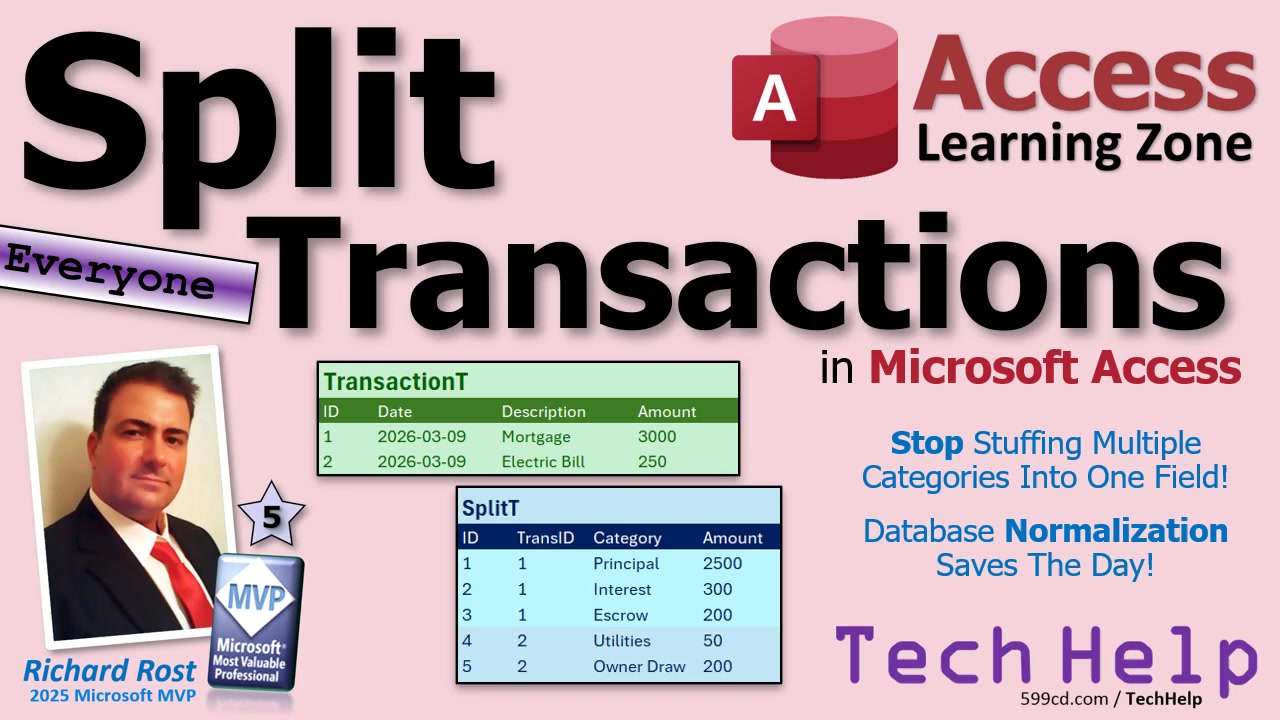
So what's the secret? It's all about using a split table. Think of your main transaction table as the place where every real-world payment or deposit is recorded: date, description, amount, all the basics. Then, behind the scenes, you set up a related splits table - kind of like the order details in a sales database. Each split record links back to its parent transaction and holds its own category and amount.
For example, a $3,000 mortgage payment in your transactions table can hook into multiple splits: one for principal, one for interest, a couple more for taxes and insurance. Each split gets a category and the piece of the payment that goes with it. Or maybe your electric bill needs to be divided so a percentage is allocated as a business expense and the rest is personal. It's the same deal - one payment, any number of splits, each with its own category. No more awkward extra fields, no more redesigns every time something changes.
All you need is a simple one-to-many relationship between your transactions and splits. The main transaction table holds the source information, and the splits table breaks down each transaction as needed. When you build your forms, you can even use a subform to show and edit the splits right on the transaction screen. Lock down editing if you want to keep things simple, and offer a pop-up "Edit Splits" button for power users who want to fine-tune where the money goes.
This design has an extra bonus: your reporting gets much easier. When it's tax time or you want to see exactly what you've spent on office supplies versus owner draws, your reports just run on the splits table. You get rock-solid, accurate breakdowns - no more guesswork or questionable "other" categories.
So, the big moral of the story: if you ever need a transaction to cross over into multiple categories, don't try to cram extra category fields into your transactions table. Use a split table instead. It's neater, scales beautifully, and unlocks way more reporting power - plus, you'll avoid that "I have to redesign my database again" headache every time your finances get a bit more complex.
If you want step-by-step help, check out my check register video series for how to get started, my relationships video for setting up those crucial links, and my subforms tutorial for building the form interface. For a deep dive into split transactions, with all the bells and whistles, take a look at my Access Developer Level 54 class. The details - including handling percentages and rollback features - are all in there.
Questions, ideas, or database disaster stories? Drop a comment! And as always, the video above is there if you want a full walkthrough of everything we've covered today.
Ah, yes. It's that time of year again where, for absolutely no rational reason, society collectively pretends the planet is suddenly spinning at a new speed and we all have to scurry around fixing clocks. Daylight saving time: the gift nobody asked for, but the burden we're all forced to carry. Twice a year, we're all running around like we're in a low-stakes action movie, smacking buttons on microwaves and car dashboards like we're defusing bombs. Somewhere, a digital clock blinks "12" in eternal protest. And honestly? I'm starting to admire its tenacity.
Let's be honest - no matter how many smartphones and smartwatches you own, there's always some rogue appliance in your house still living in the wrong century. If you've ever finished resetting all your gadgets only to discover the VCR is flashing "12:00" (and you don't even have any tapes left), welcome to the never-ending daylight saving struggle. It's like an involuntary scavenger hunt, and nobody gave you a map.
So, why do we do this? Why, in a high-tech world, do we all ritualistically adjust time as if the sun cares? It's not even a global effort - Arizona and Hawaii noped out ages ago, living life on their own time. Meanwhile, the rest of us are stuck waiting for Congress to get its act together. Florida even passed the so-called Sunshine Protection Act to keep daylight saving time year-round. Everyone cheered, and then… nothing happened. Because, surprise! You can't just stop the clock games without federal approval.
Even with bipartisan agreement - it's hard to find something both sides of Congress can agree on, but screwing up our sleep cycles is a rare unifier - we're still at the mercy of inertia in Washington. President Trump even said he supported ditching the twice-yearly time shift. Yet here we are, still wondering what time it really is twice a year, every year.
All this fuss wouldn't even be that bad if it had any real benefit. The idea originally popped up in 1908 in Germany and Austria to save fuel during the war. The U.S. codified it in the Uniform Time Act of 1966. Contrary to popular belief, this wasn't to help farmers - the ag industry lobbied against it. Actual quote: they hate it. So, the "think of the farmers" excuse? Myth. Busted.
In practice, daylight saving time screws up everything. Your sleep? Toast. Your sanity? Shot. In the days right after the switch, heart attack rates go up and productivity crashes. Trying to keep IT systems and databases in sync with actual time versus time on the clock? Good luck. Just ask any poor soul who had to debug scheduling software during a DST changeover. (And yes, even Apple messed it up. iPhone users will remember the clock glitch - a rare victory for Android fans.) If you use Excel or Access to track work hours, the safest route is using UTC (Universal Time), also known as Greenwich Mean Time, for all your records. That way, you won't have to explain why time appears to jump or repeat itself in your spreadsheets.
Of course, it's not just about computers. Resetting the oven, car, coffee maker, and wall clocks every time is just tedious - and there's always one you forget. Honestly, for a week or two each year, I just give up and mentally add or subtract an hour every time I look at the clock. The VCR is my nemesis, but at least it doesn't talk back (yet).
So what can you actually do about it, other than grumble? You can write to your congressperson. Yes, it's as exciting as it sounds, but if enough of us do it, maybe something will change. Want to make your voice heard? Google "write to my congressman." Input your zip code, find their contact page, fill out the form, and tell them how dumb the whole thing is (politely, of course). If you need inspiration, I've already written a letter - you're welcome to copy it and personalize it to your liking.
While we're at it, let's get ambitious. Not only does the world need to standardize dates (year, month, day - just do it already), but maybe it's time to consider adopting the metric system, a 28-day calendar, and giving New Year's Day its own holiday outside the calendar. Make Election Day the leap day and give everyone a day off to vote. I mean, why stop at clocks when there's so much more to fix?
Long story short: daylight saving time is pointless, outdated, and disruptive. The solution isn't changing clocks, but just changing what we do. If it's too dark for the kids in the morning? Start school later. Want more sun after work? Start earlier. Golfers concerned they'll miss the 18th hole before sunset? Tee off sooner. It's way easier than wrangling with Congress.
And yes, if you've got a clever meme about daylight saving time, send it my way - I love seeing them, and the best ones just might end up in my next video update.
For the full, ever-expanding director's cut of my "daylight saving time is dumb" rant, check out the video above. In the meantime, keep spreading the word, write your representatives, and maybe - just maybe - one day we'll stop this temporal madness for good.
Ever try to total up a simple sum in your Access form footer and wind up with one of those classic pound errors instead? You'd think adding up numbers would be the easiest thing in the world, but Access has its own sense of humor. Let's dive into some of the sneaky traps you might fall into with totals, combining lists from different tables into one sexy combo box, why something that works for you may blow up on a client's PC, and some quick fixes for those "just make it do this automatically" requests. Oh, and a couple other classic beginner headaches that everyone hits at some point.
The real fun starts right away once you're actually trying to build useful forms - like, for example, picking people (customers, vendors, employees, your cousin Joey) from a drop-down list. But what happens if all your people are stashed in different tables? Maybe you want to choose a contact for a task and your contacts are split all over the place. Does Access magically know how to put them together? Of course not. But you can pull that trick off, and here's how.
The go-to solution for combining folks from multiple tables into a single list is a union query. Suppose you've got a table for customers and another for employees. As long as the basic columns line up - say, FirstName, LastName, ID - you can use a union query to glue them together for use in one combo box, one list box, or anywhere else you need to put them side-by-side. Keep your union queries simple! If you try to get too fancy piling on different data types or complicated calculated fields, things can go sideways pretty fast. For big Frankenstein operations, it's usually better to load the pieces into a staging (temporary) table first.
But here's a little design tip: if you find yourself always juggling different "types" of people, why not just start off with one big People table? Give everyone a PersonType ID so you know if they're a customer, vendor, employee, salesperson, or whatever. Then filtering is as easy as setting a criteria on PersonType. Even slicker: with a junction table, a person could be in multiple categories. Makes life and filtering easier all around! Of course, redesigning can be a big step, so if you want a fast fix, stick to the union query for now.
Now, here's a common developer gotcha: your code works just fine at home but bombs spectacularly at a customer's office. First rule - don't panic! It's probably not even your code. Office/Windows environments can break things in all kinds of creative ways. Sometimes it's just that the user isn't logged into their Office account (yes, that's a thing). If Access or Office isn't fully activated or registered, some features won't work, even if they did for you. Other culprits? Missing references, trusted locations, antivirus, or mismatched versions. Before tearing apart your beautiful logic, have them check their setup: log into Office, run a Compact and Repair, restart, and check out my troubleshooting guide (linked in the video above) for the full checklist.
Speaking of those annoying errors, let's talk about getting sums to work in a form footer. Here's the situation: you've got a continuous form with, say, credit limits for customers, and you want an easy total at the bottom. Sounds simple… until you try to sum a calculated control in the footer - like maybe you put "CreditLimit * 2" in an unbound text box and want to total that up. Suddenly, Access starts throwing its favorite pound error at you. What gives?
This is one of those things that makes you want to shake your monitor. Here's why: the Sum() function only works on fields that are part of your form's record source. If that control is unbound and calculated right on the form, Access can't add it up in the footer. The fix? Move your calculation to the underlying query. Don't do fancy math right in your form controls - just add a calculated field in your query (e.g., CreditLimit2: [CreditLimit]*2), and base your form on that. Now that field is part of your record source, and the Sum() in your form footer will work just fine. Trust me, this one catches everybody, so don't feel bad.
Another common hangup is with paths containing spaces, especially when using DoCmd.OutputTo or FollowHyperlink and trying to pull the path from a form control. If your code works with a hard-coded path but crashes when you use, say, Me.FilePath, it's usually about how you wrap your string in quotes. Access loves to make a mess with those double double quotes. If you need details on exactly how to format those, check out the links in the video above - just know it's all about getting the right string concatenation and escaping those pesky spaces properly.
Ever want a process to "automatically" update a date cycle, like always having the latest three-year window for your records? Here's the golden rule: nothing in Access happens automatically unless something triggers it. You can use an update query launched by a button, a macro, or even a little VBA fired off when your database opens. There's no Access fairy running nightly updates, so plan on attaching your update logic to an event - like a form opening, a timer, or maybe a scheduled Windows Task running Access in the middle of the night. Whatever you choose, you have to kick things off.
Let's answer a classic beginner question: What's the difference between a table and a query? Think of a table like your pantry - it's where you actually keep the food (data). A query is more like a recipe or shopping list; it tells Access what to pull and how to arrange it, but it doesn't store anything itself. Use tables to store your records, and queries to view, sort, filter, and summarize them. That's your crash course in Access database philosophy.
One more quick tip: if you're working in the VBA editor and want to quickly switch back to your Access window, there's a "View Microsoft Access" button that brings Access back to the front. Yes, Alt-Tab works too, but sometimes those little built-in buttons you never use are worth a look! Thanks for the reminder, Gary.
Whether it's form design, code that blows up on someone else's PC, path formatting headaches, or those mysterious sum errors, just remember Access is a lot more predictable when you know where its quirks live. And if you ever get stumped, the best thing is to ask - everyone started out as a beginner before they were an "expert." If you want a deeper dive or to see some of these examples in action, make sure you check out the video embedded right above. There's always more where that came from!