Let's talk about one of those behind-the-scenes bits that can either save your sanity or drive you up the wall when connecting Microsoft Access to SQL Server: how your Windows logon identity controls authentication, security, and database permissions. If you've ever hit a brick wall trying to make Access behave on a network - especially with SQL Server in play - knowing who Windows thinks you are (and how SQL Server sees you) is absolutely essential. Plus, we'll walk through how to switch your Windows user from a Microsoft account to a good old-fashioned local account, so things get a whole lot simpler and a lot less mysterious.
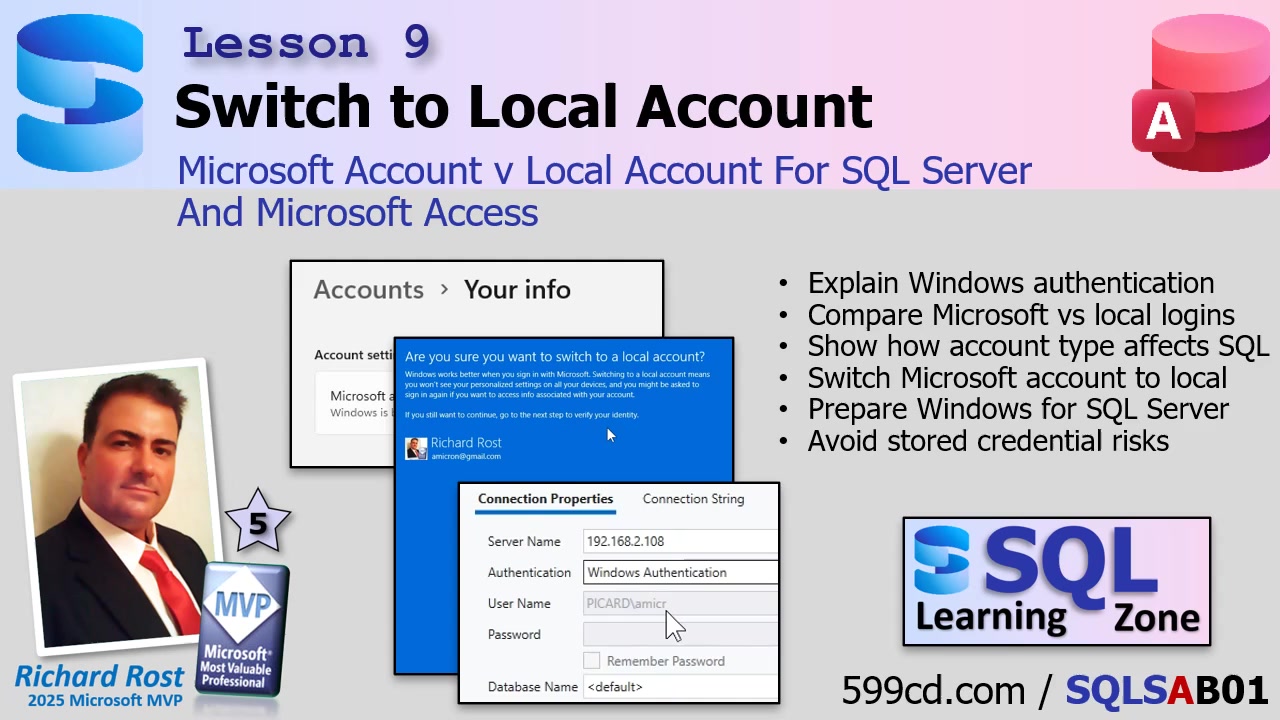
The way you log into Windows directly impacts how SQL Server authenticates you. Most folks don't think about this when they're wrestling with database connection headaches, but the reality is the user account you use for Windows is the identity SQL Server will trust - at least, when you're using Windows authentication (which, trust me, is the way to go in most small office setups). That means that if your Access front end pulls data from SQL Server, that data access is as clean (or as messy) as your Windows login setup. Makes you want to pay a little more attention during Windows setup, right?
Let's get right to the root of the confusion. When you use SQL Server authentication (with separate SQL usernames and passwords), Access can store those credentials right in the front-end file as part of the connection string. This isn't some deep secret; if someone knows what they're doing, those credentials can be extracted. Not ideal if you care about security and not just crossing your fingers. So, for small networks or offices - even without a domain controller - Windows authentication is smarter. It means SQL Server trusts your Windows logon, and you're not scattering passwords all over the place in Access front ends.
Here's where most people stumble: If you're logged into your PC with a Microsoft account (that's the thing Windows "strongly encourages" you to use now - usually your email address), connections start getting messy. This is because Windows authentication is cleaner and more predictable if you stick to a local account, especially in situations where you're just running a peer-to-peer network. No clouds. No syncing headaches. Just Windows on your machine, SQL Server on another, and a clear identity both can agree on.
Don't worry, switching from a Microsoft account to a local account won't vaporize your programs or files. Your desktop will look just as messy as before, and Access or SQL Server won't lose anything. You're simply changing how you log in. But, before you do this, a little bit of housekeeping advice: you might get prompted to re-sign into OneDrive, Windows Store apps, Edge, or Office. Syncing stuff like themes or bookmarks might stop until you sign back in. If you've got Bitlocker, make sure your recovery key is backed up. For most business users, these are small trade-offs for the much bigger security and manageability win.
Ready to make the switch? Here's the streamlined process (note: this is for Windows 11, but it's nearly identical on Windows 10):
Go to Start then Settings (pin this on your taskbar if you haven't). Click on Accounts, then find Your info. Look for the option labeled "Sign in with a local account instead." Windows will try to scare you off this path by warning about lost sync features, but click through - these are just temporary hurdles. You'll need your current password, and then you'll set up your local account username and password (put a hint in, too). Save your work, sign out, and then log back in - either by reboot or just signing out/in. Voila! Your account is now a predictable, local user, and Access/SQL Server connections will be a whole lot simpler from here on out.
Here's what this means in practice: when you connect to SQL Server using Windows authentication, SQL Server knows you by your Windows user - machine name and all. No passwords need to be stored anywhere in Access. As long as that username and password exist on both your Access machine and your SQL Server machine, you'll be able to set up individual permissions, control who sees what, and troubleshoot problems without pulling your hair out over mysterious authentication errors. And, if you ever need to verify how SQL Server "sees" your login, there's a nifty way to check (see the video above for this trick).
Can you use Microsoft accounts? Sure, they're supported. But things get weird. Your logon turns into an email address string that's longer and less intuitive. More importantly, in environments where Windows is handling identity translation (especially across machines), the cloud-based mapping of Microsoft accounts brings extra unpredictability. On small networks without a formal IT department, that layer of mystery is the last thing you want to chase down.
For most small businesses, peer-to-peer setups, or learning environments, stick with local accounts. You'll spend less time debugging impossible login errors and more time building your database. If you're running a domain and have IT staff, you're already living large - no worries there. And later on, I'll show you how to make even more advanced (and secure) SQL Server connections from Access using VBA - without embedding credentials anywhere.
So, to sum up: make your authentication straightforward, predictable, and secure by using Windows authentication with local Windows accounts. If you ever run into weird credential issues and you're still on a Microsoft account, you already know what I'm going to tell you - simplify your life and switch to local accounts!
That's everything for now on how your Windows logon ties into SQL Server permissions. Want the full hands-on walk-through? Check out the embedded video above. As always, let me know how this worked for you or if there's a specific topic you want covered in future lessons.
Live long and prosper,RR

No comments:
Post a Comment