Friday, February 27, 2026

When Combining Query Results Turns Into a Headache in Microsoft Access - QQ #81

Ever felt like a genius while stacking a dozen union queries together, only to discover later you've created a hair-pulling maintenance mess? You're not alone. Combining data in Microsoft Access - especially when you start getting clever with queries - can look fantastic at first and then quietly set you up for major headaches down the road. Today, I'm going to walk you through why some shortcuts look smart at first, where they typically backfire, and how to structure your database sanity for the long run. We'll also hit some other common Access questions straight from the trenches, like forms behaving badly, joins that seem to have a mind of their own, and head-scratchers about imports and data corruption. Let's get into it.

Let's kick off with a classic scenario: you've got a dozen tables, all with the same fields, and at some point, someone says, "Hey, can we just pull all that data together in one report?" The knee-jerk reaction might be to toss together a union query. Sure, it gives you a combined list, and for small datasets or one-off lists, that trick is fine. But when you start adding grouping, sorting, and calculations - especially stacked over 13 tables - things can get hairy. If you find yourself nesting GROUP BY inside union queries, it's really time to pump the brakes.

Here's why: in Access, union queries are great for merging similar datasets - think employees, vendors, and sales reps when you want one big people list. But they're a pain when you need to perform more complex operations. The moment you want to summarize, aggregate, or sort on fields that aren't neatly aligned in every table, you'll start running into reserved word collisions and cryptic syntax errors. "Name," "Type," "ID" - these innocent-sounding labels can make your query explode and the error messages are never as helpful as they pretend to be. You'll see the notorious "not part of an aggregate function" error as soon as you try grouping by anything that isn't handled right.

What's the sane solution? Staging tables. Instead of running wacky union gymnastics every time, just create a temporary (or staging) table. Append data from all your individual sources into that one spot, then run your summaries and sorts as needed. Maintenance becomes so much easier. Need to add table number 14? Just append that too - zero stress. Not only does this approach cut down on bugs, it's also easier for future you (or someone else) to understand, troubleshoot, and build upon. If you want to see all the nitty-gritty on how to set up such staging tables, check out the video above for the walkthrough.

Now, let's talk quirky forms and join logic - because if you've ever wondered why changing join types didn't seem to affect your Access results, you're far from alone. Take this common story: a user noticed that his player list was showing names even when there was no associated card data. The reason? Outer joins. With a left outer join, Access will show every record from one table, whether there's a matching record in the second table or not. Want to see only players with card data? You need an inner join. And here's a gotcha: the query builder's settings override what you see in the Relationships window. Changing relationships there does not change existing query joins - the query itself calls the shots. Double-click the join line in the query design view and set it directly. For a deeper dive, my Access Beginner and Expert courses are packed with join troubleshooting tips.

A quick word on zero-length strings, spaces, and nulls, because this subtlety will sneak up on people. A zero-length string is literally an empty string - a conscious blank, like when you ask someone for a middle name and they have none. A single space character, which is totally different, is like someone hitting the spacebar once. And null doesn't mean blank at all; it means "unknown, wasn't asked, maybe empty, maybe not." This distinction matters: Access stores and recognizes all three separately. Don't let your fields get cluttered with hidden blanks or nulls thinking they're all the same. Dig into my dedicated videos for real-life examples, and brace yourself - null math gets wild.

Let's move on to importing from Excel - especially when you're stuck with real-world spreadsheets full of actual names or descriptions rather than handy ID numbers. The best practice is: dump that data into a staging table first. Then, use update queries to match up foreign keys (IDs from related tables) before finally appending everything into your real tables. This lets you validate, clean, and trace your data before it hits your core system, keeping your database cleaner and your hairline intact (or at least not more receded than it already is).

On the subject of keeping things healthy, let's talk network setups and data corruption. Access databases are good team players in a small, stable local office. But as soon as you put your backend on a flaky Wi-Fi, a VPN, or try opening it across the internet, it's open season for corruption. Database connections can drop unpredictably, leaving half-finished writes and messy files. Good hardware - wires, switches, solid infrastructure - makes a world of difference. But if you keep running into corruption, that's your sign to consider SQL Server. SQL Server acts as a gatekeeper, never leaving your main file exposed, and users work through the server so dropped connections won't corrupt your data. Trust me, you don't want to learn this the hard way.

When is it time to redesign that legacy Access database from the Windows 3.1 days? The answer is: whenever your app starts feeling sluggish, overloaded, or you simply can't trace which chunk of code does what anymore. Rebuild intentionally based on what you actually use today - not the feature set you needed in 1997. Take stock, map your needs, and build with the benefit of experience. You'll wind up with a much tighter, more modern system and probably eliminate more bloat than you think possible.

Let's jump to another common question: Is Access still relevant? Absolutely. Microsoft's investing in the Power Platform and Azure, but Access remains the fastest, easiest way to build powerful desktop applications. Its role as a front end for SQL Server and Azure SQL is stronger than ever. You can start with a stand-alone Access database, then, as your business grows, migrate up to a SQL Server or even a hybrid cloud setup. And thanks to Access's rapid application tools, you don't lose your existing effort. My roadmap includes a lot of training on exactly this integration, so stay tuned if you're thinking about scaling up.

Let's talk about reports for a second. Are they still worth using if you never print a page? For sure. Reports shine when you need structured, polished output - whether that's for PDF exports, email summaries, dashboards, or "pretty" data layouts. Data sheets and forms work for day-to-day operations, but reports let you control exactly what users see and how it's formatted. And if you're trying to split a long text field across two columns, that's not natively supported - multi-column layouts handle records, not field-wrapping. You could pull it off by splitting your text into smaller chunks, but you'd need a little VBA trickery (and probably a temp table). If you want to learn more about those workarounds, check out the video above and watch for future tutorials.

For anyone thinking you can "secure" your database by simply renaming it with an ACCDR extension to hide the tables - bad news. ACCDR just launches Access in runtime mode, with the simplified interface, but does nothing for securing your data. If you want to truly protect your design and code, you need an ACCDE. For real back-end data security, SQL Server is the only way to go. Table renaming and interface tweaks are just mild annoyances for anyone who knows their way around Access.

Curious about running Access on a tablet? If you've got a full Windows tablet (think Microsoft Surface), you're good to go. But if we're talking iPad or Android? Sorry, Access doesn't run there natively. You can remote desktop into a Windows PC, or (with more ambition) move your data to SQL Server and create a web or platform-agnostic front end. And here's the biggie: even with a Windows tablet, don't use Access over Wi-Fi for anything mission-critical - wireless connections and Access databases are a corruption party waiting to happen. SQL Server solves that too. See a pattern?

On a lighter note, appreciate all your feedback on dark mode. Most users prefer it - it's easier on the eyes for those late-night coding sessions. If you want to send complaints, just remember to fold them into sharp corners first. Jokes aside, I read every comment and truly value your input.

Finally, let's set the record straight: Access can work as a full stand-alone solution (back and front end on a simple file share), as a rapid front end for enterprise-grade SQL Server or cloud data, or as part of a hybrid with web and mobile components. The trick is knowing what fits your business, your infrastructure, and your team.

So, what's the real lesson today? When it comes to combining data, keep it simple and maintainable - use temp tables instead of tangled union queries for larger processes. Split up your logic, don't be afraid to break things into smaller, saved queries, and take advantage of staging areas to clean and validate your data before it ever touches the core. That's how you build an Access database that stands the test of time and change.

As always, feel free to drop your questions or stories below. Let me know what obstacles you're facing and how you plan to use these best practices in your own systems. For the deep dives, walk-throughs, and more tips, check the embedded video above. And don't forget to check out the other resources and links I mention in the video description for further learning.

Live long and prosper,
RR

Crawl. Walk. Run.

When I was teaching my son to drive, there were moments when I just said, "Do it this way. Trust me." Not because I didn't have a reason. I had plenty of reasons. But explaining reaction time, blind spots, braking distance, and the fact that half the drivers on the road are texting while eating a taco is not what you do while a brand-new driver is merging onto a busy road. Sometimes the lesson isn't a lecture. Sometimes the lesson is, "Keep both hands at 9 and 3. Start braking sooner than you think. Trust me."

Teaching beginner skills in driving, piano, and Access databases

I used to run into the same thing when I taught piano years ago. I'd tell a beginner, "Start with your right thumb on middle C." Why? Because just do it. There are theoretical reasons. Hand positioning. Muscle memory. Efficient movement across the keyboard. But on Day One, they don't need a dissertation on biomechanics and music theory. They need a starting point that works. Later, when they've played a few songs, the why becomes obvious.

That's exactly what happens in my beginner Access classes.

Sometimes I say, "This is the way we're going to do it. Trust me." And occasionally someone thinks I'm being mysterious or holding something back. I'm not. I'm compressing thirty years of experience into a simple rule so we can keep moving forward without falling into a rabbit hole.

Take field names. I tell beginners: no spaces in your field names. Could I explain how [Order Total] turns into a bracket jungle in SQL and VBA? Could I show you how forgetting those brackets breaks your code and how dynamic SQL strings become a pain in the butt to debug? Absolutely. But if I stop in Beginner 1 to unpack parsing rules and name resolution, I'll lose half the class before we even build our first form. So the rule is simple: no spaces. Later, when you're writing advanced queries, you'll suddenly think, "Ohhhh. That's why."

Same thing with Lookup fields in tables. Access makes them look friendly. Helpful, even. But they hide what's really going on under the hood and can cause confusion when you start building queries. Explaining that properly requires understanding relationships, joins, and how Access stores the underlying key value. So early on, I just say, "Don't use Lookup fields in tables. We'll handle that with proper relationships and combo boxes." Trust me.

Every table gets a primary key. Yes, even your tiny two-table database. The deeper conversation involves indexing, performance, referential integrity, and updatable recordsets. That's not Day One material. Day One material is: every table gets a primary key. Period.

And don't name your field Date. Or Name. Or any other reserved word that seems harmless until Access decides to interpret it as something else and your query starts acting like it's possessed by a mischievous tribble.

This is all part of how I teach. Most reference books are depth-first. They'll give you everything there is to know about tables in one giant chapter. Every property. Every data type. Every obscure option you may never use. Then they move on to queries and do the same thing. That's great if you're using it as a reference manual. It's not great if you're brand new and just trying to build something that works.

I prefer a breadth-first approach. A little bit about tables. Then a little about queries. Then a form. Then a report. Then we circle back and go deeper. Crawl. Walk. Run. You can't appreciate composite keys until you've actually built something simple and felt the limitations. You can't understand why I'm picky about naming conventions until you've written enough code to see how small decisions ripple outward.

Even Starfleet works this way. They don't hand a brand-new ensign the warp core schematics and say, "Here, memorize every plasma conduit." They teach fundamentals. Procedures. Protocol. Later, when Geordi starts talking about phase variance in the EPS grid, it makes sense because the foundation is there. If Captain Picard says, "Make it so," you don't demand a 20-minute explanation while the Romulans are decloaking. You execute, and you understand the nuance later.

When I say, "We'll cover that in a future lesson," I'm not dangling an apple in front of you. I'm building scaffolding. Your brain needs structure before it can handle the details. If I try to teach every nuance of field-level properties for long integers in the first hour, you won't retain it. You'll just be overwhelmed.

So yes, sometimes you'll hear me say, "This is the way we're doing it. Trust me." That's not ego. That's pattern recognition earned over decades of building databases, fixing broken ones, and answering the same painful mistakes over and over again.

There's a time for nuance. There's a time for deep dives. And there's a time to keep your hands on the wheel, your thumb on middle C, and just follow the process.

Crawl. Walk. Run.

And I promise, we'll get to the warp core later.

LLAP
RR

P.S. See also: Covered in a Future Lesson

Thursday, February 26, 2026

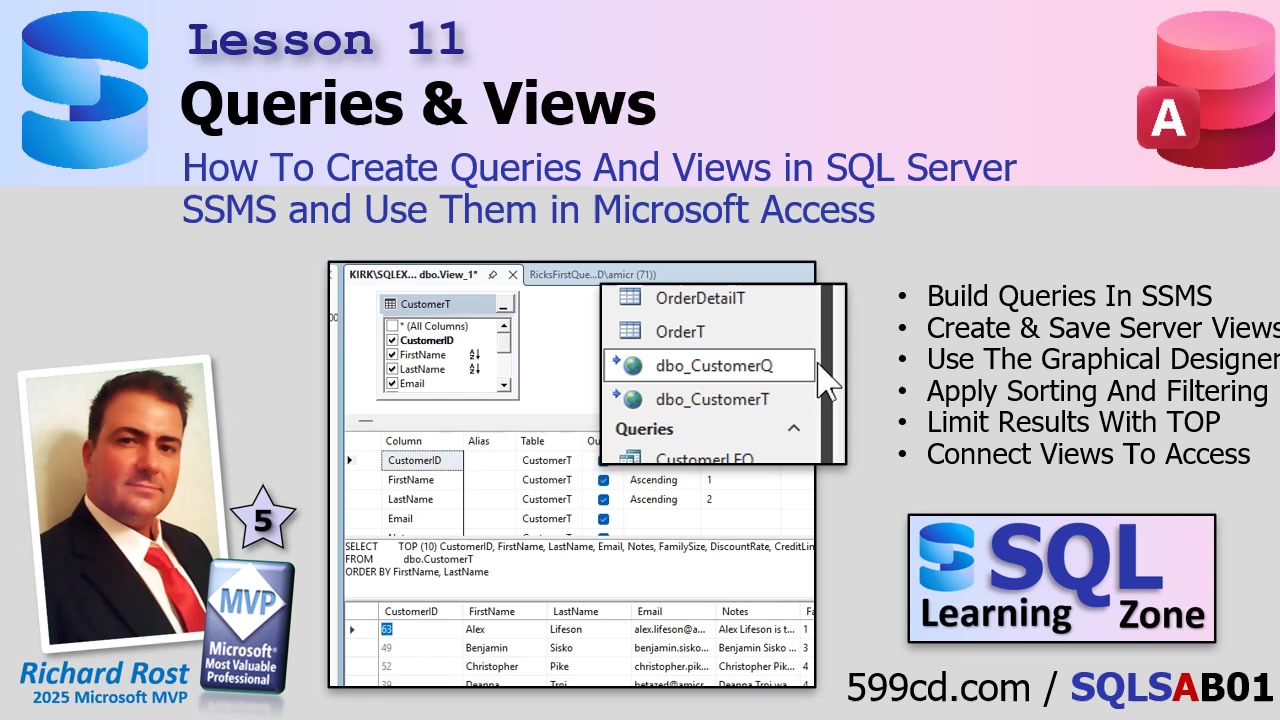
How To Create Queries And Views In SQL Server SSMS And Use in Microsoft Access

Brace yourself, because today we're cracking open the world of queries and views in SQL Server - no more hiding behind the Access wizard. It's time to see how SQL Server lets you filter, sort, and analyze data directly on the server, saving your PC from pulling in a gazillion records it doesn't need. This unlocks major power for working with big databases or even those classic Access setups that are starting to feel a little creaky with tons of records.

First things first: connect to your database in SQL Server Management Studio (SSMS). You'll notice some things look pretty familiar if you're coming from Access, but there are enough differences that you need to get oriented so you don't walk into a pit of rookie mistakes. Click on New Query in SSMS, and don't miss out on the ability to toggle the zoom with your mouse wheel - handy if, like me, your eyes are a bit older than you want to admit.

SSMS comes equipped with a graphical query editor - think of it as the closest thing to Access's design grid. You can right-click and choose "Design Query in Editor" to bring up the familiar table-and-fields view. Checking the boxes for fields like CustomerID, FirstName, LastName, CustomerSince, or CreditLimit starts to build your query visually. Down below, you'll see SQL building itself automatically as you select fields. It's a little different from Access: here, the fields are listed vertically, not horizontally, and that flips your AND/OR logic! In Access, it's AND across rows, OR down; in SSMS, it's the other way around - AND down, OR across. Once you get used to that, it's smooth sailing.

Want to create an alias for a field? Easy. Set "FirstName" to "FN" by adding an alias, and SSMS adds it as "FirstName AS FN." Unlike Access, where you'd do it as "FN: FirstName," get used to this new syntax. Filtering and sorting fields is also familiar; just set them like you would in Access, but be aware that SSMS gives you actual sort order numbers - so it's not the field's position that decides which sort comes first, but the number you set under Sort Order. Makes sense after a few rounds.

If you want to filter names, put in a value like "Richard" for FirstName, and SSMS will automatically convert it to the right SQL with an N prefix and single quotes. The N just means the field type is NVARCHAR. You can also string together OR conditions (across columns) and AND conditions (down rows), just the opposite to Access - don't get tripped up!

Now, when you run the query, don't let SSMS's little quirks scare you. A red X in the corner? Most likely that's just SSMS's IntelliSense hinting "you might have an error," but if the Messages area says "Query executed successfully," you're good. True SQL errors are shown in the Messages tab and will actually stop your result from appearing.

If you want to jump back into the graphical designer after making changes to your SQL, make sure you select the SQL text you want to edit before right-clicking and choosing "Design Query in Editor" - otherwise, you'll think the designer lost your work, and you'll have a mild heart attack for nothing.

One cool SSMS feature: you can have multiple SQL statements in one window. This lets you execute several queries at once and see separate result tabs. When experimenting, I recommend using the TOP keyword, like TOP 10, to limit how much data you pull down - especially important when you're working with tables containing tens of thousands (or millions) of records. Otherwise, your query might hang for ages while it tries to send every last record across the network. Once you're satisfied it's working, you can remove TOP and get the full dataset.

In SSMS, when you hit Ctrl+S to save your query, realize it saves as a local .SQL file on your computer, not in the database itself. So, "queries" in SSMS are just files - if you want something stored on the server, you'll use a view. You can copy your SQL, right-click the "Views" area in SSMS, create a new view, and paste your statement directly. The graphical designer here is nearly identical to the query editor, so you can build from scratch or from your existing query.

It's worth mentioning that when you save a view with both the TOP keyword and ORDER BY, SQL Server will warn you that ORDER BY inside a view doesn't control the final output's sort order. That's by design - the ORDER BY works in combination with TOP when the view is created, but consuming code (like Access or another query) shouldn't rely on it for sorting. Always sort in your final SELECT statement if you care how your data appears to users.

Now, about my naming conventions: I use a "Q" suffix for views that correspond to queries, which helps me easily tell them apart from tables in Access once I link them. Some folks prefer "V" for views - do what feels right for you. Save your view, get rid of the unnecessary ORDER BY or extra fields you don't need, and now you've got a view (like CustomerQ) sitting right on the server, ready to do the heavy lifting.

Let's bring this full circle with Access. Once your view is ready, go to Access and link to that view via External Data > New Data Source > From Database > SQL Server > Link. Pick your Data Source Name (DSN), select the view, and now it shows up in your Access tables list, usually editable as long as your view isn't too complex. The beauty is that Access now pulls in only the records and fields selected by the view, instead of sucking down the entire customer table just to filter it locally.

This is a huge shift: instead of Access pulling massive data chunks across the network and filtering locally (which destroys performance as your database grows), SQL Server now handles the filtering and sorting, and sends just the finished result set to Access. If your view only selects active customers, that's all Access gets. Fewer records over the wire means a faster, more reliable, and professional setup that won't grind to a halt as your business grows.

As you keep building, make it a habit to push as much logic and filtering into your views as possible. Access is now the presentation layer - the pretty interface - while SQL Server does all the heavy computation. Later in the series we'll go deeper into pass-through queries, dynamic parameters, and advanced view design, so you'll be able to make your database apps faster than ever. Just keep that "server does the work, Access presents the results" mindset, and you'll be ahead of the pack.

A quick word about those squiggly lines that sometimes pop up in SSMS (IntelliSense telling you "invalid object name" even though the thing exists): don't panic! Sometimes it gets out of sync; a quick Ctrl+Shift+R typically helps, but it's mostly cosmetic. Same goes for case sensitivity - you don't usually have to worry about it. If it gets on your nerves, you can always toggle IntelliSense off.

To wrap up: today you learned how to create queries with SSMS's GUI, save them as views on the server, and connect them to Access for blazing fast results. Get used to thinking in views and letting SQL Server do the number-crunching, so you can build scalable, pro-level databases with ease. If you want to watch me walk through every click, the video above covers every detail.

Live long and prosper,
RR

Wednesday, February 25, 2026

How To Use Subreports In Microsoft Access To Put Multiple Reports On One Printable Page

Trying to squeeze multiple reports onto a single, professional-looking, printable page in Microsoft Access can feel a lot like trying to herd cats - usually frustrating, often chaotic, and rarely as simple as it sounds. But if you've ever needed to present multiple sets of data (like orders, contacts, or various lists) together for the same customer, you're in luck: sub-reports are here to save the day. They let you merge different information streams into one organized, unified report without the copy-paste madness.

Why bother with sub-reports? Well, if you're stuck compiling multiple reports by hand just to give your boss a one-page customer summary, Access can make that process effortless and much more professional. Sub-reports let you include different, even totally unrelated tables and queries into a single parent report, each displayed neatly in its own section but linked wherever appropriate - like by customer ID. Once you get the hang of these, you won't ever want to go back to copy-pasting into Word again.

Let's dive right into how sub-reports work and when you should use them. If you've already mastered the basics of Access (like creating tables, building basic reports, and designing queries), you're ready for this. If not, check out my invoicing and report grouping videos first - they'll set the stage.

Most beginner Access users handle simple one-to-many relationships - say, orders and their details - by joining tables in a query and then building a report off that. All the order info goes in the header, while each detail item drops into the detail section. No sub-reports needed, no complex grouping required. This will handle most situations where all data is tightly related via a single, clean parent-child connection.

But what if you want to display several lists, each potentially unrelated to the others but all linked to the same customer? For example, you might want to show a customer's orders and their contact notes side by side, even though those tables aren't related to each other - just to the customer. This is where sub-reports really shine. Each list (orders, contacts, favorite ice cream flavors, whatever) lives in its own report, and you simply drop those reports into a master parent report as sub-reports.

Here's how to get started: begin by designing your sub-reports first. Let's say you've got an order query showing customer, date, and total. Turn that query into a small report (the "order sub-report") that shows only the necessary fields. Make it compact - remember, you might want these side by side in your final layout. The same goes for contacts: grab your contact data, design another simple report (the "contact sub-report"), and focus only on the essential fields.

Don't fuss too much with making them look perfect right away - just get the structure and fields in place. If you see a bunch of pound signs (###) on dates in print preview, that's just Access telling you the field isn't wide enough; tweak the formatting as needed (e.g., use the Short Date format to make dates fit, and adjust alignment for aesthetics).

Once you've got your sub-reports, set up the parent report. Usually, you'll already have a customer report - simplify it by removing extra details, so there's room for the sub-reports. Drop your contacts sub-report into the left half and your orders sub-report on the right. Titles and formatting can make it more readable, but don't overcomplicate things at this step.

The magic of sub-reports comes in how Access automatically links them based on shared fields such as CustomerID. When you insert a sub-report, check its properties: the "Link Master Fields" and "Link Child Fields" properties should match the field that connects the parent and child data - in this case, CustomerID. If you use differently named fields (like SalesRepID, ServiceTechID, etc.), you may need to adjust these properties manually to set the correct relationship. If data isn't showing up, double-check your field names and relationships.

Here's a pro tip: make sure both your sub-reports and their containing sections have the Can Grow and Can Shrink properties set to Yes. If not, Access will waste space for empty reports or leave giant gaps when a sub-report has no records for a customer. With those settings enabled, your final output will adjust dynamically, keeping everything tidy.

Watch out for report width issues - sometimes dropping in a sub-report will make your main report too wide, causing print or export problems. Always check your print preview and adjust the widths of both your report and sub-reports as needed.

Thinking about nesting sub-reports inside other sub-reports? It's possible, and it works - just don't get carried away. Two levels is usually plenty for real-world use; more than that, and Access might start slowing down.

If you want to go above and beyond, you can get even fancier: conditional sub-reports, dynamic switching with combinations of VBA, or handling blank results gracefully so your report never has awkward empty sections or headers. For these advanced tricks (and all the VBA code details), watch the full video above and check out my higher-level training and code vault for members.

In the end, the main takeaway is this: use sub-reports in Access to combine multiple related or unrelated lists onto one report. You'll save tons of time, impress your boss, and never have to cut-and-paste into Word again - unless, of course, you really like herding cats.

Questions or comments? Let me know how you plan to use sub-reports in your own Access projects down below. As always, for the step-by-step walk-through (and all those little details), check out the video embedded above.

Live long and prosper,
RR

Tuesday, February 24, 2026

The Dragon in My Garage

This topic has come up a few times in the comments section of the Captain's Log, so I felt it was time to write a proper article about it.

Article about invisible dragons and evidence in claims

Imagine I invite you over to my garage and, with as much seriousness as a late-night History Channel host, announce: "Behold, my invisible dragon!" Of course, you can't see it. Or hear it. It floats, so you can't touch it. Its fire doesn't even burn, so, sorry, no s'mores. But trust me - it's there. The fun question: do you believe me, or do you need more than my enthusiasm as proof?

Carl Sagan, one of my all-time science heroes and a master of skeptical curiosity, coined this exact scenario. His point - aside from giving garage tours a new twist - is that untestable claims can't be meaningfully distinguished from pure fiction. If someone invents rules that make their claims impossible to prove or disprove, it's indistinguishable from simply making things up. I love Sagan's dragon because it so perfectly strips a claim down to its bare logic: either you can show it, or you can't. (No magic wands, cloaks of invisibility, or plot twists required.)

I have lost count of the tech support calls where clients assure me, "The bug only happens when there's a full Moon... but you'll never catch it in action." I once had a customer ask why their Access database "mysteriously" crashed on Tuesdays at 2 a.m., supposedly due to a "ghost in the server room." That ghost would have gotten along well with Sagan's dragon - both being remarkably shy around evidence.

This gets to what philosophers and logicians call the burden of proof. If I claim my Access database automatically fixes bad data because elves live in the backend, it's not your job to debunk elves in general. It's on me to provide solid, testable proof - say, an elf leaving change logs in the Event Viewer. The late and great Christopher Hitchens boiled it down even further: "What can be asserted without evidence can be dismissed without evidence." This isn't just snark; it's the guardrail that keeps tech, business, and life from spiraling into endless debates about invisible dragons, elves, or divine bugs. (Though "summoning elves" would definitely liven up most user-group meetings.)

In the "Devil's Due" episode of Star Trek: The Next Generation, an entity named Ardra claims to be the devil (not the job I'd want, honestly) and tries to hoodwink the entire planet with special effects and sleight of hand. Captain Picard isn't impressed with her smoke and mirrors - he demands real proof, not just flashy illusions and dramatic entrances. Had Ardra tried the invisible dragon routine on the Enterprise, Data would have started scanning for thermal emissions before you could say, "Set phasers to skeptical."

And yet, so many online debates - especially on social media - still play the game backward. Someone drops a bombshell claim, demands the world prove them wrong, and then produces nothing but squid ink and Reddit memes. It happens in politics ("prove there wasn't fraud!"), business ("my startup will totally disrupt the industry, just wait!"), even in Access user groups ("Access corrupts databases randomly, trust me, my cousin said so!"). It's magical thinking, dressed up as common sense - like insisting your pet hamster is an undercover agent, but refusing to show his badge.

And of course, there's the classic principle that extraordinary claims require extraordinary evidence. If I tell you I have five dollars in my pocket, that's entirely plausible - you probably wouldn't expect me to produce a bank statement to prove it. But if I claim I can fly like Superman, suddenly the bar for evidence is much, much higher - at the very least, you're going to want to see me actually take off. I've written about this before, but it's well worth repeating here: the more remarkable or outlandish a claim, the stronger and more convincing the proof needs to be before we treat it as anything but a story.

With apologies to Douglas Adams, who once suggested always bringing a towel, maybe we should all bring a little Sagan-style dragon detector to every conversation. Ask for evidence. Ask for ways to test it. If the answer is "you just have to believe," feel free to change the subject - or at least keep one hand on your wallet.

So, do you have your own invisible dragon story - something you've been asked to believe with zero evidence? And more importantly, how do you (politely) ask for the proof?

LLAP
RR

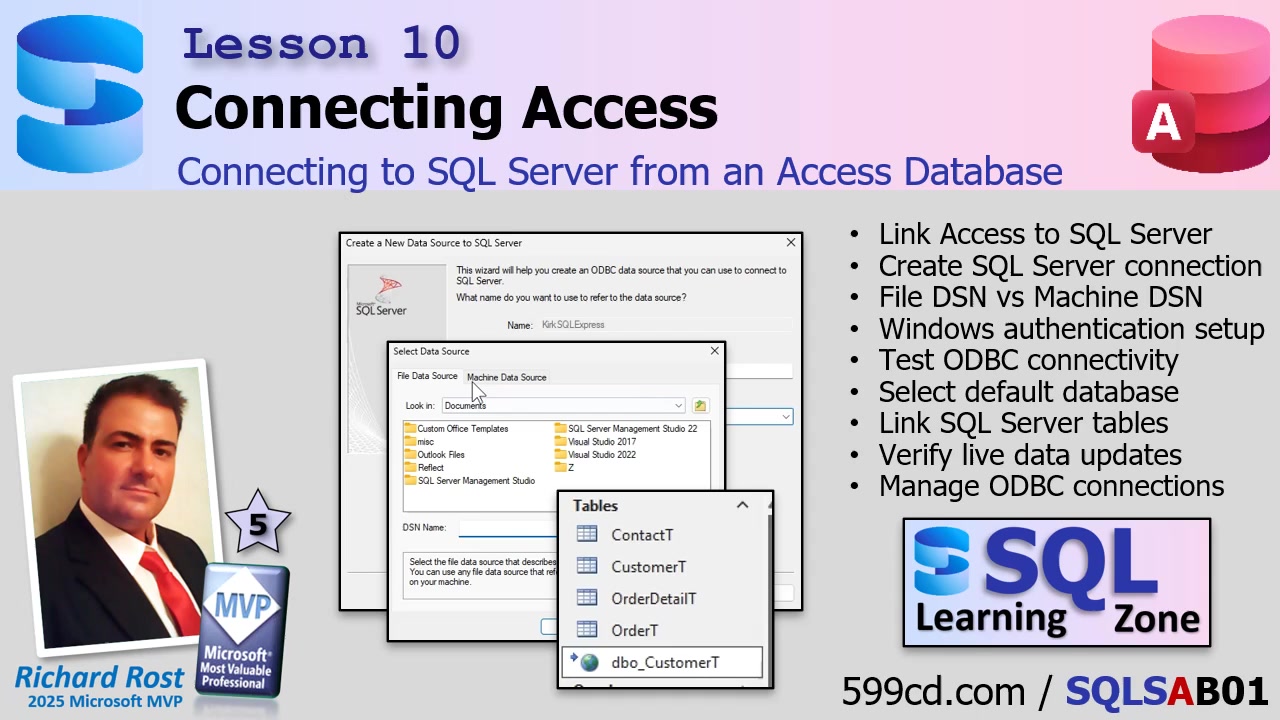
Connecting to SQL Server from a Microsoft Access Database

If you're looking to supercharge your Microsoft Access application by connecting it to SQL Server, you're in the right place. This approach brings the best of both worlds: the power and reliability of SQL Server to safely store your data, plus the easy-to-build interface and forms of Access. Let's walk through the process step by step, and cover some important gotchas, so you can link your SQL Server tables directly into Access and work with live server data - just like you're used to with a split Access database.

You might have spent a lot of time inside SQL Server Management Studio so far, doing all your table-building and setup. That's great, but as an Access developer, you live and breathe Access. So now comes the fun part - actually connecting these two tools so Access becomes a live front end and SQL Server does the heavy lifting on the back end.

The key thing to remember is this: SQL Server stays the system of record. That's where your actual data is safely stored. Access simply provides a way to view and edit that data. We're not importing our tables into Access - instead, we're linking to them, so every change is live, and you see real-time results. If you've split an Access database before, this works the same way, only now the back end is SQL Server rather than another Access file.

When you link tables in Access, you're just creating pointers that reference your SQL Server tables. It's like giving Access a map to where the data lives. Opening up a linked table in Access means you're looking directly at the data inside SQL Server. Be careful not to confuse linking with importing: importing brings over a static snapshot and doesn't stay synchronized, whereas linked tables always point to the live data.

To get started, open up your Access database (I'm using my trusty free TechHelp template for this). Head to the External Data tab, and choose New Data Source > From Database > From SQL Server. You'll want to select "Link to the data source by creating a linked table." This will launch a wizard to help you establish your connection.

Here comes a crucial piece: Access and SQL Server talk through something called ODBC (Open Database Connectivity). You need to pick or create a Data Source Name (DSN), which is essentially a little file that stores all your connection settings. There are two main flavors: file DSNs (little .dsn files you can copy/share easily) and machine DSNs (saved in the Windows config of a particular computer). For most small offices or personal setups, file DSNs are usually the easiest to wrangle, because you can move them between computers.

If you don't see your DSN listed, just hit New to create one. Now, the key step here is picking the right driver so Access and SQL Server speak the same language. You'll likely see multiple options - "SQL Server," "ODBC Driver 17 for SQL Server," and "ODBC Driver 18 for SQL Server." Here's your pro tip: use Driver 17 if you want the smoothest experience! The plain "SQL Server" entry is older and not recommended for modern setups, and Driver 18, while tempting (it's newer), tends to enforce strict security and may bring up annoying security prompts if you're just testing things out. Driver 17 gives you all the compatibility you need, without the headaches.

After choosing your driver, you'll be prompted to name your DSN file. Use any name that makes sense to you. I usually pick something that tells me which server I'm pointing to - like "Kirk SQL Express." Next, you'll set up which server to connect to. Don't count on the Browse button to work reliably; it usually doesn't. Type in either the server's name or its IP address - whatever you've used before in SQL Server Management Studio.

For authentication, choose Windows authentication unless you know you're set up for SQL Server authentication. Now comes a common pitfall: before you finish, make sure to set the "default database" to the one actually holding your tables. If you skip this, you'll connect to the system master database and just get a sea of "sys" system objects instead of your real tables! Use the dropdown on the connection wizard to select your actual database.

If you do miss this step, don't sweat it - just run through the wizard again and make a new DSN. It doesn't hurt to practice, and you can always clean up DSNs later.

Once you've created the DSN with all the right info, select it in Access and hit OK. The Link Tables dialog pops up, showing you all available tables in your database (ignore anything starting with "sys" - those are system tables). Find your actual user table, something like DBO.CustomerT, and select it.

If your table uses modern SQL Server data types, you'll probably get a warning about the DateTime2 data type. SQL Server's DateTime2 supports fractional seconds, and Access now offers a "DateTime Extended" type to handle this. If you're using Access 2016 or newer, it's fine to enable this support by clicking Yes. Just be aware: if anyone's using Access 2013 or older, say No to ensure backward compatibility, but you'll lose out on those fractional seconds. In modern environments - definitely say Yes!

The connection will finish, and you'll now see your live SQL Server table as a linked table in Access, complete with the "DBO_" prefix. You might want to rename linked tables to something simpler, but personally, I find the DBO prefix reminds me these are SQL Server objects, which is handy when you're writing queries or code. It also signals to you (and your future self) when you need to handle things like connection string quirks or special syntax in your VBA or queries.

Let's test our handiwork. Open your linked table in Access, make a change to some data, and close it. Then check that change inside SQL Server Management Studio. If you see the change reflected there instantly, congratulations - you're working live over the connection! This is exactly what linking tables is all about.

On the topic of DSNs: once your tables are linked, Access actually stores all the connection info internally. You don't need to keep the DSN file around unless you want to link more tables later. You can use Windows' built-in ODBC Data Source Administrator (search "ODBC" in the Start menu) to view, edit, or remove DSNs. If you want, you can rename or tidy up your DSN files in your Documents folder - or even distribute copies to other users if you're setting up more workstations.

Before wrapping up, let's clarify some sticky points so you don't trip over common beginner mistakes:

First, SQL Server's DateTime2 corresponds to Access's DateTime Extended data type. They work together, but they're not technically identical. DateTime2 lets you store higher-precision dates on the server. DateTime Extended enables Access to round-trip that high-precision data, so you won't get data loss or weird rounding errors.

Second, when picking ODBC drivers, use Driver 17 or 18 for modern setups; avoid the legacy "SQL Server" driver. And if your SQL Server is running on a named instance, remember to specify it, like "Kirk\SQLExpress" - sometimes just the server name is enough, but sometimes you need the whole thing depending on your network setup.

Today you learned how to bridge your Access front end with SQL Server, bringing in live, linked tables that deliver all the robustness of SQL Server with the user-friendly experience of Access. Play around with it, try making some forms or queries - as far as Access is concerned, a linked SQL Server table works almost just like a local one. And if you get stuck, re-check those DSN or driver choices.

For the complete, step-by-step demonstration, be sure to watch the video embedded above. Got questions? Drop a comment - I love hearing what you want to learn in future lessons.

Live long and prosper,
RR

Monday, February 23, 2026

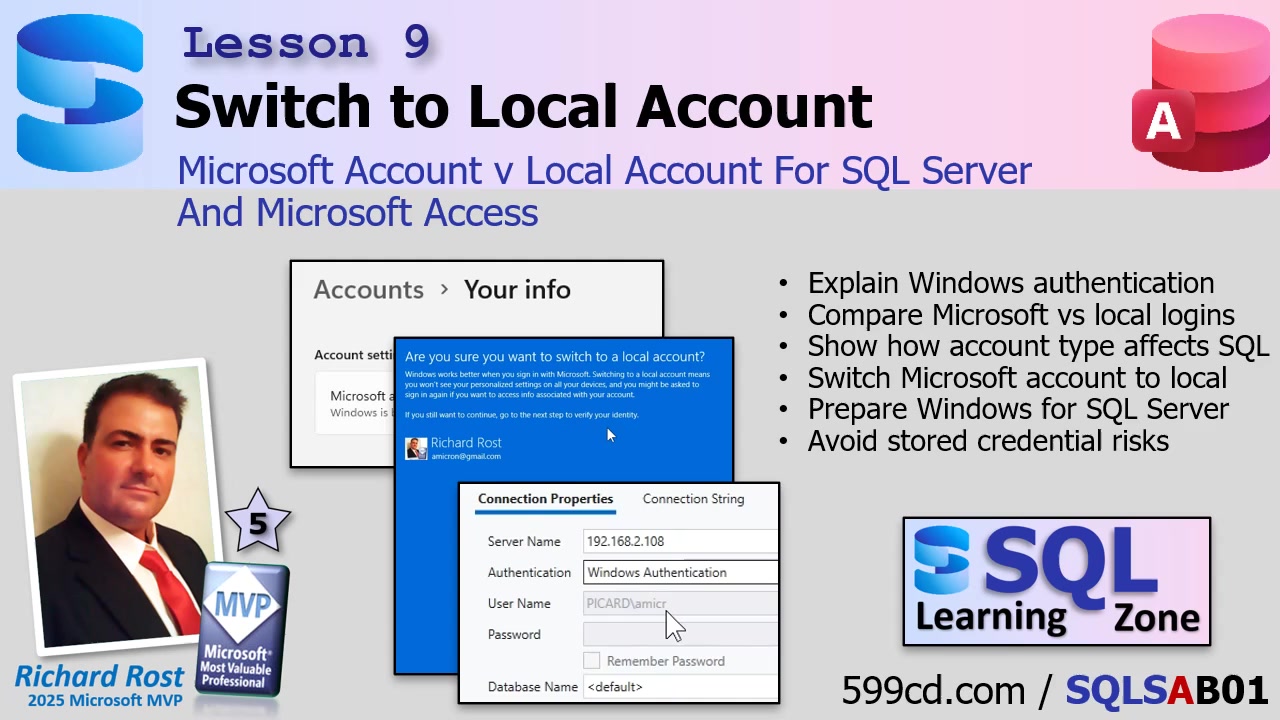
Microsoft Account v Local Account For SQL Server And Microsoft Access

Let's talk about one of those behind-the-scenes bits that can either save your sanity or drive you up the wall when connecting Microsoft Access to SQL Server: how your Windows logon identity controls authentication, security, and database permissions. If you've ever hit a brick wall trying to make Access behave on a network - especially with SQL Server in play - knowing who Windows thinks you are (and how SQL Server sees you) is absolutely essential. Plus, we'll walk through how to switch your Windows user from a Microsoft account to a good old-fashioned local account, so things get a whole lot simpler and a lot less mysterious.

The way you log into Windows directly impacts how SQL Server authenticates you. Most folks don't think about this when they're wrestling with database connection headaches, but the reality is the user account you use for Windows is the identity SQL Server will trust - at least, when you're using Windows authentication (which, trust me, is the way to go in most small office setups). That means that if your Access front end pulls data from SQL Server, that data access is as clean (or as messy) as your Windows login setup. Makes you want to pay a little more attention during Windows setup, right?

Let's get right to the root of the confusion. When you use SQL Server authentication (with separate SQL usernames and passwords), Access can store those credentials right in the front-end file as part of the connection string. This isn't some deep secret; if someone knows what they're doing, those credentials can be extracted. Not ideal if you care about security and not just crossing your fingers. So, for small networks or offices - even without a domain controller - Windows authentication is smarter. It means SQL Server trusts your Windows logon, and you're not scattering passwords all over the place in Access front ends.

Here's where most people stumble: If you're logged into your PC with a Microsoft account (that's the thing Windows "strongly encourages" you to use now - usually your email address), connections start getting messy. This is because Windows authentication is cleaner and more predictable if you stick to a local account, especially in situations where you're just running a peer-to-peer network. No clouds. No syncing headaches. Just Windows on your machine, SQL Server on another, and a clear identity both can agree on.

Don't worry, switching from a Microsoft account to a local account won't vaporize your programs or files. Your desktop will look just as messy as before, and Access or SQL Server won't lose anything. You're simply changing how you log in. But, before you do this, a little bit of housekeeping advice: you might get prompted to re-sign into OneDrive, Windows Store apps, Edge, or Office. Syncing stuff like themes or bookmarks might stop until you sign back in. If you've got Bitlocker, make sure your recovery key is backed up. For most business users, these are small trade-offs for the much bigger security and manageability win.

Ready to make the switch? Here's the streamlined process (note: this is for Windows 11, but it's nearly identical on Windows 10):

Go to Start then Settings (pin this on your taskbar if you haven't). Click on Accounts, then find Your info. Look for the option labeled "Sign in with a local account instead." Windows will try to scare you off this path by warning about lost sync features, but click through - these are just temporary hurdles. You'll need your current password, and then you'll set up your local account username and password (put a hint in, too). Save your work, sign out, and then log back in - either by reboot or just signing out/in. Voila! Your account is now a predictable, local user, and Access/SQL Server connections will be a whole lot simpler from here on out.

Here's what this means in practice: when you connect to SQL Server using Windows authentication, SQL Server knows you by your Windows user - machine name and all. No passwords need to be stored anywhere in Access. As long as that username and password exist on both your Access machine and your SQL Server machine, you'll be able to set up individual permissions, control who sees what, and troubleshoot problems without pulling your hair out over mysterious authentication errors. And, if you ever need to verify how SQL Server "sees" your login, there's a nifty way to check (see the video above for this trick).

Can you use Microsoft accounts? Sure, they're supported. But things get weird. Your logon turns into an email address string that's longer and less intuitive. More importantly, in environments where Windows is handling identity translation (especially across machines), the cloud-based mapping of Microsoft accounts brings extra unpredictability. On small networks without a formal IT department, that layer of mystery is the last thing you want to chase down.

For most small businesses, peer-to-peer setups, or learning environments, stick with local accounts. You'll spend less time debugging impossible login errors and more time building your database. If you're running a domain and have IT staff, you're already living large - no worries there. And later on, I'll show you how to make even more advanced (and secure) SQL Server connections from Access using VBA - without embedding credentials anywhere.

So, to sum up: make your authentication straightforward, predictable, and secure by using Windows authentication with local Windows accounts. If you ever run into weird credential issues and you're still on a Microsoft account, you already know what I'm going to tell you - simplify your life and switch to local accounts!

That's everything for now on how your Windows logon ties into SQL Server permissions. Want the full hands-on walk-through? Check out the embedded video above. As always, let me know how this worked for you or if there's a specific topic you want covered in future lessons.

Live long and prosper,
RR

Friday, February 20, 2026

The Often Overlooked Optimization Most Microsoft Access Developers Miss - QQ #80

Ever had a Microsoft Access form that feels slow and unresponsive for no good reason, even when the data is simple and you're not trying to edit anything? Let's talk about a quick but powerful optimization that can breathe new life into sluggish Access forms - and cover a slew of common questions and tips from the community along the way.

Here's what we're exploring: a simple form setting that can noticeably speed up dashboard- or lookup-style forms, how much RAM is really enough for Access and SQL Server, auto-emailing billing statements, Access and Google Drive mistakes, reusing autonumbers (spoiler: don't), and a few more juicy topics that come up again and again.

If your Access forms are just there for users to look data up - no editing, no typing in new records - there's a sneaky setting you can use to enhance performance. Forms set to read-only don't need to worry about complex record locking or multi-user conflicts. By setting their Recordset Type property to Snapshot, you let Access know it doesn't need to handle editing or writing, which cuts down on overhead and can make your forms load and scroll faster - especially over a network. It's a perfect trick for dashboards, search forms, or anything where you're simply displaying info.

To enable this, open your form in Design View, open the property sheet, go to the Data tab, and find "Recordset Type." Switch it to "Snapshot." That's it. Save and close. Voila - faster, snappier, and your users won't be able to accidentally (or intentionally!) change anything.

Of course, only use this if you're sure nobody will need to make edits on that form. Once in Snapshot, no changes, period. It's a great way to display information, but as soon as someone needs to update something, you'll want to swap the setting back to the default "Dynaset."

While we're at it, let's tackle a bunch of other cool Access questions from the community:

RAM for Access & SQL Server? For most modern PCs running Access alongside SQL Server and a few other business apps, 16 GB of RAM is the sweet spot. If you're really loading up on heavy multitasking or planning to future-proof, 32 GB is even better. But 8 GB is fine for lightweight Access-only use. Leave a memory slot open for upgrades later!

Refreshing Combo Boxes After Adding Data: If you add a new record (like a new player in a sports card database) and the combo box doesn't update, just requery the combo box after saving the new entry. You can do this with a quick bit of VBA or even just a manual refresh (F5) if you want to avoid code for now.

Automating Billing Emails: Yes, you can have Access send bulk billing statements via email. With a bit of VBA, you loop through your customer list, create statements or invoices, and send them as PDFs through Outlook. Once you set up the process, one click and all your statements go out - no more manual sending one-by-one. For full details on automating this, definitely check the video, where I show the approach using recordsets.

The StatusBox Trick: Instead of popping up annoying message boxes that interrupt your workflow, create a little status box on your main menu to display ongoing messages. Simply set the value of the control directly to update or clear it. When clearing from another form, fully qualify the control name ("Forms!MainMenuF!StatusBox = ''"). "Me" is optional, but some prefer it for clarity - it's totally up to your coding style.

Running Totals, Reverse Sums, and Balances: Whether you're starting with a fixed balance and subtracting payments or just wanting a running total on your forms, it's all variations on the same technique. Use queries or continuous forms to display either the cumulative total or remaining balance. Just flip the math to suit your needs.

Autonumber Gaps and VAT Mysteries: Leave your autonumbers alone - don't try to recycle or fill deleted gaps. They're not meant for business sequencing. Need specific invoice or customer numbers? Make a separate system. Handling multiple VAT or tax rates? Design for flexibility - set tax rates at the customer, order, or even item level, using a tax rates table and combos as needed. States, countries, and customers all have their weird exceptions; your database should be ready for them.

Do NOT Run Access Databases from Google Drive! I can't stress this enough. Google Drive, Dropbox, and similar cloud sync folders are for backups and file transfers, not for hosting live, multi-user databases. Running an Access backend from a sync folder invites data corruption, locking issues, and loss. Always copy the file down, work on it locally, then sync it back up. For shared use, rely on local area network folder sharing or, preferably, SQL Server when things get busy.

How Many Records/Users Before Trouble? Technically, Access can handle millions of records. But real-world limitations are determined by performance bottlenecks, not hard numbers. It's not so much about how many records you store - it's about how quickly you can access them and how many users try to hammer the database at once. Once you're noticing slowdowns with large tables or have 15, 20, or more users, it's time to consider SQL Server as your backend. SQL Server handles concurrency and massive record counts a whole lot better.

A Quick Note on Event Buttons: If you use a Cancel or Default button (like for Escape or Enter key handlers), those buttons must be both visible and enabled for those keys to trigger them. A hidden Cancel button won't respond to the Escape key. Show the button just when your loop is running, then hide it again when not needed - keeps the UI clean and functional.

Printing Forms vs. Reports: If you're wondering why your "form" prints weird or overflows onto extra pages, you're likely using the wrong object. Always use reports for printing - forms are designed for onscreen use, not for precise printing. Even tiny changes in margins or driver quirks can mess up print layout, so test with your actual printer or PDF driver and leave a buffer around the edges.

Access on Mobile? Not Yet. Microsoft experimented with Access web apps, but they never really took off. For true mobile database solutions, you're looking at Power Apps or a web/ASP system. If you know Access VBA, picking up ASP isn't difficult, and you'll have way more flexibility to go mobile if that's what you need.

Fun Fact: If you have an empty VBA sub and hit "Debug Compile," Access quietly removes it. Who says Microsoft never sneaks in cheerful little features?

Translation Requests: Sorry, I don't speak Spanish (yet!). But YouTube captions and auto-dubbing can help translate my content until I finally learn the language (someday).

Access Day 2026 is Coming! If you're in the Redmond, Washington area around March 27th, 2026, definitely check out Access Day - a day full of networking, learning, and nerding out with other Access developers. I'm just attending (not presenting), but it's a great event packed with new info. Details and sign-up info are online.

That wraps up a whole lot of ground: from the speedy Snapshot trick to user limits, backups, memory tips, and all sorts of excellent community questions. Don't forget to leave a comment below with your thoughts, other burning Access database questions, or tips you'd like me to cover next time.

If you want more detail, be sure to watch the embedded video above for full walkthroughs and demos.

Live long and prosper,
RR

Thursday, February 19, 2026

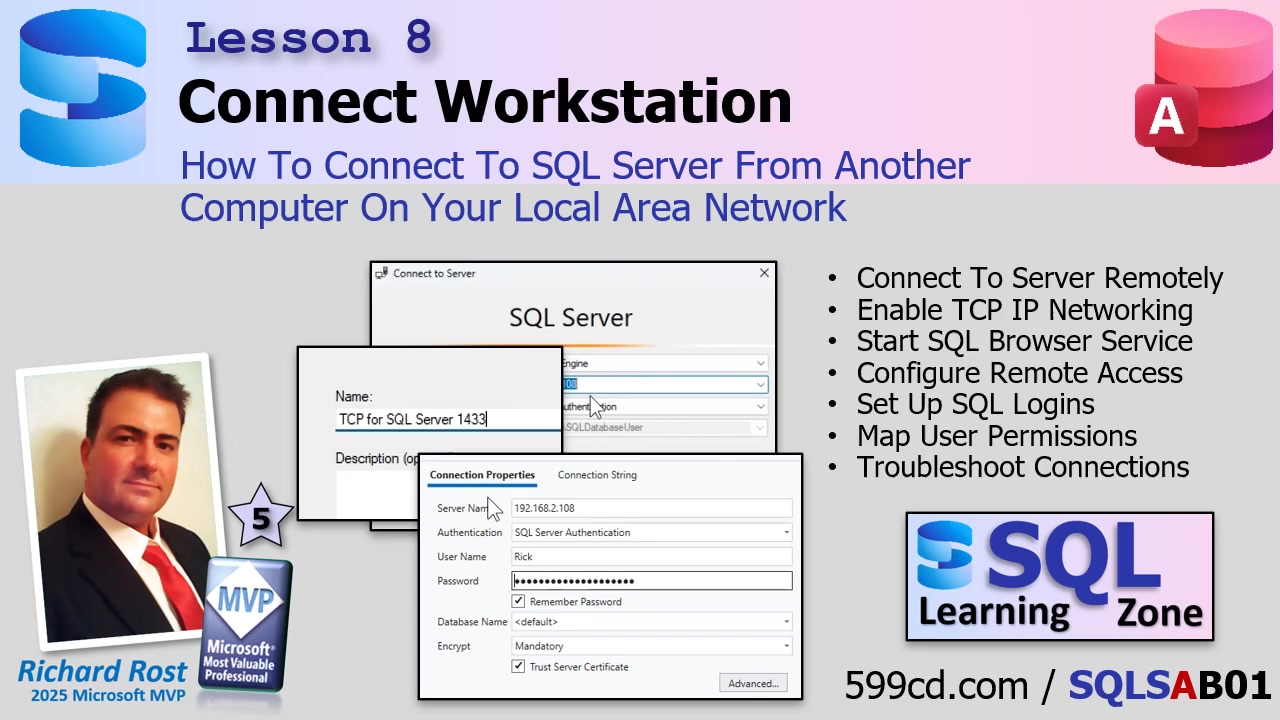
How To Connect To SQL Server From Another Computer On Your Local Area Network

Okay, so you've got SQL Server installed and you've been happily building away - on the server itself. But in the real world, you need to connect from another machine on your network. That's where the fun (and, let's be honest, a little bit of chaos) begins. Most of you aren't going to work directly on the server; that thing's going to be stuffed in a corner doing its thing while you and your users connect from your workstations. Today we're tackling how to set up SQL Server for remote connection, what to check when it inevitably doesn't work, and how to troubleshoot so you're not pulling your hair out wondering why SQL Server is giving you the cold shoulder.

Let's dive right in. Most small offices these days are already used to the "split database" setup, using Microsoft Access or similar. If you've got file sharing set up, and you can browse shared folders between your server and your PC, you're halfway there. This is important - not because SQL Server needs file sharing to work, but because if your machines can see each other, it means your network permissions and authentication are in place. Think of sharing a folder as a basic "connectivity test" before you start with SQL Server itself.

By default, SQL Server Express is locked down big time for remote connections - right out of the box, it'll only allow local connections until you say otherwise. So let's walk through what needs to get flipped and poked to open up your server to the network.

First up, make sure SQL Server is actually running and that you can connect to it locally using something like SQL Server Management Studio (SSMS). Obvious, I know, but it's the #1 "duh!" moment that keeps people up at night.

Now, crack open the SQL Server Configuration Manager (search for "config" in Start if you don't know where it is). Pin it to your taskbar - you'll be using this a lot until you're through setup. In there, expand the SQL Server Network Configuration (ignore the 32-bit one!), then find the right instance (like "Protocols for SQLEXPRESS"). Look for TCP/IP. Bet you a donut it's disabled. Right-click and enable it. But - here's the kicker - the change doesn't take effect until you restart the SQL Server service. So, hop over to "SQL Server Services," right-click your server, and give it a restart.

Next, fire up the SQL Server Browser Service. This handy little background service helps workstations find your server by name over the network. It often defaults to "stopped" for security. Set its Start Mode to "Automatic" and start it up. Again, if you're in a high-security environment, you might want to leave this off, but for most folks, just enable the thing. Restart the SQL Server service again as needed so your changes stick.

After that, check your Windows Network Profile - make sure your server is on a Private network, not Public. Private means silly devices like your coworkers' laptops are allowed to see you. Public is for airports, coffee shops, and anyone paranoid about hackers. Set it right in your network settings or you'll be chasing your tail when connections fail for no apparent reason.

Now, authentication. We're enabling "Mixed Mode," which lets you use both Windows Authentication (where access is based on Windows user accounts) AND SQL Server Authentication (which uses usernames and passwords stored within SQL Server itself). Windows Authentication is perfect if your network is already humming with local user accounts that match between server and workstation. If you want to avoid potential headaches with mismatched logons or if you're connecting over the internet, SQL Authentication will likely be your friend. Head into SSMS, right-click your server, and under Properties > Security, flip the server authentication setting to "SQL Server and Windows Authentication mode." You'll need to restart the server again for this to take effect.

Creating logins is next. In SSMS, drill down under Security to Logins. Here you can add SQL Authenticated users (specify a username and password) - and choose what each one can do. Go to "User Mapping" and assign permissions by database. If a user needs full design access (like you), give 'em db_owner. If it's a standard user, just assign db_datareader and db_datawriter - they can interact with data but not wreck your carefully-crafted table designs. Repeat as needed for different users or permission levels.

At this point, you might be tempted to try connecting from your workstation. Sometimes, when browsing the network for available servers in SSMS, nothing shows up. Don't panic. That "browse" feature is notoriously unreliable (and seasoned SQL pros ignore it entirely). Instead, try connecting by directly entering your server's IP address. Not sure what it is? From your workstation, run a command prompt and type ping [server name] (e.g., ping Kirk). Or, go to the server, open a command prompt, and type ipconfig for the IPv4 address. Use that in your connection string.

If your connection just hangs, odds are the firewall is blocking you. By default, Windows Firewall says "no thank you" to incoming SQL Server connections on port 1433, which is the default. To change this, open Windows Defender Firewall with Advanced Security on the server. Add a new inbound rule to allow TCP traffic on port 1433. Be sure to make it active for your Domain and Private profiles - not Public. Give the rule a friendly name so you remember what it is later. Once you've done this, close the firewall window and try connecting again. If all is well, your connection should go through instantly.

Bonus tip: for smoother connections long-term, consider setting a static IP address on your SQL Server box. That way you won't have to chase it around the network every time it reboots and gets a new IP lease.

If you're doing Windows Authentication, make sure the accounts your users log in with exist on both the workstation and the server, with matching usernames and passwords (unless you're on a domain, in which case things are slightly less crazy). It's easiest to add the user on the server, set the permissions in SSMS, and then just log in to the workstation with the same account. If you're running a small network and folks log in with Microsoft accounts (the kind with an email), you might run into authentication snags - SQL Server isn't always thrilled to work with those on peer-to-peer networks. In that case, SQL Authentications might just save your sanity.

If you've followed all these steps in order - server running, TCP/IP enabled, Browser Service running, network profile set to Private, authentication modes set, users created and mapped, firewall port open - you should be in business to connect from your workstation. If not? Time to consult your IT wizard, or at least post in the forums so we can commiserate together. And if you're still stuck, there's always my file-sharing video or a future deep dive into Windows networking (let me know if that would save you from more headaches).

That's the rundown for getting SQL Server connected from another machine on your network. If you got it working, high five yourself! If not, review the steps, pay special attention to TCP/IP and firewall stuff, and don't be afraid to reach out for help. For the full walkthrough, just watch the video embedded above - sometimes seeing it on screen does wonders for troubleshooting.

Live long and prosper,
RR

Wednesday, February 18, 2026

How To Create An Update Field VBA Helper Function In Microsoft Access

Tired of clicking and navigating through forms or slogging through loads of code just to update a simple value in your table? If you're managing a Microsoft Access database and you find yourself constantly opening forms or repeating long record set code to change a single field, it's time for a smarter approach. Today, I'll walk you through how to build a versatile VBA helper function that lets you update any field, in any table, with one quick line of code. No more messy SQL, dealing with quotes and date formats, or wasting time on "boilerplate" record set procedures. Sound good? Let's dive in.

Imagine this scenario: way back when, I built a database to track orders for my business. Over the years, it grew like a Christmas tree - bulbs and wires running everywhere! At one point, I was opening forms all over the place just to automate little updates: pop open the customer form, change a value, close it again. It worked, but it's sloppy and inefficient. As any long-term Access developer will tell you, relying on open forms for automation is a recipe for frustration and bugs, especially as your database (and ambitions) grow. That's why I eventually realized the smart move is to handle simple updates purely in VBA behind the scenes, no forms required.

When you need to update a field in Access, you've basically got three options: write a custom SQL update statement, wrangle with record sets, or (now!) use a reusable update helper function. Sure, SQL is fast and efficient, but it gets messy fast when you're concatenating strings, worrying about punctuation, date formatting, and handling null values. Plus, one little typo can blow up the whole thing. Record sets are more flexible but, honestly, if you just want to change one measly field, the six or ten lines of code needed are just a hassle. Multiply that by dozens - or hundreds - of times across your database and it quickly becomes a nightmare of copy-and-paste repetitiveness.

Instead, let's build a helper subroutine, living in your global module, that standardizes this entire process. The goal: quick, reliable updates with minimal fuss. Here's the approach - no code here, but I'll outline how it works so you can implement it yourself (detailed code is in the video if you want to see every step).

You'll want your helper to accept four key pieces of information: the table name (as a string, like "customerT"), the WHERE condition (also a string, like "customerID = 4"), the field name you want to modify, and the new value. Here's the beauty: by making the new value a 'variant', the helper can accept anything - string, date, number, even null. No more worrying if you're passing the right type.

Within the helper, you'll open a record set against your chosen table, using a SELECT * (the star means "all fields"). Unless you're worried about needing maximum speed on very large tables, pulling in all fields helps ensure future compatibility and prevents those "how did I forget to include that field?" moments. Pay attention here: in your SQL statement, don't forget the space before 'WHERE'! It's a classic beginner stumble - missing that space will gum up your syntax and make Access throw a fit.

Now, you'll edit the record set to set the field's new value. Instead of hard-coding a field name, you pass it as a variable - slick and flexible. After updating, save and close up shop: 'update', 'close', 'set to nothing'. And you're done! One quick call to this function will handle your update anywhere you need it, with a lot less typing and a lot fewer headaches.

Here's an example: let's say you want to set customer #6 (Malcolm Reynolds, perhaps) to have a family size of 10. Simply pass in "customerT", "customerID = 6", "familySize", and 10. Done! No record sets to fiddle with, no SQL string to compose, just a straightforward function call. Check your table - in this scenario, Malcolm's family size is now 10, and you barely broke a sweat.

Trust me, this may not seem glamorous, but if you've been battling with updating values across a complex Access database, this tiny function will save you buckets of time - and probably a few strands of hair. Not only does it clean up your code, but if you ever need to change how updates are handled (maybe to add error checking or logging), you only have to do it in one place.

Of course, a little wisdom: use this helper for those one-off or light-traffic updates. If you need to update a huge batch of records, or change 20 fields in a loop, SQL or tailored record sets are still more efficient - this helper isn't meant for heavy lifting, just quick fixes and repetitive utility calls. But as a convenience tool, it's a game-changer: less repetitive typing, fewer copy-paste errors, and no more breaking workflows every time you refactor a table or form.

If you want to expand things even further - like adding error handling for missing records, supporting multi-record updates, appending text, or safely incrementing numeric fields - be sure to check out the video above for the full walk-through and extended explanations.

The real take-home message: stop repeating yourself. Build small, reliable helper tools to handle frequent tasks and your codebase (and brain) will thank you. Save the custom SQL for where it really matters!

Questions? Comments? Tell me how you plan to use this helper, or what other headaches you've solved with little VBA shortcuts! And remember: if you want the blow-by-blow code and see it live in action, watch the video embedded above.

Live long and prosper,
RR
Monday, February 16, 2026

Way Too Late Last Night

Scotty, Geordie, and Richard in the Enterprise-D engine room

So yesterday I decided to make what I thought would be a quick, harmless, “ten-minute improvement” to the website database. You know the kind. The little tweaks you do just to smooth things out. Streamline a process. Make it cleaner. More efficient. Cross all the i’s and dot all the t’s. Yes, I know that’s backwards. I say it that way on purpose. It’s tradition at this point.

Anyway, this particular process dates back to Ancient Richard Times. We’re talking years ago, before I knew any better. It runs a recordset loop and, as part of that loop, it actually opens up the customer form to do some work. Horrible practice by today’s standards, but it’s been surprisingly bulletproof. Maybe once a month it locks up, and my Watchdog utility steps in, restarts Access, and life goes on.

But yesterday I watched it happen and thought, “Well that’s silly. I can fix that.” No need to open a form. Just handle everything in the background with a proper recordset. Cleaner. Faster. More elegant.

Famous last words.

I rewrote it. Beautifully, I might add. Proper error handling. Nice clean logic. The kind of code you sit back and admire for a second before moving on. What I did not realize, however, was that other parts of the system were quietly depending on that form being open. Not for the main task, but for things that happened afterward.

So now this function broke that function, which broke another procedure, which triggered a cascade failure worthy of a warp core breach. At one point I seriously considered restoring from the pre-change backup and calling it a night. Crawl into bed. Pretend none of this ever happened.

But no. The perfectionist in me took the conn.

So down the rabbit hole I went. Fix this dependency. Rewrite that routine. Adjust the follow-up process. Then I discovered the user upload procedure, the one that pushes data from my local Access database to the web server, also relied on the old behavior.

That fix broke credit card processing.

Because of course it did.

Next thing I know it’s 4:00 in the morning. I’m squinting at the screen with my one good eye, testing transactions, running uploads, watching logs scroll by. I even had to switch the VBA editor into dark mode because the white background was burning a hole straight through my skull. So if you notice future videos looking a little more “night shift friendly,” that’s why.

The good news is by Monday morning everything was stable again. Systems operational. Engines back online. No customers the wiser.

But there were a couple of solid takeaways from the adventure.

First, backups are life. I had multiple. I made another one right before starting the “ten-minute fix.” At any point I could have rolled back instantly. That safety net makes deep surgery possible.

Second, it’s always the ten-minute changes. Every time you think, “I’ll knock this out before dinner,” you are lying to yourself. That is never a ten-minute change. That is a six-hour marathon wearing a fake mustache.

And the final lesson, especially for anyone doing client work, is about estimates. Never give the optimistic number. Never tell the captain it’ll take two days.

You tell him two weeks.

Because when you pull it off in five days, you look like a miracle worker. Scotty understood this. Reputation management through strategic pessimism. Don’t be Geordie giving accurate engineering timelines.

Be Scotty.

End log.

LLAP RR

Sunday, February 15, 2026

Microsoft Access Day: March 27, 2026 in Redmond, Washington. Meet Access Team Members & MVPs

Attention, Access developers - here's an event you'll actually want to put on your calendar. If you're serious about Microsoft Access, whether you're building databases as your full-time gig or you're just the "Access guy" everyone in the office calls when anything needs fixing, there's something big coming up that you'll want to know about: Access Day 2026.

This isn't just another generic tech conference where you have to sit through hours of buzzword bingo and hope that someone, somewhere, mentions something relevant to Access. No, Access Day is the real deal: a one-day event, happening Friday, March 27, 2026, in the Redmond, Washington area - that's right in Microsoft's backyard. If you're within road trip range or you've been waiting for a reason to visit Seattle, this is it.

I attended Access Day previously and it's honestly some of the best time you can spend with the Access community. There's a mix of presentations, lively hallway conversations, and, best of all, actual members of the Microsoft Access team are there. They share what's coming next, answer questions, and sometimes even soak up a little developer feedback (they're good sports about it).

Sessions include starting and growing a consulting business, taking over and maintaining existing Access applications, working with Azure SQL for secure remote access, solving the "New Outlook" problem with Graph API authentication and MFA, and using AI as an Access development assistant to export objects, analyze code, and identify performance and security issues.

Of course, the Microsoft Access product team will be there giving updates and sneak peeks at what's next for Access. It's a rare chance to ask them questions directly - just try not to overwhelm them all at once.

There's even talk of an optional dinner afterward, so you can keep the geek talk rolling late into the evening. If you've ever wanted to debate DAO vs. ADO over a nice steak or just pick up a few new tricks from fellow developers, this is your crowd.

Registration is open now. I'll drop a link with the details below. If you're able to make the trip, I highly recommend it - not just for the presentations, but for all the stuff that happens in between. You'll leave with new ideas, new connections, and maybe a couple of new friends who actually want to talk about Access as much as you do.

If you want the full walk-through and all the details, check out the video above. Hope to see you there!

Live long and prosper,
RR

Saturday, February 14, 2026

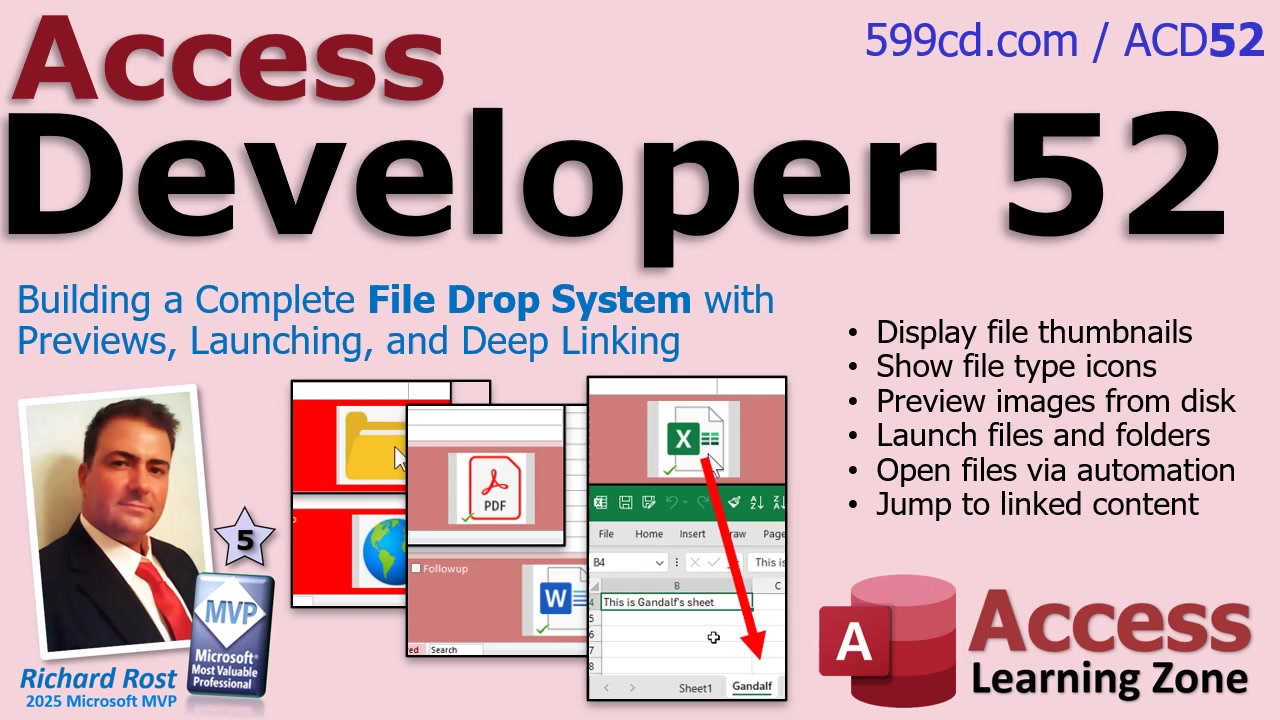
Access Developer 52: Building a Complete File Drop System with Previews, Launching, and Deep Linking

Managing files directly inside your Microsoft Access database doesn't have to be a clunky experience. Imagine being able to drag and drop files, preview them instantly, and launch anything - from documents to folders, web links, or even other Access databases - right from your Access form. Taking your database to this professional, super-productive level is completely doable, and it's exactly what we're tackling today.

Let's dive right into creating a file drop system that's genuinely useful. The first step is setting up the ability to click and drag any file onto a form, which isn't just a party trick - it keeps your files organized and tightly integrated. With each dropped file, you'll have Access automatically store and track it in a designated folder, all from the comfort of your database interface.

Now comes the fun part: transforming simple file storage into a user-friendly preview and launch system. The magic starts with image thumbnails and recognizable icons for common file types - Word, Excel, PDF, and so on. This lets you scan your files visually instead of decoding mysterious file names. Want to launch a file? Just click its thumbnail. Whether it's a document, a web link, a folder, or even another Access database (with custom command-line settings, no less), you're covered with one centralized interface.

But we're not stopping at just previews. Let's talk about performance. Quick previews mean no awkward waiting for giant attachments to load, even if you're dealing with folders or hyperlinks and not just traditional files. The system also gracefully supports unknown file types - so, you know, you're never stuck with the dreaded blank icon of confusion.

Automation really makes this setup shine. Integrating with Excel and Word, you'll set up routines to open a particular worksheet directly, or jump straight to a header in a Word document, or even trigger a search as soon as the file launches. This isn't just convenient - it's a major time-saver if you routinely work with large or complex documents.

So if you're interested in elevating your Access app into a full-fledged file management powerhouse, this is the way to go. It saves time, reduces errors, and just plain feels cool. If you want all the gritty details, hit play on the video above for a step-by-step walkthrough. And remember, you can always reach out via my website or comment below if you run into any snags.

Enjoy building your own next-level Access file system!

Live long and prosper,
RR

When Policy Overrides Science

This morning's reflection came to me the way many of them do. Coffee in hand. News feed scrolling. Brain booting up somewhere between "system check" and "engage warp drive." And then I hit a headline that made me stop mid-sip and just stare at the viewscreen.

When policy overrides science - viewscreen warning about ignoring scientific data

The current administration has reversed the EPA's long-standing "Endangerment Finding" on greenhouse gases. In plain English, that's the official scientific determination, first made in 2009, that greenhouse gases like carbon dioxide and methane pose a danger to human health and the environment. That finding wasn't based on opinion. It wasn't based on politics. It was built on decades of atmospheric data, epidemiology, climate modeling, and peer-reviewed research. In other words... actual science.

And here's the key point that keeps echoing in my head: this isn't some unresolved debate in the scientific community anymore. Among climate scientists, the role of greenhouse gases in driving climate change is settled science. You'll always find outliers. You can find someone who thinks the Earth is flat too, but the overwhelming consensus, backed by measurable data, is clear. Greenhouse gases trap heat. Rising concentrations correlate with rising global temperatures. That warming has downstream effects on weather, oceans, agriculture, and public health.

So when a policy decision comes along and effectively says, "We're no longer recognizing that scientific conclusion," it's not just regulatory change. It feels like looking at a warp core breach alarm and deciding the computer is being dramatic.

Now, I try very hard not to turn this platform into partisan space politics. I've got students across the entire political spectrum, and that's exactly how it should be. You can believe whatever you want about taxes, spending, regulations, or the proper size of government. Reasonable people can disagree on policy outcomes all day long.

But science isn't supposed to be partisan. Science is the operating system everything else runs on.

And that's where this one sticks in my craw, because computers, databases, and software development, the stuff we do here every day, are built entirely on scientific principles. Boolean logic. Electrical engineering. Semiconductor physics. Error detection. Mathematical modeling. You don't get to vote on whether binary works. Imagine trying to run Access on "feelings" instead of structured query logic. Your SELECT statements would return whatever the server felt like giving you that day.

That's not how reality works. The scientific method is why your code compiles, your GPS knows where you are, and your backups restore when things go sideways. We test hypotheses. We gather data. We replicate results. We refine models. That process is the closest thing humanity has to a universal debugging tool.

And when I look at this EPA reversal, it doesn't feel isolated. It feels like part of a broader pattern we've seen over the years. Climate regulations rolled back or weakened. International climate agreements abandoned or sidelined. Scientific advisory panels reshuffled or reduced. Environmental monitoring and research programs cut back. Pollution and chemical exposure limits loosened in certain sectors. Public rhetoric that frames established science as optional, exaggerated, or politically motivated.

You can argue the economics of any one of those decisions. You can argue regulatory burden. You can argue industry impact. Those are valid policy conversations. But dismissing or overriding the underlying science itself? That's where it veers into "we're ignoring the sensors because we don't like the readings." On the Enterprise, if Geordi tells Picard the hull integrity is down to 20%, Picard doesn't say, "Well, let's get a second opinion from someone who doesn't believe in hull breaches." He orders repairs. Because physics doesn't negotiate.

That's really the heart of today's log. This site, this community, everything we do here, is rooted in scientific thinking. You build and test your database. You validate your inputs. You verify your outputs. You trust repeatable results over gut instinct. That mindset is what makes someone a good developer, a good troubleshooter, a good systems architect.

You don't fix bugs by ignoring error messages. You don't optimize performance by pretending metrics don't matter. And you don't advance civilization by sidelining the scientific method when it becomes politically inconvenient.

Now, I'm not saying science has all the answers and that it's perfect. It doesn't, and it's not. Science is iterative. Models improve. Data gets refined. Conclusions get updated as new evidence comes in. That's the strength of it, not the weakness. It self-corrects. It's the best thing we've got for understanding the universe and how things work.

But throwing out a 17-year scientific foundation that's only grown stronger with time? That feels less like refinement and more like unplugging the computer because you didn't like what was on the screen. At the end of the day, whether you're writing code, building databases, or piloting a starship, reality still runs on the same core engine: evidence, measurement, and reproducibility.

Ignore that engine long enough... and eventually something critical stops working.

LLAP
RR

dotnet CLI list

dotnet CLI list by Alex Hedley

from Computer Learning Zone News https://599cd.com/3784

Friday, February 13, 2026

The One Dangerous VBA Command That Can Freeze Up Microsoft Access - QQ #79

Ever feel like your Access database is a little... slow on the draw? There's one powerful VBA command that can trick your database into looking lightning fast, but if you use it wrong, you'll freeze your entire application faster than you can say "force quit." On top of that, let's answer some burning questions about slow queries, optional filtering, modernizing with SQL Server, safely sharing front ends, exporting all your code, and a bunch of rapid-fire troubleshooting tips. Ready? Let's make your Access life easier - and safer.

If you've ever noticed annoying flicker or laggy form redraws during heavy processing, you might be tempted to use DoCmd.Echo False in VBA. This command turns off screen updating to speed up code that rapidly updates forms or records - makes everything look smooth as butter. But here's your warning: if you turn Echo off and forget to turn it back on (or your code errors out), your whole Access application looks frozen. It's not technically locked forever, but you can't interact with the interface until you restore Echo back to True. Trust me, every Access developer learns this the hard way - at least once!

So, how do you avoid disaster with Echo? First, NEVER sprinkle DoCmd.Echo False into your code without also ensuring DoCmd.Echo True gets called no matter what. Good error handling is your best friend here. Wrap your loops with error traps: if the code crashes, Echo turns back on before exiting. If you ever do find your screen locked in developer mode, try opening the VBA editor, use the Immediate Window and type DoCmd.Echo True. Sometimes, that'll bring Access back to life. But always back up before playing with Echo - or risk losing an afternoon to debugging your own mistake.

For a safer alternative, Me.Painting = False only shuts off redraw for the active form, not the entire app. Use this if you just want to prevent flicker during updates and you don't need global screen changes. It's much less risky and saves you from a global freeze if things go sideways.

Now, let's shift gears and talk databases in the cloud. A common misconception: "My web host says they support Access! Can I just upload my backend ACCDB and connect to it from home like SQL Server?" Sorry, not really. Access is file-based, expecting super-fast local file sharing. Stick an ACCDB on your web server and connect via HTTP or FTP and you're just begging for data corruption - especially with multiple users. Web hosts support hosting ACCDB files only for local web code (like ASP.NET) - not for remote Access desktops over the Internet. If your goal is true remote data, you want SQL Server (or similar). That's built for cross-network connections, secure logins, and concurrent users. Web hosts like Winhost do a solid job with SQL Server hosting (and it's not pricey, either). I host my own site with them, and they're fantastic. If you want details or a walk-through on moving Access online, check out my course on migrating to SQL Server.

Another quick win: if you hate how Access query windows never remember your column widths or layout, I get it. But don't blame resizing for query weirdness - lost columns or prompts for missing field names usually mean you changed the query logic or renamed something in your table, not just moved the window around. Save yourself the headache and use forms in Datasheet View if you crave a persistent, user-friendly layout. Queries handle the data logic, forms are for the pretty face. And as a rule, your users should never see raw queries or tables anyway - a locked-down form experience is always better.

What about connecting multiple users to your database backend? If you're still having users open the SAME front end file from a network share, congratulations - you've entered Access Danger Zone. This is a recipe for locking issues and corruption. Proper setup: one shared backend, local front ends for every user. Yes, this setup is worth the few extra clicks it takes to update front ends, and you'll thank yourself the first time office-wide corruption doesn't take down your database.

If you've ever had to dig for a field name in a messy database, exporting all your VBA code and object definitions as text can be a lifesaver. There's no giant "Print All Code" button, but you can automate exporting modules, forms, and reports using VBA's SaveAsText command. It's perfect for code search, backups, and even sending object code via email if you're dealing with overzealous firewalls. If inconsistencies in field names are giving you a headache, that's a screaming sign it's time to standardize - future you will be very grateful.

Now, a few quick-fire fix-its: If you run an append query, then delete the new record and try again, suddenly Access wants a parameter - most likely, you've renamed a field or the query's source changed. Pop open Design View and check every reference - usually it's just a typo. If you're getting exactly "99" records instead of all, even when you set "Top" to "All," you probably have a lingering TOP clause, a filter, or an aggregate hiding somewhere in your chain of queries or forms - hunt through each data source until you find the culprit.

Want a query filter field to be optional? Let blank text boxes show all records instead of filtering? Use a wildcard in the criteria. By default, if the form field is blank, feed an asterisk (*) to your query. This way, you show everything until the user adds a filter. Makes for a much friendlier end user experience - nobody likes being forced to type something just to see their records.

Thinking Access is old? I get that comment all the time, but here's the truth: Access is battle-tested, fast, easy to develop with, and actively maintained. Pair it with SQL Server and you have a full-blown modern client-server solution on the desktop. If someone says Access isn't modern, they've probably never really built anything serious with it. Don't let the naysayers talk you out of a great tool just because it's got some years under its belt.

Here are a few more odds and ends: If Windows updates and every installer are suddenly failing, don't waste days poking through the registry. Back up and reinstall Windows - it's usually faster in the long run. Wondering how to automate relinking tables or efficiently update user front ends? There are great tools like J Street Access Relinker, or you can handle it yourself in VBA (I cover both). If you're a coder at heart, little quality-of-life utilities - like a custom VBA function to output multiple new lines at once - make everyday programming much smoother. Sometimes, it's these small touches that add the most polish to a professional database.

And yes, if you want to branch out into VBA for Word, Excel, or even Visual Studio programming, there are free beginner resources available (on my site and on YouTube), and a bunch of courses for Access, Excel, and more. If you enjoy nerding out, check out the next Access Day event coming up, or stop by my website for more free goodies, templates, or even some stylish merch for the Access enthusiast who has everything.

Bottom line: Use Echo with care, wildcards make optional query parameters a breeze, always use local front ends, and don't be afraid to export (and wrangle) your code for cleaner development. Post any questions below and let me know what you want to see answered next!

That's a wrap. You can always watch the video above for more details and the full walk-through - happy coding!

Live long and prosper,
RR
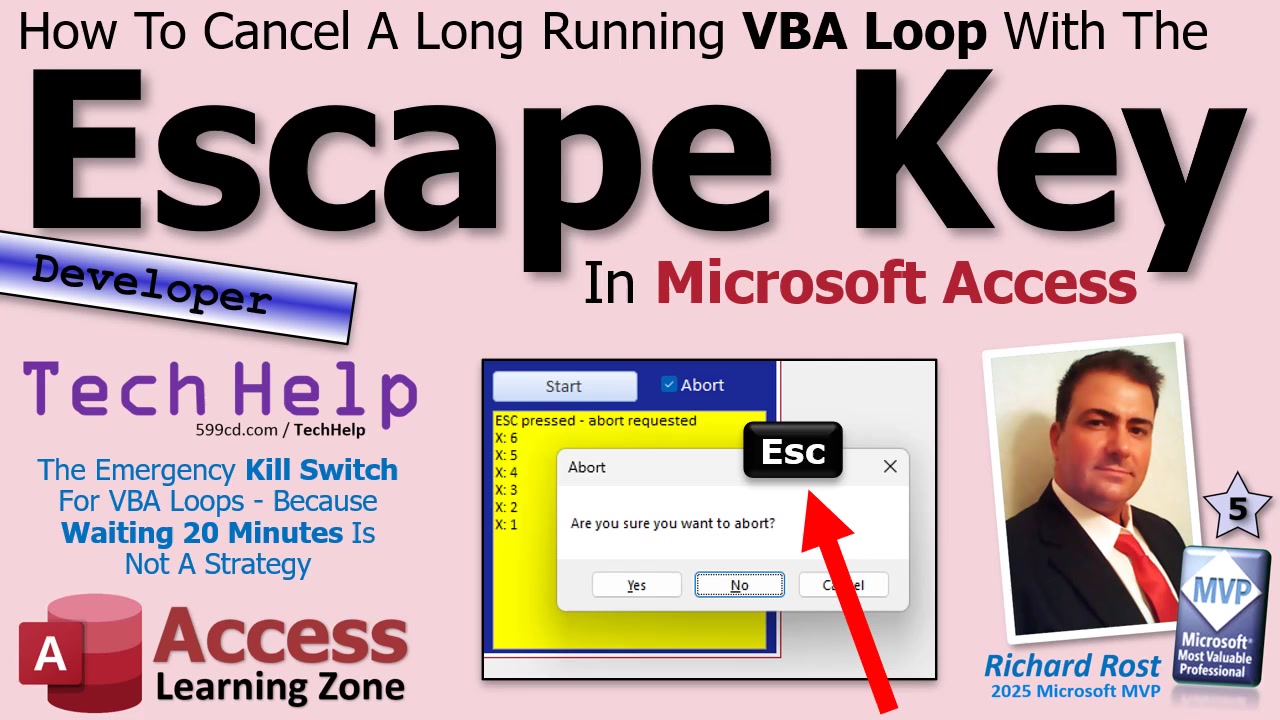
Thursday, February 12, 2026

How To Cancel A Long Running VBA Loop With The Escape Key In Microsoft Access

Tired of waiting for a never-ending Access loop to finish, just so you can realize you needed to hit cancel three minutes ago? Let's talk about a simple way to let your users abort a running process with the keyboard - no more clunky checkboxes, no frantic clicking, and (most importantly) no forced shutdowns required. The Escape key can be your new "panic button." Here's how and why you should set this up in your own databases.

When you create long-running operations - like sending out 10,000 emails in a batch - your users might suddenly realize they need to stop the process. If you don't give them a way to abort gracefully, their options are ugly: force-quit Access, cross their fingers, or just stare in silent dread. Historically, maybe you added a hidden checkbox or "abort" button, but those solutions aren't very friendly (especially to keyboard-focused users or anyone with a penchant for hitting Escape in emergencies). Let's teach your database to listen to the Escape key and stop those runaway loops on command.

Let's start with the basic approach: tying an on-form "Cancel" button to the keyboard. Access forms have a handy built-in feature: any command button set to Cancel = Yes automatically responds to the Escape key. So, if you stick a "Cancel" button on your form and connect it to your abort logic, your users can smash Escape and halt the process without fumbling for the mouse. Just make sure you wire up your loop so it checks regularly for an abort request.

But here's a power tip: don't forget about DoEvents. This little command sprinkled inside your loop is what lets Access recognize outside actions - like button clicks or keys being pressed. Without DoEvents, your process hogs the show and ignores everything else, giving the illusion that Access has frozen. So, always include DoEvents (often inside a status update function) during each loop iteration.

Now, for those who want an even cleaner keyboard solution, you can skip the "Cancel" button entirely and work directly with keyboard events. Here's how:

1. Open your form's properties and set Key Preview to Yes. This tells Access your form wants first dibs on all keyboard activity, regardless of which control is active.
2. In the form's On Key Down event, check for the Escape key by testing If KeyCode = vbKeyEscape.
3. When Escape is pressed, set your abort variable (maybe Abort = True) and swallow the key (KeyCode = 0). For bonus feedback, update the status display so users know you heard them.

This approach is more "global" to the form, so you don't need a visible user control at all. As long as your loop keeps checking for Abort = True (don't forget that DoEvents!), users can bail out instantly, just by hitting Escape.

Keep in mind, the responsiveness depends on how often you check for that abort signal. If your loop has a long delay (for example, sleeping a full second between iterations), the cancel might feel sluggish. For faster response, either shorten the sleep interval or check for aborts in smaller increments inside your main loop.

What about taking this further, so you can trap Escape key presses throughout your entire database, not just on a single form? That's possible too with a tiny bit more advanced VBA, and I cover that in my member-exclusive extended tutorials. (Not a member? Time to consider an upgrade… there's a code vault packed full of goodies over on my website!)

Bottom line: making the Escape key your abort switch gives your users a fast, intuitive way to kill a stuck process - and it makes your applications feel a lot more professional and user-friendly. I'm a keyboard person myself, so this kind of improvement just feels natural.

If you want the detailed walk-through, check out the video above. Have questions, or want to share your own favorite abort methods? Let me know in the comments!

Live long and prosper,
RR