Brace yourself, because today we're cracking open the world of queries and views in SQL Server - no more hiding behind the Access wizard. It's time to see how SQL Server lets you filter, sort, and analyze data directly on the server, saving your PC from pulling in a gazillion records it doesn't need. This unlocks major power for working with big databases or even those classic Access setups that are starting to feel a little creaky with tons of records.
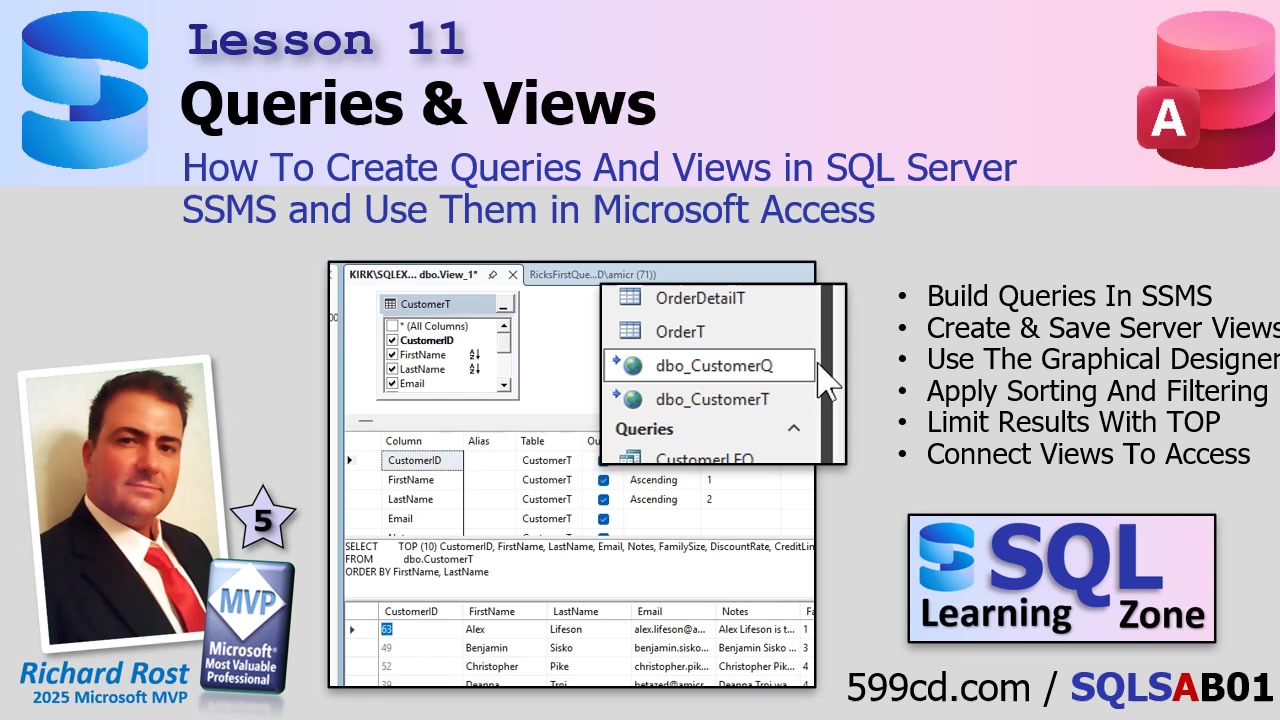
First things first: connect to your database in SQL Server Management Studio (SSMS). You'll notice some things look pretty familiar if you're coming from Access, but there are enough differences that you need to get oriented so you don't walk into a pit of rookie mistakes. Click on New Query in SSMS, and don't miss out on the ability to toggle the zoom with your mouse wheel - handy if, like me, your eyes are a bit older than you want to admit.
SSMS comes equipped with a graphical query editor - think of it as the closest thing to Access's design grid. You can right-click and choose "Design Query in Editor" to bring up the familiar table-and-fields view. Checking the boxes for fields like CustomerID, FirstName, LastName, CustomerSince, or CreditLimit starts to build your query visually. Down below, you'll see SQL building itself automatically as you select fields. It's a little different from Access: here, the fields are listed vertically, not horizontally, and that flips your AND/OR logic! In Access, it's AND across rows, OR down; in SSMS, it's the other way around - AND down, OR across. Once you get used to that, it's smooth sailing.
Want to create an alias for a field? Easy. Set "FirstName" to "FN" by adding an alias, and SSMS adds it as "FirstName AS FN." Unlike Access, where you'd do it as "FN: FirstName," get used to this new syntax. Filtering and sorting fields is also familiar; just set them like you would in Access, but be aware that SSMS gives you actual sort order numbers - so it's not the field's position that decides which sort comes first, but the number you set under Sort Order. Makes sense after a few rounds.
If you want to filter names, put in a value like "Richard" for FirstName, and SSMS will automatically convert it to the right SQL with an N prefix and single quotes. The N just means the field type is NVARCHAR. You can also string together OR conditions (across columns) and AND conditions (down rows), just the opposite to Access - don't get tripped up!
Now, when you run the query, don't let SSMS's little quirks scare you. A red X in the corner? Most likely that's just SSMS's IntelliSense hinting "you might have an error," but if the Messages area says "Query executed successfully," you're good. True SQL errors are shown in the Messages tab and will actually stop your result from appearing.
If you want to jump back into the graphical designer after making changes to your SQL, make sure you select the SQL text you want to edit before right-clicking and choosing "Design Query in Editor" - otherwise, you'll think the designer lost your work, and you'll have a mild heart attack for nothing.
One cool SSMS feature: you can have multiple SQL statements in one window. This lets you execute several queries at once and see separate result tabs. When experimenting, I recommend using the TOP keyword, like TOP 10, to limit how much data you pull down - especially important when you're working with tables containing tens of thousands (or millions) of records. Otherwise, your query might hang for ages while it tries to send every last record across the network. Once you're satisfied it's working, you can remove TOP and get the full dataset.
In SSMS, when you hit Ctrl+S to save your query, realize it saves as a local .SQL file on your computer, not in the database itself. So, "queries" in SSMS are just files - if you want something stored on the server, you'll use a view. You can copy your SQL, right-click the "Views" area in SSMS, create a new view, and paste your statement directly. The graphical designer here is nearly identical to the query editor, so you can build from scratch or from your existing query.
It's worth mentioning that when you save a view with both the TOP keyword and ORDER BY, SQL Server will warn you that ORDER BY inside a view doesn't control the final output's sort order. That's by design - the ORDER BY works in combination with TOP when the view is created, but consuming code (like Access or another query) shouldn't rely on it for sorting. Always sort in your final SELECT statement if you care how your data appears to users.
Now, about my naming conventions: I use a "Q" suffix for views that correspond to queries, which helps me easily tell them apart from tables in Access once I link them. Some folks prefer "V" for views - do what feels right for you. Save your view, get rid of the unnecessary ORDER BY or extra fields you don't need, and now you've got a view (like CustomerQ) sitting right on the server, ready to do the heavy lifting.
Let's bring this full circle with Access. Once your view is ready, go to Access and link to that view via External Data > New Data Source > From Database > SQL Server > Link. Pick your Data Source Name (DSN), select the view, and now it shows up in your Access tables list, usually editable as long as your view isn't too complex. The beauty is that Access now pulls in only the records and fields selected by the view, instead of sucking down the entire customer table just to filter it locally.
This is a huge shift: instead of Access pulling massive data chunks across the network and filtering locally (which destroys performance as your database grows), SQL Server now handles the filtering and sorting, and sends just the finished result set to Access. If your view only selects active customers, that's all Access gets. Fewer records over the wire means a faster, more reliable, and professional setup that won't grind to a halt as your business grows.
As you keep building, make it a habit to push as much logic and filtering into your views as possible. Access is now the presentation layer - the pretty interface - while SQL Server does all the heavy computation. Later in the series we'll go deeper into pass-through queries, dynamic parameters, and advanced view design, so you'll be able to make your database apps faster than ever. Just keep that "server does the work, Access presents the results" mindset, and you'll be ahead of the pack.
A quick word about those squiggly lines that sometimes pop up in SSMS (IntelliSense telling you "invalid object name" even though the thing exists): don't panic! Sometimes it gets out of sync; a quick Ctrl+Shift+R typically helps, but it's mostly cosmetic. Same goes for case sensitivity - you don't usually have to worry about it. If it gets on your nerves, you can always toggle IntelliSense off.
To wrap up: today you learned how to create queries with SSMS's GUI, save them as views on the server, and connect them to Access for blazing fast results. Get used to thinking in views and letting SQL Server do the number-crunching, so you can build scalable, pro-level databases with ease. If you want to watch me walk through every click, the video above covers every detail.
Live long and prosper,
RR

No comments:
Post a Comment